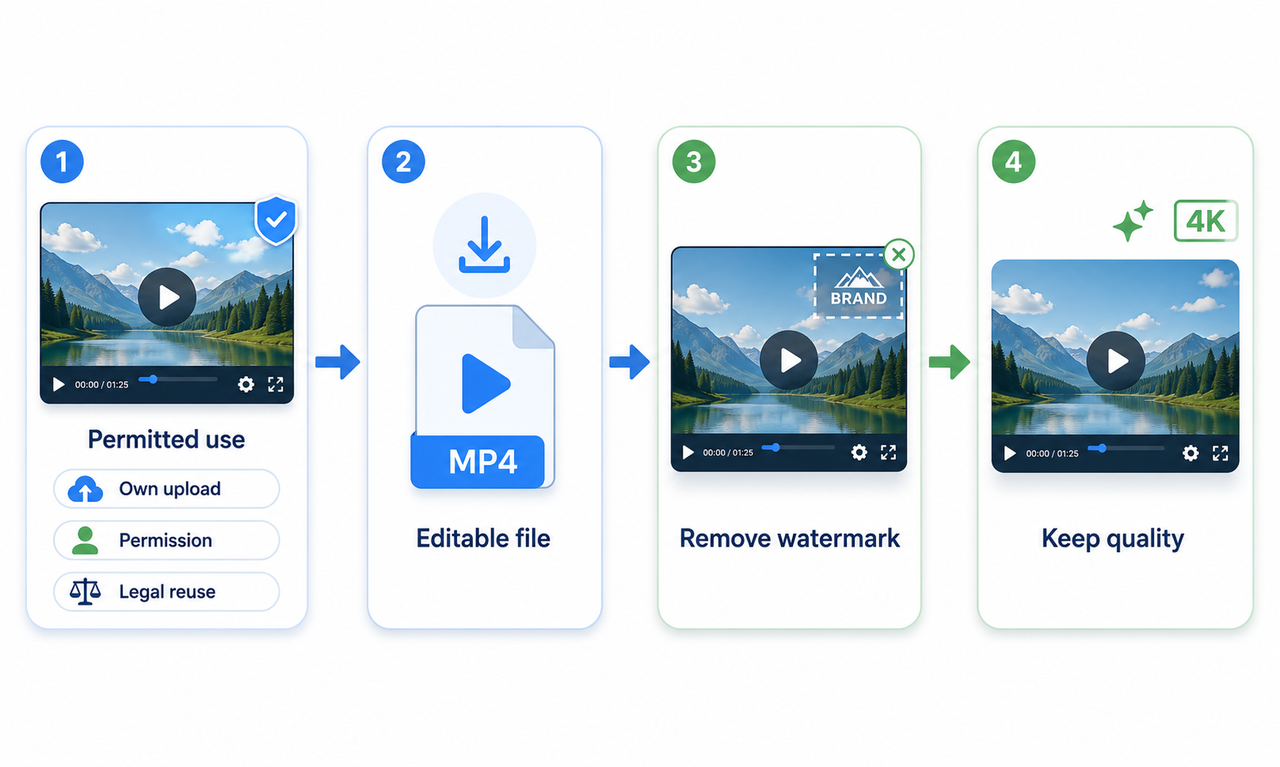
Can Gemini Generate Videos: How to Create One from Text or Images
 RoboNeo TeamOctober 29, 2026
Gemini can generate videos. It has text-to-video and image-to-video. But access depends on your account and subscription plan. We'll go over two ways to generate videos, prompt tips, the main limits, and some alternative tools.
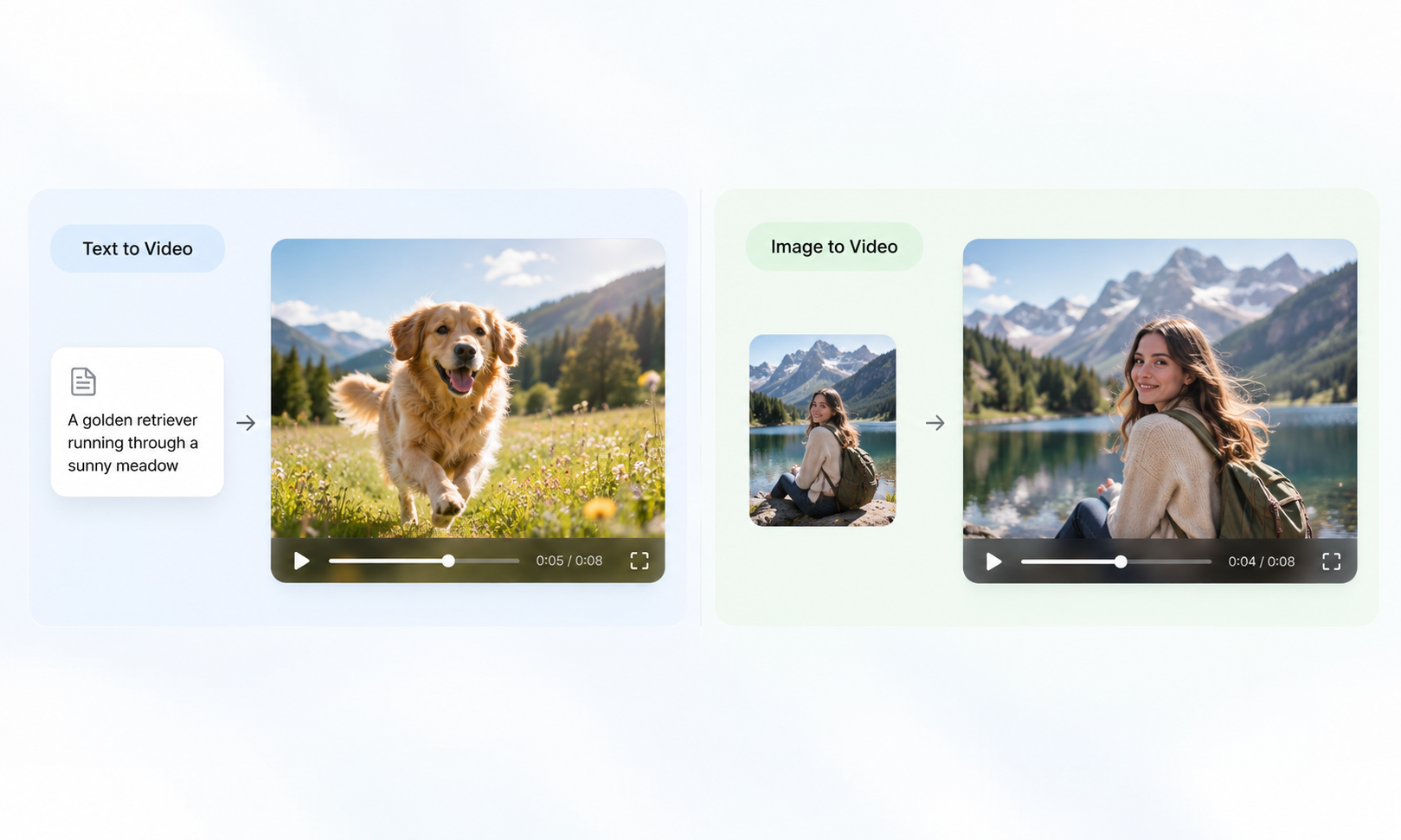
How to Create a Video From Text With Gemini
You can generate video with Gemini using just a text prompt, without uploading any images or footage. The more clearly you describe the subject, action, and setting, the easier it is to guide the result. For a broader introduction, check out this guide to text-to-video creation.
Step 1: Open Gemini’s Video Generation Tool
Visit the official Gemini website, log in to your account, and select the Create video function to access the generation interface.
Step 2: Enter Your Video Prompt
Enter your AI video prompt, describing the subject, setting, action, camera movement, and visual style. If you're unsure how much detail to include, this AI video generation setup guide explains how to prepare prompts and reference materials.
For example: "A golden retriever sprints through a bright, sunny meadow. A side-tracking shot follows the dog's movement. The lighting and color grading give it a natural, cinematic feel."
Step 3: Generate the Video
Click Submit and wait for Gemini to generate the video based on your provided instructions.
Step 4: Review and Refine the Result
Preview the generated video and review the subject's motion, framing, and overall style. If the result misses the mark, you can continue entering instructions to adjust the scene, camera angles, or specific objects.
Step 5: Download Your Video
Once confirmed that the video meets your expectations, click download to save the file directly to your device.
Can Gemini Generate Videos From Images
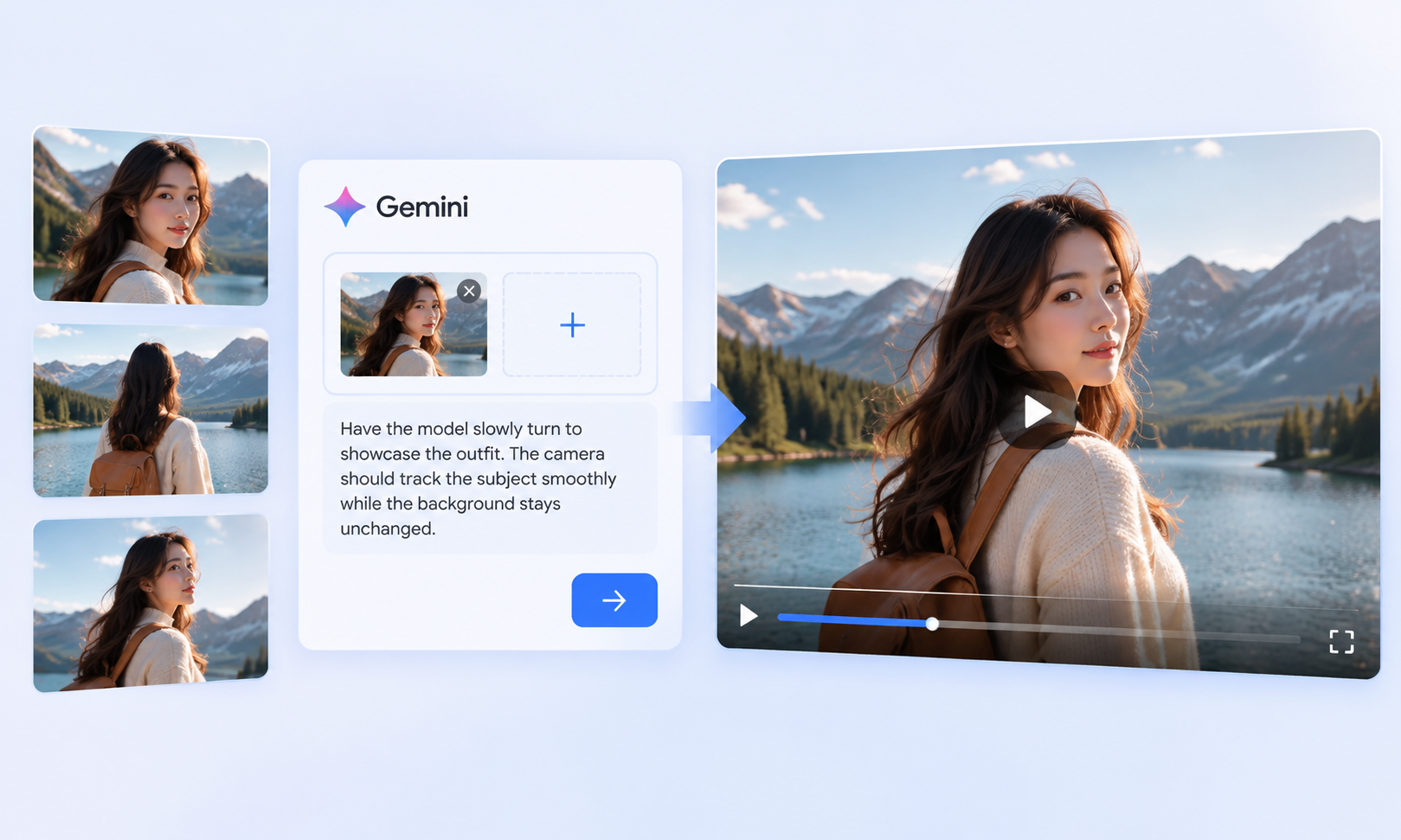
Yes. Gemini AI can generate videos from reference images, including product photos, character portraits, and illustrations. Upload an image and describe how the subject should move or how the camera should behave. For additional creative approaches, explore this guide to making videos from images.
Step 1: Open the Video Creation Tool
Visit the official Gemini website and log in. Select Create video to access the creation interface.
Step 2: Upload Your Reference Image
Click Add image within the input box to upload your reference. Gemini officially supports up to 5 images per upload as reference materials.
Step 3: Describe the Motion You Want
In the prompt box, detail how the subject should move, as well as any desired camera effects or audio. To maintain high consistency for characters or products, you can upload multi-angle images of the subject. Here is a good example: "Have the model slowly turn to showcase the clothing. Use the multi-angle reference assets to keep the outfit consistent. The camera should track the subject smoothly while the background stays unchanged."
Step 4: Generate the Video
After submitting, Gemini generates the video based on your references and prompt. The generation process may take a few minutes.
Step 5: Refine and Download Your Video
Preview the output. If adjustments are needed, you can continue entering prompts to modify the subject's actions, camera angles, or scene details. Once satisfied, save the video to your device.
Text-to-Video vs. Image-to-Video: Which Should You Use?
Both text-to-video and image-to-video are great for AI video creation, but they require different starting points. When choosing between them, base your decision on your creative concept and the materials you have available.
| Comparison | Text-to-Video | Image-to-Video |
| Starting Point | A written prompt | One or more reference images |
| Visual Control | Control the subject, setting, and style through text prompts | Use the original image to guide the subject, composition, and visual style |
| Best For | Creative concepts, original scenes, storytelling, and concept videos | Product showcases, animated photos, character animation, and scene extensions |
| Prompt Focus | Describe the subject, setting, actions, camera movements, and overall style | Describe how the subject should move, how the environment should change, and how the camera should move |
| Need a Source Image? | No | Yes |
| Main Challenge | The generated visuals may not fully match your vision, so you may need to refine your prompt | The generated video may not perfectly preserve every detail or the exact composition of the original image |
If you're starting with an idea but have no visual assets, text-to-video is a practical choice. If you already have product photos, character artwork, or a defined composition, image-to-video offers more visual guidance. You can also explore different AI video generation models to understand which approach fits your project.
What Are the Main Limitations of Gemini Video Generation?
Even though Gemini can generate videos from text and images, it definitely has its limits in real-world use. We've gathered the most common complaints from users to help you plan your projects better.
Limited Quotas and Generations
Gemini uses a compute-based credit system for video generation. How complex your prompt is, along with the model and features you use, will eat up your credits. According to the official docs, quotas refresh every 5 hours, and there is a strict weekly cap.
Video Length Restrictions
Gemini generates clips ranging from 3 to 10 seconds. The exact limit depends entirely on the specific model you choose.
Policy and Safety Blocks
Safety policies will sometimes block certain videos from generating. Even after a video is generated, Gemini might still delete it and prevent you from downloading it.
Coherence and Complex Tracking
When dealing with complex actions or scenes that require continuous tracking of a subject, the output can still look glitchy. You might see unnatural motion, subjects drifting out of place, or inconsistent details.
Gemini ai Video Generator Alternative
If you find that Gemini's generation methods aren't fully meeting your needs, give RoboNeo a try. It integrates several mainstream AI video models and supports standard text-to-video and image-to-video modes. You can start purely from a text idea or use reference images paired with text prompts.
Follow these steps to generate videos with RoboNeo:
Step 1: Create a Project and Open the Canvas
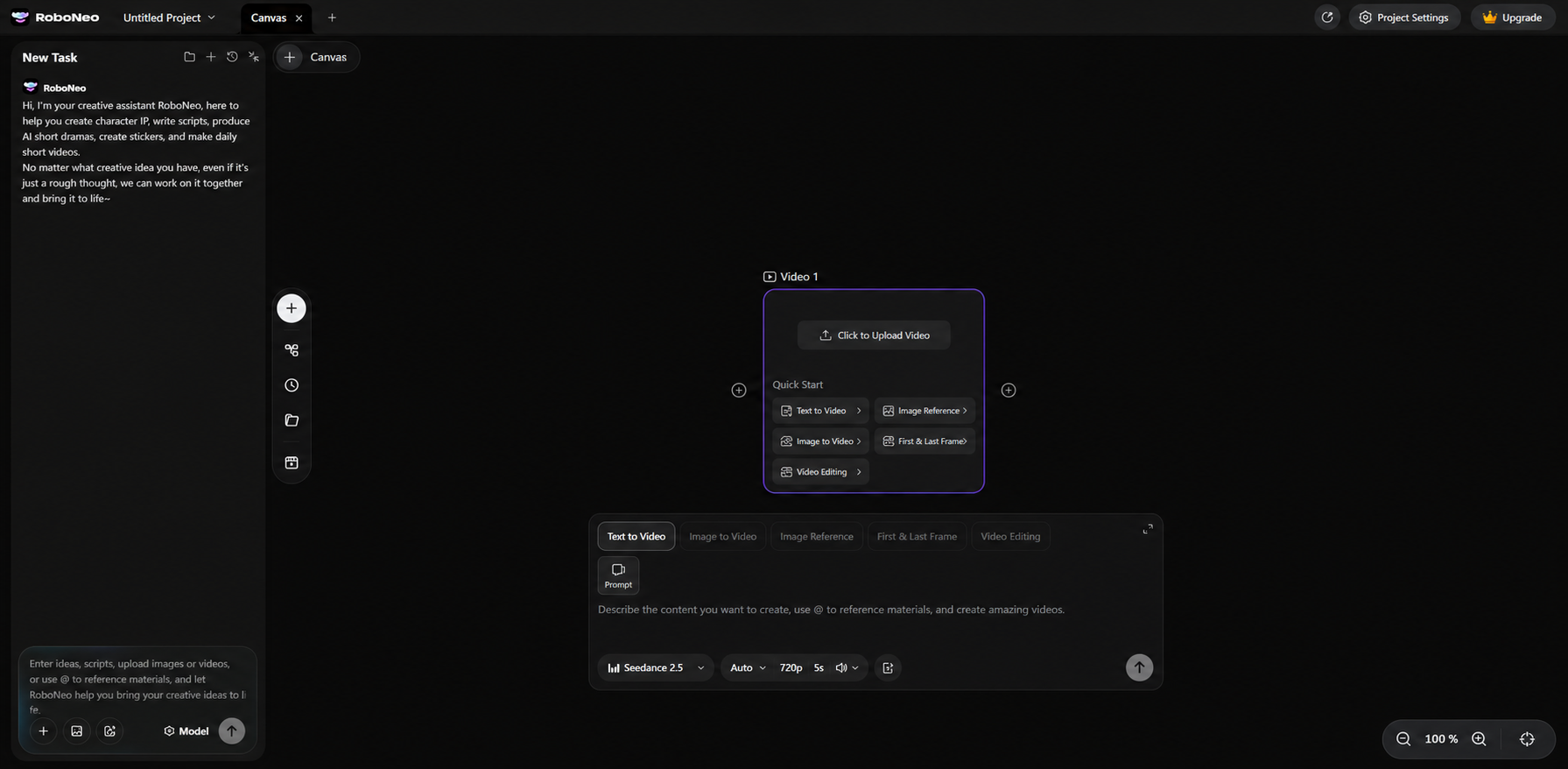
Open the RoboNeo AI video maker, create a new project, and add a Video Node to the canvas to begin your AI video creation workflow.
Step 2: Select a Generation Mode and Model
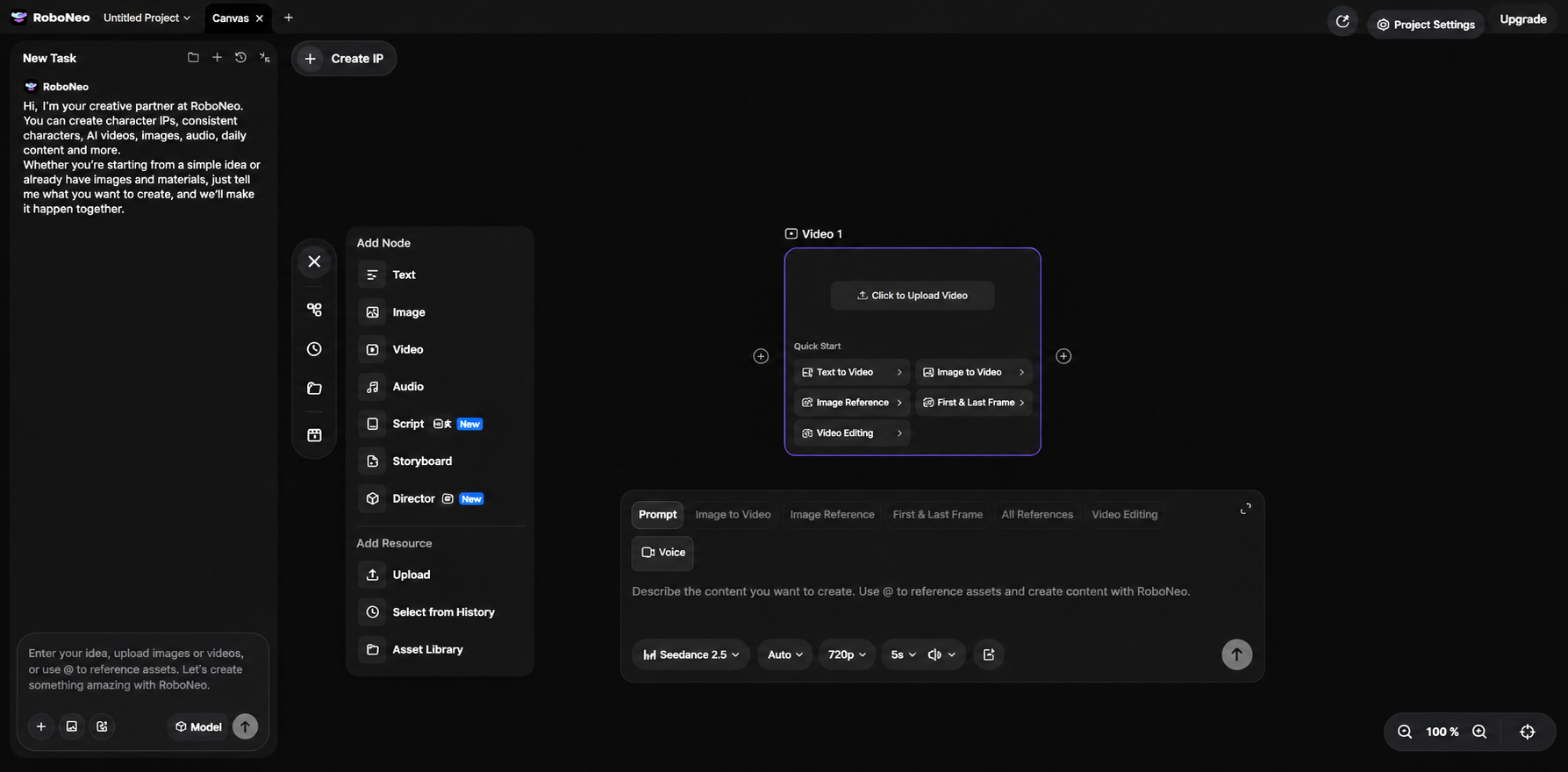
Pick text-to-video, image-to-video, or other available modes based on your needs. Then, choose the appropriate video model.
Step 3: Input Prompts and Add Reference Assets
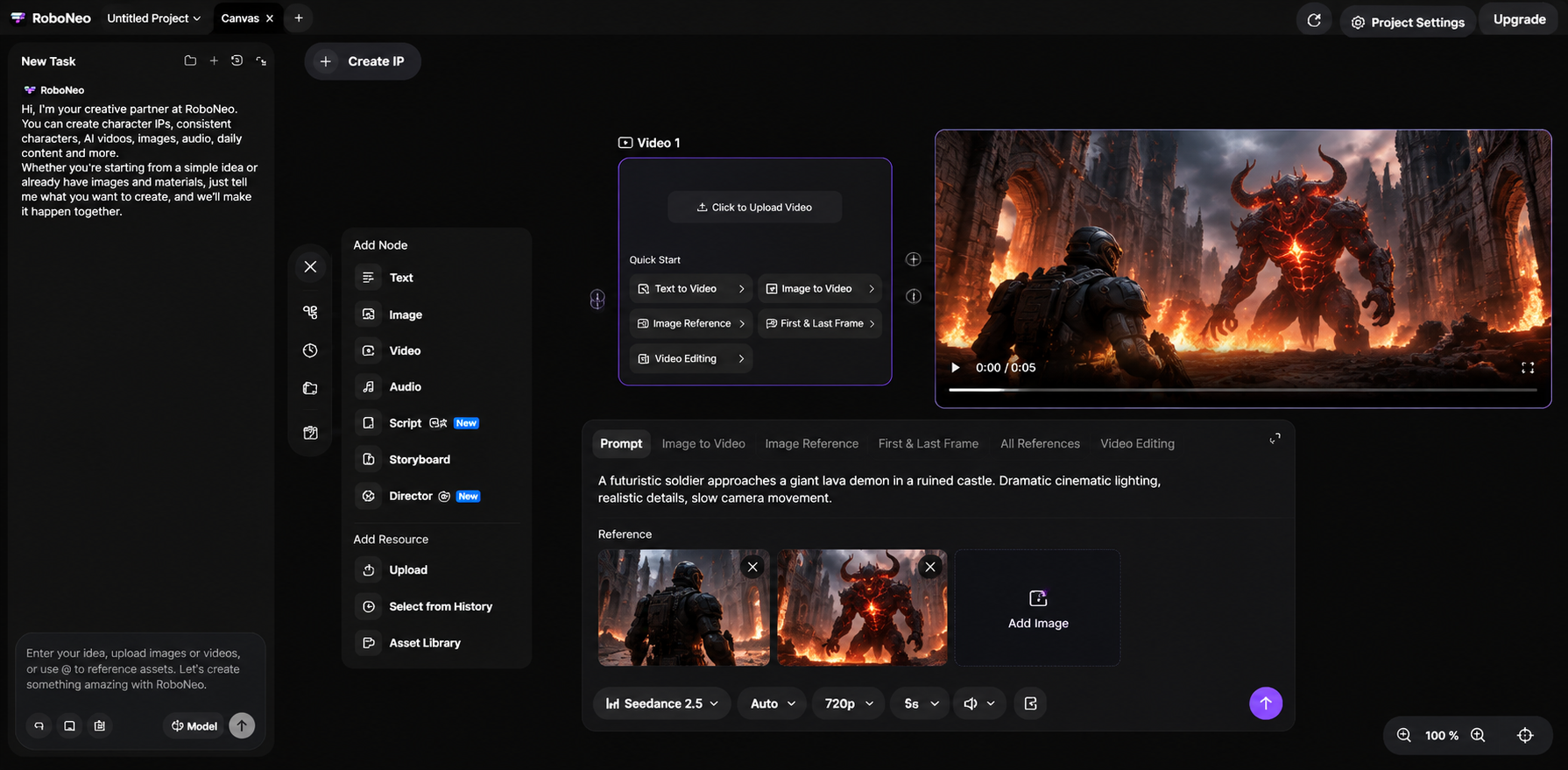
Describe the subject, actions, and scene. If you need tighter control over the visuals, upload reference images or other supported assets.
Step 4: Set Video Parameters and Generate
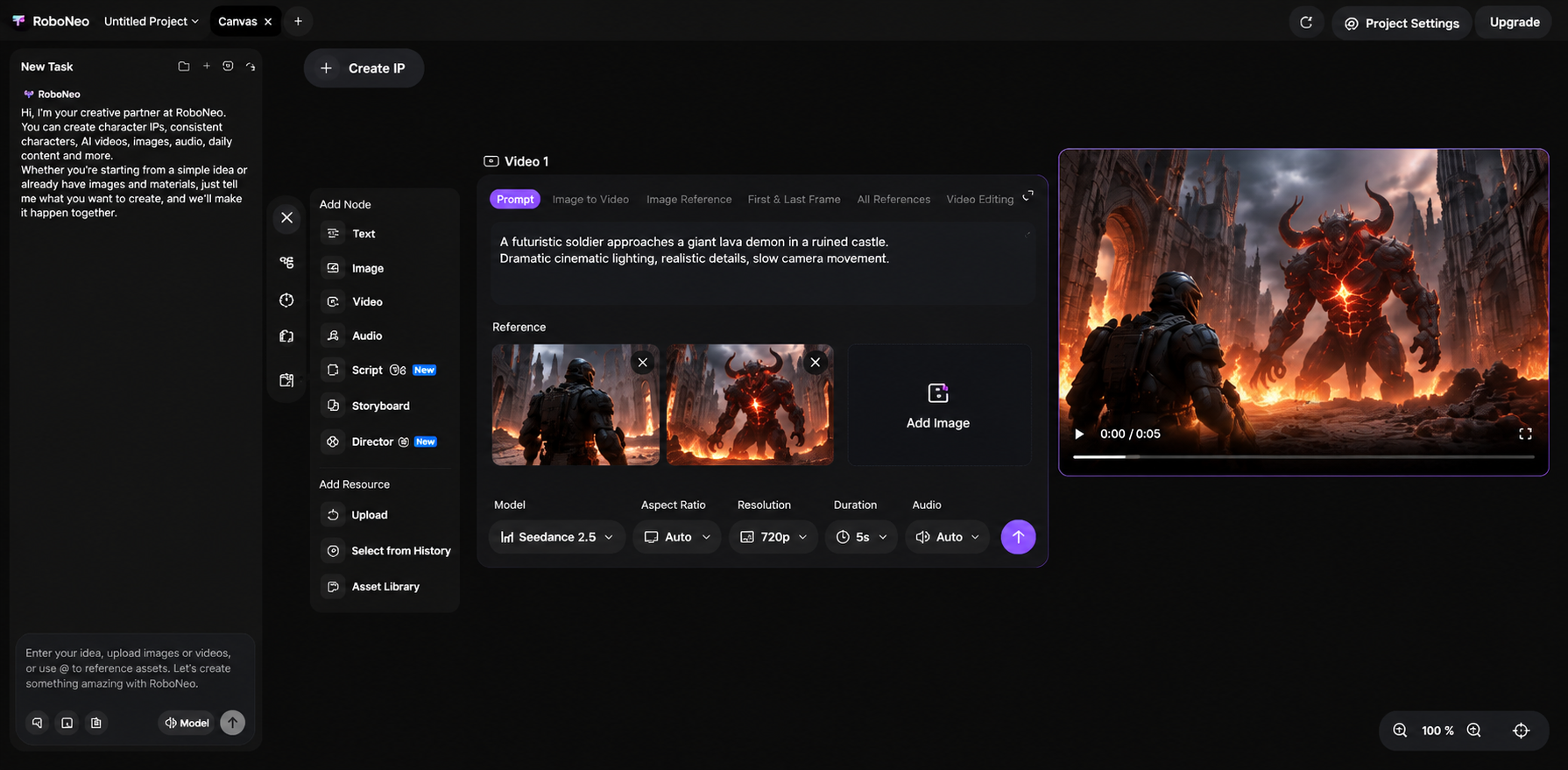
Adjust the aspect ratio, resolution, duration, and audio settings according to your chosen model. Generate the video and preview the output.
Step 5: Refine and Save the Video
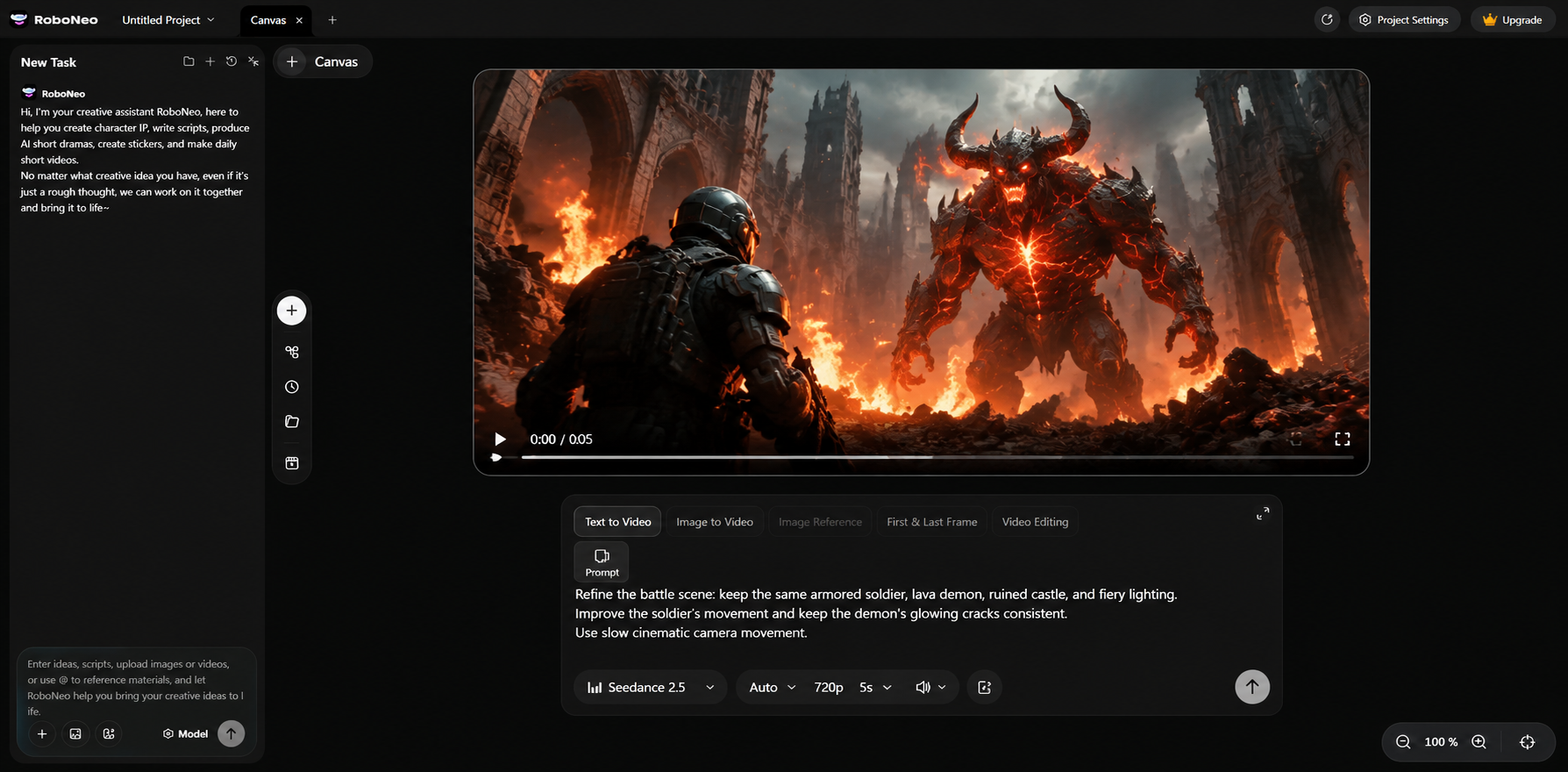
If the output isn't quite right, modify your prompt, reference assets, or generation parameters. Regenerate the video and download the final version.
FAQ
Does Gemini put a watermark on AI-generated videos?
Yes, Gemini can add both visible and invisible watermarks to videos. The visible watermark can currently be turned off in account settings for some regions. Whether your final video has a watermark depends entirely on where you are located.
Are there any alternatives to Gemini?
Yes. If Gemini isn't meeting your creative needs, give RoboNeo a shot. It supports multiple top-tier models and generation methods. You can easily tweak things based on what you need without constantly switching tools.
Can Gemini generate 1080p videos?
It depends on the specific video model and your account plan. If you need 1080p, double-check the resolution options for your current model and account first.
Are there copyright issues with videos generated by Gemini?
AI-generated videos can involve copyright issues, but that doesn't automatically mean you're infringing. It really comes down to the AI likeness, music, and script you use. If you're planning to use the video commercially, make sure your assets are legally licensed or original, and stick to the terms of service and applicable copyright laws.
You May Be Interested
AI Video Generator Online: How to Create Videos Fast
Best Tool to Fix Blurry Videos: 6 AI Tools Compared
How to Make AI Videos: Beginner Tips and Best Tools
How to Make Realistic AI Videos: Tips and Mistakes
Make Videos from Photos Online: A Complete 2026 Guide