Why Can I Only Create 3 Videos on Gemini: Daily Limit Explained
 RoboNeo TeamOctober 29, 2026
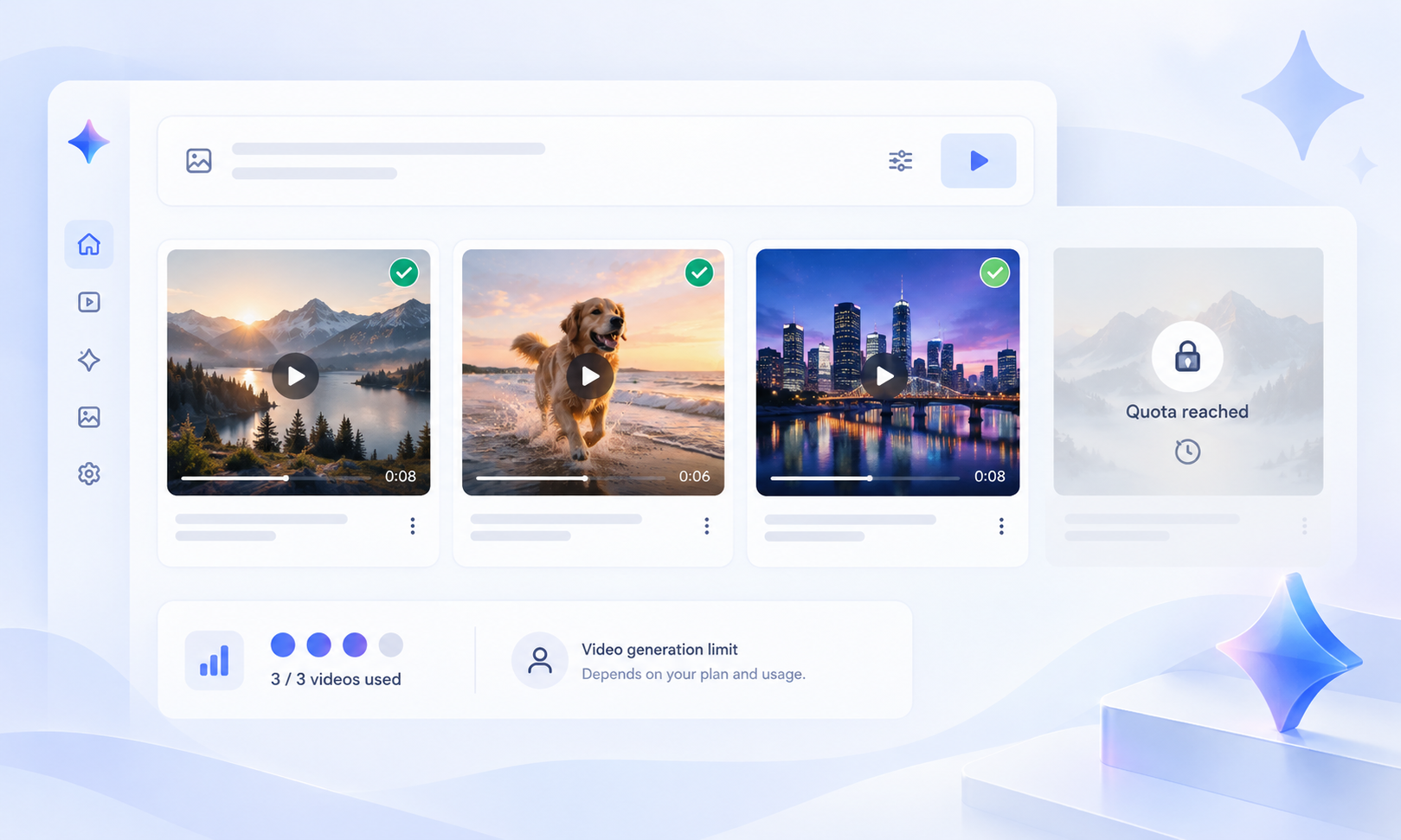
If your Gemini account is capping you at 3 videos, you've most likely just burned through your current quota. It could also be a compute resource limitation on their end. Just keep in mind that Google never actually promises a fixed limit of 3 videos per day for everyone. Your real limit depends entirely on whatever your account dashboard currently shows and the latest official guidelines.
Why Gemini Limits Your Video Generations
Your Gemini video limit depends on your Google AI subscription, model, and current usage. The tables below explain how subscription allowances and generation requirements affect access. They also help clarify why you might reach a limit after creating only three videos.
Table 1: Usage Limits Across Gemini Subscription Plans
| Subscription Plan | Video Generation Availability | Overall Gemini Usage Allowance | Impact on Users |
| No Google AI Subscription | Video generation is not available in the Gemini App | Standard usage limits | Users cannot generate videos directly through this feature |
| Google AI Plus | Available | 2× the standard usage allowance | Offers higher usage limits than the free tier |
| Google AI Pro | Available | 4× the standard usage allowance | Suitable for users who need higher usage limits |
| Google AI Ultra | Available | 5× or 20× the Pro plan's allowance, depending on the subscription version | Provides substantially higher overall usage limits |
Table 2: How Models and Features Affect Gemini Video Generation Limits
| Factor | Official Explanation | Impact on Usage Limits |
| Video Generation Model | The selected model affects how Gemini calculates usage, but Google has not published a universal daily video generation limit across all models | Usage limits may vary between models |
| Video Generation Tasks | Video generation is a resource-intensive task that generally consumes more resources than regular text conversations | Generating multiple videos may cause users to reach their limits faster |
| Prompt Complexity | Gemini calculates resource usage partly based on the complexity of the prompt | More complex tasks may consume more usage allowance |
| Conversation Length | Longer conversations require Gemini to process more previous context | Extended conversations may consume more usage allowance |
| Limit Reset Mechanism | Usage limits refresh every 5 hours, subject to a weekly usage cap | Users may need to wait for their allowance to reset before generating more videos |
How to Check Your Gemini Video Limit and Reset Time
Need to check your status or see your exact Gemini limits. Here is how to look:
Usage Limits: Log in. Go to Settings → Usage Limits at the bottom left. Check your current limits. No remaining video count on the page means you have to rely on prompts to guess.
Reset Times: When you're running low or maxed out, Gemini shows an alert. If there's a specific date or time, use that to know when access returns.
Prompt Meanings:
You've reached your video generation limit: Your current video allowance has been exhausted. Check when it resets.
You can generate 1 more video today: You may have one generation remaining within the displayed period.
Limit refreshes at [date/time]: Use the displayed time to determine when the applicable allowance is expected to refresh.
Feature unavailable / not available: Check your subscription, account eligibility, and regional availability.
Something went wrong: This may indicate a temporary technical issue rather than an exhausted quota.
Just a heads-up: Google tweaks these limits based on your plan, usage, and system capacity. They don't promise an exact visible count for every account.
How to increase Gemini video limits?
Right now, there's no official hack to bump up your daily video generation limit on the standard Gemini plan. But you can try these workarounds:
Upgrade your Google AI plan: Wondering, "How many videos can I generate with Gemini Pro?" Google now uses the Google AI Pro plan name, and the exact number of generations may vary. If you've reached the Gemini Pro video generation limit, compare your current plan with Google AI Ultra and review the latest video access details before upgrading.
Wait for a quota reset: If you've maxed out, just wait for the reset time Gemini gives you. Some limits refresh every 5 hours, but you might also be capped by a weekly limit.
Heads up: Upgrading doesn't mean unlimited video generation. Your actual usable quota will still fluctuate based on the specific model, account permissions, and overall system capacity.
How Can You Make the Most of Your Gemini Video Limit?
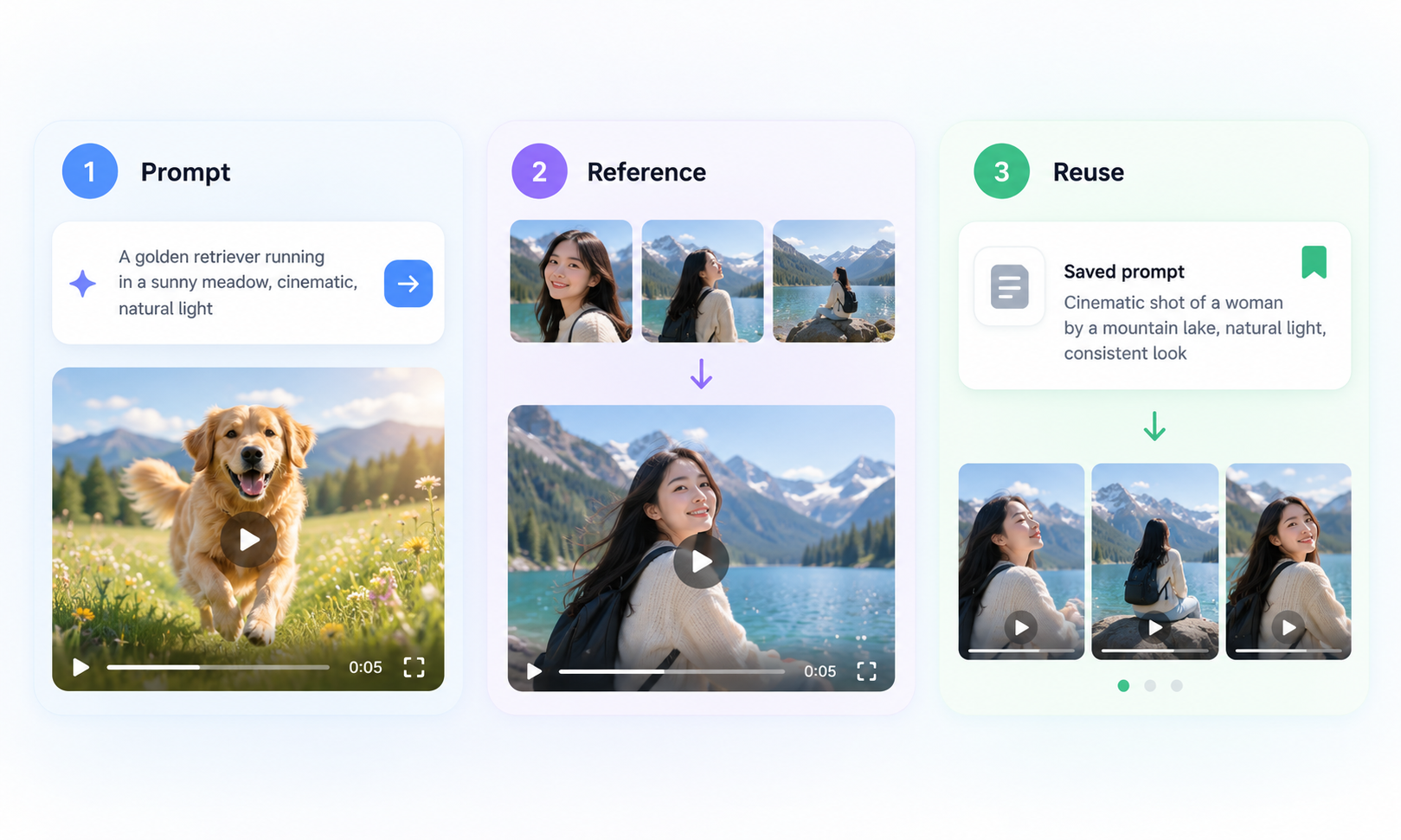
Gemini has a limited video generation quota, so planning before each run is essential to reduce wasted attempts. Here are three tips to help you generate the videos you want more efficiently.
Plan Your Prompt Before Generating Before generating, check how long Gemini videos can be with your selected model and plan. Then write a clear AI video prompt covering the subject, scene, action, camera movement, and visual style. This helps you avoid unnecessary retries. For more preparation tips, see this AI video generation setup guide.
Use Reference Images for Better Visual Control When creating Gemini AI videos, upload clear reference images if character appearance, product details, or composition matter. Strong references can help reduce unexpected visual changes and repeated generations. For guidance on selecting suitable images, explore this image-to-video AI generator guide.
Save and Reuse Successful Prompts Save prompts that produce good results and record the corresponding model, aspect ratio, and generation settings for future reuse. When creating videos in the same series later, you can continue using this prompt template and simply modify the variable details.
What Can You Do If Gemini's Video Limit Is Too Low?
If Gemini's video quota isn't cutting it for your creative needs, you've got a few options. You can wait for a reset, tweak your production process, or juggle multiple AI tools to keep the momentum going.
Wait for Your Gemini Video Limit to Reset
If you've maxed out your Gemini quota, just wait for the system's reset timer before generating more. While you're waiting, use the downtime to polish your prompts and organize your reference assets.
Use Multiple AI Tools Together
Different AI video generation models offer different strengths in motion, character consistency, audio, and visual quality. Instead of relying on one tool, you can generate images with one model, animate them with another, and refine the results through editing. This comparison of AI video generation models can help you select a suitable workflow.
Try RoboNeo for More Video Creation Options
If your Gemini video generation limit is preventing you from creating more content, the RoboNeo AI video creation platform offers an alternative workflow. It brings multiple video models into one workspace, supporting text-to-video and image-to-video generation. You can switch between available models based on your creative requirements, rather than depending on a single generation service.
How to Create Videos with RoboNeo
Ready to give RoboNeo a try. Here is a quick walkthrough of the steps to follow.
Step 1: Create a Project and Open the Canvas
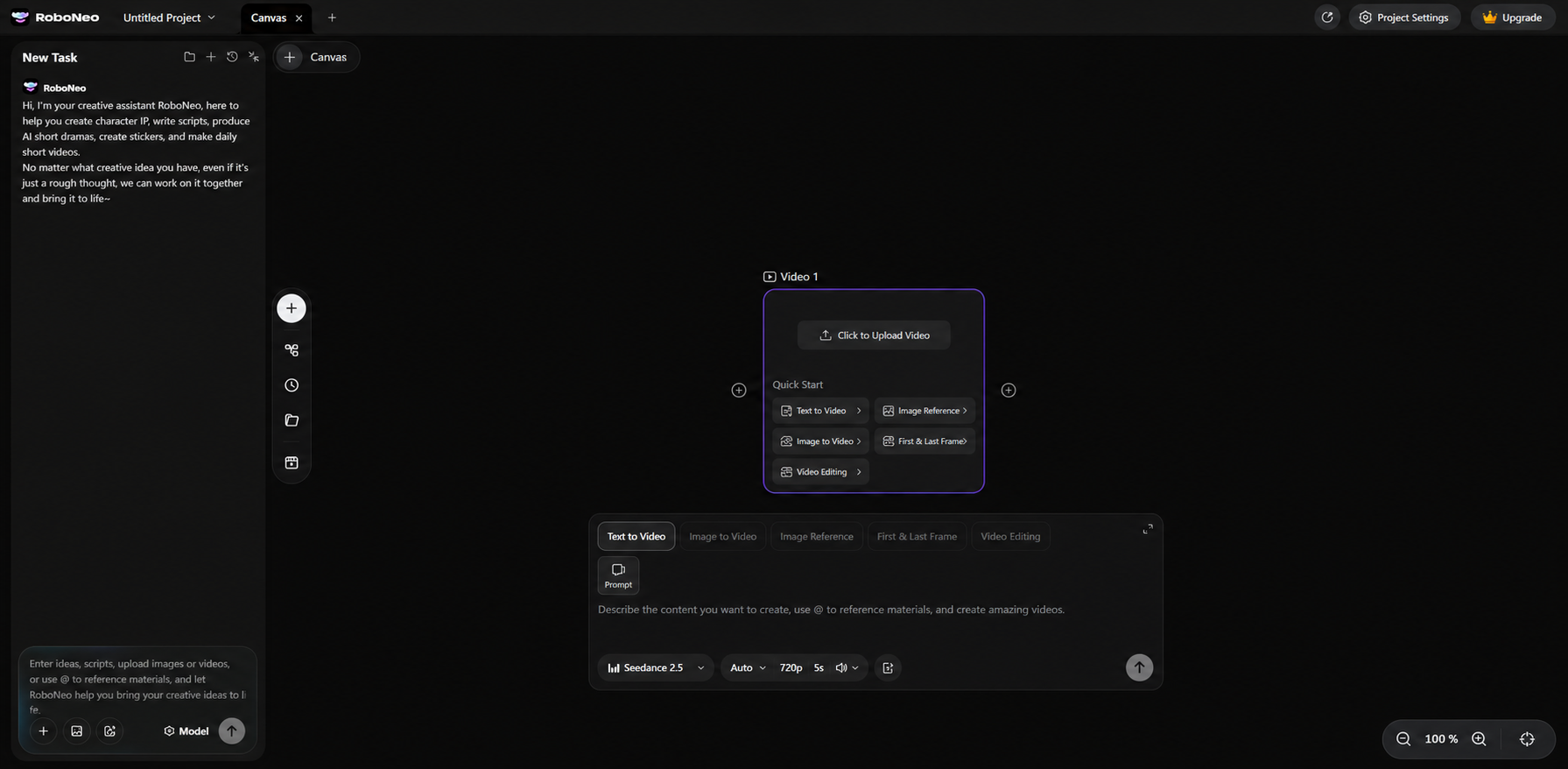
Head into RoboNeo, set up a new project, and drop in a video node to kick off your creative process.
Step 2: Select a Generation Mode and Model
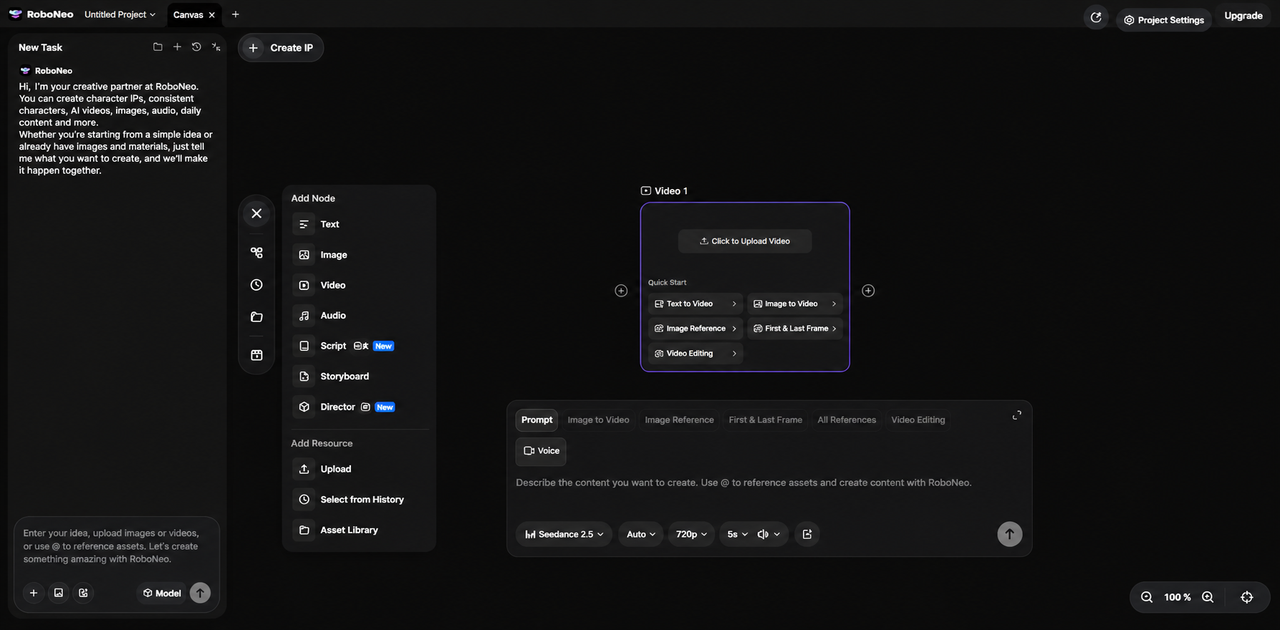
Pick the mode that fits your needs—whether that's text-to-video, image-to-video, or another available option. After that, grab the specific video model you want to use.
Step 3: Input Prompts and Add Reference Assets
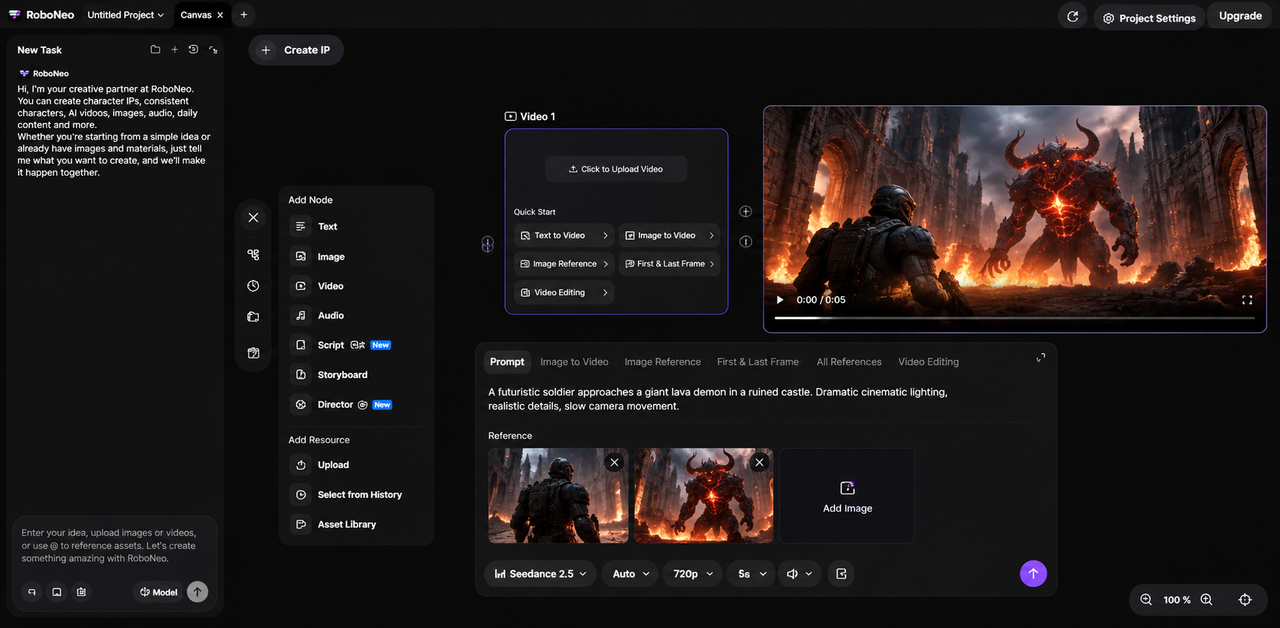
Describe the main subject, the action taking place, and the overall scene. If you need tighter control over the final look, go ahead and upload reference images or any other supported assets.
Step 4: Set Video Parameters and Generate
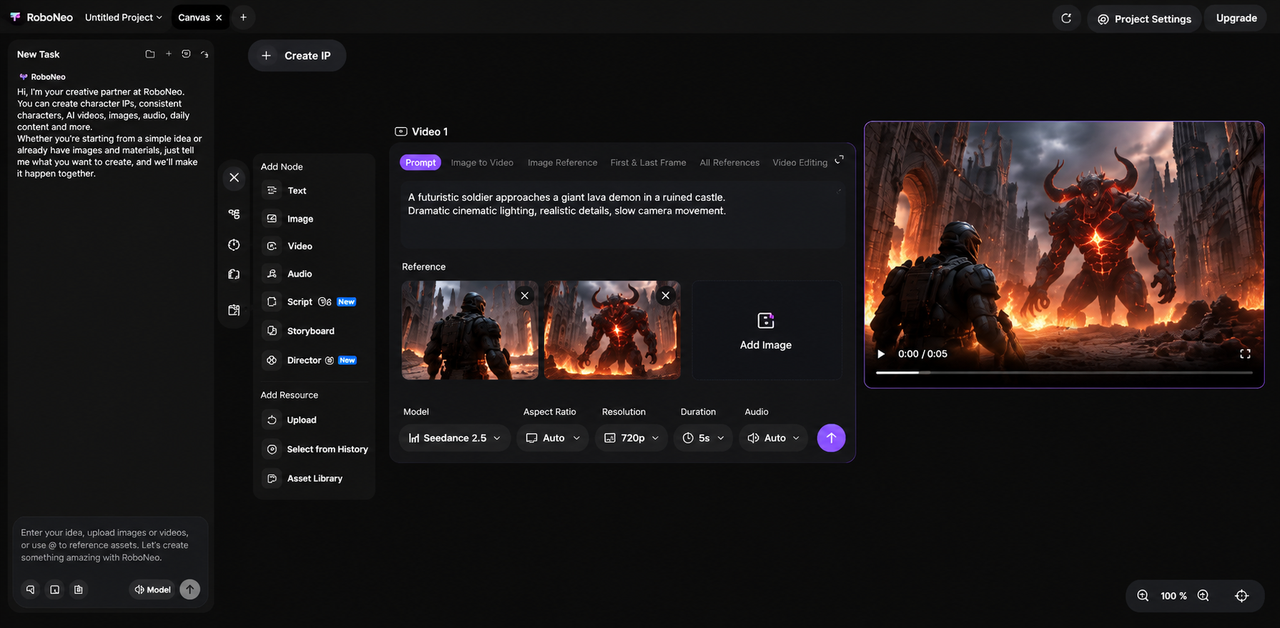
Based on the model you picked, dial in your parameters like aspect ratio, resolution, duration, and audio. Once everything is set, hit generate and preview the result.
Step 5: Refine and Save the Video
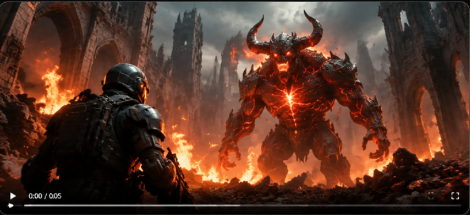
If it doesn't look quite right, feel free to tweak the prompt, swap out your assets, or adjust the generation settings. Run it again and download the version you're happy with.
For a deeper walkthrough, check out our guides or watch the RoboNeo video creation tutorial.
Want to explore different models and creative styles. Visit the official RoboNeo website to see what else it can do.
FAQ
Do failed Gemini video generations count toward the limit?
Usually not. But if your generation fails and you still get a "quota exhausted" warning, there might be a glitch in how credits are counted or some other hidden restriction. Check the reset time shown on the screen. You can also report the issue with screenshots through Gemini's Help & Feedback.
Can I delete a Gemini video to get my generation credit back?
Nope. Deleting a generated video won't refund your credits. Your quota is tied to Gemini's usage limits, not how many videos are stored in your account. Google hasn't stated that deleting videos restores quota.
Can I still download Gemini videos after reaching my limit?
Yes. Hitting the generation cap usually won't stop you from downloading videos you've already made.
Why is Gemini video generation unavailable even when I have credits left?
It could be a few things. Video features might have their own separate cap, your plan might not qualify, the servers could be busy, or compute resources might be tight. Check your account permissions and usage limits, then try again later based on what the error message says.
How to create longer videos with Gemini?
You can use the video extension feature to have Gemini generate the next scenes based on your existing clip. Alternatively, generate multiple separate clips and stitch them together using a video editing tool.
You May Be Interested

Best Tool to Fix Blurry Videos: 6 AI Tools Compared
How to Make AI Baby Videos: Beginner-Friendly Guide

How to Make Realistic AI Videos: Tips and Mistakes
Make Videos from Photos Online: A Complete 2026 Guide
How to Upload High Quality Videos to TikTok: Easy Guide