How to Make Videos for Instagram With Music: Video Creation Methods
 RoboNeo TeamOctober 30, 2026
Creating Instagram videos with music can be challenging for beginners, especially when editing clips and choosing the right soundtrack. This article introduces two video creation methods to help you choose the right approach and create engaging content with ease.
What Are Two Ways to Make an Instagram Video with Music?
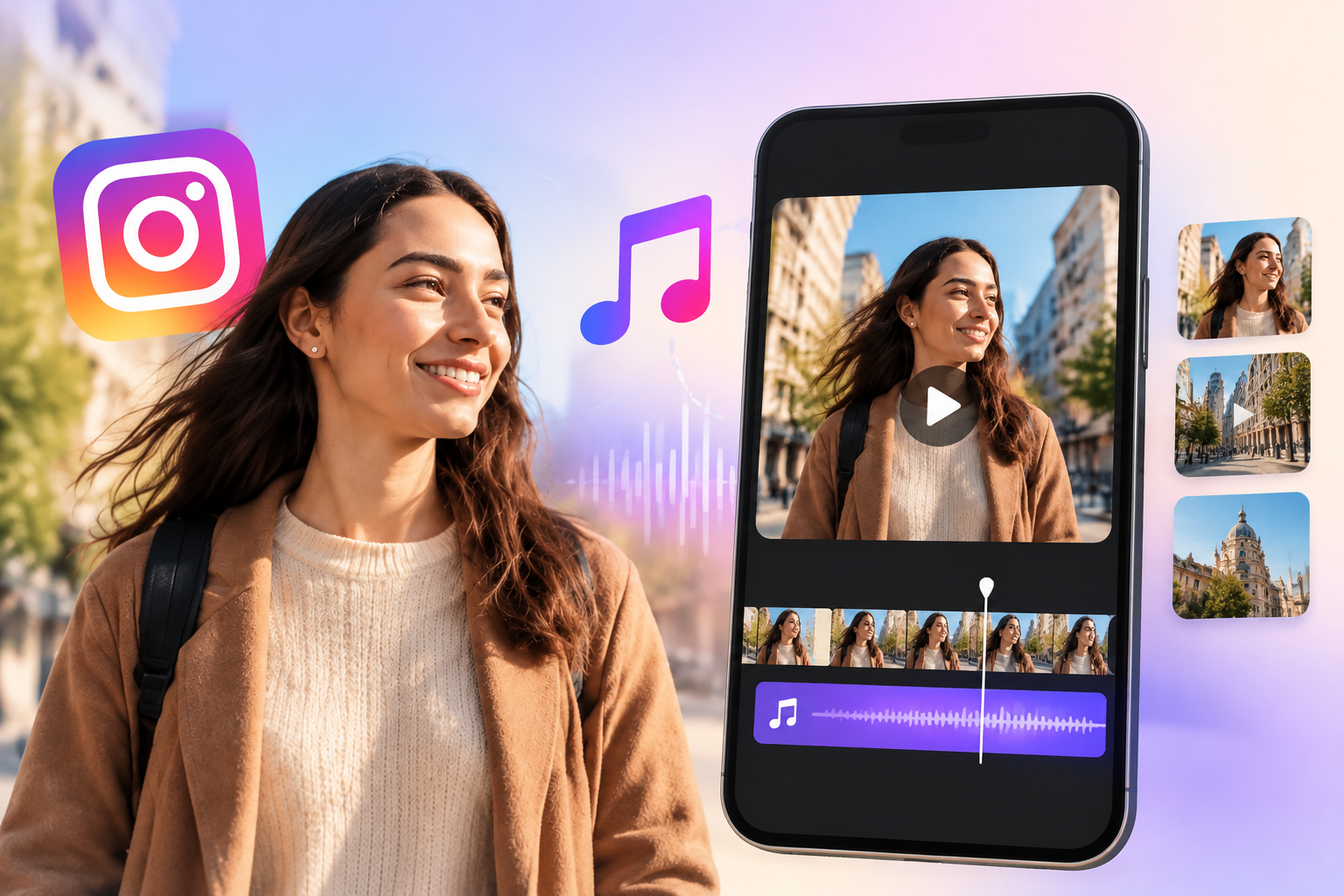
There are two main ways to make Instagram videos with music: record or upload clips directly to Instagram and add a soundtrack, or use an AI tool like RoboNeo to generate videos from your ideas. Below are the steps for each method.
Method 1: Make a Video in Instagram With Music
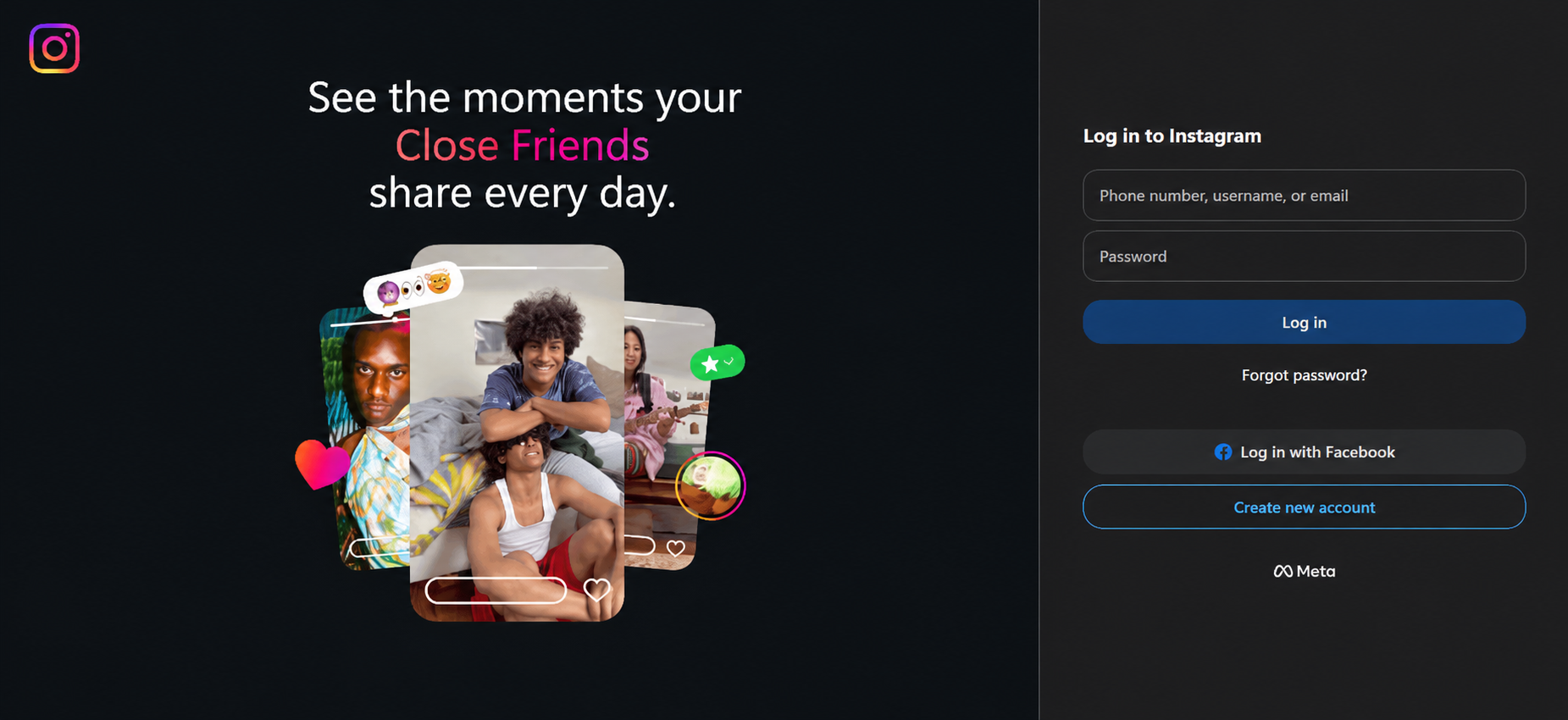
Instagram’s built-in Reel editor lets you combine your own footage with music in one place. Follow these steps to turn raw clips into a polished video ready to share.
Step 1: Record or Upload Your Clips
Open Instagram’s Reel editor and record a new video or upload clips from your phone. For a travel Reel, you could use footage of local cafés, scenic views, and memorable moments.
Step 2: Arrange and Trim the Footage
Place your clips in a logical sequence and trim unnecessary sections to keep the video concise. For example, a cooking Reel can show ingredient preparation before revealing the finished dish.
Step 3: Choose a Track and Select the Best Section
Tap the music option to browse available tracks and select one that fits your video’s mood. Choose a lively section for a workout Reel or a softer melody for a relaxing daily vlog.
Step 4: Sync Clip Changes to the Beat and Balance Audio
Adjust clip timing so key transitions match the music’s rhythm. If your video includes spoken instructions, reduce the music volume to keep your voice clear and easy to understand.
Step 5: Check the Final Mix and Publish Your Reel
Preview the Reel to check the transitions, music timing, and audio balance. Add a caption and cover, review your sharing settings, and publish once the video is ready. For additional short-form content tips, see how to make a TikTok video.
Method 2: How to Make Instagram Videos with Music Using RoboNeo
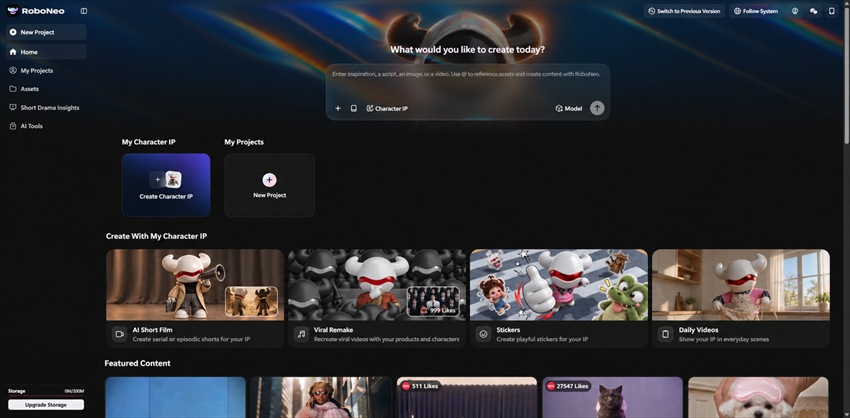
When you want to create an Instagram video without filming every scene yourself, RoboNeo offers an AI-powered alternative. Through RoboNeo, you can develop video concepts, plan scenes, generate visuals, and create background music. This workflow helps streamline production when you need original footage or want to experiment with different creative styles.
Step 1: Define the Video Concept
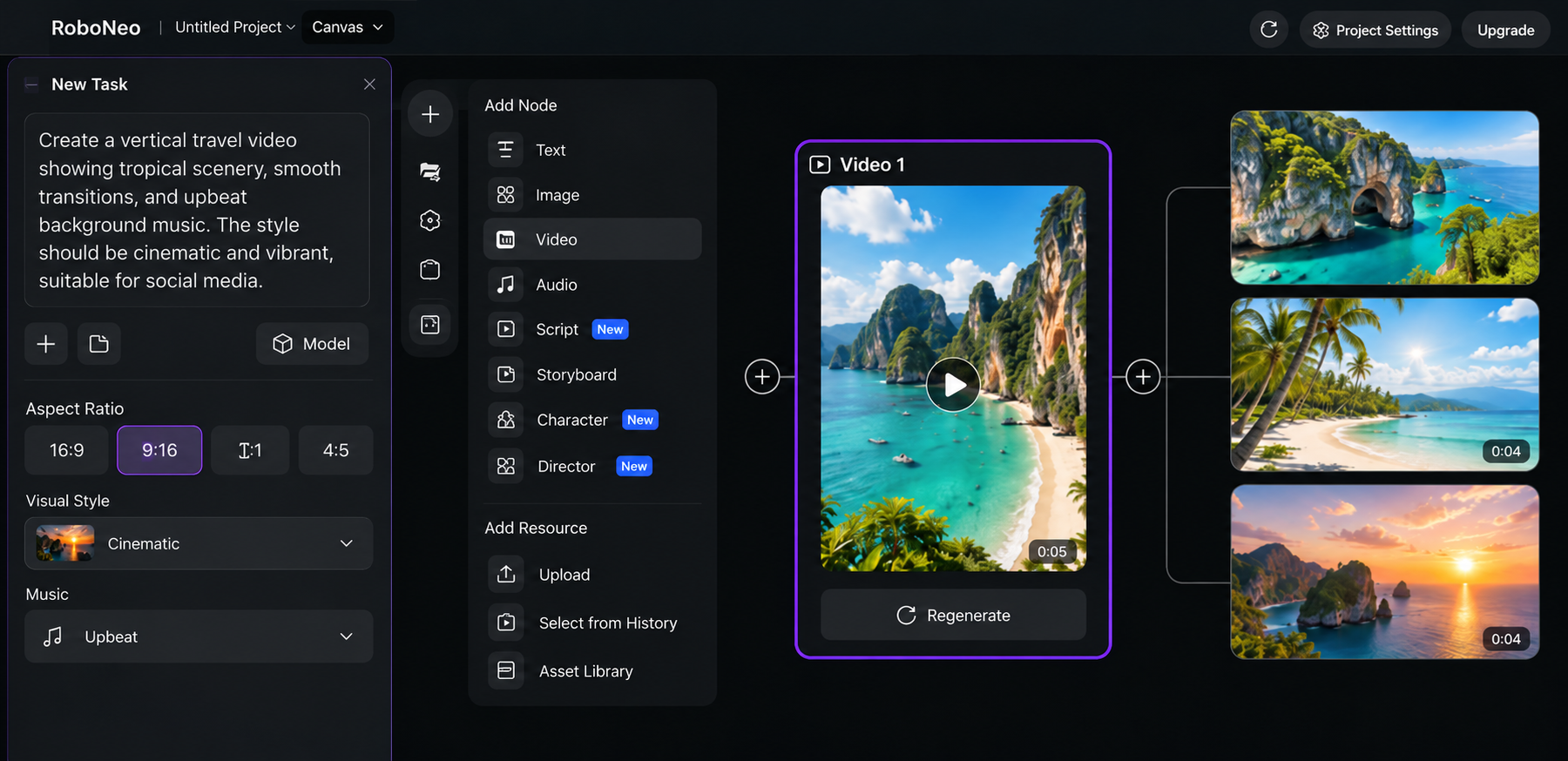
Describe your video topic, target audience, preferred aspect ratio, visual style, and music direction. For example, a travel creator could request a vertical video featuring tropical scenery, smooth transitions, and upbeat background music.
Step 2: Review the Storyboard
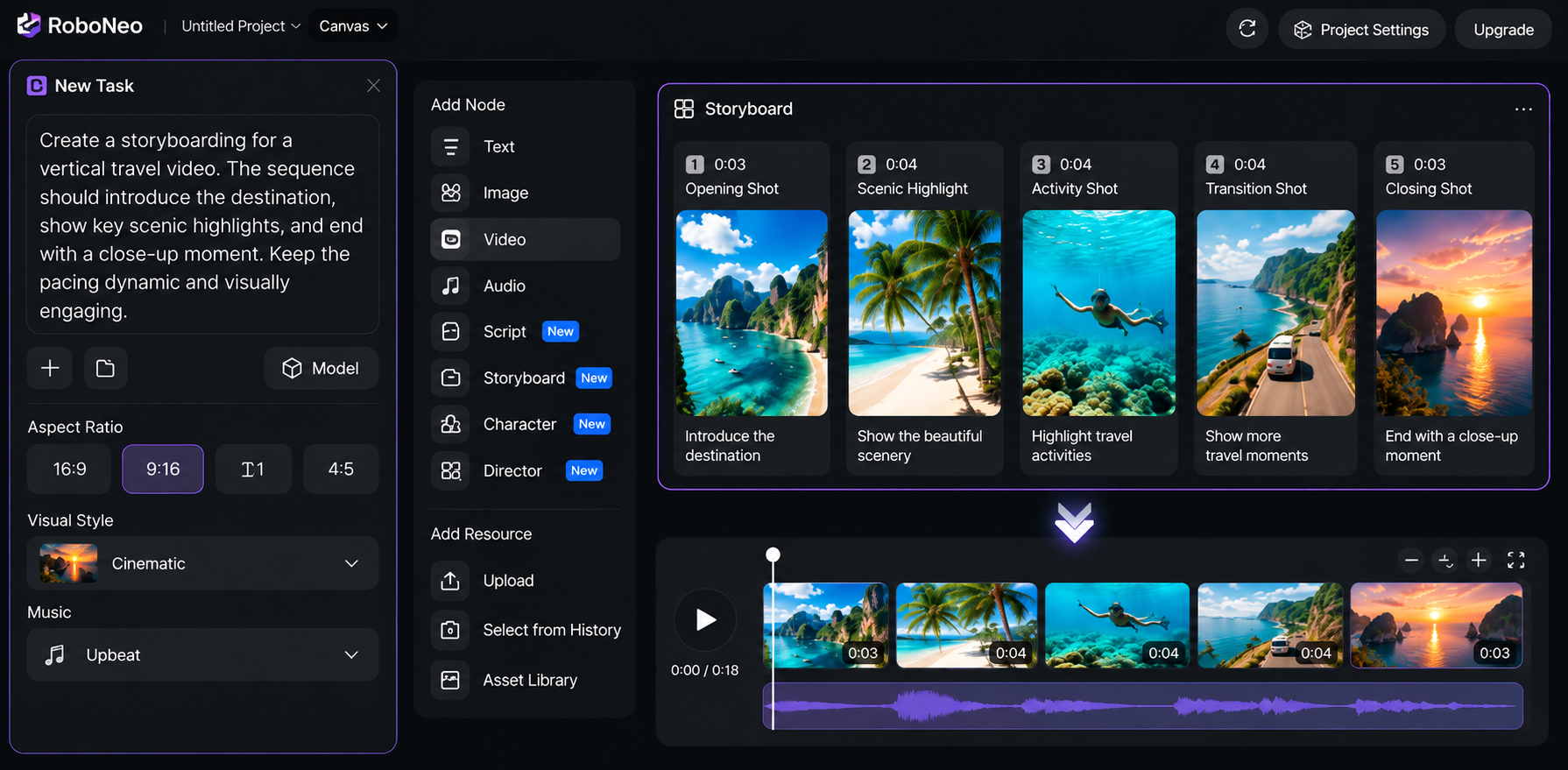
Check the proposed shot sequence, visual content, and pacing before generating the video. A product Reel, for instance, might introduce the product, highlight its key features, and finish with a close-up.
Step 3: Generate Consistent Video Clips
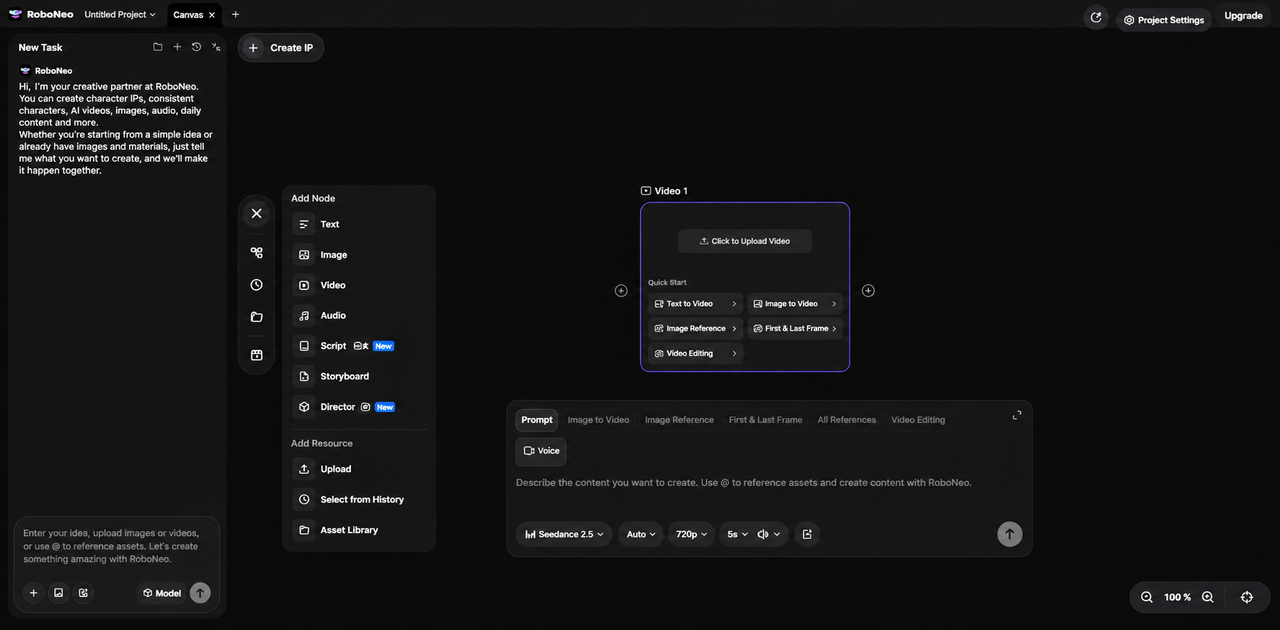
In RoboNeo, add a Video Node and choose Text-to-Video or Image-to-Video. Enter a scene prompt or upload a reference image, then select a video model and adjust the aspect ratio, resolution, and duration. You can explore the available text-to-video AI models to choose a suitable generation option. Reuse the same character or style references across clips, and revise the prompt or settings if the results look inconsistent.
Step 4: Add Music and Sync the Beats
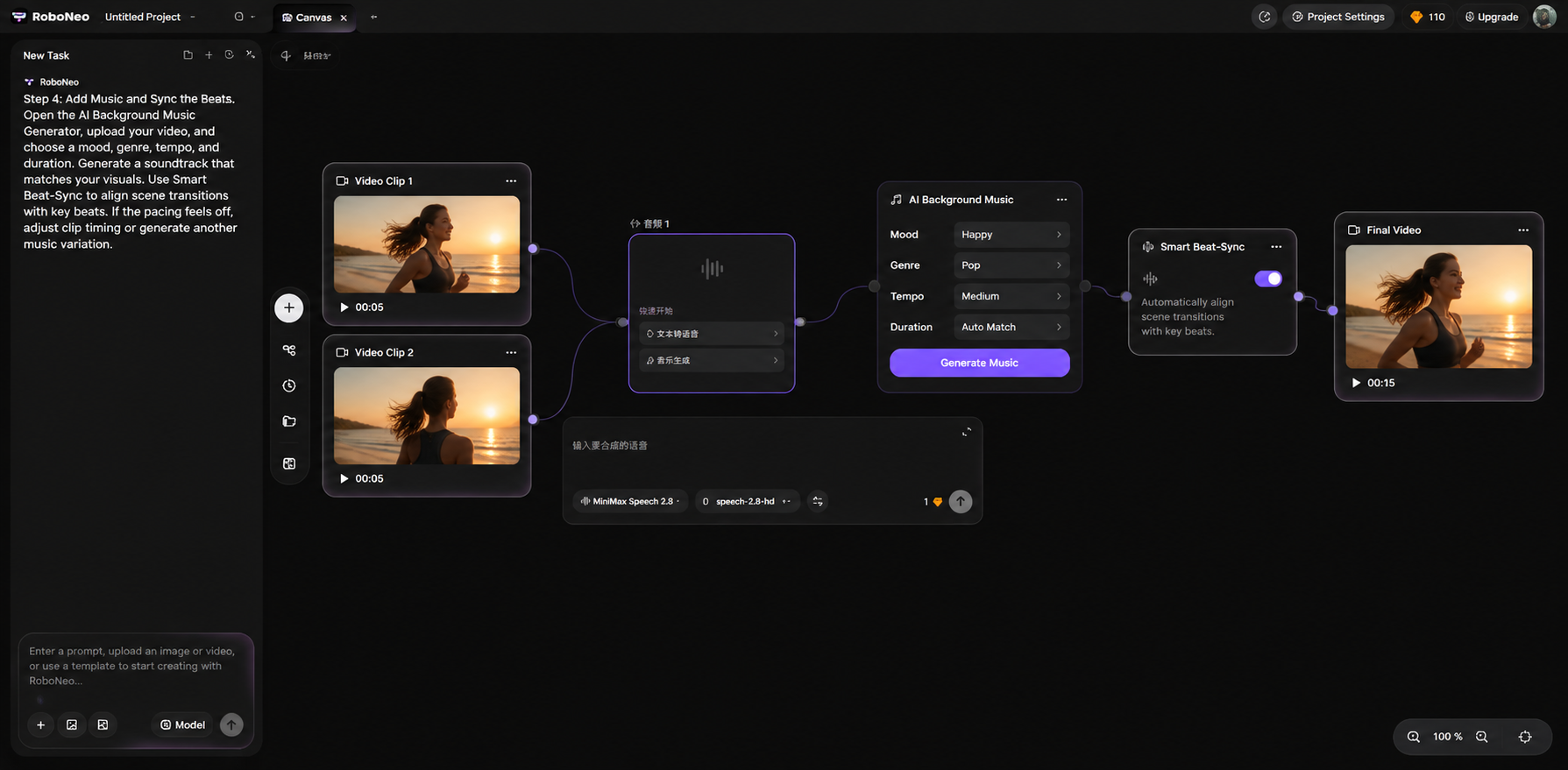
Open AI background music generator, upload your video, and select a mood, genre, tempo, and duration. Generate a soundtrack that matches your visuals, then use Smart Beat-Sync to align scene transitions with key beats. If the pacing feels off, adjust the clip timing or generate another music variation.
Step 5: Refine and Export the Video
Preview your video in RoboNeo to check audio synchronization, framing, and image clarity. Adjust clip timing or cropping as needed, and use AI video upscaling if the footage looks blurry. For additional options, explore the AI video maker to create and refine social media clips. Once everything is ready, export your video for Instagram Reels.
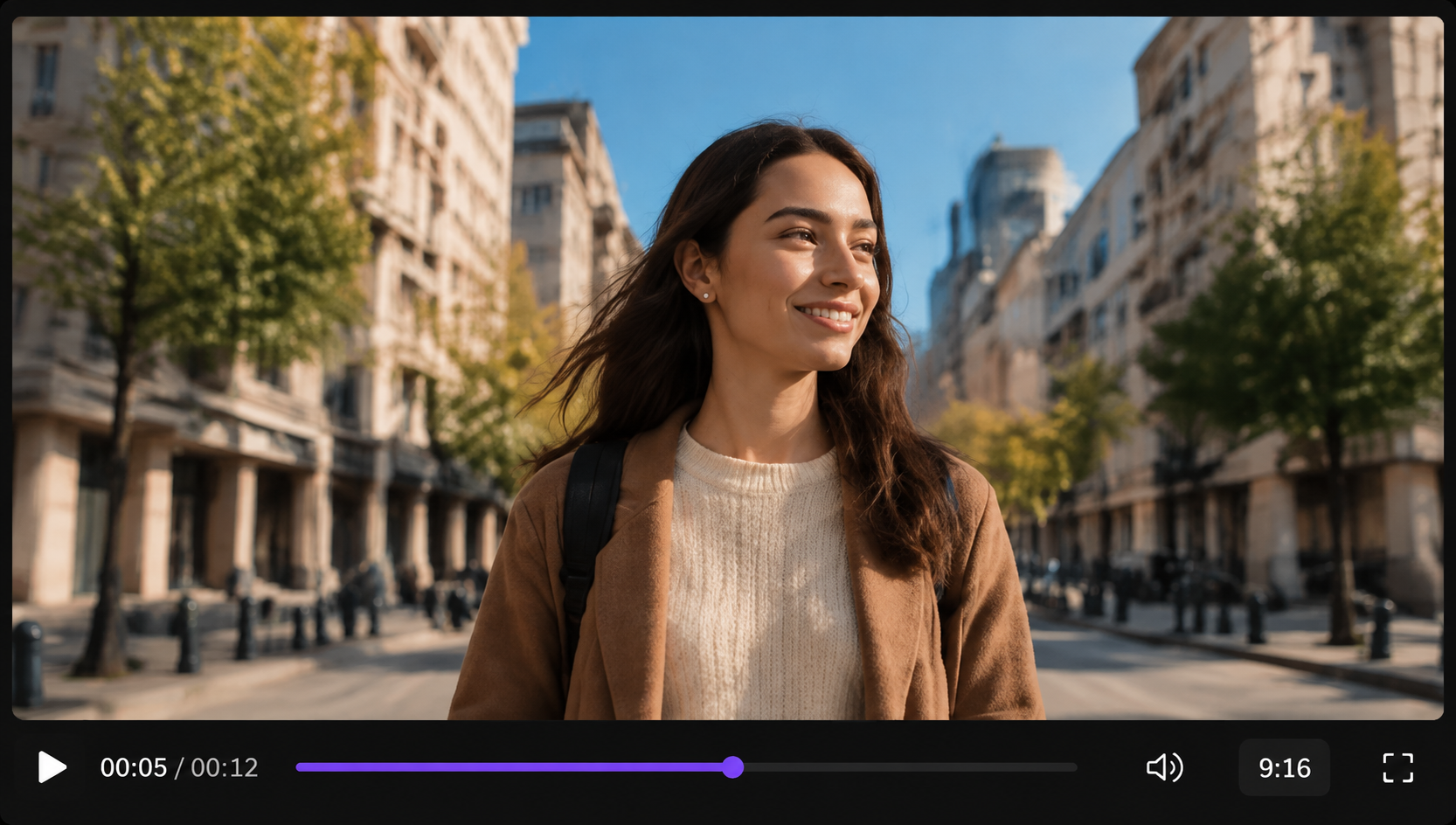
RoboNeo brings video planning, AI-generated visuals, and background music creation into one workflow, making it easier to produce Instagram videos without filming every scene manually. Whether you are creating travel Reels, product showcases, or promotional clips, you can adjust the visuals and soundtrack to match your content goals before exporting.
Start Your Next Instagram Reel
What to Check Before Posting an Instagram Video With Music
Before publishing your Reel, check music usage rights, video clarity, and framing to avoid playback issues or important content being cut off. A quick review helps ensure your video looks polished and plays as intended across devices.
Music Usage Rights
Make sure your chosen track is licensed for your intended use, especially for business or promotional content. Music availability and usage permissions may vary by account type and region, so use Instagram’s available licensed music or music you have permission to use to reduce the risk of your video being muted.
Video Quality and Cropping
Preview your video in Instagram's vertical Reel format to ensure the footage remains clear and important details stay within the visible frame. Check that faces, product details, captions, and other key elements are not cropped out, and confirm that the audio stays synchronized after uploading.
How to Fix Common Instagram Video and Music Problems
Instagram videos may lose clarity after uploading because of compression or export settings. Audio can also become unsynchronized due to editing errors or incorrect export settings. These quick fixes can help resolve both issues.
Fix Low Video Quality After Uploading
Enable Upload at highest quality: Turn on this option in Instagram's data usage and media quality settings, if available.
Upload the original export: Use the highest-quality version saved from your editor.
Avoid repeated compression: Export the video once and avoid running it through multiple apps before uploading.
Fix Audio and Video Sync
Check the exported video first: Play the file locally to determine whether the delay occurred before uploading.
Align audio on the timeline: Adjust the music track to match the corresponding visual actions.
Preview and export again: Watch the revised video from beginning to end, then export it and check synchronization before uploading.
FAQ
Can I use multiple songs in one Instagram video?
Yes, you can combine multiple songs in one Reel using Instagram’s editing tools or a video editor. Keep transitions smooth and adjust volume levels to avoid abrupt changes between tracks.
Can I add or change music after posting?
Instagram generally does not let you replace or add music to a published Reel through the standard editing options. You may need to edit the original video and upload it again.
Will a downloaded Reel keep its music?
Not always. Music may be excluded from downloaded Reels because of licensing restrictions or Instagram’s download settings. Check the saved file to confirm whether the soundtrack is included.
Can I boost an Instagram video that includes music?
Yes, but the music must meet Instagram's advertising requirements. Commercially licensed music or original audio you have the rights to use is generally a safer choice for boosted content.
Why can't I find a song in Instagram's music library?
A song may be unavailable because of regional licensing restrictions, account type, or copyright limitations. Check whether your account has access to the track or choose another song available for your intended use.
You May Be Interested
How Much Does It Cost to Make a Movie: Traditional vs AI
Movie Ideas to Make at Home: 15 Easy Beginner Films
Make Videos from Photos Online: A Complete 2026 Guide
How to Make Sora AI Videos: Prompts and Steps
How to Make Realistic AI Videos: Tips and Mistakes