
Text to Video AI Model for Creative Video Generation
A written idea can become a short video with a text to video AI model in RoboNeo. Start with a prompt, choose from supported models such as Seedance, Kling, Wan, Vidu, or PixVerse, and adjust format, resolution, duration, audio, and output quantity before generating.
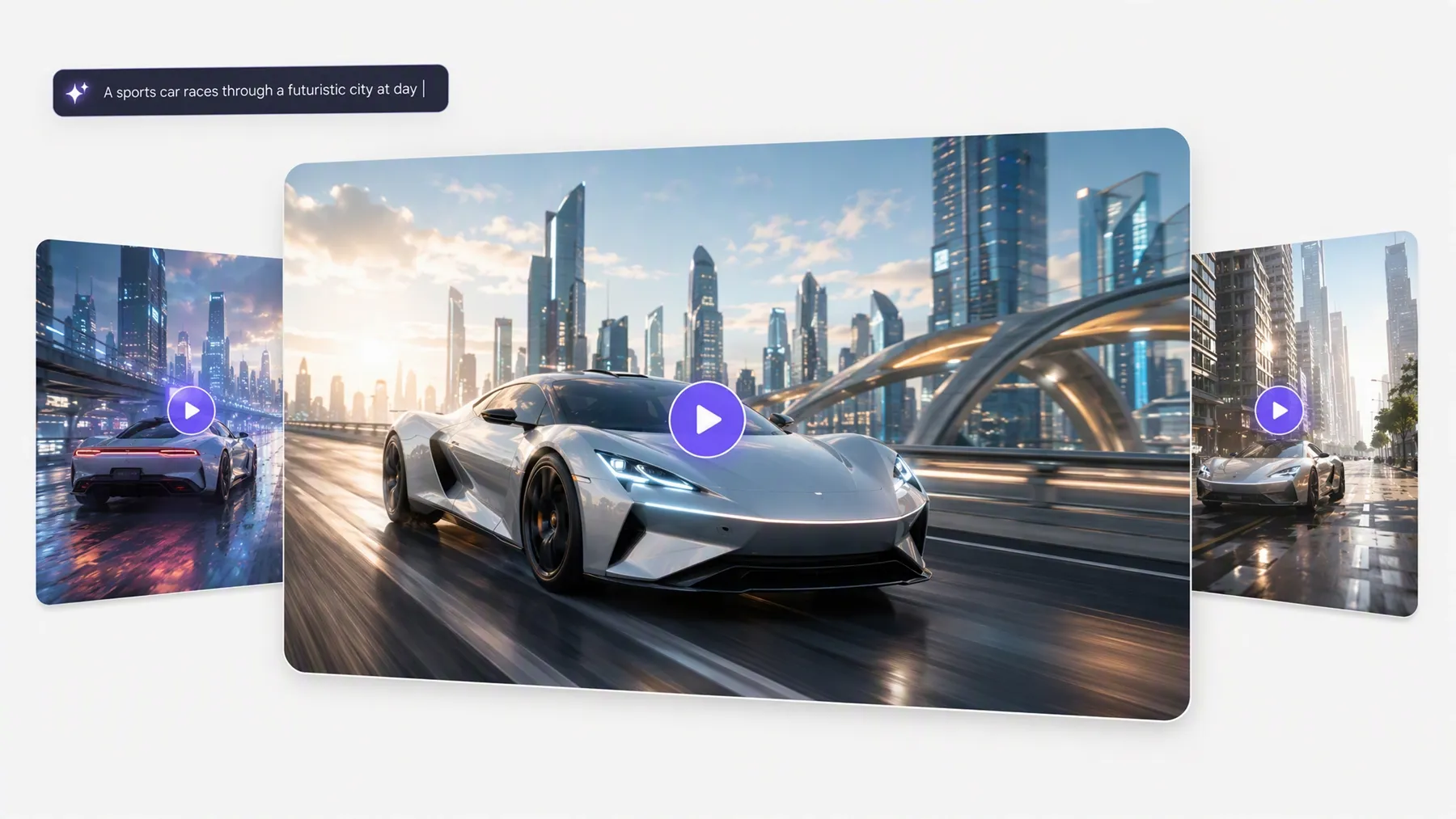
From Text Prompt to Video in RoboNeo
Add a Video Node
Open a project and add a Video Node to the canvas. This is where you can create or upload video and access the video generation modes available in RoboNeo.
Pick Text-to-Video and a Model
Choose Text-to-Video, then select a text to video AI model from the available options. RoboNeo includes models such as Seedance, Kling, Wan, Vidu, and PixVerse, with different controls available depending on the model.
Describe the Scene and Set the Output
Write a prompt describing the scene, action, or visual direction you want. You can then adjust supported settings such as aspect ratio, resolution, audio, duration, and the number of clips generated in one batch.
Generate and Refine the Result
Run the generation and preview the clip on the canvas. If the result needs changes, you can revise the prompt or settings and generate another version. Finished clips can also be previewed, enhanced, edited, or downloaded in RoboNeo.
Create More with Text to Video AI Models
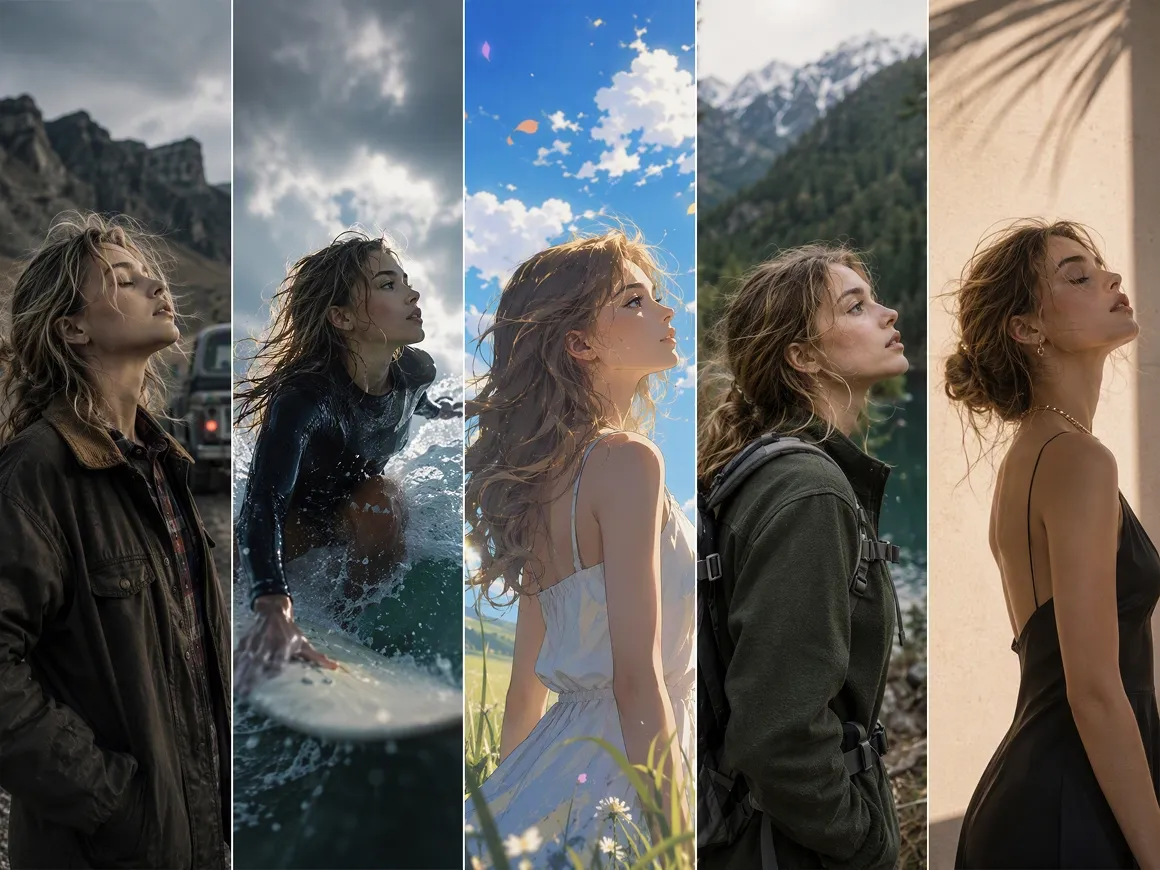
Create with Leading Text to Video AI Models
RoboNeo brings models such as Seedance, Kling, Wan, Vidu, and PixVerse into the same Video Node. Instead of rebuilding your project in separate tools, you can select a text to video AI model that better matches motion, speed, or style needs.
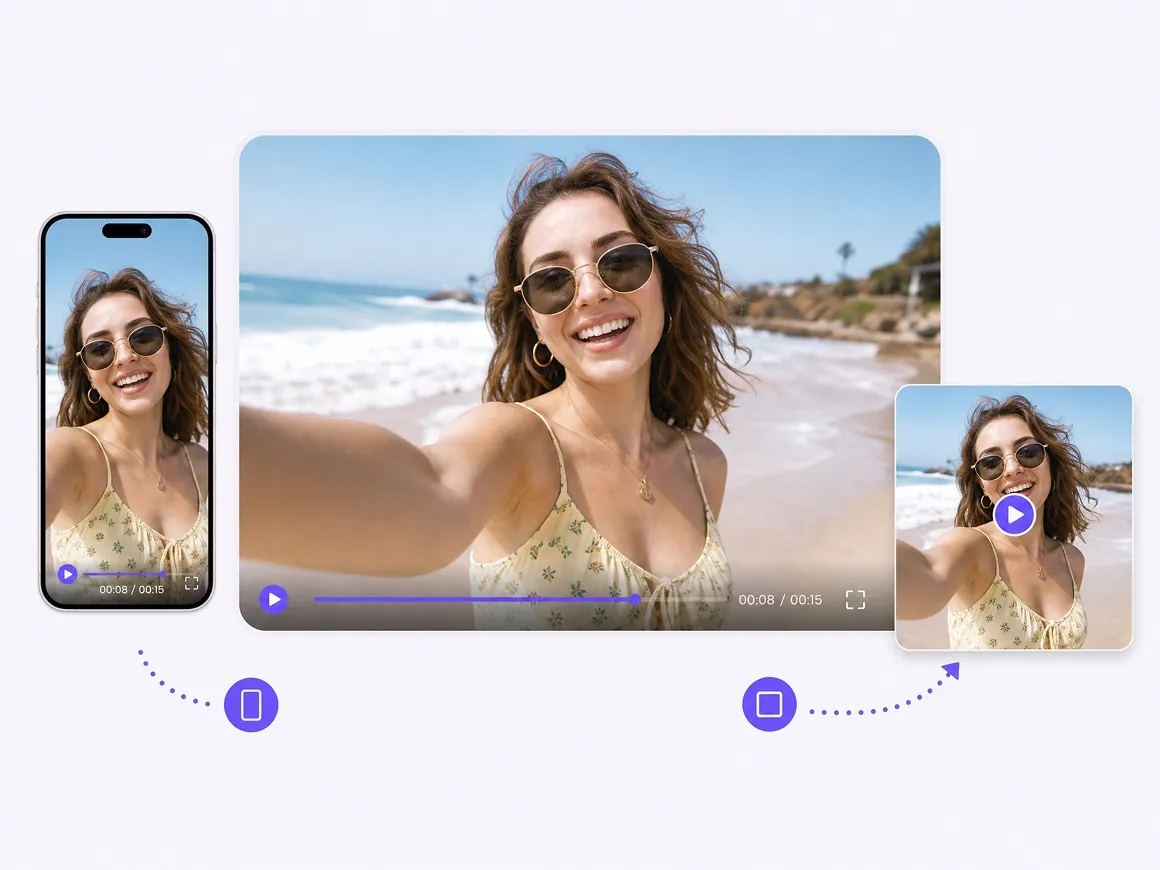
Fine-Tune Format, Quality, Audio, and Length
Before each generation, set the aspect ratio, resolution, audio output, clip duration, and number of outputs available for the selected model. This makes it easier to create platform-ready footage without rebuilding the same prompt for every format, channel, or output requirement.
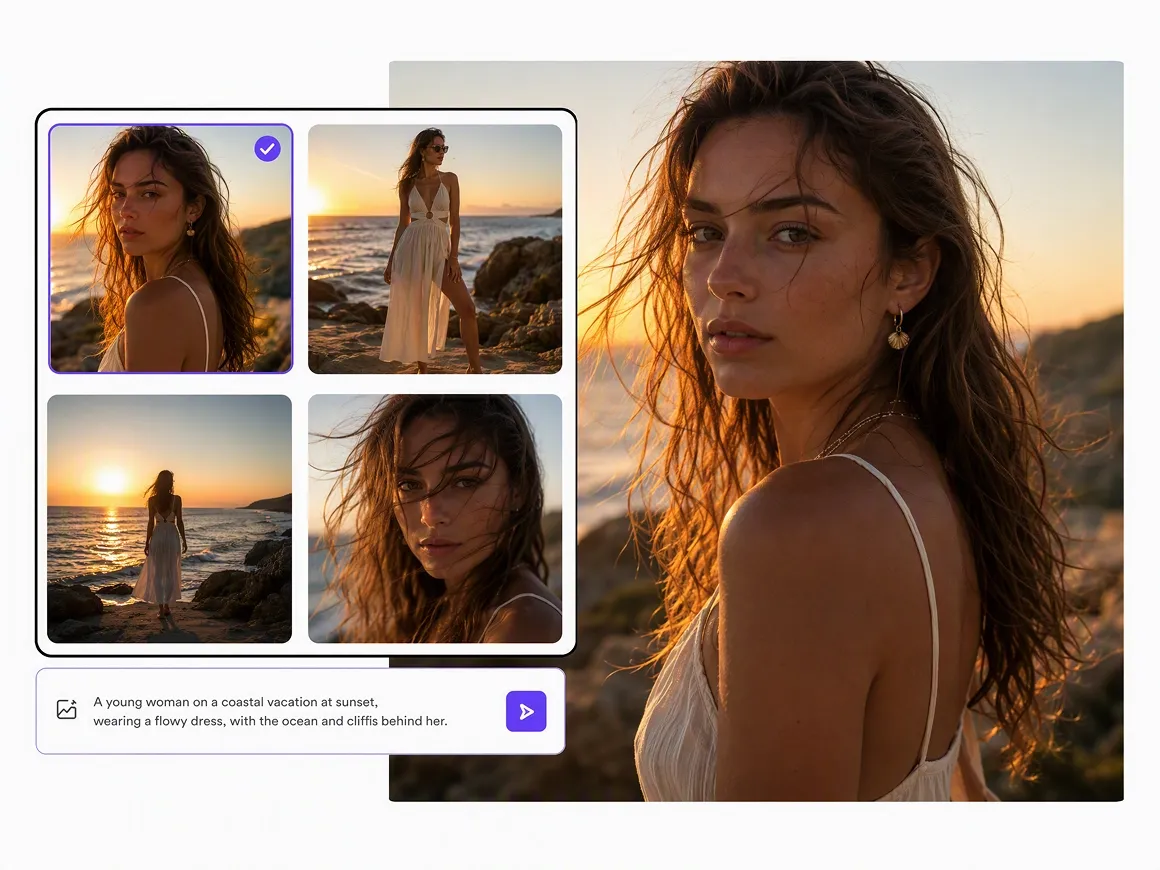
Compare Multiple Video Results in One Batch
RoboNeo can generate 1, 2, or 4 clips in a single batch when the selected model supports it. That gives creators and marketing teams more versions to compare from the same setup, reducing the need to restart each test separately.
Move Beyond Text When a Prompt Is Not Enough
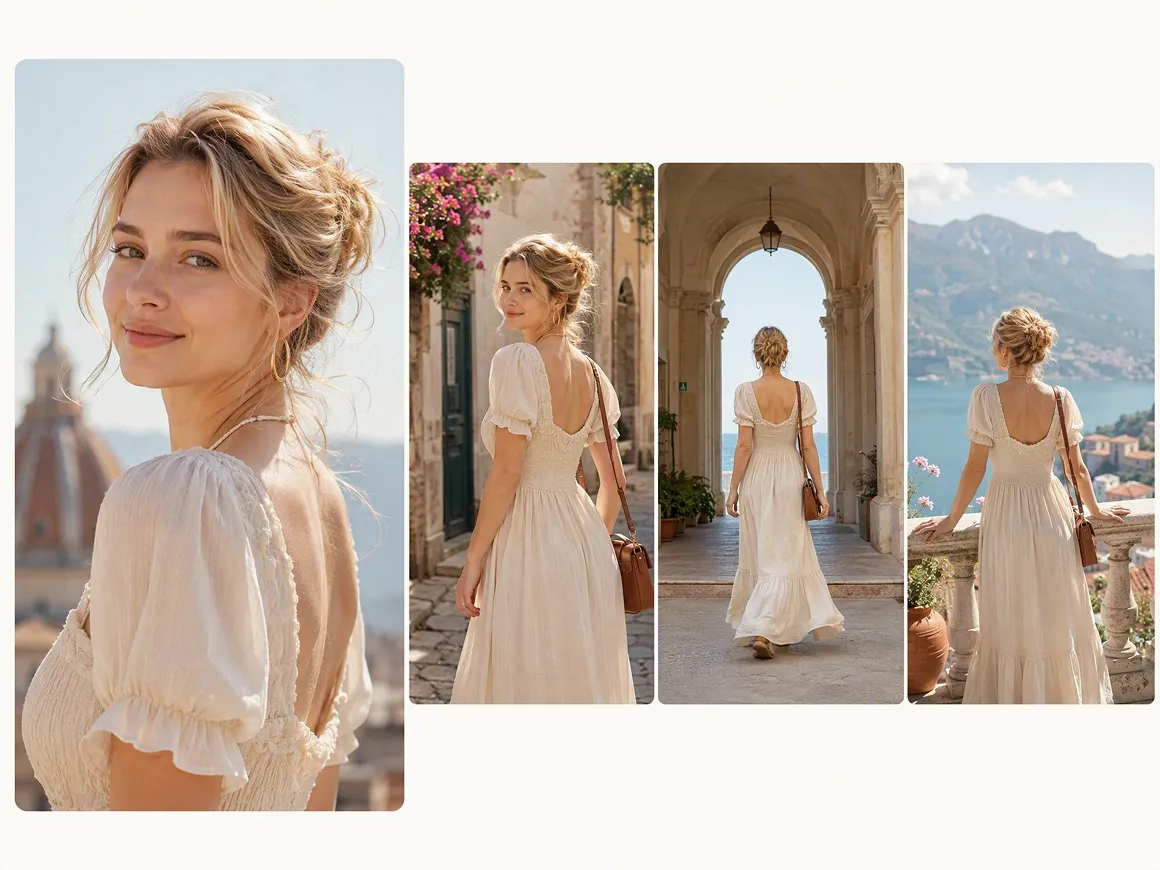
A project does not have to stay text-only. The same Video Node also supports image-to-video, universal reference, motion control, and start-end frame workflows, so you can add visual or motion guidance when a written prompt alone cannot define the shot clearly.
Text to Video Ideas for Real Projects
Social Ads and Short Posts
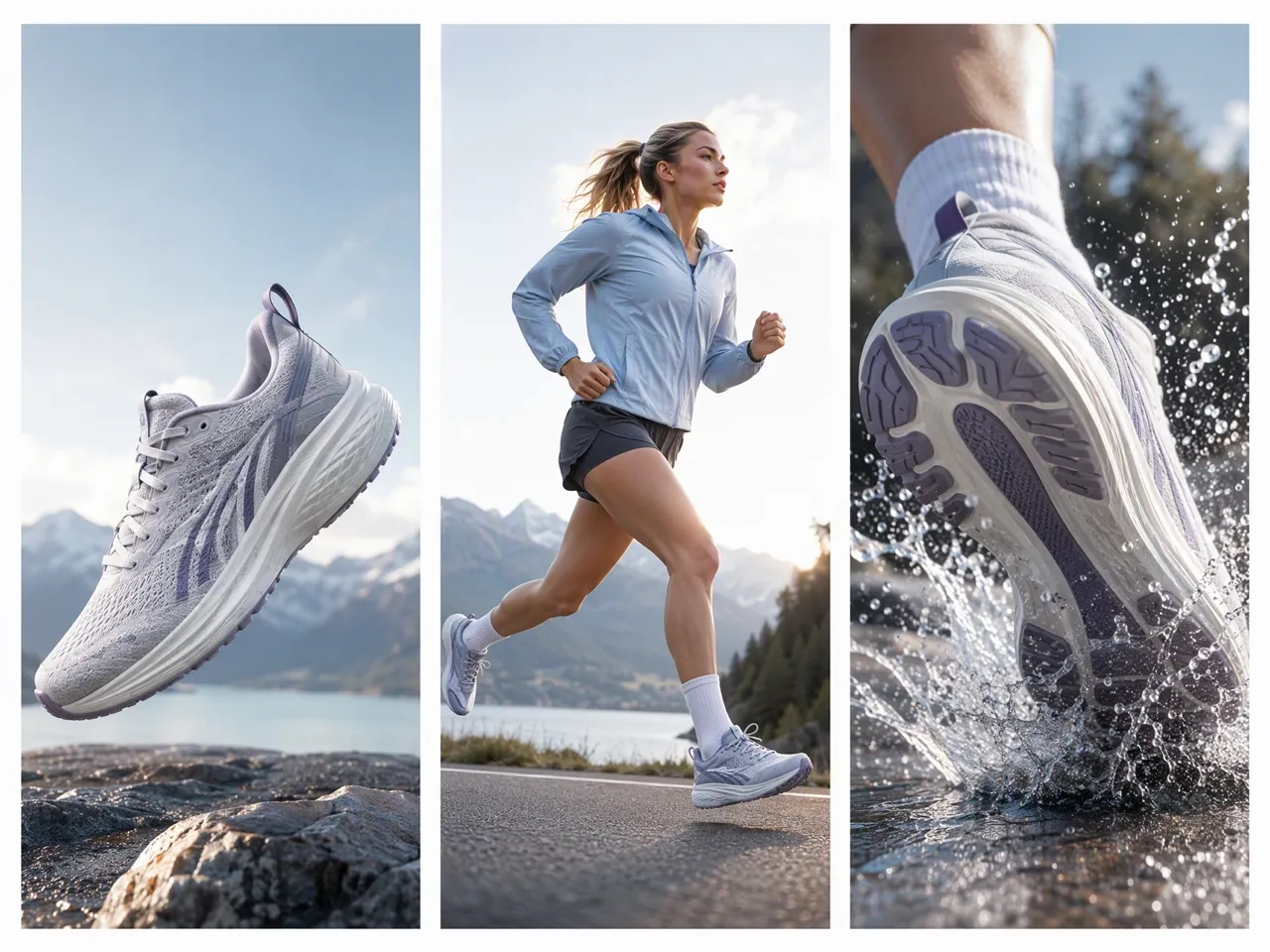
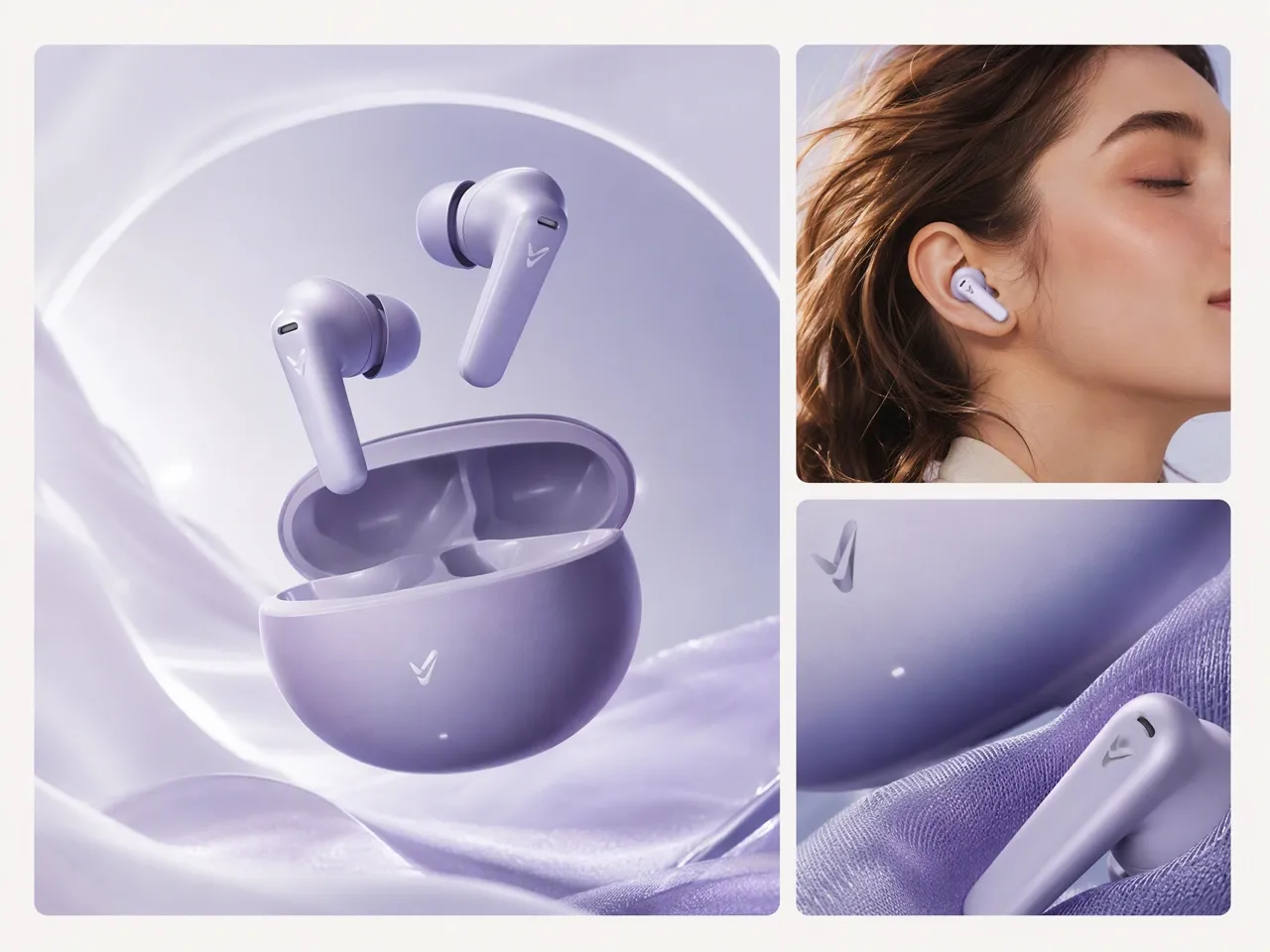
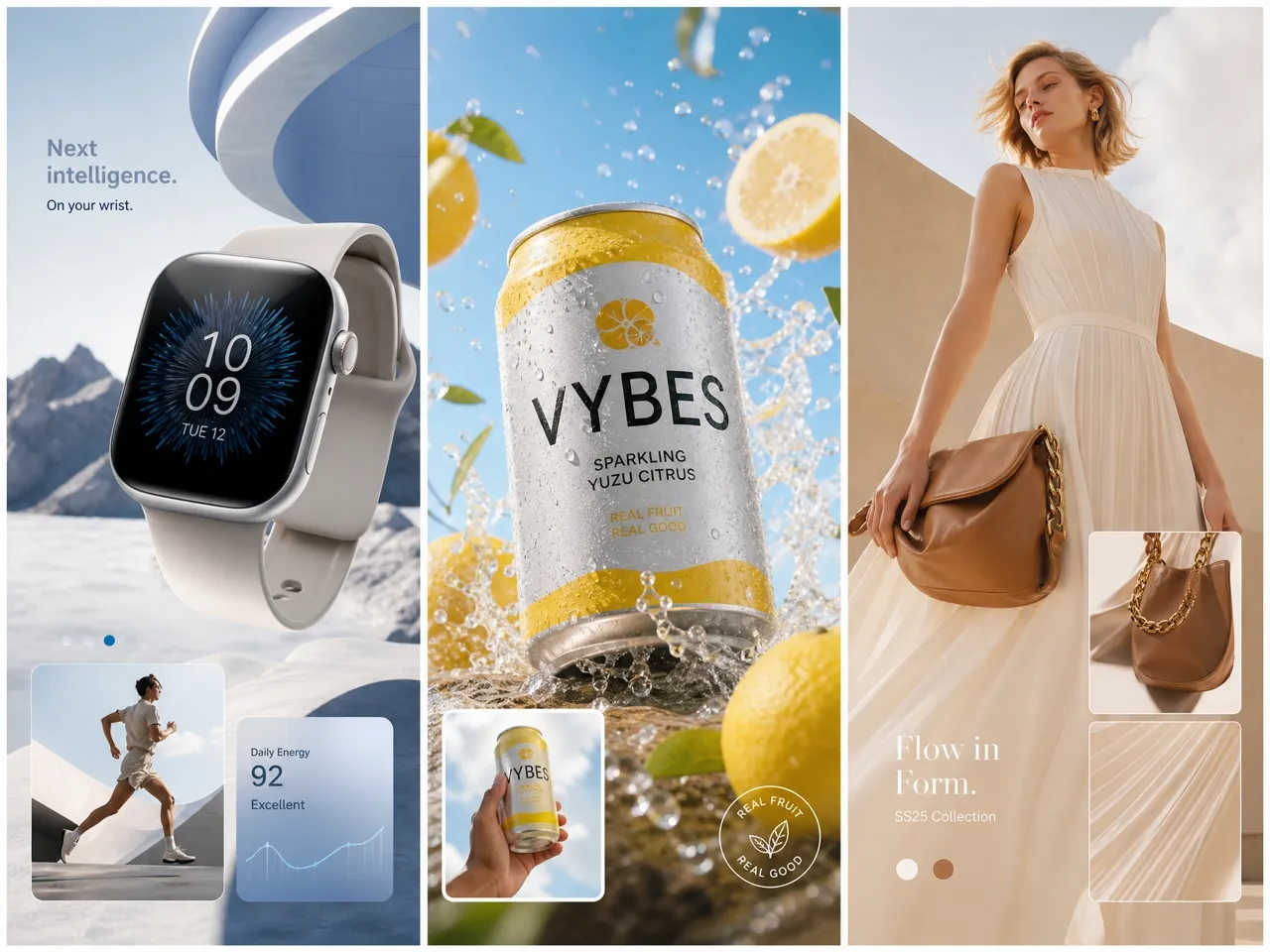
Social teams can turn a campaign line, hook, or product message into short videos for TikTok, Instagram, YouTube Shorts, and paid ads. AI generated video makes it easier to create fresh visual content for different platforms without setting up a full production each time.
Frequently Asked Questions
Is there a 100% free AI tool that can convert text to video?
How do I turn text into a video?
Write a prompt describing the scene you want, then choose a text to video AI model in RoboNeo. Set the available video options and generate the clip directly from your prompt.
Which AI video models are available in RoboNeo?
RoboNeo includes video models such as Seedance, Kling, Wan, Vidu, PixVerse, and more. Available generation modes and controls vary by model, so you can choose one based on the type of video you want to create.
How do I choose between different text to video AI models?
Choose Seedance 2.0 for camera motion and synced audio, Vidu Q2 Turbo for faster generation, Kling 3.0 for professional video creation, or PixVerse V5.6 for viral short videos. Match the model to your main production goal.
Can I control the size and quality of the generated video?
Yes. Depending on the model, RoboNeo supports different aspect ratios, resolutions from 480P to 4K, audio settings, clip duration, and output quantity, giving you more control over the final video format.
Can I reuse Seedance 2.0 prompts in other projects?
Save the prompt setup with its connected nodes in My Nodes, then reuse that group in another project. RoboNeo keeps the saved node group’s original parameter settings, which is useful for repeated video formats or recurring production workflows.
Can I generate multiple video versions from the same prompt?
Yes. RoboNeo can generate 1, 2, or 4 clips in a single batch when supported, making it easier to compare different results from the same prompt without setting up each generation separately.
Turn Your Next Prompt Into a Video
A text to video AI model can take you from a written concept to a generated clip without setting up a traditional shoot. Choose a model in RoboNeo, shape the output settings, compare results, and keep refining the version that best fits your project.
What Users Say About RoboNeo
RoboNeo is simple and easy to use, and it has changed significantly recently. Worth a try.
I found the AI video tools easy to get into, and the results were close to what I had in mind. Clearer instructions definitely helped me get better results.
I like the overall concept and the image quality. It gives me a useful way to create visual content and experiment with different ideas in one place.