How to Make a YouTube Short: Use AI to Create Short Videos
 RoboNeo TeamOctober 30, 2026
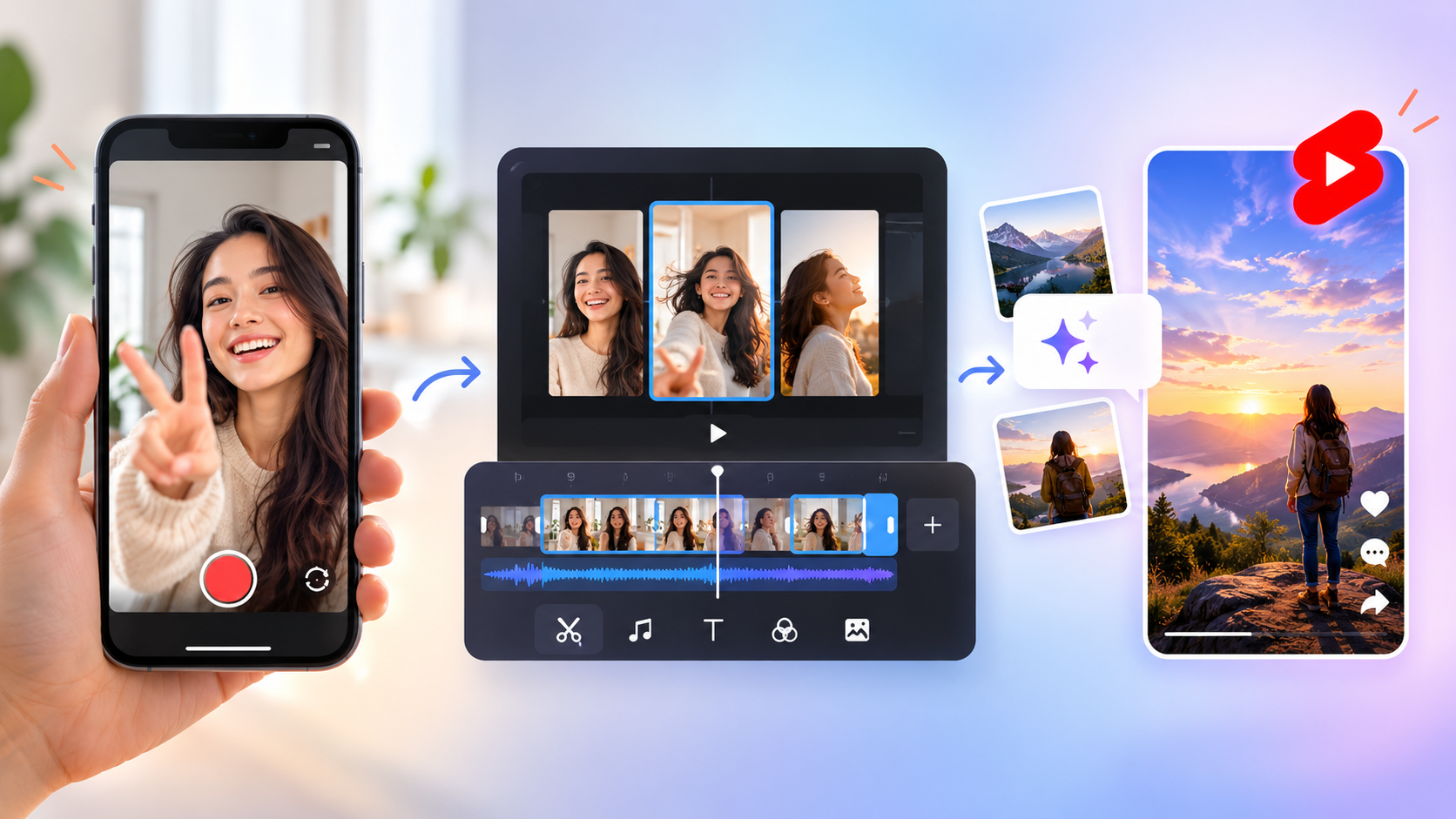
YouTube Shorts are basically bite-sized videos that clock in at three minutes or less. When it comes to making them, you’ve got three main routes: shoot directly in the YouTube App, repurpose footage you already have, or let AI generate the clips for you. Let’s break down all three methods and walk you through creating your own YouTube Shorts, step by step.
How to Make a Short on YouTube Using the App
Here is a quick 4-step guide on how to make a YouTube Short using nothing but the YouTube App.
Step 1: Open YouTube and Start Creating a Short
1. Fire up the YouTube App on your phone and log in.
2. Tap the Create (+) button right at the bottom.
3. Select "Short" to jump right into the recording interface.
4. Set your clip length based on what your content actually needs.
Step 2: Record Your YouTube Short
Before you hit record, double-check your framing and lighting. Keep the camera steady. Then, shoot one or a few clips depending on what you need. Once you're done, review the footage to make sure you didn't miss any key shots. If you don't like how it turned out, just undo it or redo.
Step 3: Add Music, Text, and Captions
After you wrap up recording, decide if your clip needs these:
BGM — picks a track that fits. Check the length and copyright limits.
Text — drop in titles or keywords to highlight key info.
Captions — add subs for any voiceover or dialogue, so it's easy to follow.
Audio — if using multiple sound sources, make sure they don't clash.
Step 4: Add Video Details and Upload Your Short
After wrapping up the previous steps, go to the publishing page and run this last-minute check:
Title: Clear and accurate.
Audience & Privacy: Settings are correct.
Video & Audio: Visuals, sound, and subs are working properly.
Thumbnail: Custom cover set up if needed.
Once confirmed, go ahead and publish your Short. You can also just save it as a draft.
How to Turn an Existing Video into a YouTube Short
We’re breaking down three different ways to repurpose your existing videos or raw footage into YouTube Shorts, depending on your specific scenario.
Method 1: Use Edit into a Short for Your Existing YouTube Videos
This method lets you turn part of an existing YouTube video into a short one. If you haven't created the original video yet, start with this YouTube video creation guide.
1. Open up your public video and click Remix → Edit into a Short.
2. Select the segment you want to turn into a Short, adjust the framing, and throw in any text or effects.
3. Finish your edits and hit publish.
Heads up: There’s a length limit for this feature, and your new Short can be linked back to the original video.
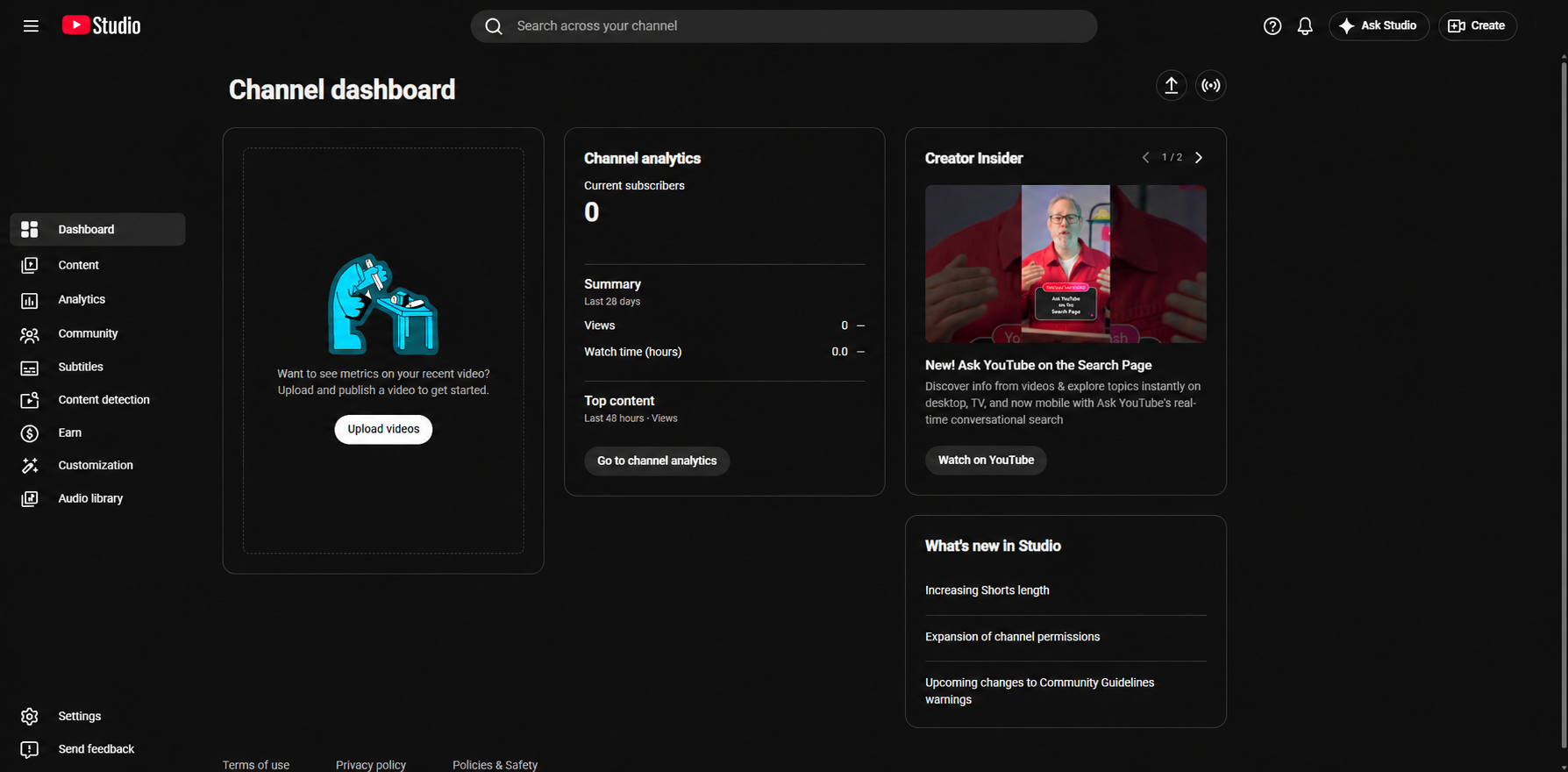
Method 2: Create Shorts With YouTube Studio
If you prefer working directly inside YouTube Studio, here’s the workflow to follow:
1. Head over to the Content tab in YouTube Studio and select your target vdeo.
2. Go to Clips and Shorts, then choose the option to create a Short.
3. Pick the exact segment you need, preview it, and finish the rest of your edits.
4. Review your draft, finalize the details, and publish it here.
Keep in mind: Some features might look different or be unavailable depending on your account type and region.
Method 3: Edit and Upload a Saved Video
If you want to turn a saved video into a YouTube Short, start with footage from your phone or computer. You can use any video editor to trim, reframe, and prepare it for upload.
1. Import your video and grab a segment that can stand on its own with a complete message.
2. Tweak the sequence, pacing, and aspect ratio. Add captions if necessary.
3. Keep the total length within the Shorts limit. Export it, and then upload straight from the YouTube App or Studio.
Pro tip: Always edit in a 9:16 vertical ratio. It makes for a much better viewing experience in shorts.
How to Make a YouTube Short with AI
If you don't have any footage yet, the RoboNeo AI video creation platform lets you generate clips from text prompts or images.
It can also identify highlights in long videos and automatically edit them into Shorts. For creators building a YouTube series, RoboNeo's AI Agent canvas helps organize scenes and develop connected storylines across multiple episodes. Here's how to create a YouTube Short with AI in four steps.
Here's how to create a YouTube Short with AI in four steps.
Step 1: Choose a Video Idea and Write a Simple Script
Before jumping into RoboNeo, take a minute to map out your concept, characters, and script. Try to front-load a killer Hook right at the beginning. RoboNeo supports both text-to-video and image-to-video generation. If you’re going the image route, just get your visual assets ready first.
To show you how it all works, we’re going to use a fun example—a kitten on a martial arts adventure—to walk you through how to make a Short with AI.
Step 2: Generate Vertical Video Clips with RoboNeo
1. Open RoboNeo and access the AI video workspace.
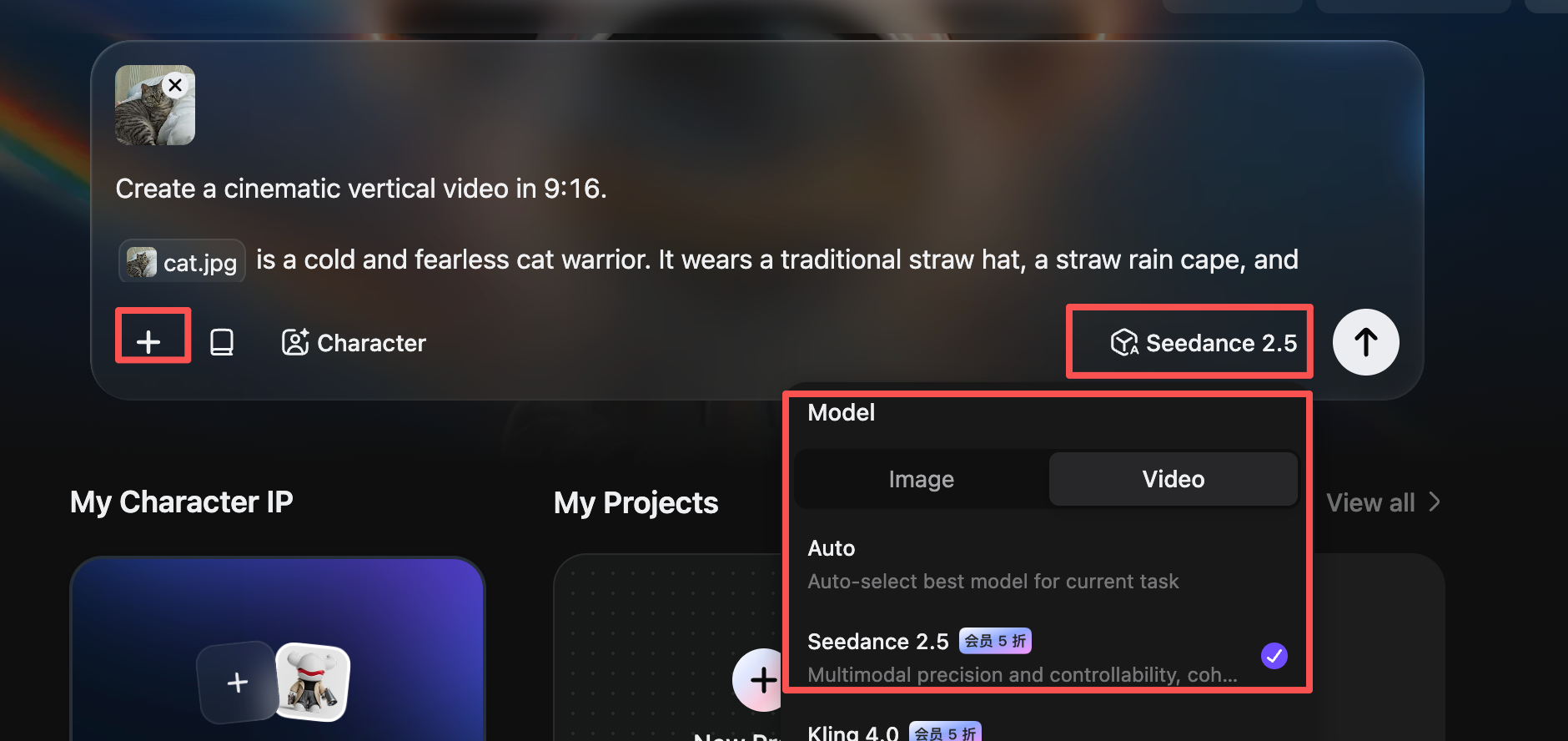
2. Select your generation mode::
a. Text to Video:RoboNeo text-to-video AI models to generate clips from your prepared prompts.
6. Image to Video: Upload a reference pic. Use a text prompt to describe the action, camera work, and scene.
3. Check your model. Duration, ratio, and settings vary between models.
4. Hit generate. The canvas will open. Confirm your settings if they look good.
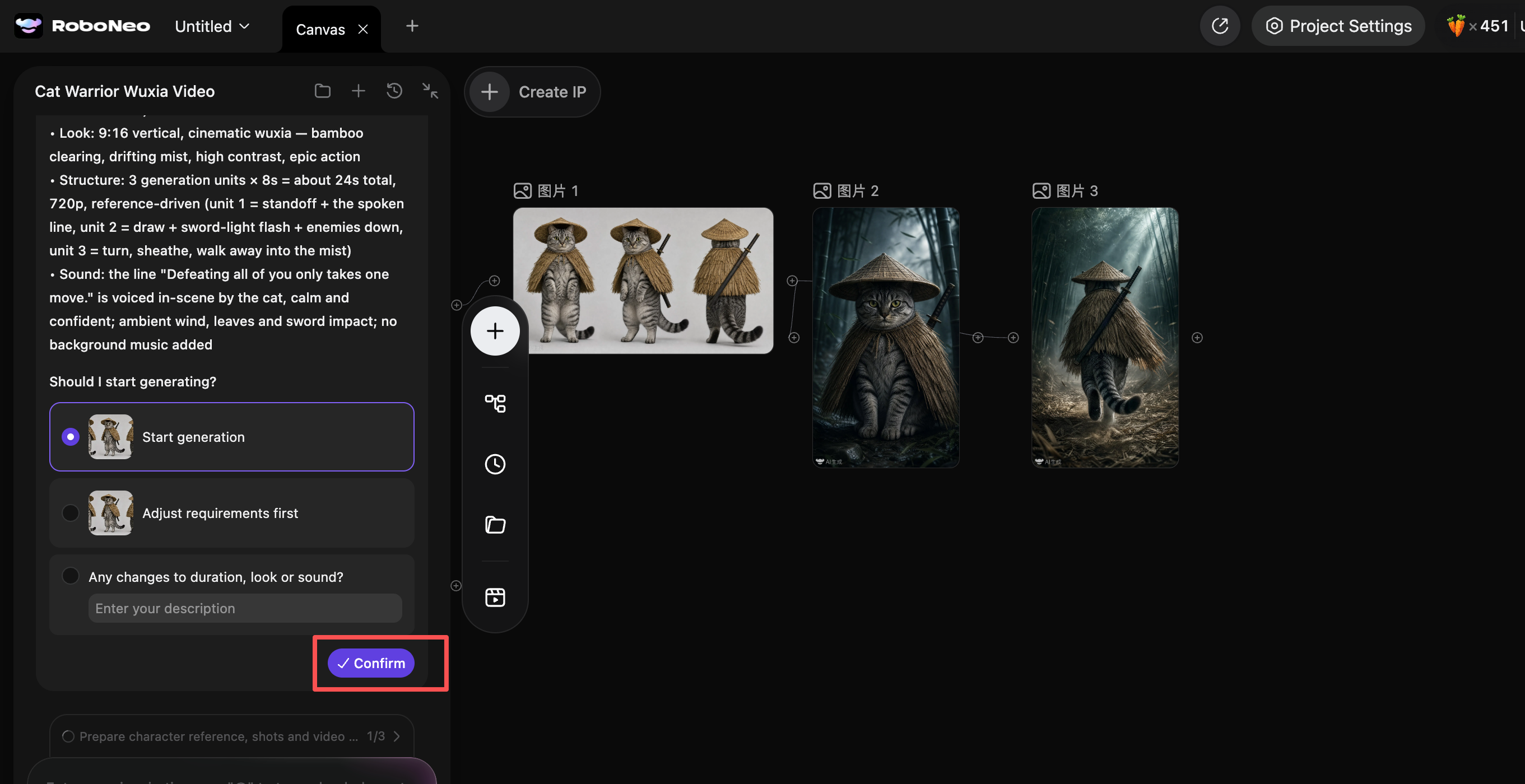
5. Preview the result. Tweak the prompt or assets if you need to regenerate the clip.
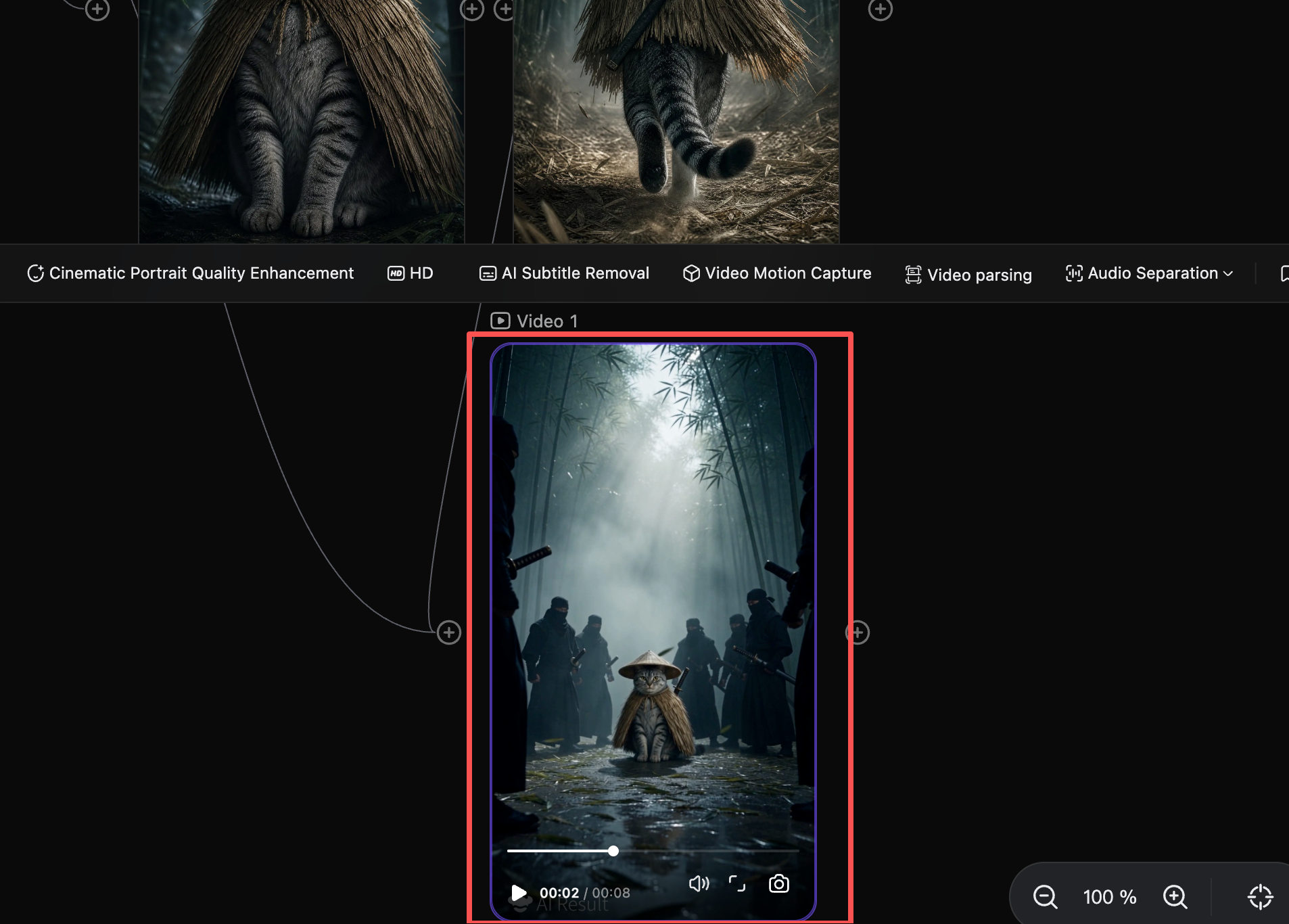
Create a YouTube Short with AI
Step 3: Edit Your AI Video for YouTube Shorts
Raw AI output rarely goes viral without a bit of polish. A solid edit makes for a much better viewing experience:
1. Stitch it together: If you generate multiple clips, sequence them in the exact order your script calls for.
2. Trim the fat: Cut out any unnecessary shots. Use speed ramps, slow-mo, and transitions to keep the flow super smooth.
3. Own the audio: Not a fan of the default AI voiceover or background noise. Just mute the original clip and drop in your own voiceover, captions, and background music.
Step 4: Export Your AI Short and Upload It to YouTube
After editing, give your video a quick scan using this checklist:
Ensure important info, like captions, stays in the safe area away from YouTube's interface.
Verify the ratio, resolution, and length match YouTube Shorts specs.
Avoid audio clashes—keep your dialogue and background music balanced.
When combining clips, check for visual consistency. If using AI product images, verify all product details are correct.
Follow platform rules and add any necessary AI content disclosures.
Once RoboNeo finishes the video, you'll still need to upload it via YouTube. For step-by-step upload details, refer to How to Make a Short on YouTube Using the App.
Tips for Making Better YouTube Shorts
We’ve put together a few extra tips to help your videos perform way better.
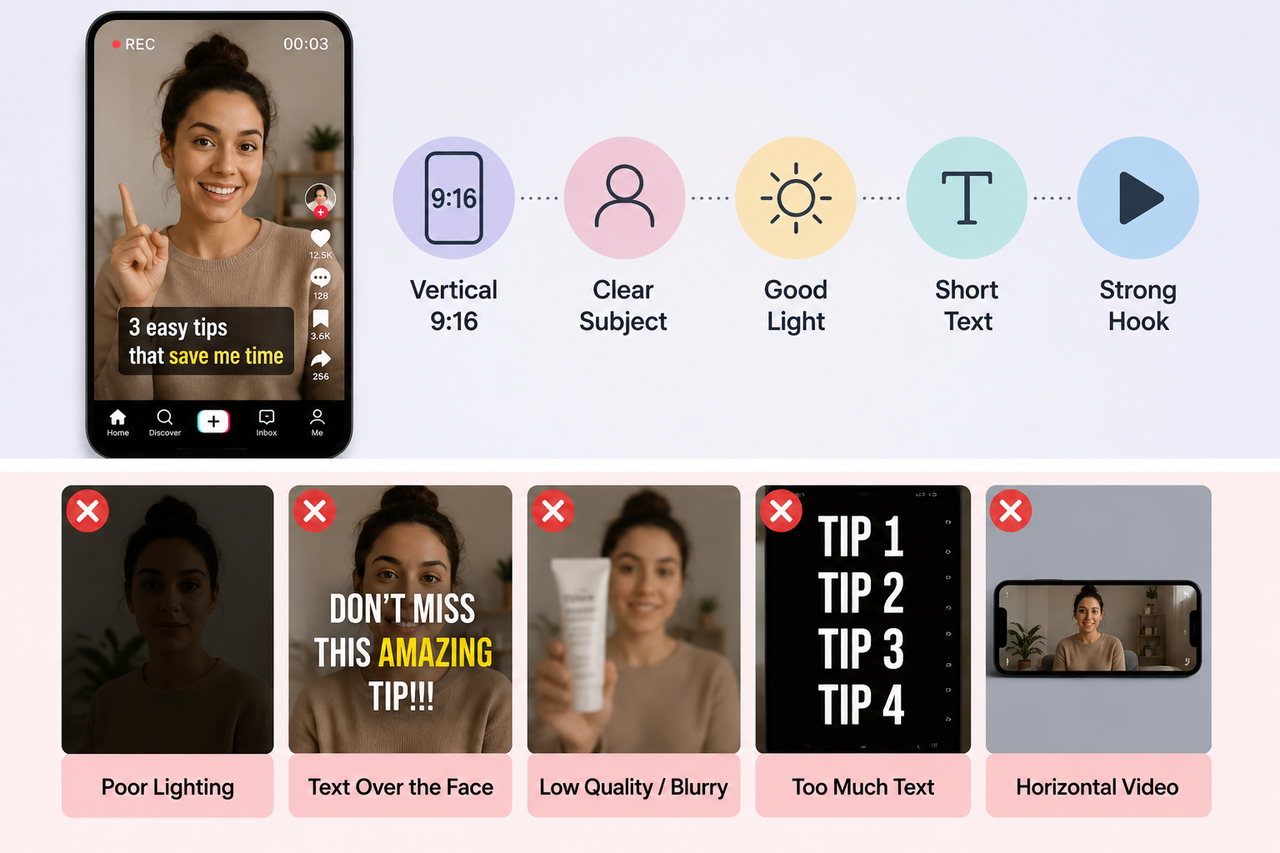
Hook Viewers in the First 1–2 Seconds
A strong Hook stops people from swiping past. Front-load your Hook at the very beginning and use it to jump straight into the main point.
Keep Each Short Focused on One Main Idea
Time is tight on shorts. Stick to one core message, ditch the fluff, and keep the narrative tight. A clear topic, natural pacing, and a complete thought will always give you a better viewing experience.
Make Captions Easy to Read on Mobile
Captions help people follow along. Keep the font size readable and don't cram in too much text at once. Make sure they don't blend into the background, and keep them clear of the main action.
Keep AI-Generated Shorts Accurate and Trustworthy
When generating with AI, double-check that the output matches your vision. Never create fake events, fake quotes, or misleading product claims. If you're featuring real people or events, verify the facts. Everything needs to align with YouTube’s content policies.
FAQ
What is the easiest way to make a YouTube Short?
Record your Shorts directly in the YouTube App, do some quick in-app edits, and hit publish. No extra editing software is needed—perfect for anyone who wants to shoot and post on the fly.
Can AI create YouTube Shorts automatically?
Yes. But AI tools usually can't publish directly to YouTube Shorts for you, and high-quality AI videos typically need some editing before they're ready.
How long should a YouTube Short be?
YouTube Shorts max out at 3 minutes. Within that limit, the exact length really depends on what your content needs.
Does YouTube limit AI-generated Shorts?
No, but creators still need to follow YouTube's content policies and make sure their videos offer original value rather than looking like mass-produced, template-based content.
Can YouTube Shorts be monetized?
Yes. Shorts that qualify for the YouTube Partner Program can earn you money. Just keep in mind that AI-generated videos still need to be original, respect copyrights, and follow YouTube's monetization policies.
You May Be Interested
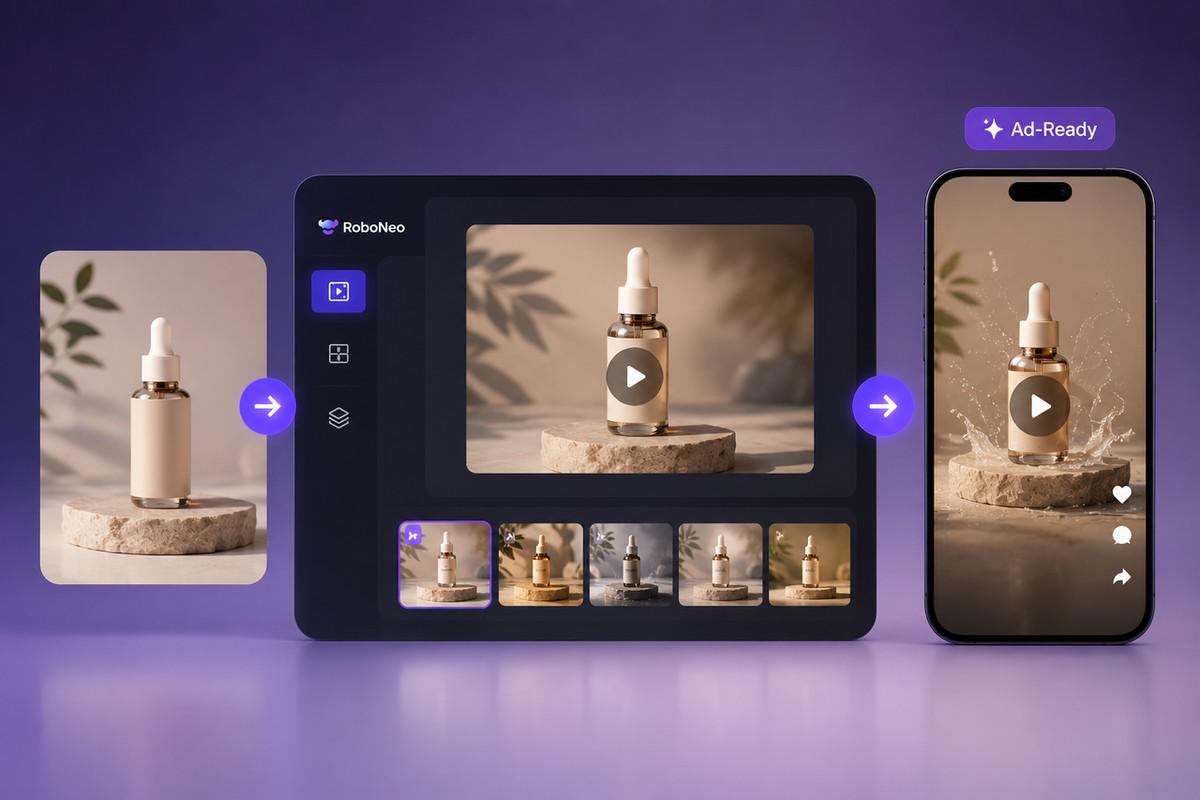
Best AI Shorts Video Generator: 9 Tools Compared (2026)
YouTube Shorts vs TikTok: A 2026 Creator Comparison
How to Make a Short Film in 2026: From Script to Screen
How Long Is a Short Film? A Runtime Guide for Filmmakers
How to Write a Script for a Short Film: Complete Guide
How to Create Animated Videos: 5 AI Methods to Final Video