How to Make a Logo Transparent: Remove the Background Easily
 RoboNeo TeamOctober 28, 2026
To make a logo transparent, you need to remove the background while keeping the original text, symbols, and colors intact. The finished image should be saved in a format that supports transparency, such as PNG.
Whether your logo has a white or colored background, several online and desktop tools can help you remove it. This guide covers four practical methods, along with ways to fix white edges, missing details, and leftover background areas.
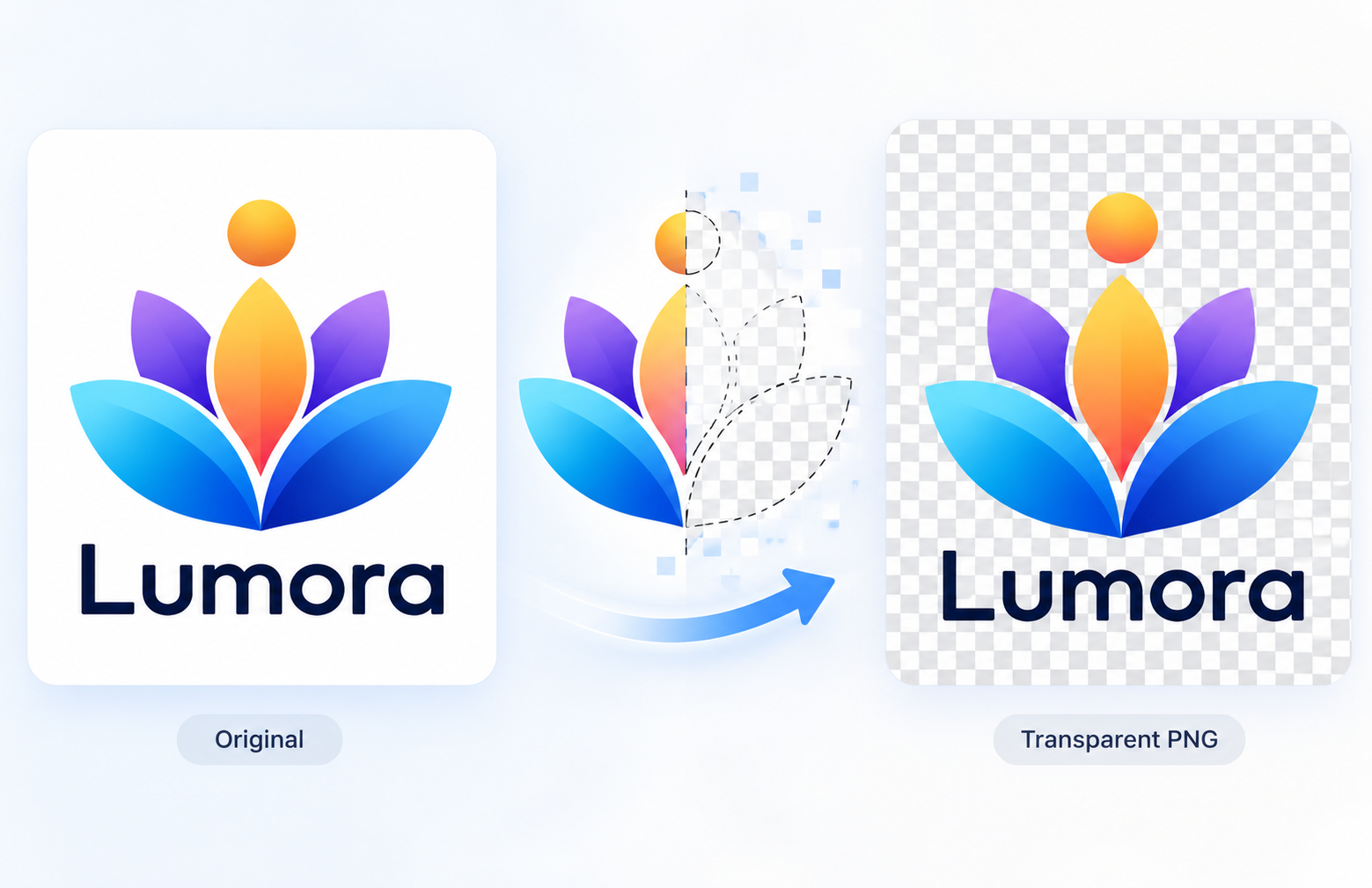
Why Use a Transparent Logo?
A logo with a solid background can look out of place when added to another design. A white square around a company logo becomes especially noticeable against a dark website header.
With a transparent logo, the surrounding background shows through while the brand's letters, shapes, and colors remain visible. The same file can sit over a website banner, presentation slide, or product image without an unwanted rectangle.
Transparency only affects the areas you remove. It doesn't require fading the logo itself or changing its original colors.
4 Ways to Make a Logo Transparent
The best method depends on where your logo is stored and how much editing it needs. Browser-based tools, including an AI photo background remover, offer quick background removal, while desktop software provides greater control over detailed designs.
How to Make a Logo Transparent Online with RoboNeo
RoboNeo offers a simple way to learn how to make a logo background transparent without installing software. Its AI background remover identifies the logo, removes unwanted backgrounds, and helps preserve the original design details.
This is useful for small business owners who have a logo saved as a JPG but no access to the original design file. Beyond background removal, RoboNeo's AI Agent can help incorporate the transparent logo into new creative assets, such as promotional visuals and branded content.
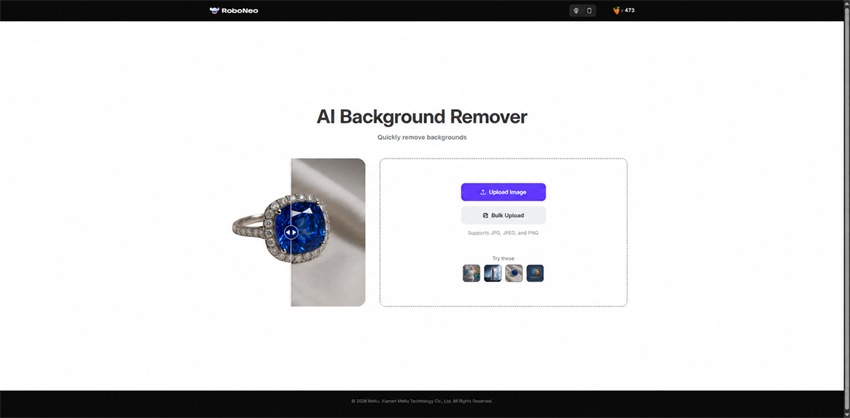
Step 1: Upload Your Logo
Open RoboNeo in your browser and upload a clear image of your logo. Make sure the entire design is visible, including small lettering and thin borders.
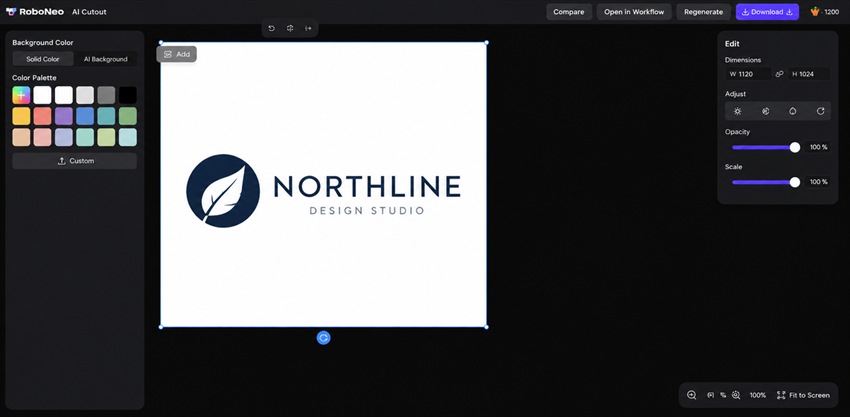
Step 2: Remove the Background
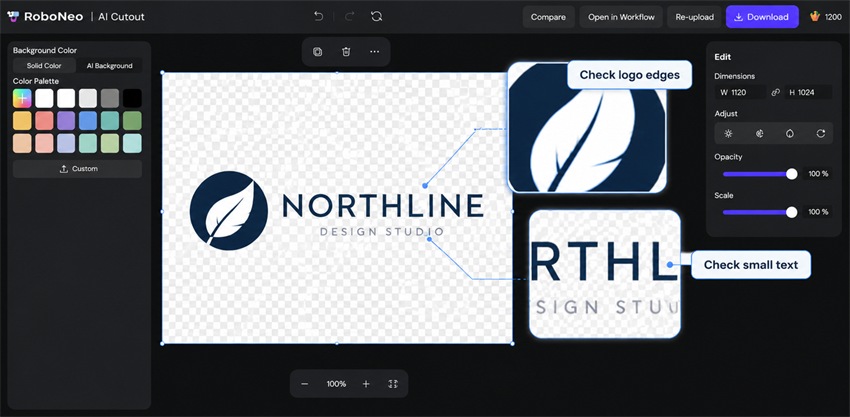
Use the RoboNeo AI Background Remover to separate the logo from its background while preserving its original colors and details. Check that light-colored text and symbols remain visible after removal.
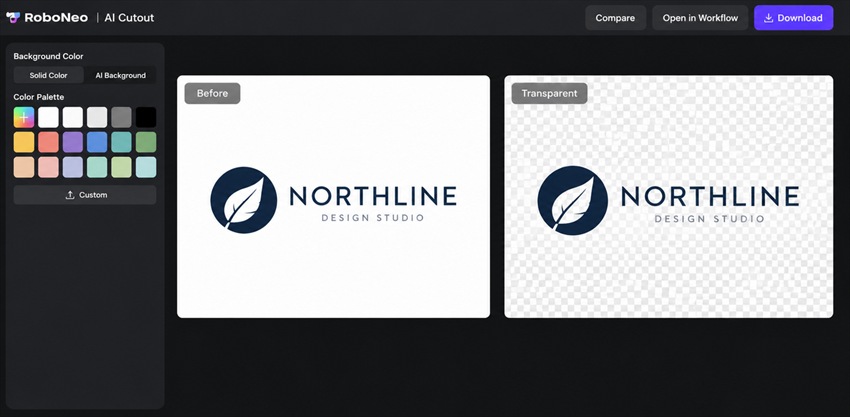
Remove Logo Background With AI
Step 3: Check and Download the Result
Review the logo for missing details or unwanted background patches, then download it as a transparent PNG.
How to Make a Logo Transparent for Free with remove.bg in Your Browser
For anyone researching how to make a logo transparent for free, remove.bg provides a way to test automatic background removal and download a smaller preview image.
The free preview is useful for checking whether the tool handles your design correctly. Higher-resolution downloads may require payment or credits, so check the available options before preparing a final brand asset.

Step 1: Upload Your Logo for Automatic Removal
Visit remove.bg and upload your logo. The tool automatically removes the background, so check that all letters and graphic elements remain visible.
Step 2: Review and Adjust the Cutout
Use the available Cutout editing controls to erase unwanted areas or restore missing details. Pay particular attention to spaces inside letters and light-colored elements.
Step 3: Download the Preview-Size PNG
Download the free preview as a transparent PNG and check its dimensions. If you need a larger file, review the high-resolution download options, as making a picture higher resolution cannot reliably restore missing logo details.
How to Make a Logo Background Transparent in Photoshop
Photoshop is a practical choice when a logo contains fine lettering, delicate outlines, or white elements that automatic tools might remove.
This method uses the Magic Wand tool and a layer mask to hide a relatively uniform background without permanently deleting the original pixels.
If your Photoshop document already has a separate background layer, simply hiding that layer may be enough.

Step 1: Open Your Logo and Unlock the Layer
Open your logo in Photoshop and unlock the Background layer if needed. Duplicate it and hide the original layer to keep a backup.
Step 2: Select the Background with the Magic Wand
Choose the Magic Wand tool and click the background. Adjust Tolerance and use Add to Selection or Subtract from Selection to avoid selecting parts of the logo.
Step 3: Hide the Background with a Layer Mask
With the background selected, choose Layer > Layer Mask > Hide Selection. Paint black or white on the mask to hide unwanted areas or restore missing logo details.
Step 4: Export a Transparent PNG
Hide any remaining background layers, then go to File > Export > Export As and select PNG with transparency enabled. Save a PSD copy if you want to preserve the editable layers and mask.
How to Make a Logo with a Transparent Background in the Photoroom Mobile App
If your logo is saved on your phone, Photoroom provides another way to make a logo with a transparent background.
The following workflow uses the iPhone app. Menu locations may differ on Android or in other app versions.

Step 1: Import Your Logo into the App
Open Photoroom and tap Start from photo to import your logo. Allow the app to remove the background automatically.
Step 2: Choose a Transparent Background
Under Classics, select the transparent background template. Check the logo's edges and lettering, using Cutout to correct any missing or unwanted areas.
Step 3: Check and Export the PNG
Review the logo and export it as a transparent PNG where the available settings permit it. Place the file over a colored background to confirm transparency before using or sharing it.
How to Fix Common Logo Background Issues
Even when you know how to make the background of a logo transparent, the result may have white edges, missing design elements, or leftover background patches. The right fix depends on the problem and whether you're using an AI editor or manual editing tools.
Clean Up White Edges
Problem: A faint white outline may remain around the logo when background colors blend into its edges, particularly in compressed JPG images.
Solution: In an AI editor that accepts text prompts, request cleaner edges while keeping the logo's original shape and colors unchanged. For more precise corrections, Photoshop's layer masks and edge refinement tools let you remove unwanted pixels manually. Methods used to make a photo less blurry may improve mild softness, but a sharper source image is preferable.
Restore Missing Details
Problem: Automatic background removal may accidentally erase white lettering, thin lines, or small decorative elements that belong to the logo.
Solution: With a prompt-based AI editor, specify which details must remain, such as "Keep the white lettering inside the blue logo while removing only the outer background." For manual corrections, use Photoshop's layer mask or the Restore tool in remove.bg or Photoroom, where available. Compare the result with the original to avoid changing the logo's design.
Remove Leftover Background
Problem: Small background patches may remain inside letters, between graphic elements, or within enclosed shapes.
Solution: If your AI editor accepts prompts, identify the remaining areas, such as "Remove the white background inside the letters O and P without changing the logo." For manual editing, use Photoshop's selection tools or the Erase tool in remove.bg or Photoroom to clean up specific areas. Check that enclosed white shapes aren't intentional design elements before removing them.
FAQs on How to Make a Logo Transparent
Can I make a logo transparent for free?
Yes. Some online tools provide free background removal and transparent image downloads, although free processing doesn't always include full-resolution exports. Check the current limits on image size, download quality, credits, and watermarks before choosing a service.
Can I remove a logo background on my phone?
Yes. You can use a mobile background removal app or a compatible browser tool. Upload the original image, remove its background, and download the finished file. A larger screen may be more convenient when examining small text or complicated edges.
Should I save a transparent logo as PNG or SVG?
PNG is suitable for transparent raster images used in websites, presentations, and digital graphics. SVG is preferable when you have a genuine vector logo that needs to scale without losing sharpness. Changing a PNG file's extension to SVG does not turn it into an editable vector design.
Can I use a transparent logo for printing?
Yes, provided the file meets the printer's resolution, size, and format requirements. Transparency alone doesn't guarantee print quality. Some jobs require vector artwork, and printing on colored or clear materials may involve additional white ink or underbase requirements.
How do I make the logo itself semi-transparent?
First, remove the background so the logo is isolated. Then reduce the logo layer's opacity in an image editor. This makes the actual design partially transparent rather than just removing its background. Check readability against the intended background and export in a format that preserves transparency.
You May Be Interested

How to Remove Instagram Watermark: 3 Methods in 2026
9 Best App to Remove TikTok Watermark: Complete 2026 Guide
5 Best Free Tools to Remove Watermark from Video in 2026 | RoboNeo
Canva Watermark Remover Review: Features and Limits
How to Remove Watermark from Video with AI (2026 Guide)