How to Do Green Screen on TikTok: Traditional and AI Methods
 RoboNeo TeamNovember 2, 2026
Changing the background of a TikTok video can make your content more engaging, whether you are sharing a tutorial, reacting to a video, or creating entertaining clips. However, beginners may not know how to add background images, use video footage, or create custom scenes.
This article covers how to use TikTok’s green screen effect, create AI-generated backgrounds, and choose the right method for your videos.
How to Green Screen a Video on TikTok: 2 Methods
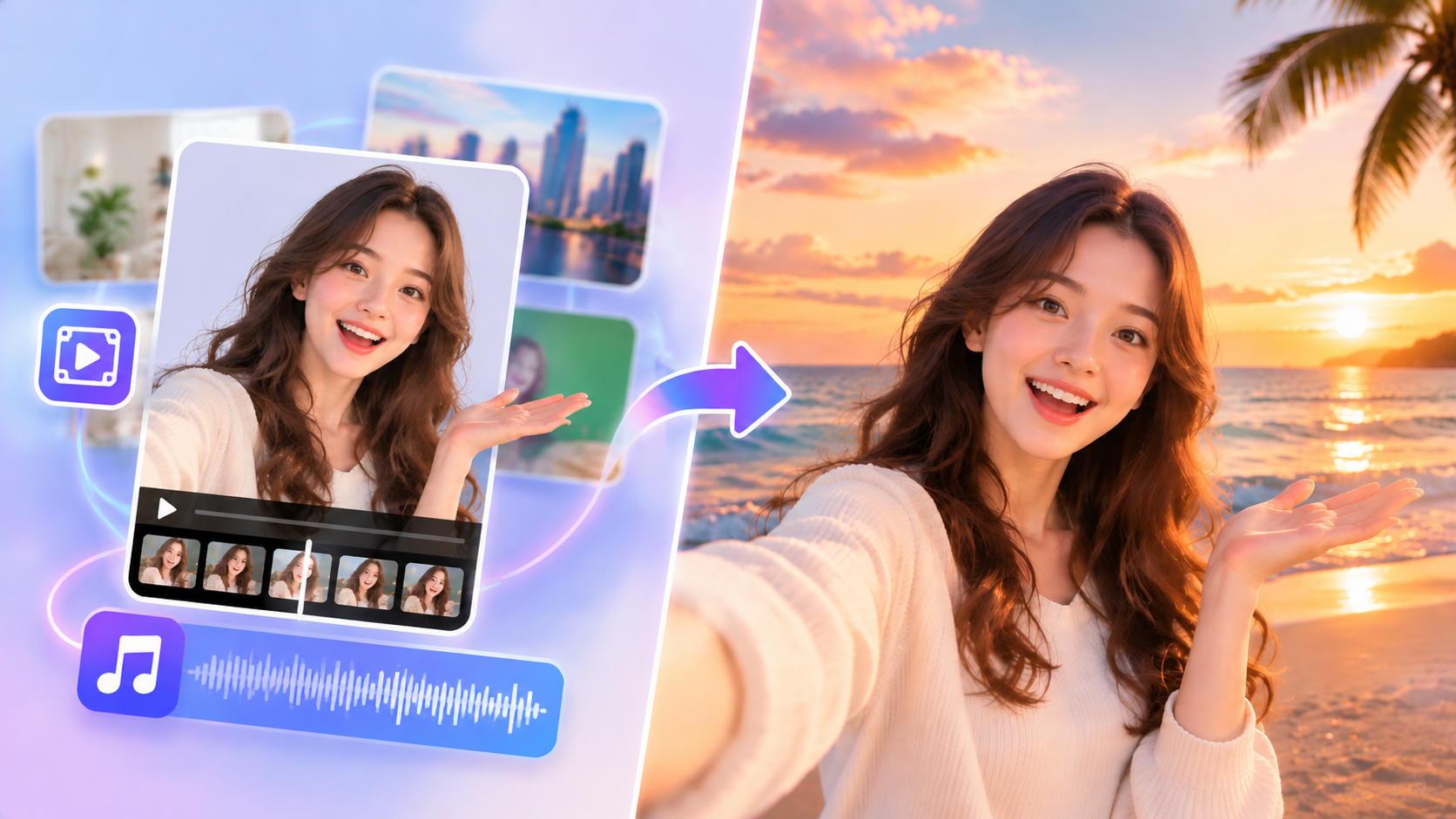
TikTok green screen videos can be created using existing photos or videos or by preparing custom backgrounds with AI tools. The traditional method is convenient for quick recordings, while AI-generated backgrounds offer more flexibility when you need a specific setting.
Feature | Traditional Green Screen | AI-Generated Background |
Background | Existing photo or video | AI-generated or customized video |
Best For | Tutorials, reactions, and commentary | Custom scenes and creative content |
Main Advantage | Simple and quick to use | Greater flexibility in background design |
Method 1: How to Green Screen a Video on TikTok
TikTok's built-in green screen effect allows you to replace your surroundings without using a physical green backdrop. You can select a photo or video, position yourself on the screen, and record directly in the app.
Step 1: Find the Green Screen Effect
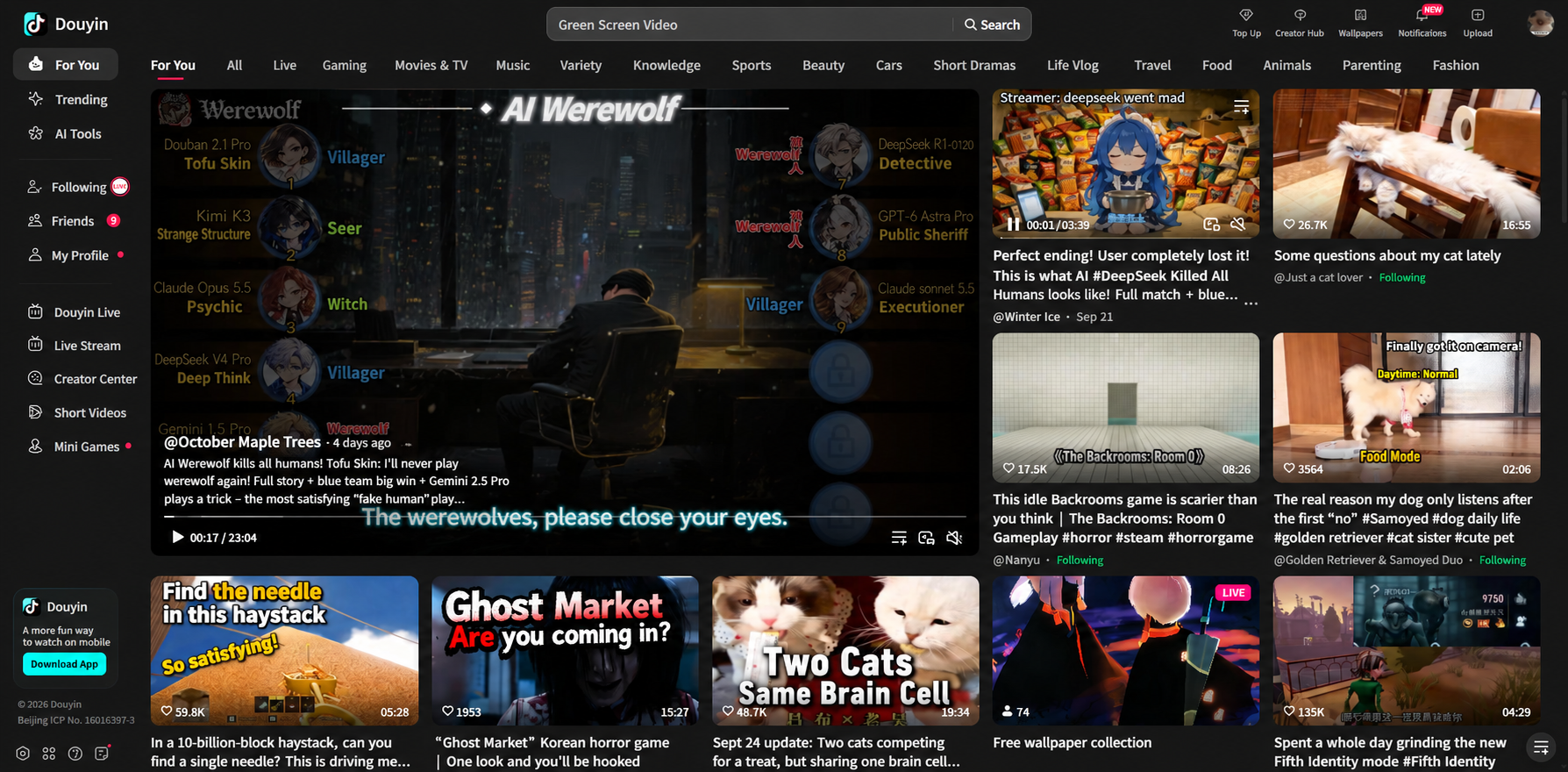
Open TikTok and tap the + button to create a video. Select Effects and look for the Green Screen effect, choosing the photo or video version that matches your needs. The exact interface and available effects may vary by app version.
Step 2: Select a Photo or Video Background
Choose an image or video from your device's gallery. Select media that supports your content, such as a destination photo for a travel introduction or a product image for a review. Clear backgrounds with suitable lighting and composition can make the final video easier to follow.
Step 3: Position Yourself and Record
Adjust your position and size so you do not cover important background details. Check your framing before recording, especially when presenting screenshots, charts, or other visual information. For example, a presenter explaining a chart can stand to one side so viewers can read the data clearly.
Step 4: Review and Post the Video
Preview your recording to check the background alignment and overall appearance. Add captions, sounds, or text if needed, then write a relevant caption and tap Post when you are satisfied with the result.
Method 2: How to Make a Green Screen TikTok With AI
TikTok's built-in green screen effect works well when you already have a suitable photo or video, but finding the right background can take time. With RoboNeo AI Agent, creators can generate custom visuals for different content styles, from product demonstrations to travel-themed videos, and import them into TikTok to create more engaging green screen content.
Create Your AI Green Screen TikTok
Step 1: Choose a TikTok Green Screen Mode
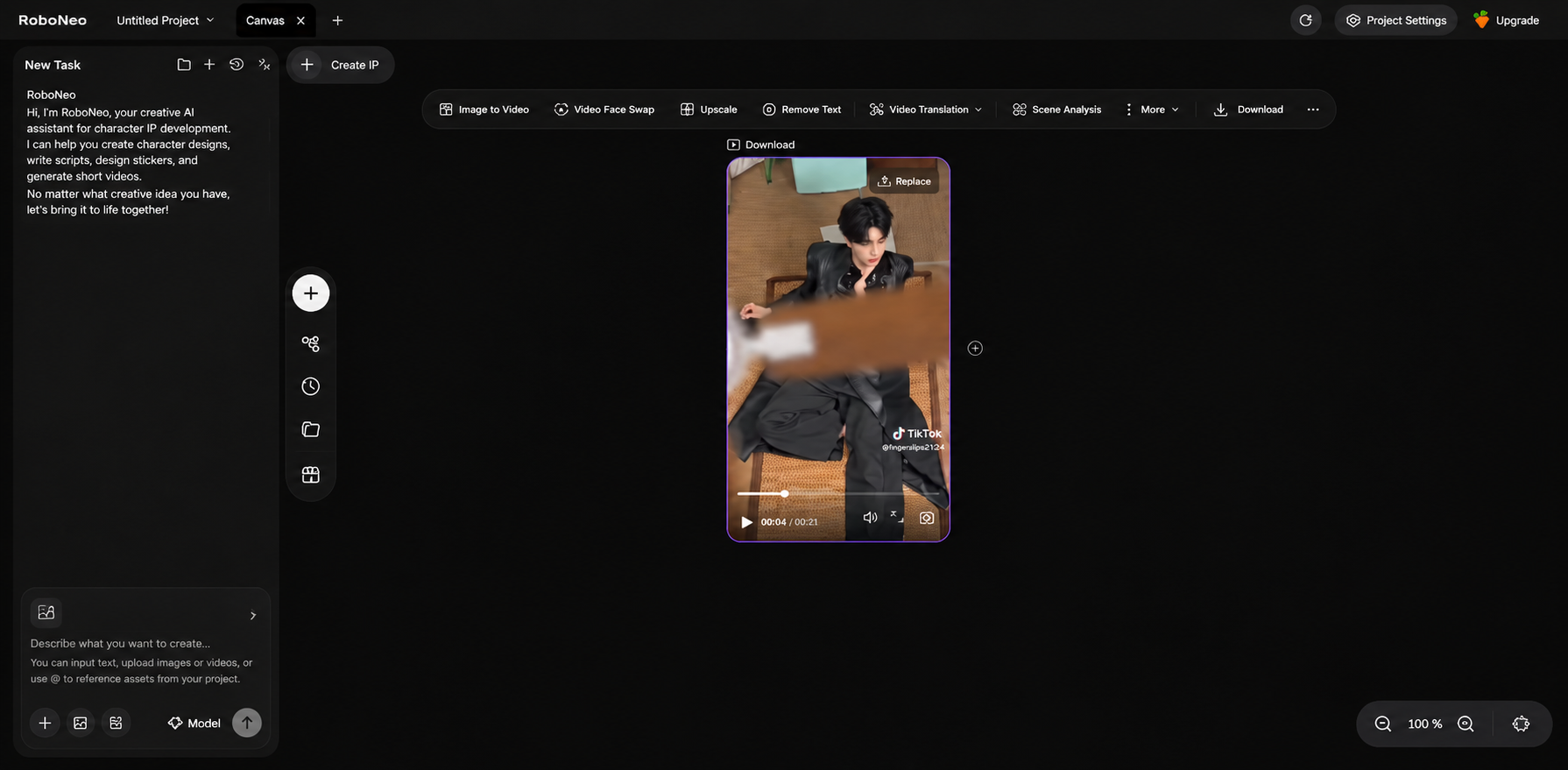
Open RoboNeo, add a Video Node to the canvas, and choose Text-to-Video to generate a new background from a prompt or Image-to-Video to animate an existing image.
Step 2: Generate a Background for TikTok Green Screen
In RoboNeo, enter a prompt to create the background for your TikTok green screen video. Review the generated clip and adjust the prompt if the layout, motion, or framing does not fit your idea. Make sure the background supports the foreground subject instead of distracting from it.
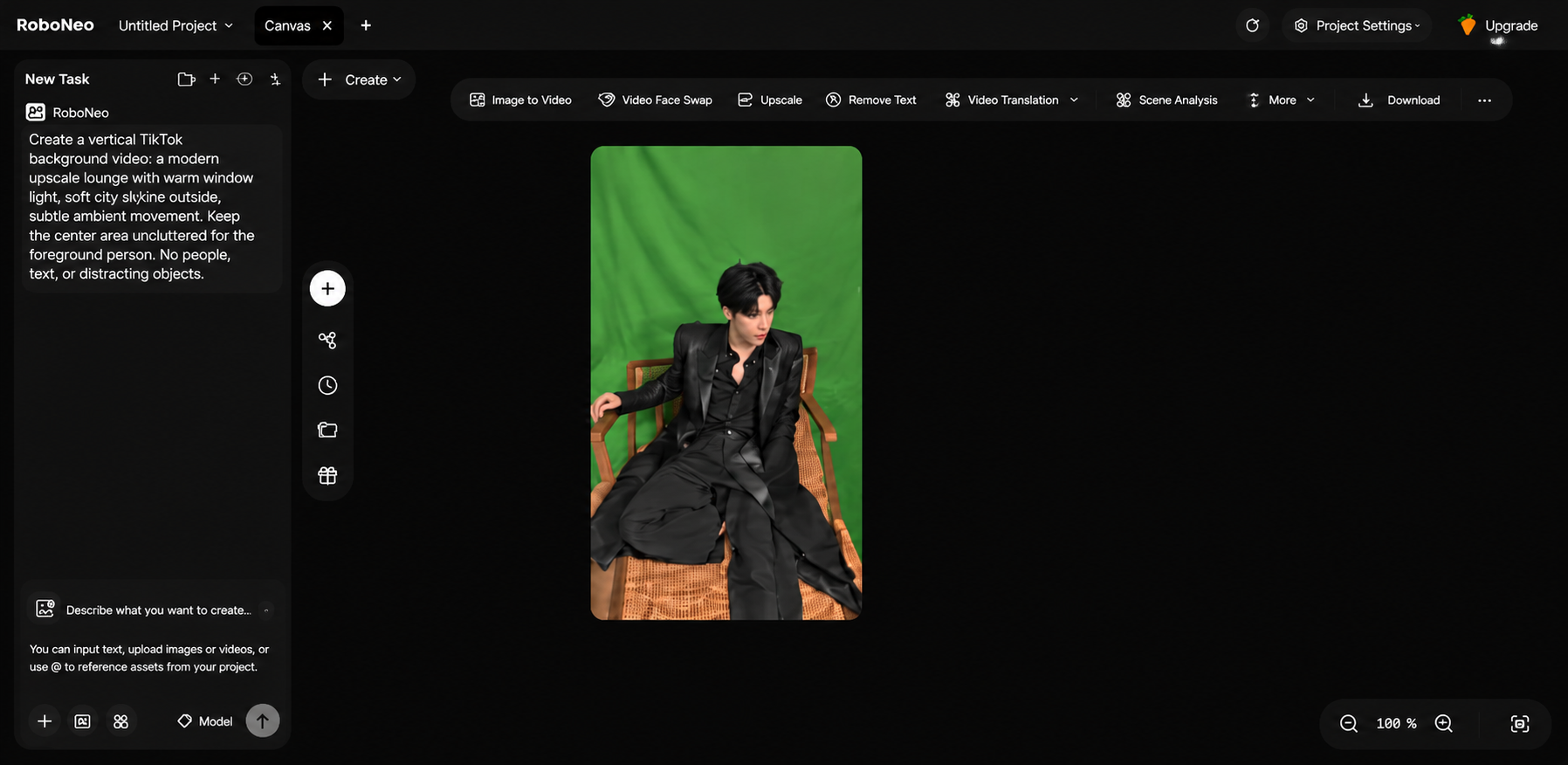
Step 3: Review and Post Your Green Screen TikTok
Preview the generated background in RoboNeo, refine it if needed, and export it in a 9:16 vertical format for TikTok. For more tips, see how to make a TikTok video.
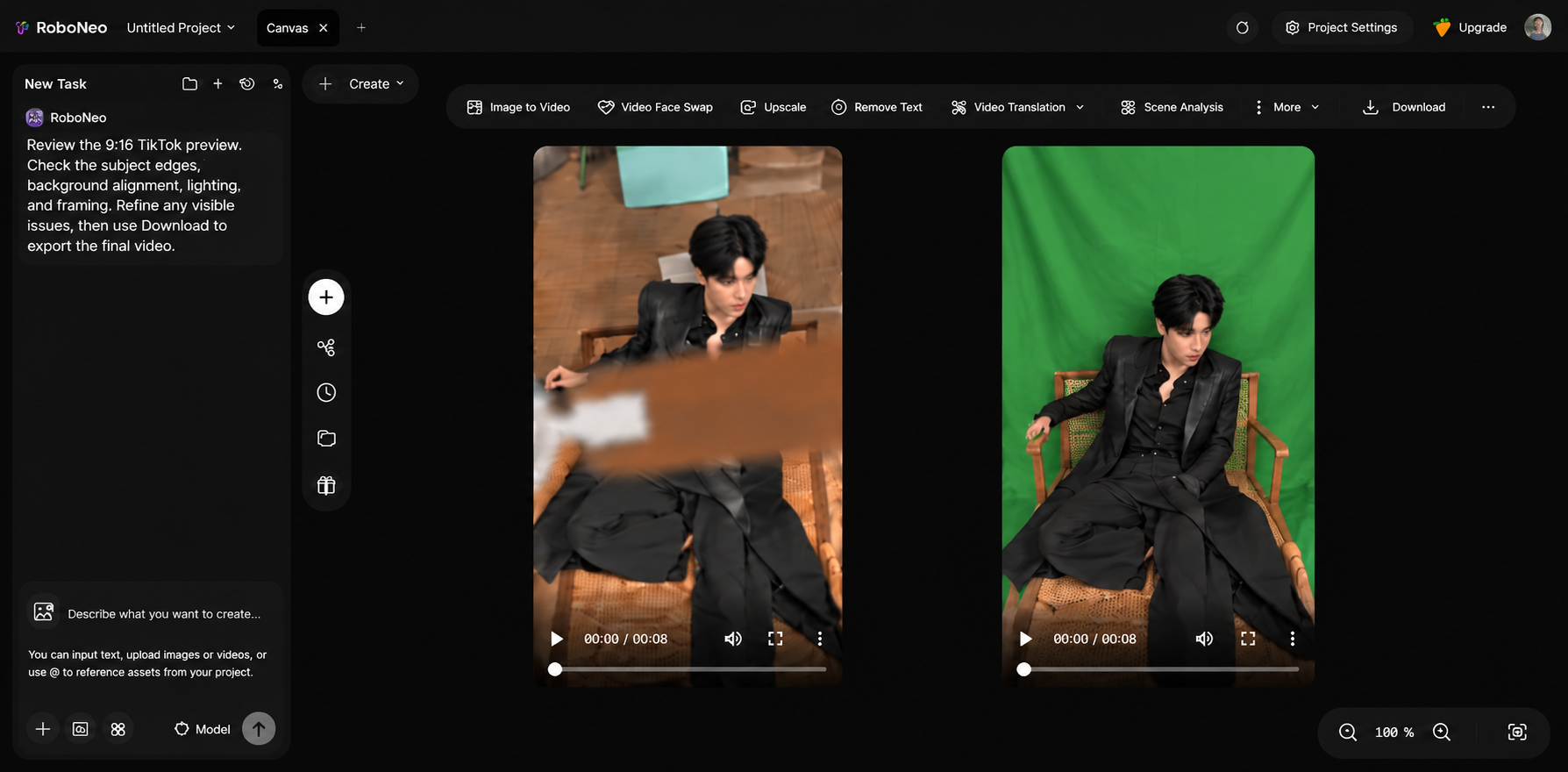
TikTok Green Screen vs. RoboNeo: Which Method Should You Choose?
Both methods can help you create engaging TikTok videos, but the best choice depends on your starting materials and creative goals. TikTok is convenient when you already have suitable media, while RoboNeo can help you prepare custom backgrounds before recording.
Comparison | TikTok Green Screen | RoboNeo + TikTok |
Required Input | An existing photo or video | A text prompt or an existing video for customization |
Background Type | An image or video selected from available files | AI-generated or customized visual assets |
Creative Control | Depends on the selected background and TikTok effects | More flexibility in developing a specific scene or visual style |
Effect Availability | Depends on TikTok's available effects and app version | Depends on RoboNeo's available features |
Best Use Cases | Quick reactions, commentary, and simple tutorials | Custom scenes, product videos, and regularly changing content themes |
If you already have a suitable image or video, TikTok's built-in green screen effect is the more direct option. When you need a background tailored to a particular video, RoboNeo can help you create the visual before importing it into TikTok. This workflow is especially useful for creators and small teams that regularly change scenes and want more flexibility without repeatedly searching for background assets. For other short-form content projects, explore the AI short video generator.
What to Check Before Posting Your Green Screen TikTok
Before publishing, review the video to make sure the background effect looks natural and the main message is easy to follow. Check the subject's edges, background quality, and whether TikTok's interface covers important text or visual details.
Subject Edges and Placement
Inspect the edges around your hair, shoulders, and hands for flickering, halos, or missing details that can make the green screen effect look unnatural. Keep your face and key objects within the visible frame, leaving enough space around captions and interactive elements so TikTok's interface does not cover essential information.
Background Quality and Usage Rights
Make sure the background is sharp, correctly cropped, and visually consistent with the lighting and perspective of your recording. If you need custom visuals for your videos, an AI video generator can help you create background footage from text prompts or existing images. Before posting, confirm that you have permission to use third-party photos, videos, music, and other assets, particularly when creating promotional content for a brand or business.
AI Content Labels
If your video contains realistic AI-generated or significantly AI-altered content, check TikTok's current rules to determine whether disclosure is required. Requirements depend on the content and applicable platform policies, so review TikTok's AI-generated content guidelines before publishing when necessary.
FAQ
Do I need a physical green screen for TikTok?
No. TikTok's built-in green screen effect can replace your background digitally using a photo or video selected from your device. A physical green screen is generally unnecessary, although even lighting and a clear distinction between you and your surroundings can improve the result.
Can I apply green screen to a prerecorded video?
It depends on the effect and editing tools available to you. Some TikTok effects can be applied after recording, while others must be selected before filming. If you want to replace the background of an existing video and the required effect is unavailable, use a compatible video editor that supports background removal or video compositing before uploading the finished clip.
Can I change backgrounds during the same TikTok?
Yes. You can create a video with different backgrounds by recording separate clips and applying a different background effect to each one, where TikTok's available tools allow it. Plan the transitions in advance so your movements, camera position, and lighting remain consistent between clips.
Why can't I find the green screen effect on TikTok?
The effect may be unavailable because of app version differences, regional availability, account-specific testing, or changes to TikTok's effects library. Update the app, search for "Green Screen" in the Effects section, and check whether the feature is available on your device if the problem continues.
How to add green screen on TikTok after recording?
If you have already recorded a video, check whether TikTok offers a compatible post-recording effect or editing option for your clip. If it does not, use a video editor that supports background removal or replacement, export the edited video, and upload it to TikTok. Before editing, confirm that the tool supports your footage and preserves acceptable image quality.
You May Be Interested
Best TikTok Script Generator in 2026
How to Remove TikTok Watermark: 3 Free Methods
Is It Legal to Remove a TikTok Watermark? What to Know
How to Upload High Quality Videos to TikTok: Easy Guide
YouTube Shorts vs TikTok: A 2026 Creator Comparison