How to Remove Green Screen in CapCut: Tested and Reviewed
 RoboNeo TeamOctober 28, 2026
A green screen lets you place a presenter, product demonstration, or gaming clip into a different setting without recording a new video. However, adding a background in CapCut does not automatically remove the green area. You need to use Chroma Key to make the selected color transparent and reveal the footage underneath.
This guide explains how to remove a green screen in CapCut, refine the edges, and fix common keying problems on a desktop. It also covers an AI-powered alternative for creators who want a simpler way to edit green screen footage.
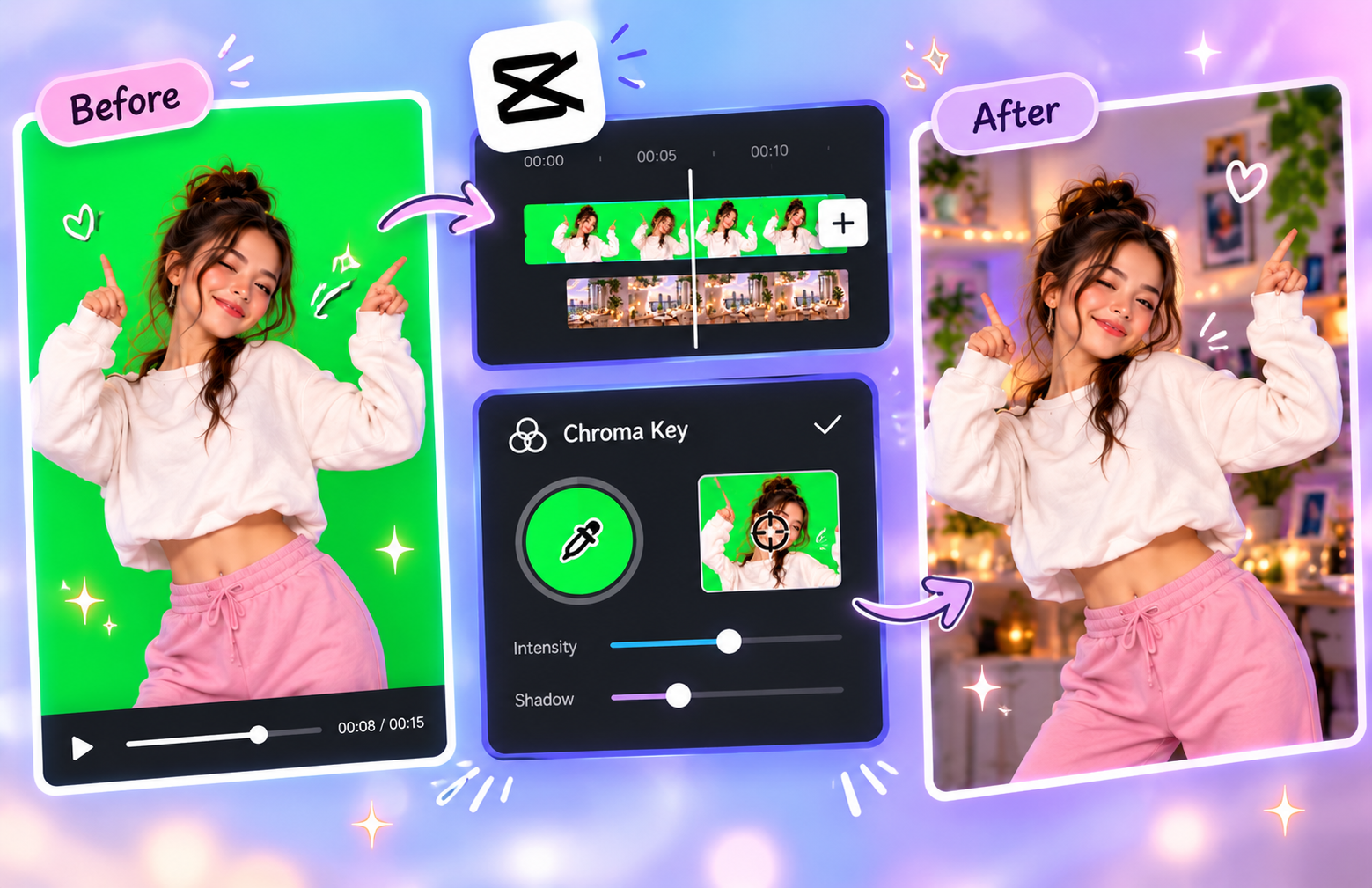
Why Does Your Green Screen Clip Cover the Background in CapCut?
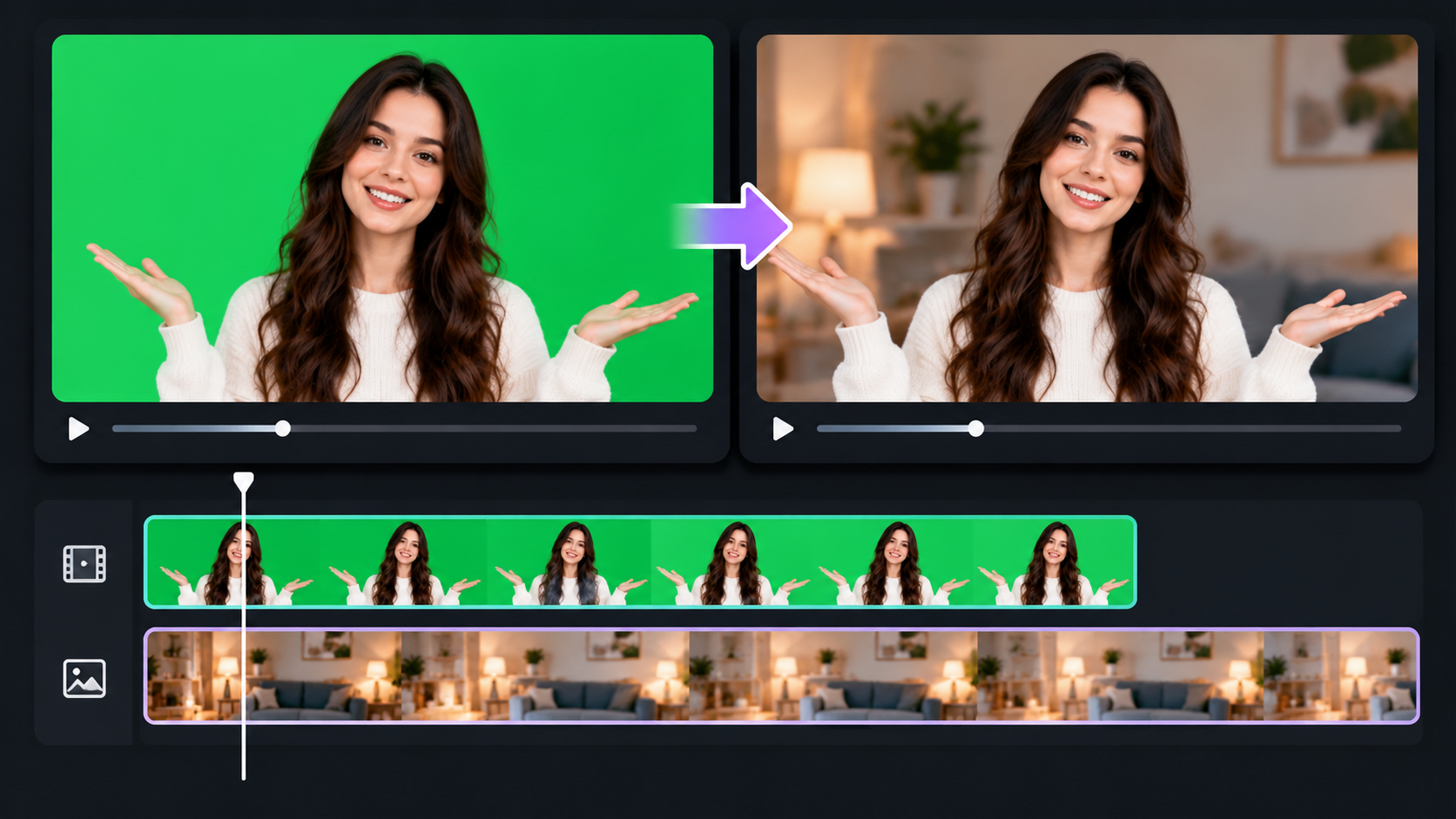
CapCut layers videos on a timeline, with the upper track covering the lower one wherever the foreground remains opaque. If your green screen clip sits above a background video, the green area will stay visible until you remove it with Chroma Key.
This often happens when editing a talking-head video. You might place a home office scene beneath your recording, yet the preview still shows a green wall behind you. The tracks are correctly arranged; the missing step is removing the green pixels.
Tested Steps for Removing a Green Screen in CapCut

The following workflow follows CapCut's desktop editing process. Interface labels and available controls may differ between versions, so look for the equivalent options if your layout is different.
Step 1: Import Your Green Screen Clip and Background
Open CapCut Desktop and create a new project. Import your green screen footage and the image or video you want to use as the replacement background.
Place the background on a lower video track and the green screen clip above it. Align their starting points and make sure the background lasts for the entire foreground clip.
A still image can work well behind a presenter recording a tutorial, while moving footage may suit a travel vlog. If you need to create new footage rather than use an existing clip, AI video creation tools can help you explore different visual styles and scene ideas.
Step 2: Open Chroma Key and Select the Green Background
Select the green screen clip on the timeline. In CapCut Desktop, look under Video > Remove BG > Chroma Key, then enable the feature if required. The exact menu names may vary by version.
Use the color picker to select a representative patch of green away from the subject's outline. CapCut should remove the sampled color and reveal the background track underneath.
If the green remains across most of the frame, confirm that the correct clip is selected and that the color picker sampled the intended area. Simply stacking clips will not achieve the same effect.
Step 3: Adjust the Key Without Erasing Subject Details
After the initial removal, adjust Strength and Shadow or other available controls to refine the result. Increase or decrease the settings gradually rather than pushing them to their limits.
Watch the details most likely to suffer during keying:
Hair and loose clothing: Fine edges may disappear if the removal is too aggressive.
Hands and facial features: Small details can become transparent when their colors resemble the selected background.
White or reflective surfaces: Green reflections may remain around a shirt, glasses, or product.
A presenter wearing a white shirt might have a faint green outline around the shoulders. Fine-tuning the key can reduce the spill without making the shirt's edges look jagged.
Step 4: Check the Cutout Throughout the Clip
A cutout that looks clean in one frame may break down when the subject moves. Scrub through the timeline and check moments when the person turns, raises their hands, or moves their hair.
Look for flickering edges, missing details, and patches of green that reappear. If the outline deteriorates during movement, revisit the Chroma Key settings and find a balance between removing the background and preserving the subject.
The replacement scene also matters. A stationary presenter generally looks more convincing against a background with a similar camera angle and restrained movement than against footage with rapid zooms or sweeping camera motion. When working with AI-generated scenes, creating smooth video from image frames is another consideration when aiming for consistent movement.
Step 5: Export and Review the Finished Video
Once the composite looks consistent, open CapCut's Export panel and select the resolution, frame rate, and other available settings appropriate for your project.
For a standard 1080p social video, exporting at 1080p and matching the source frame rate is a reasonable starting point. Then play the exported file to check the edges around hair, shoulders, and moving hands.
If you want a finished video with a new background, export the complete composite. A transparent background export is a separate requirement and depends on the formats and export options supported by your version.
How to Fix Green Screen Removal Problems in CapCut
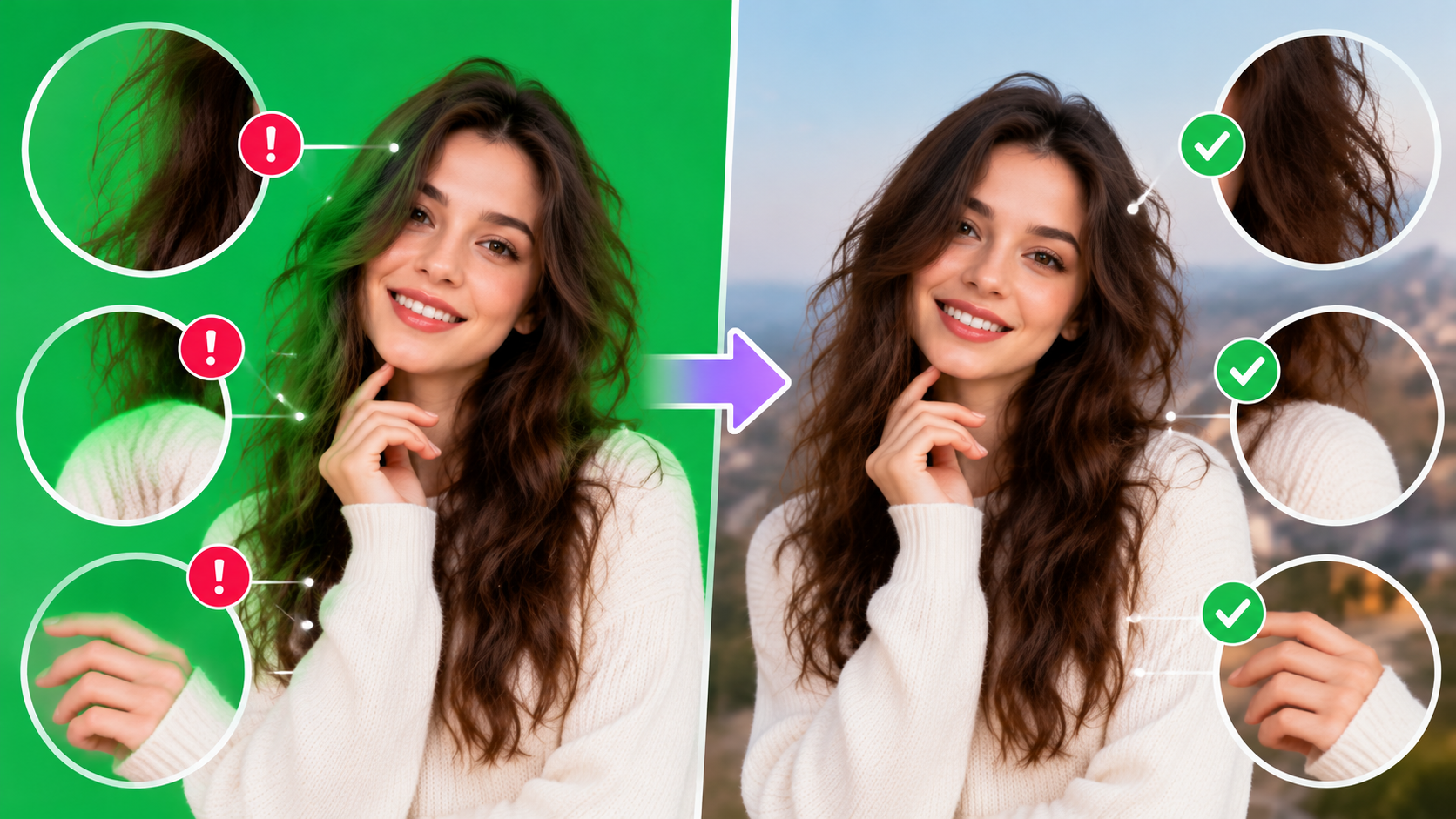
Green patches can remain after the initial keying, even when the clips are arranged correctly. To get rid of the remaining green in CapCut, check for uneven lighting or shadows before adjusting Strength again. Other common causes include color spill and excessive removal strength.
Why Is Some of the Green Still Visible?
Uneven lighting, shadows, and wrinkles can create different shades of green that the initial color selection does not remove consistently.
Try sampling a representative area and adjusting Strength gradually. If the screen was poorly lit during recording, some patches may remain difficult to remove cleanly.
Why Does the Subject Have a Green Outline?
A green outline often comes from light reflecting off the screen onto the subject's hair, skin, or clothing. This color spill is part of the recorded image, so removing more green can also damage the subject's edges.
Fine-tune the available keying and edge controls. If the outline remains, a small amount of green may be preferable to an unnatural or incomplete cutout.
Why Are Parts of the Subject Missing?
The selected color may overlap with the subject, particularly when someone wears green clothing or holds a green object. Excessive Strength can also remove details that resemble the background.
Reduce the removal intensity and inspect the affected area again. For future recordings, a blue screen or a different background color may work better when the subject wears green.
Why Do the Edges Flicker During Movement?
Flickering can result from motion blur, compression, changing shadows, or inconsistent screen lighting. These variations make the edges harder to distinguish consistently from frame to frame.
Check the affected section and refine the key settings. If the source footage has severe motion blur or uneven lighting, the problem may not be completely fixable in editing.
CapCut Alternatives for Green Screen Removal
CapCut's Chroma Key requires manual color selection and adjustment. RoboNeo offers a prompt-based alternative that lets you remove green screen backgrounds, preserve the main subject, and adjust the background, lighting, or visual style using natural-language instructions. You can also review the edited footage on the canvas and request further refinements without manually adjusting individual keying parameters.
You can follow the steps below to remove a green screen from your video using RoboNeo.
Step 1: Upload Your Video
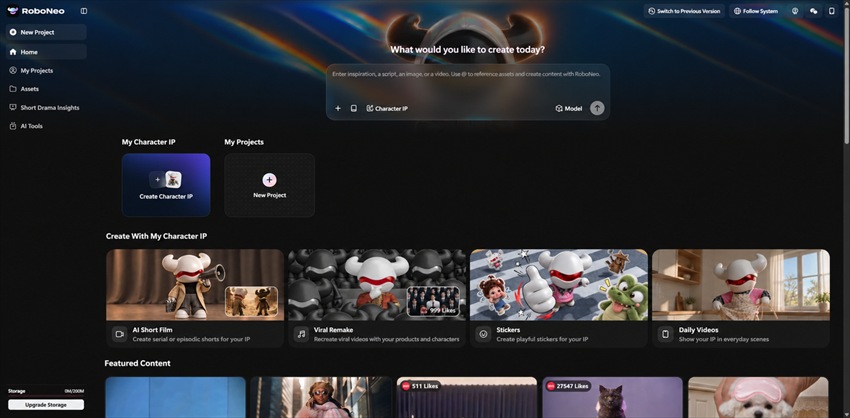
Open the RoboNeo video workspace and upload the green screen footage you want to edit.
Step 2: Enter Your Editing Prompt
Tell the AI to remove the green screen. For example, enter "Remove the green screen while keeping the person unchanged." You can also describe a new background if needed.
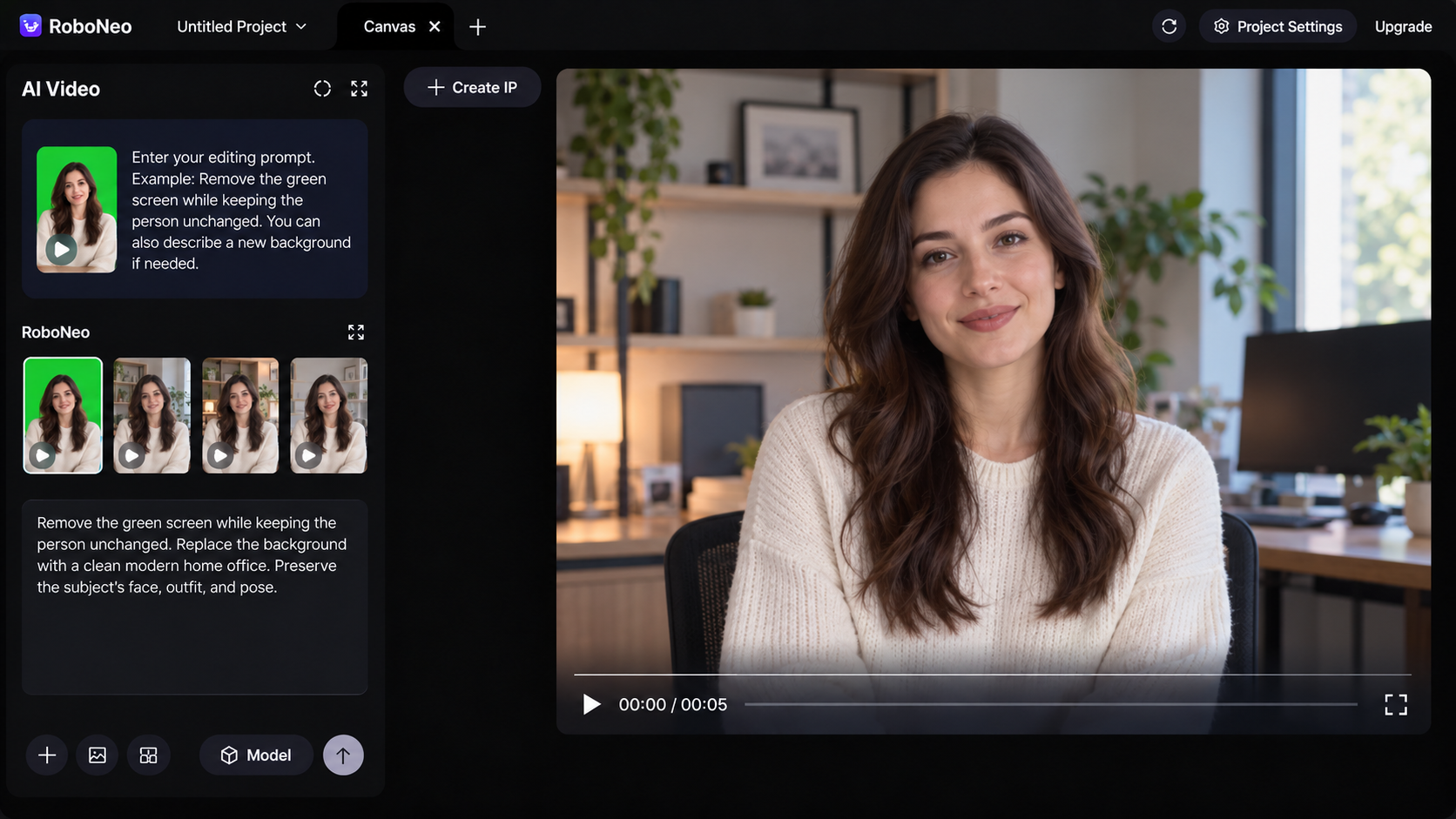
Step 3: Review and Refine the Result
Check the edited video on the canvas, especially around hair, clothing, and moving edges. Ask the AI to refine any areas that need improvement.
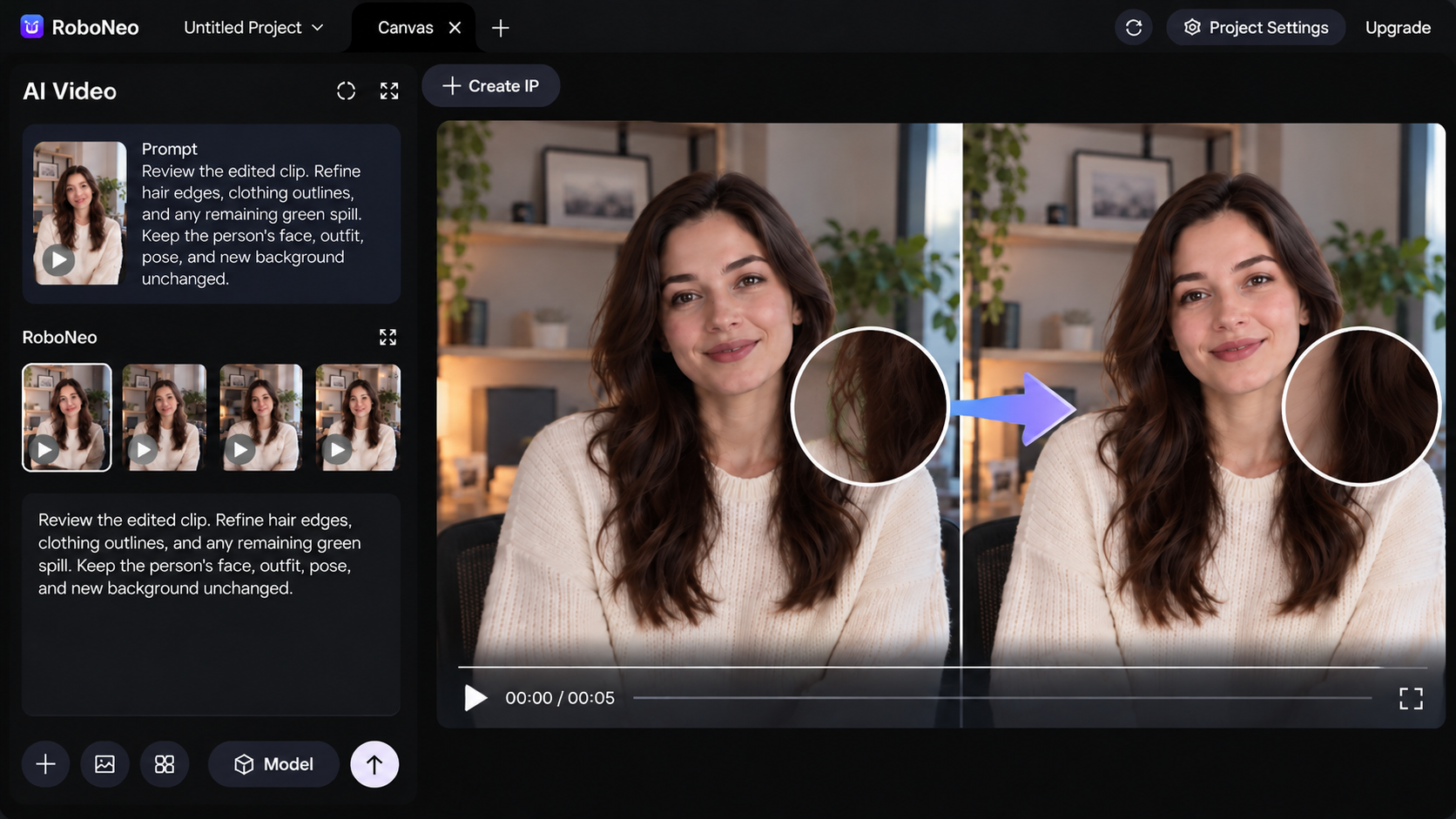
Step 4: Preview and Download
Review the complete video to confirm the result looks consistent, then download the finished clip.
RoboNeo offers a convenient option for creators who prefer AI-assisted editing over manual Chroma Key adjustments. Whether you're working on a product demo, tutorial, or social media video, its prompt-based workflow helps you achieve the desired look with fewer manual adjustments.

FAQ
Is green screen removal free in CapCut?
CapCut offers Chroma Key for green screen editing, but feature availability and access conditions may vary by platform, version, and account. Check your current editor for the available options.
Why can't I find the Chroma Key option?
Select the video clip first, then check the Video settings for Remove BG or the equivalent cutout section. If Chroma Key is missing, confirm which CapCut version and platform you are using, as the interface can differ.
Can I remove a blue screen with the same method?
Yes. Chroma Key can remove a blue screen using the same basic process. Select the blue area with the color picker, then adjust the available settings to preserve the subject's details.
Can I export the cutout with a transparent background?
Removing the green background in the editor does not guarantee a transparent export. You need a supported format and export workflow that preserves transparency. If those options are unavailable, export the subject with a replacement background instead.
You May Be Interested
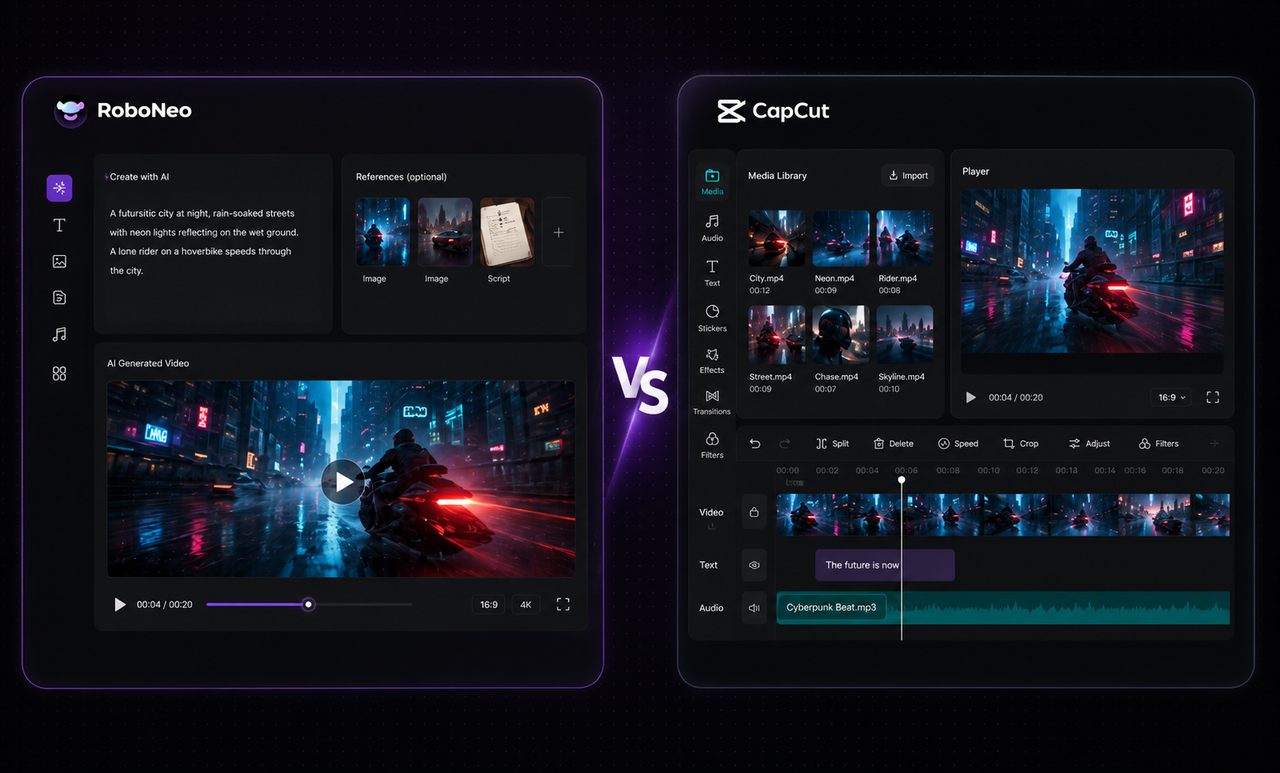
RoboNeo vs CapCut AI Video Generator: Key difference
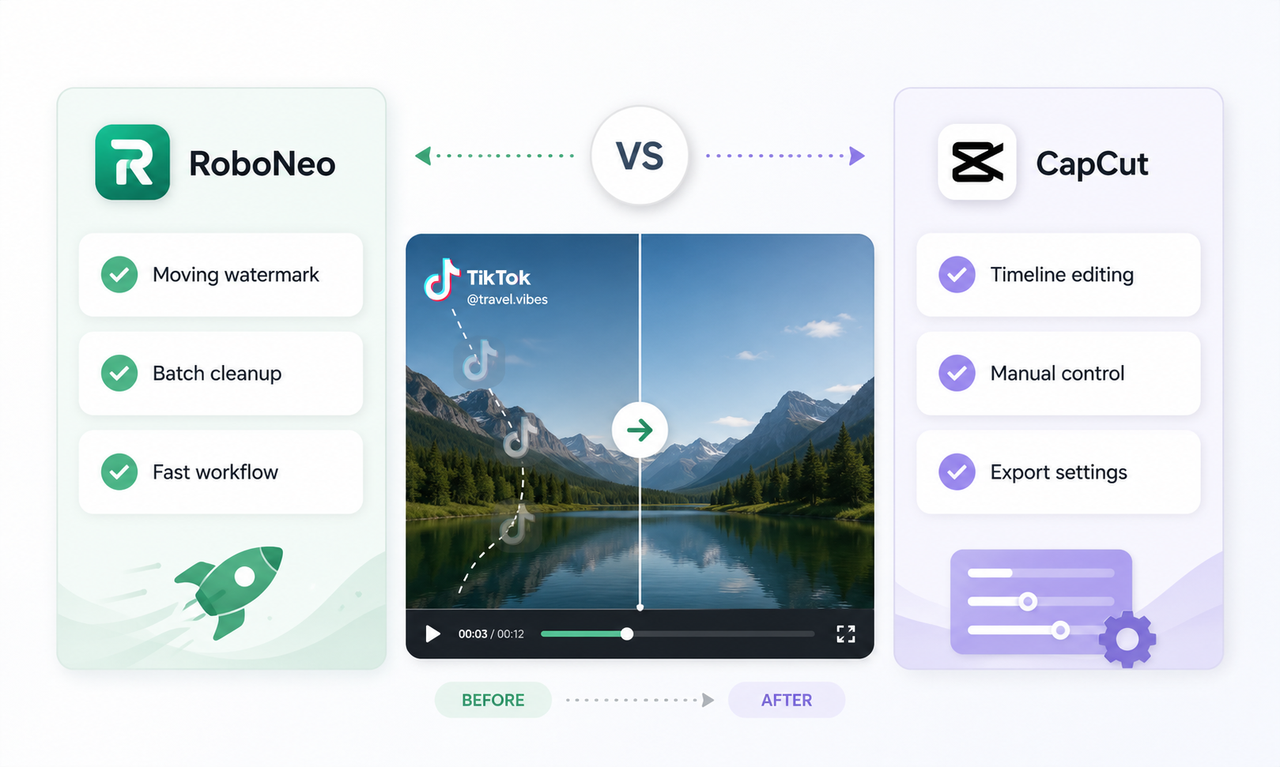
CapCut Watermark Remover vs RoboNeo: Complete Comparison

How to Remove a Watermark from a Photo: Easy Methods
How to Remove Logo from Video: 4 Easy Methods | RoboNeo
Is It Legal to Remove a TikTok Watermark? What to Know