
How to Remove Background in GIMP: Get a Clean, Transparent Cutout
 RoboNeo TeamOctober 28, 2026
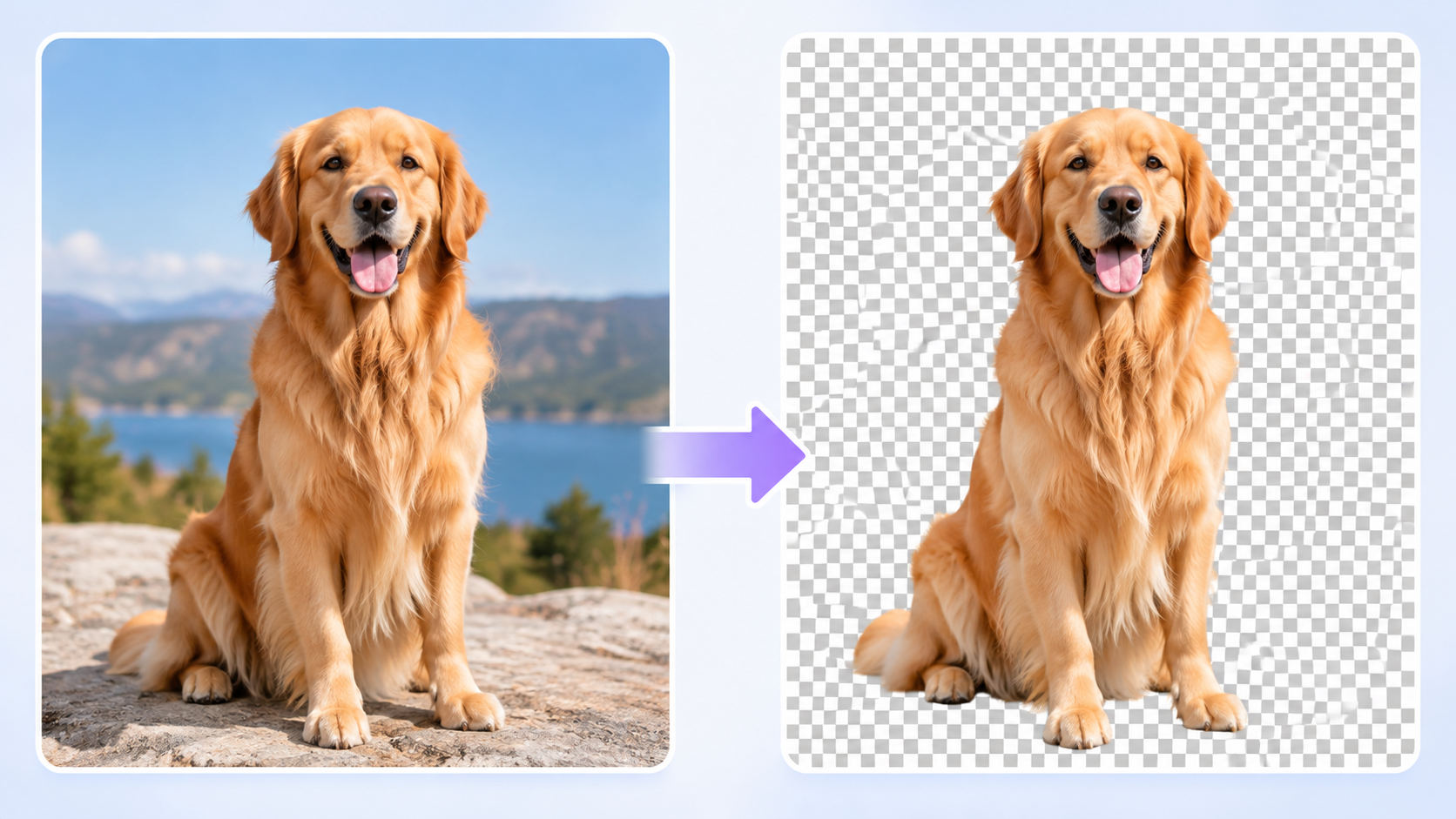
Removing a background in GIMP can turn an ordinary photo into a reusable image for product listings, presentations, social media graphics, or personal projects. The tricky part is keeping the subject intact while making the surrounding area transparent. A rough selection can leave white edges around a dark product or erase fine details such as hair, leaves, and thin straps.
This guide explains how to remove a background in GIMP, export a transparent PNG, and fix common problems. You will also learn when an AI background remover may be a more practical option.
What Do You Need Before Removing a Background in GIMP?
GIMP is a free image editor that lets you select parts of a photo, delete unwanted pixels, and preserve transparency. Before starting, choose an image with a reasonably clear subject and enough detail to distinguish it from the background.
A product photographed against a plain wall is usually easier to edit than a dark jacket against a similarly colored sofa. Good contrast makes selection more accurate and reduces the amount of manual cleanup required. If the source photo already looks soft or lacks detail, learning how to unblur an image may help you assess whether image enhancement is worth trying before editing.
You will need:
-
GIMP: Install the desktop application and open your image.
-
A suitable photo: Use a full-resolution image when possible, especially for product photography or print graphics.
-
A transparent export format: PNG supports transparency, while JPEG does not.
Save your working file in GIMP's native XCF format before making substantial edits. This allows you to return to your layers and selections if the result needs further adjustment.
How to Remove a Background in GIMP
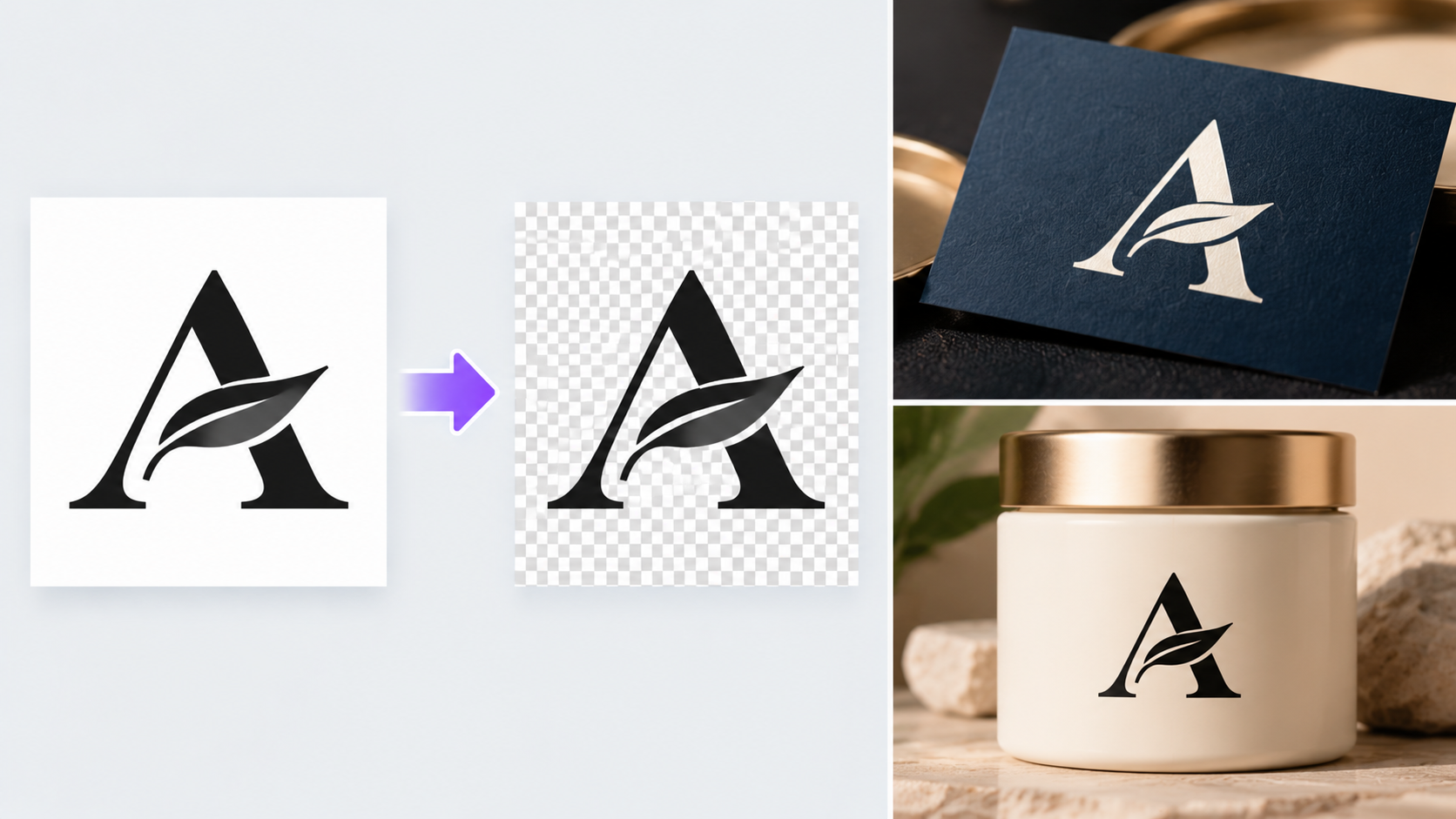
The following method uses the Foreground Select tool to identify the main subject, invert the selection, and remove the surrounding background. It works well for many everyday photos, although intricate edges may require additional refinement.
Step 1: Add an Alpha Channel
Open your image in GIMP and locate its layer in the Layers panel. Right-click the image layer and look for Add Alpha Channel under the layer's transparency options. Depending on your version, you may also find it under Layer > Transparency > Add Alpha Channel.
An alpha channel stores transparency information. Without it, deleting selected pixels may replace them with a solid background color instead of making them transparent.
If the option is grayed out, the layer may already have an alpha channel.
Step 2: Select the Area You Want to Remove
For a subject with a moderately complex outline, the Foreground Select tool can help separate it from the background.
-
Select Foreground Select from the toolbox or the Tools menu.
-
Draw a rough outline around the subject you want to keep, leaving a little room around its edges.
-
Press Enter to proceed to the foreground-marking stage.
-
Use the brush to mark representative areas inside the subject. You do not need to paint every pixel; include enough detail for GIMP to distinguish the foreground from its surroundings.
-
Press Enter again to calculate the selection.
Check the preview carefully. A person with loose hair or a product with narrow handles may need more precise foreground markings.
Once the subject is selected, choose Select > Invert. The selection now covers the background rather than the subject. This is the key step when learning how to remove the background in GIMP without deleting the main object.
Step 3: Remove the Background
Press Delete on your keyboard to clear the selected background. You should see a checkerboard pattern around the subject, indicating transparent pixels.
If the background remains visible, confirm that the correct layer is selected and that an alpha channel is available. Also check that the selection was inverted before deleting.
For a photo of a coffee mug on a kitchen counter, this step removes the counter and surrounding objects while retaining the mug. If the selection accidentally includes part of the handle, undo the deletion, refine the selection, and try again.
Step 4: Check the Cutout
Zoom in and inspect the entire outline. Pay particular attention to small gaps, curved edges, and areas where the subject meets a similar-colored background.
A clean cutout should preserve the subject's shape without leaving noticeable fragments of the original scene. If the edge looks jagged, return to the selection and refine it rather than repeatedly deleting pixels by hand.
For difficult edges, the Paths tool can provide more control over products with straight edges, packaging, and other clearly defined shapes. The Foreground Select tool is generally more convenient for subjects with irregular contours.
Step 5: Export a Transparent PNG
When the cutout looks right, choose File > Export As and enter a filename ending in .png. Click Export and confirm the PNG settings.
Do not use JPEG if you need a transparent background. JPEG does not preserve transparency, so transparent areas will appear as a solid color in the exported image.
After exporting, open the PNG in another application or place it over a colored background to confirm that transparency has been preserved. Keep the XCF file as your editable master. If the final image needs larger dimensions for a product catalog or print layout, how to make a picture higher resolution covers the options for increasing image dimensions and the limitations of upscaling.
How to Fix Background Removal Problems in GIMP
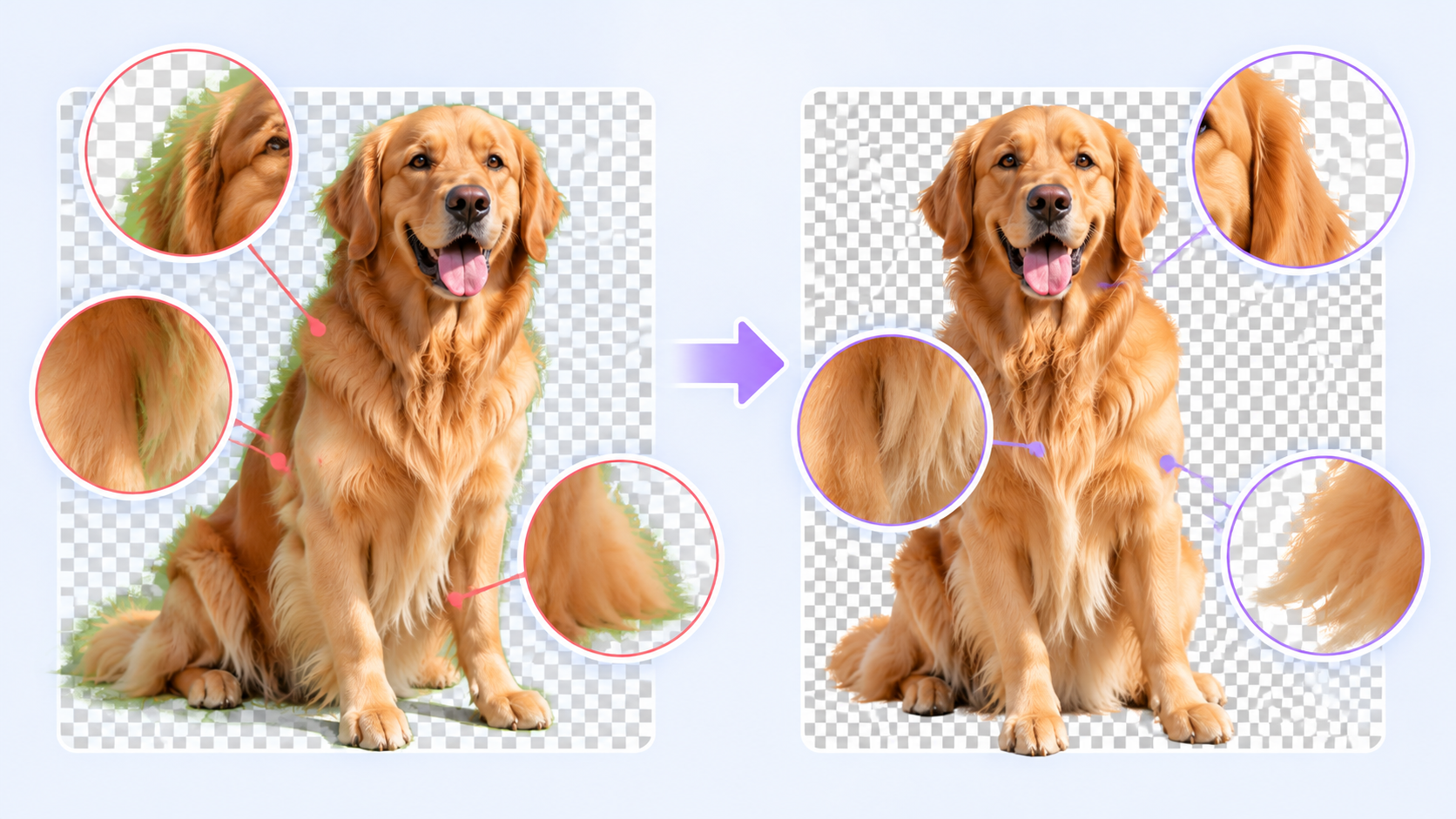
Even when the selection is mostly accurate, small defects can become obvious when the image is placed against a new background. These fixes can help you clean up the result without starting over.
Remove White or Colored Edges
A pale outline often appears when the original background is included in the selection along the subject's edges. This is especially noticeable when a product photographed against a white wall is placed on a dark promotional banner.
Undo the deletion if necessary and refine the selection around the affected area. You can also try Select > Shrink to reduce the selection slightly, but use a small amount because excessive shrinking may cut into the subject.
For more difficult edges, especially hair or translucent details, inspect the selection at a higher zoom and make targeted corrections. Removing too much around the perimeter can make the subject look unnaturally thin.
Restore Missing Subject Details
If part of the subject disappears, undo the deletion and revisit the selection. Add foreground markings where important details were missed, then let GIMP recalculate the selection.
This is particularly useful for eyeglass frames, plant stems, handbag straps, or spaces between a chair's legs. If you have already made several edits, working from the saved XCF file can be easier than rebuilding the selection from scratch.
Fix Transparency Issues After Export
A transparent image may look correct in GIMP but appear white when opened in another program. First, check whether the exported file is actually a PNG and whether the background was removed rather than filled with white.
If the exported image is JPEG, export it again as PNG. If transparency still appears missing, reopen the PNG in GIMP and check the checkerboard areas before exporting once more.
Also remember that some image viewers display transparency against a white interface. A white preview alone does not prove that the background is opaque.
How to Use AI Instead of GIMP for Background Removal
GIMP offers precise manual editing, but refining complex edges or processing multiple images can take time. The RoboNeo AI background remover automatically removes backgrounds and offers free solid colours or AI-generated scenes. Its AI Agent and canvas also let creators develop new visuals and reuse assets across projects.
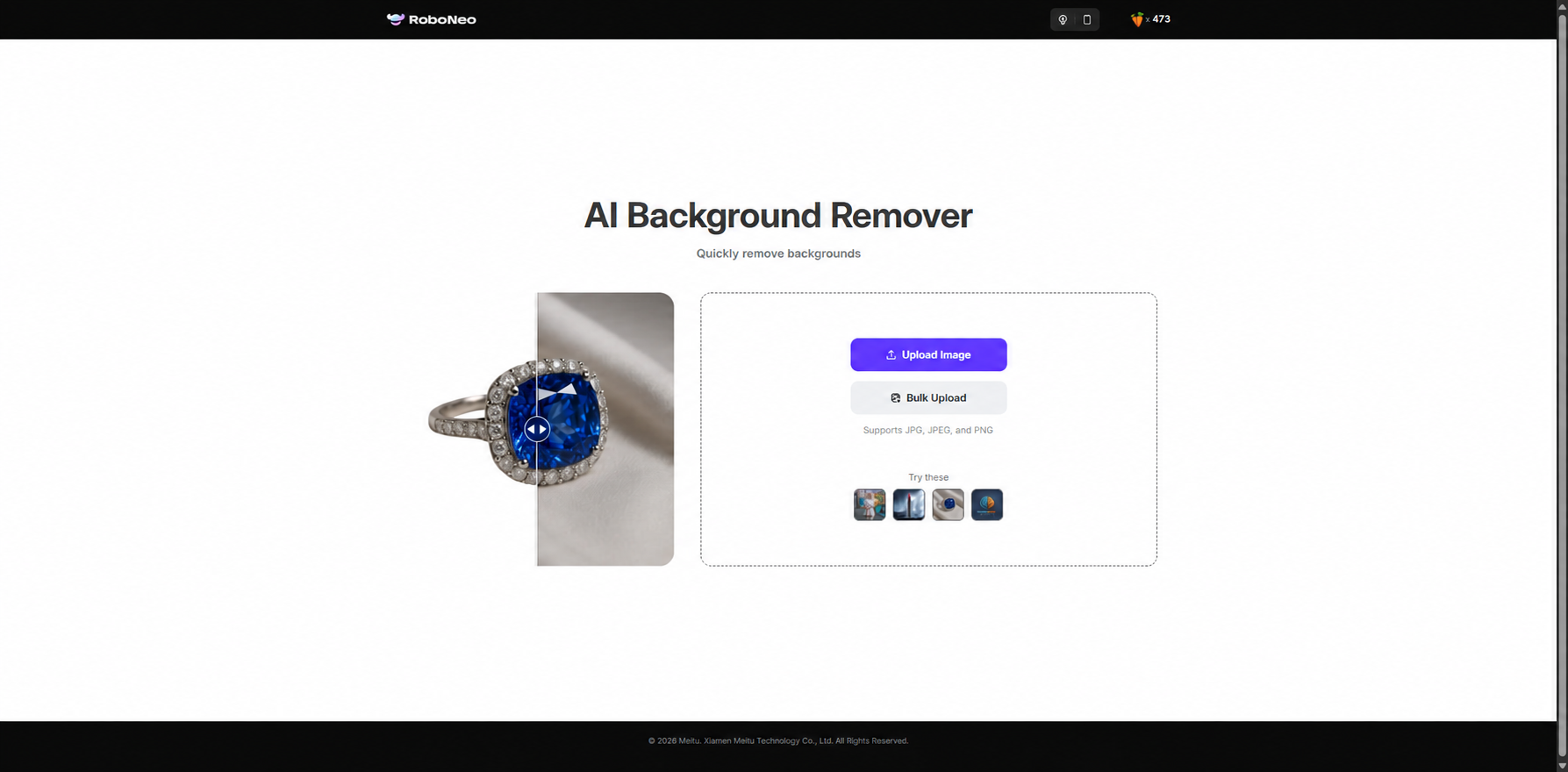
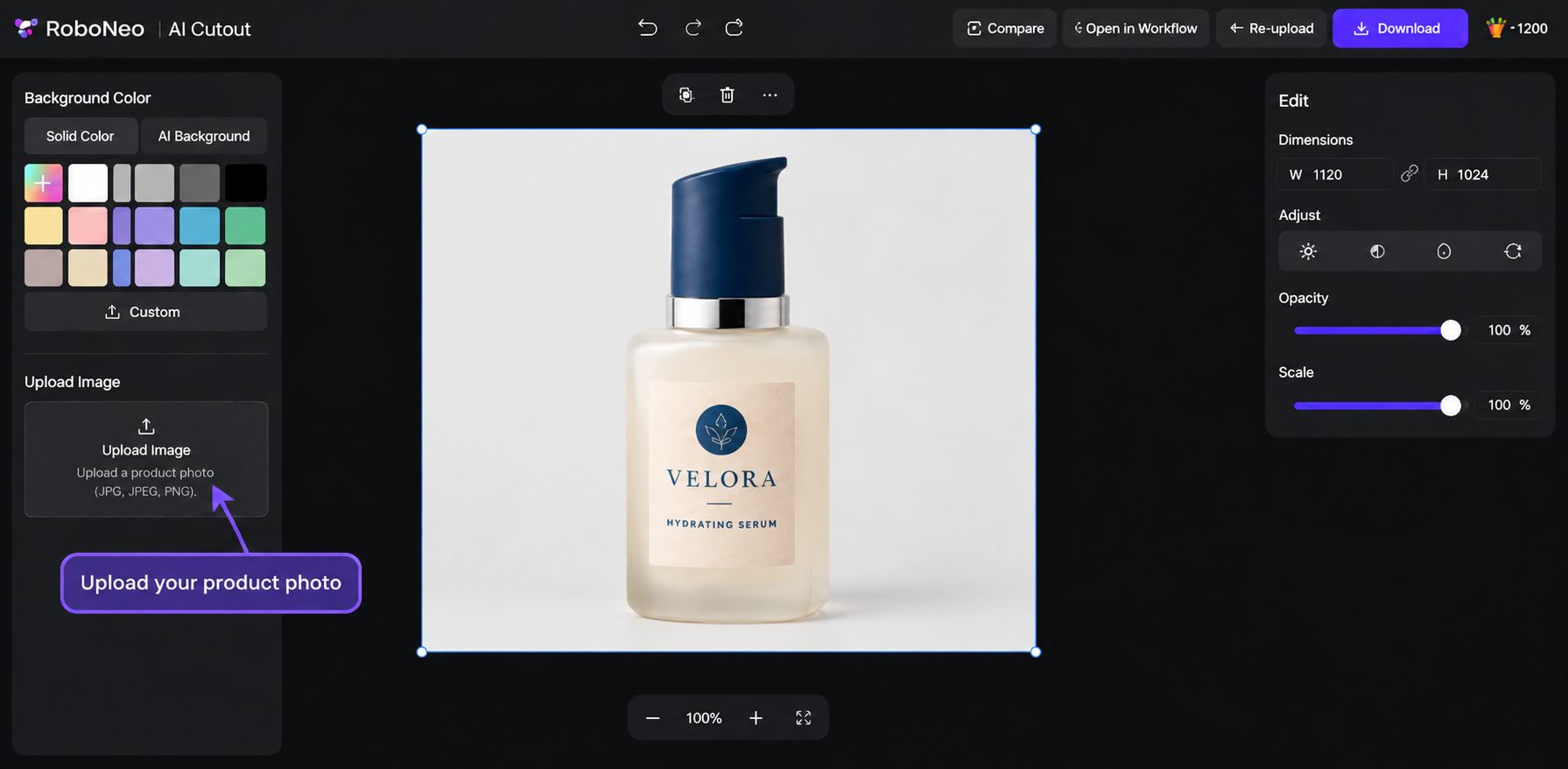
Step 1: Upload Your Image
Open RoboNeo AI Background Remover and upload your product photo or portrait. The tool automatically removes the original background.
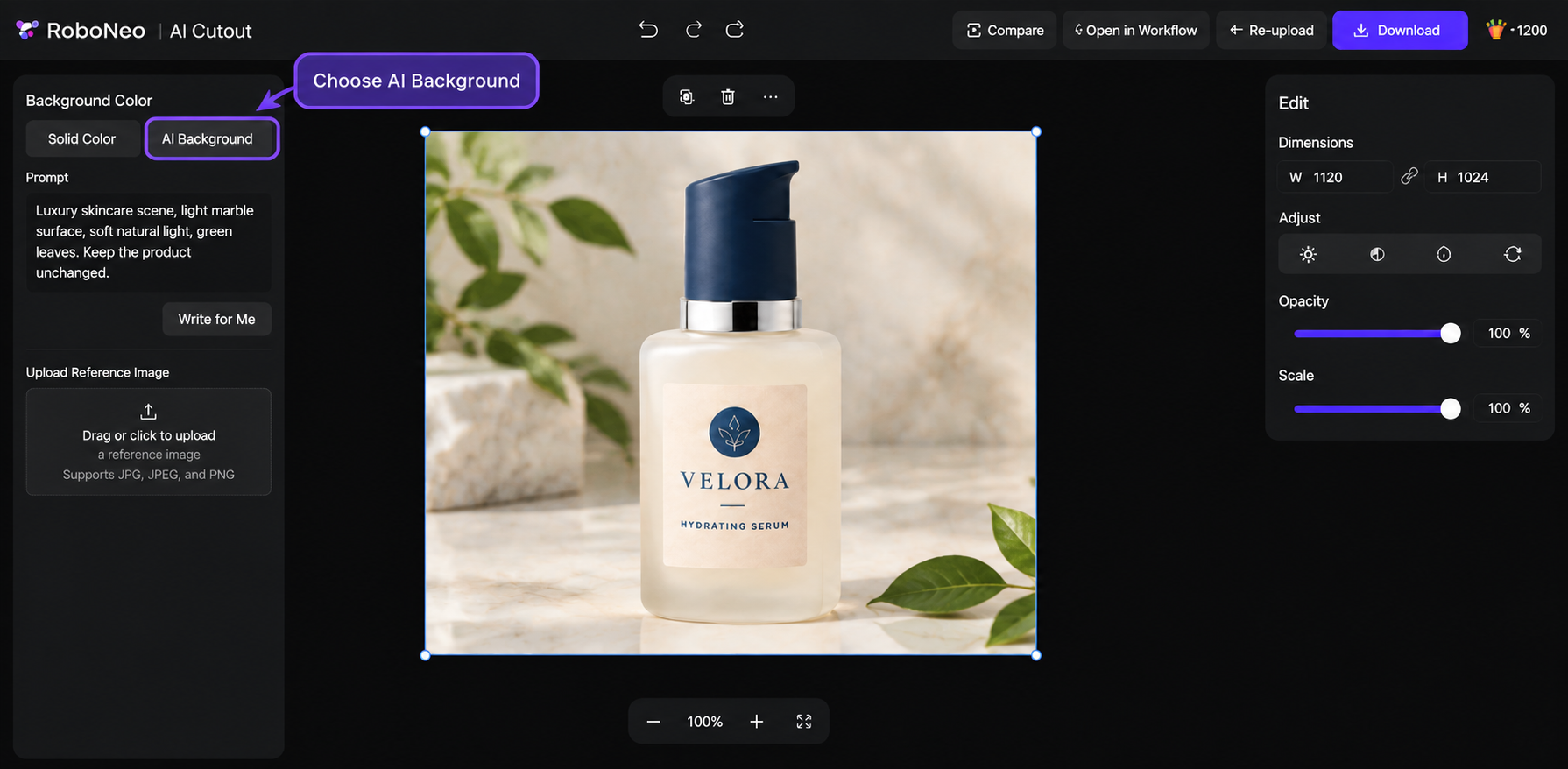
Step 2: Choose Your Background
Keep the background transparent, select a free solid colour, or use AI Background to generate a new setting with a text prompt. Check the subject's edges and details.
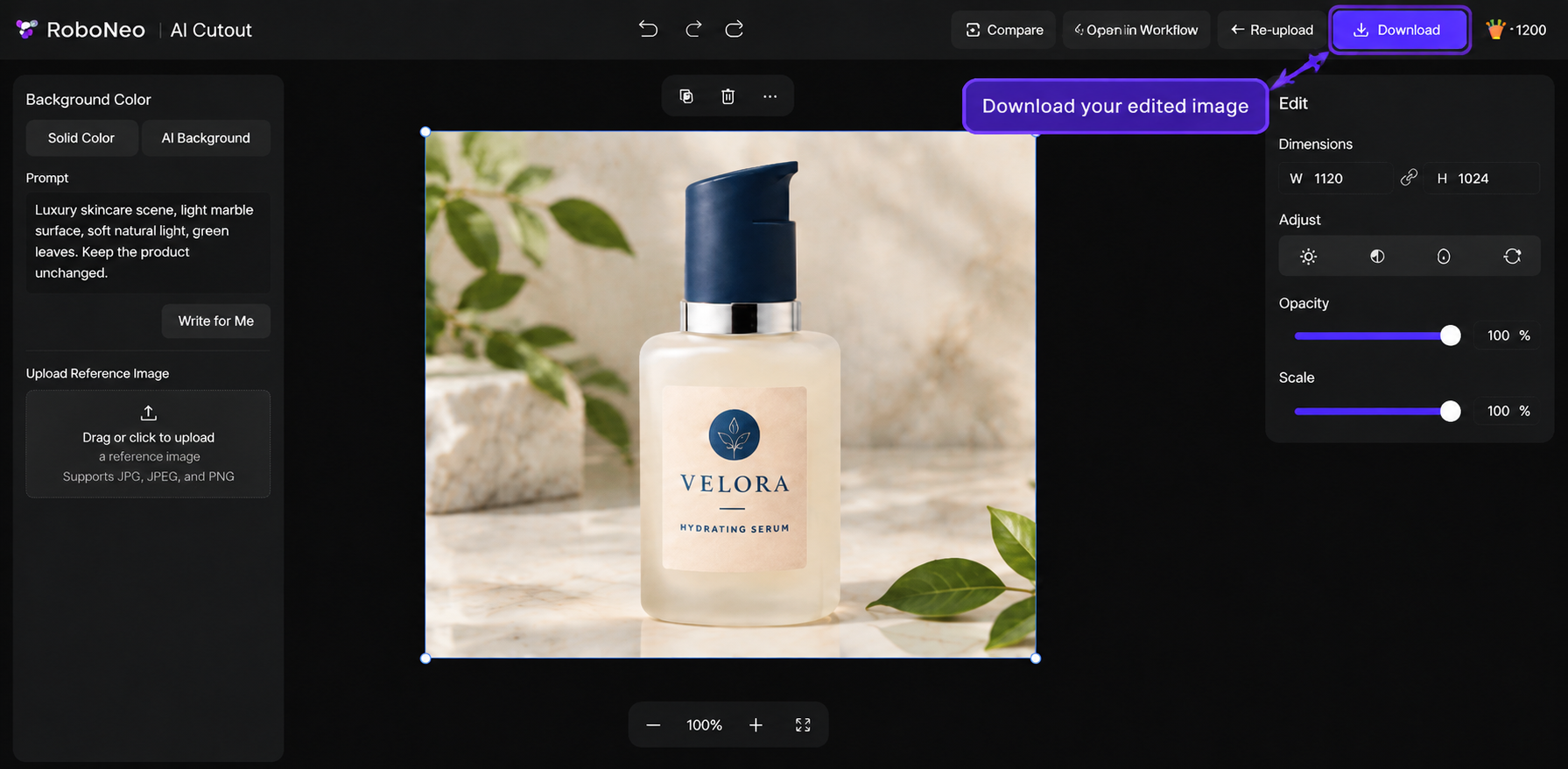
Step 3: Download and Continue Editing
Download your edited image for product listings, advertisements, or social media posts. You can also use RoboNeo's AI Agent and canvas to develop additional visuals from existing assets.
For precise, pixel-level corrections, GIMP remains a practical choice. RoboNeo is better suited to creators who prefer automatic background removal and want to use their images in a broader AI content creation workflow without repeating the same editing tasks.
FAQ
Is GIMP background removal free?
Yes. GIMP is free to use, and its selection, transparency, and export tools can remove image backgrounds without a paid subscription.
Can I remove backgrounds in GIMP offline?
Yes. Once GIMP is installed, you can remove backgrounds using its built-in editing tools without an internet connection. You only need internet access for activities such as downloading the software or accessing online resources.
Can I replace the background with another image?
Yes. Open the replacement image as a separate layer, then position it beneath the subject layer in the Layers panel. The transparent areas will reveal the new background.
Does background removal reduce image quality?
Removing a background does not inherently reduce the resolution of the remaining subject. However, inaccurate selections can remove important details, and repeated editing may affect the edges. Exporting at the original dimensions as PNG helps preserve image quality.
Do these steps work in GIMP 2.10 and GIMP 3?
Yes. The general workflow of selecting the subject, inverting the selection, deleting the background, and exporting as PNG applies to both versions. Menu placement and interface details may vary slightly, so check the relevant layer and selection options in your installed version.
You May Be Interested

How to Remove Background Noise from Video: Easy Guide
Canva Watermark Remover Review: Features and Limits
3 Best Background Noise Removal Apps for 2026

Background Design: AI Styles for Every Photo
AI Tool for Removing Background from Image: 8 Picks for 2026