How to Remove Background on Canva: Easy Guide and Alternatives
 RoboNeo TeamOctober 28, 2026
To remove a background in Canva, select the image in your design and choose BG Remover from the editor toolbar. Canva will automatically isolate the main subject. If you need a transparent file, go to Share > Download, choose PNG, and turn on Transparent background before downloading. This guide covers the complete process, current account and image limits, common editing problems, and an alternative when Canva does not meet your needs.
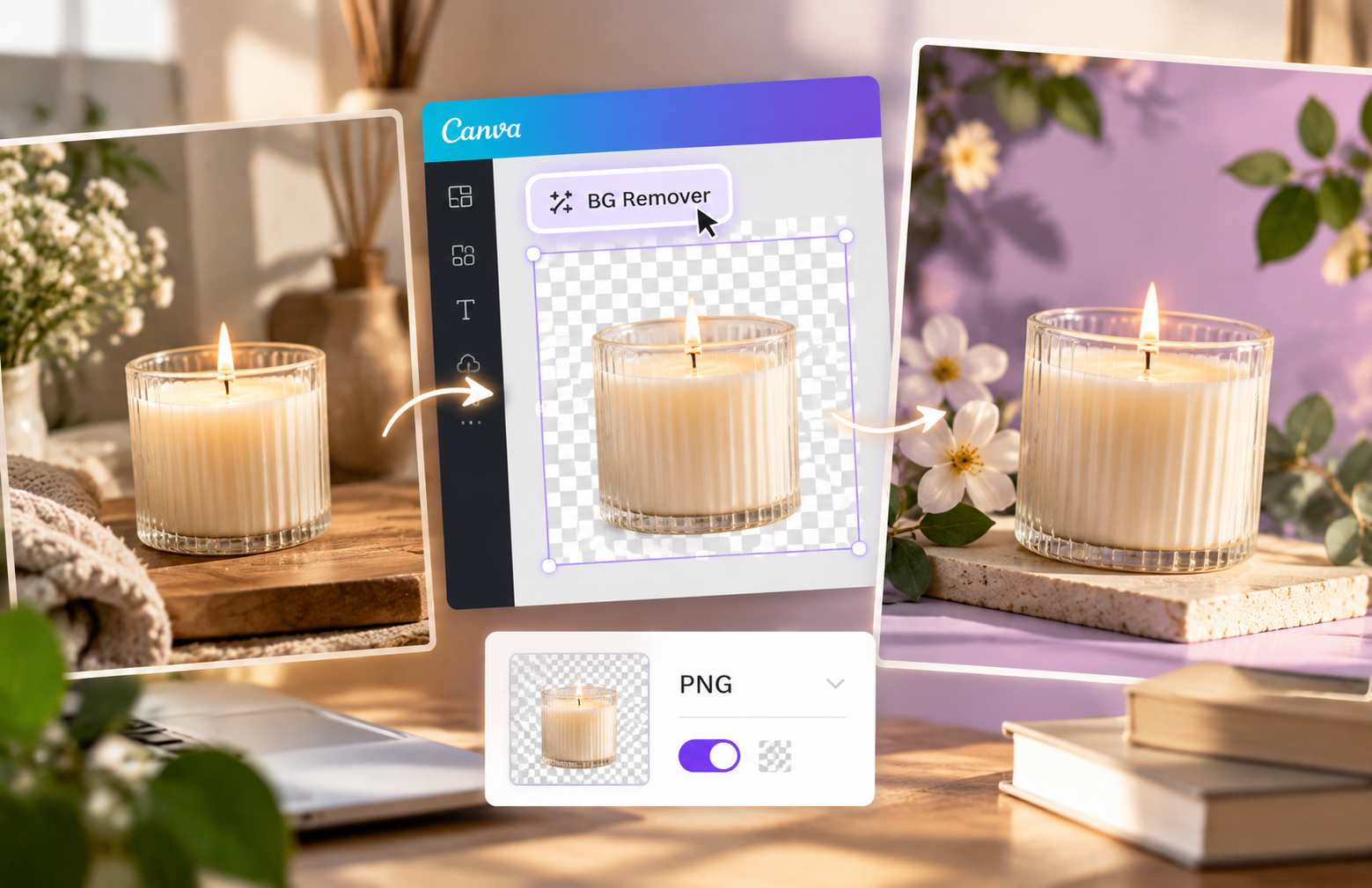
How to Remove Backgrounds on Canva
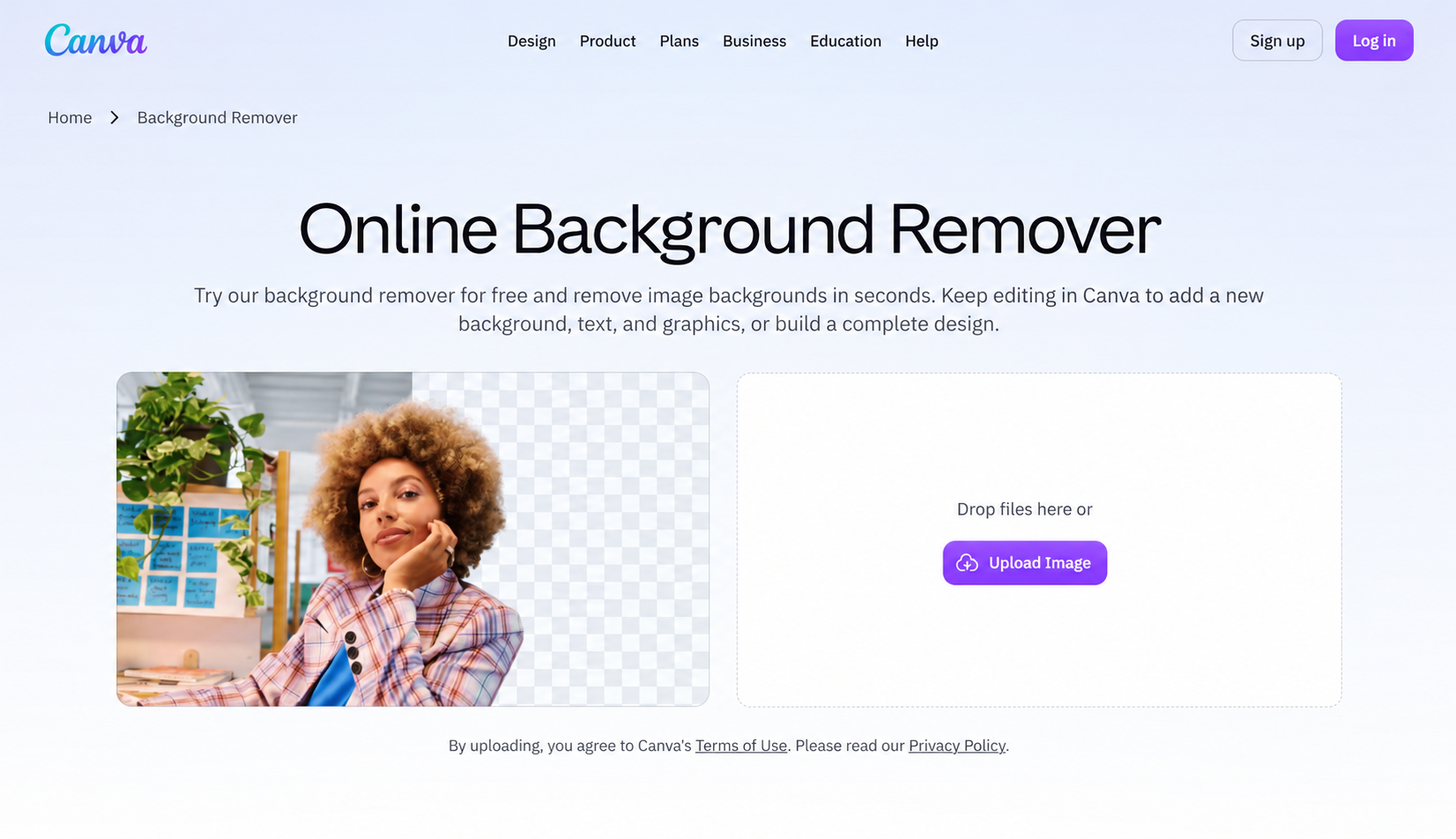
The following steps explain how to remove a background on Canva from the editor and save the result correctly. The desktop and mobile layouts may differ slightly, but the main workflow remains similar.
Step 1: Add Your Image
Open the Canva design you want to edit, then upload the original photo and place it on the page. A clear, full-resolution file gives the tool more visual information to work with. When the available source is already soft, understanding how to unblur an image may help you improve its clarity before creating the cutout. Repeated screenshots often soften hair, lettering, and product edges, making accurate background removal more difficult.
Click the photo itself before looking for the editing controls. Selecting the page background, a text box, or a group of elements may display a different set of tools.
Keep a copy of the original image in your uploads or duplicate the page before editing. This makes it easier to compare fine details later, particularly when a portrait has loose hair or a product includes narrow handles, transparent packaging, or small label text.
Step 2: Apply BG Remover
With the image selected, choose BG Remover from the editor toolbar and wait for Canva to process it. The tool uses AI to detect the primary subject, so you do not have to trace the entire outline manually.
This distinction matters when learning how to remove background from picture on Canva: BG Remover changes the uploaded photo, while deleting the page background only removes a Canva color, image, or design element behind it. Erasing a white page will not remove the kitchen wall captured in a product photograph.
An upgrade message or unavailable control usually points to an account restriction rather than an editing mistake. A detailed Canva background remover review can help clarify the tool’s workflow and limitations before you decide whether it suits the task. Canva currently lists Background Remover as a paid-plan feature. Any trial access or usage allowance shown in your account should be checked directly because availability can vary.
Step 3: Check the Cutout
Automatic processing is only the first pass. Compare the result with the original and inspect areas that background removal tools commonly misread:
Hair, fingers, narrow straps, and product corners
Small lettering and spaces inside letters
Transparent or reflective packaging
White clothing, pale products, and other low-contrast edges
A contrasting temporary background makes problems easier to see. Place a dark color behind a white product or a bright color behind a dark-haired portrait. A result that appears clean on Canva’s white page may still contain a light halo or small patches of the original setting.
Make sure all important parts of the subject remain visible. A transparent-looking preview does not necessarily mean every edge is ready for use on another background.
Step 4: Download a Transparent PNG
Once the cutout looks clean, select Share, choose Download, and set the file type to PNG. Turn on Transparent background, select the correct page, adjust the output size if needed, and download the actual file.
Both settings are necessary. PNG supports transparency, but choosing PNG alone does not automatically make the design background transparent. Canva’s transparent export instructions specifically require users to select PNG and enable the Transparent background option.
Before exporting, remove any background photograph, colored page element, or white rectangle that should not appear in the final image. Transparent export does not delete visible design elements for you.
Avoid taking a screenshot of the canvas. A screenshot captures whatever color appears behind the subject and cannot preserve transparency. After downloading, place the PNG over a dark or colored background to verify the result.
Canva's Background Removal and Export Limits
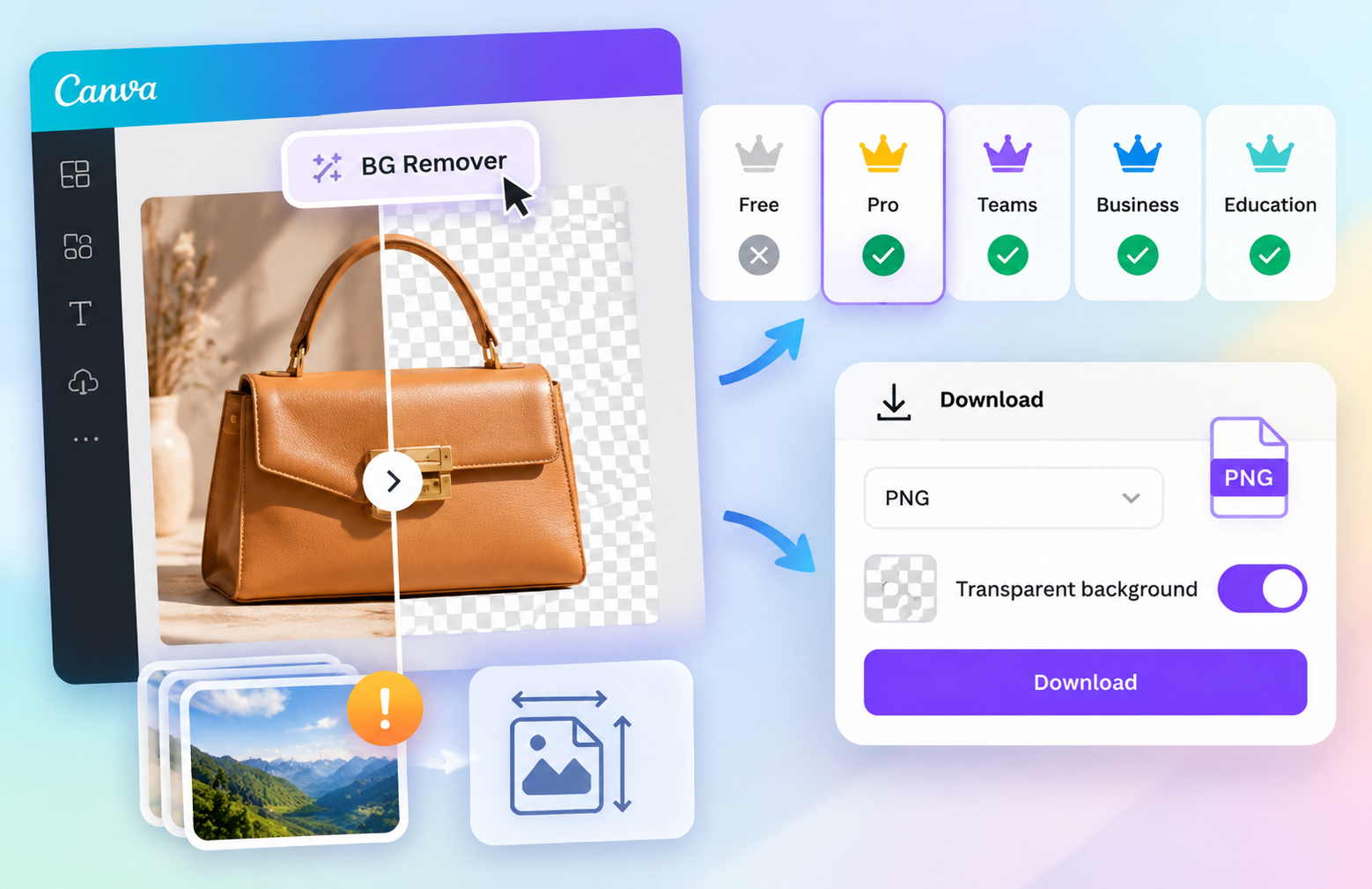
Some failed cutouts and missing options are caused by plan or file restrictions rather than the photograph itself. Background removal and transparent design export should also be treated as separate features.
Plan Requirements
Canva currently includes Background Remover with paid plans. Transparent background downloads are available to eligible Pro, Teams, Business, Education, and Nonprofits accounts.
For a free alternative, you can remove the background using an RoboNeo AI background remover, download the image as transparent PNG, and upload it to Canva for further editing. This avoids needing Canva Pro for background removal, although exporting the entire Canva design with transparency may still require an eligible plan.
Image Size and Format Limits
A file that uploads successfully is not necessarily eligible for BG Remover. Canva currently states that the feature works with photos smaller than 9 MB. Images above 10 megapixels are reduced to 10 MP after background removal, and vector images are not supported.
File size and pixel count describe different properties. A compressed 12-megapixel photo might remain below 9 MB but still be resized during processing. Check the cutout’s final dimensions when it will be used in a large poster, display, or printed sign. If the original is already too small for its intended use, making the picture higher resolution may improve its output dimensions, although upscaling cannot fully recreate details that were never captured.
Converting an SVG logo to PNG may make it eligible as a raster image, but the conversion is not lossless in the same way as keeping the original vector. Fine lines can become pixelated when enlarged.
Alternatives to Canva's Background Remover
Canva's background removal and transparent export features may require a paid plan. RoboNeo offers an alternative with automatic AI background removal and transparent PNG downloads. Unlike a standalone cutout tool, RoboNeo also connects background editing with its AI Agent and visual canvas, where creators can develop new images, organize assets, and reuse them across marketing projects without starting from scratch.
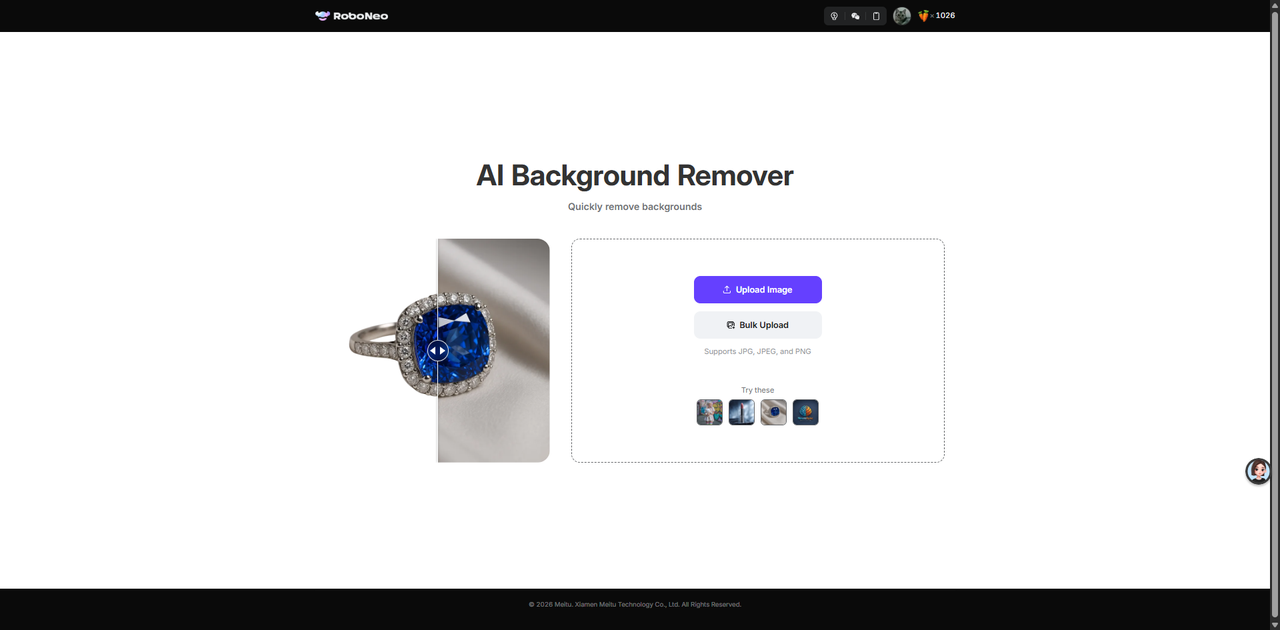
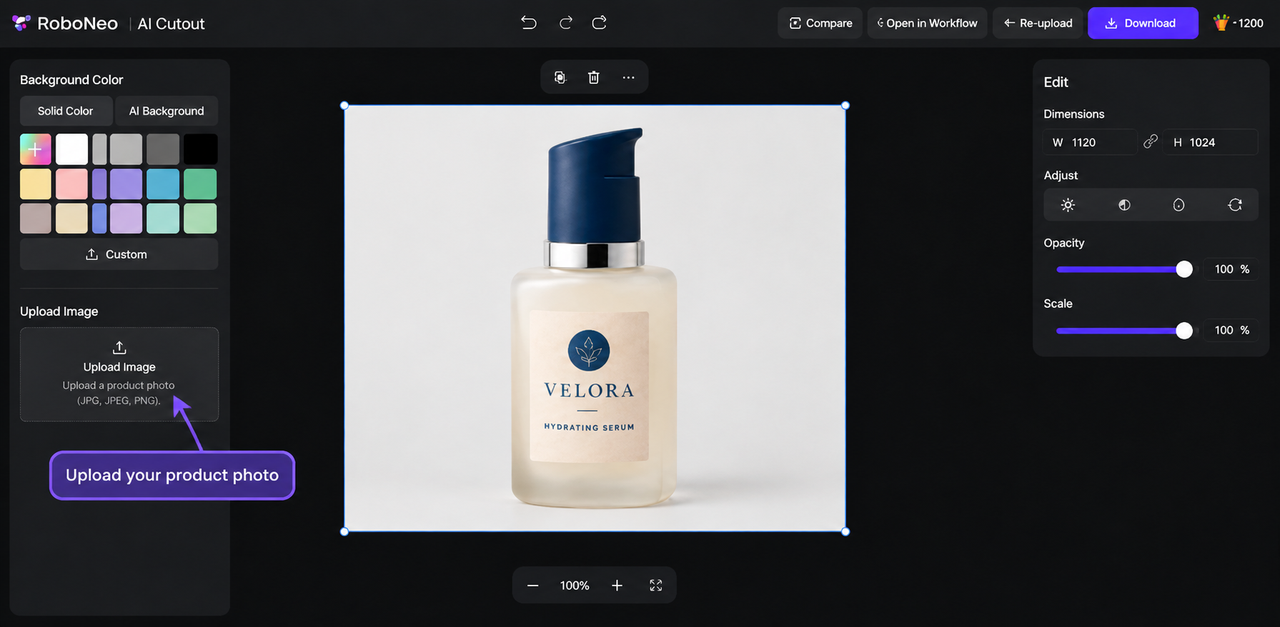
Step 1: Upload Your Image
Open the RoboNeo AI Background Remover and upload your product photo or portrait. RoboNeo automatically removes the original background and displays the cutout.
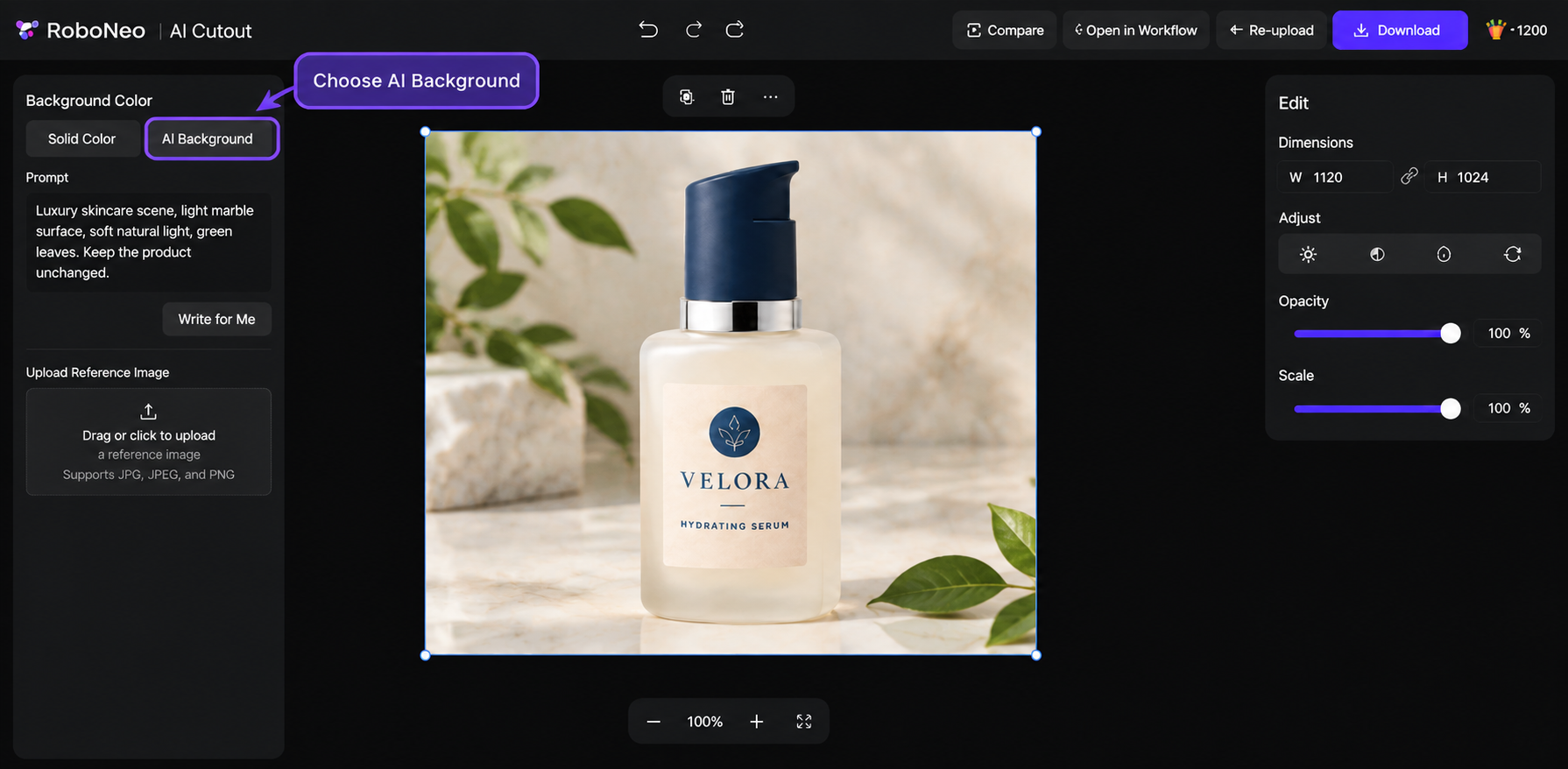
Step 2: Review and Download
Check the subject's edges, colours, and small details before downloading the transparent PNG. You can also choose a free solid colour background or use a text prompt to generate a new scene.
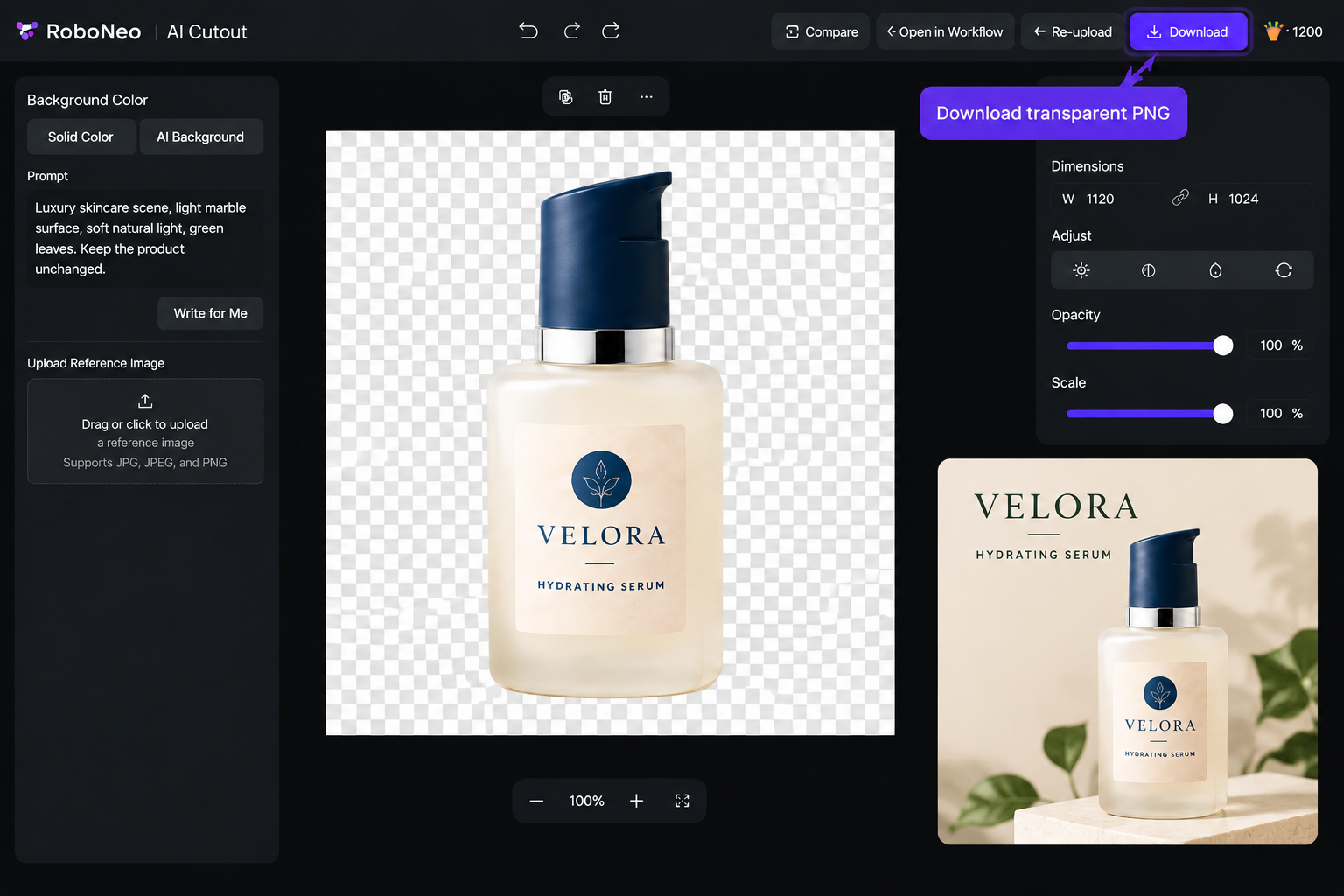
Step 3: Continue Editing Your Design
Once the background is removed, you can download the transparent PNG and upload it to Canva for layout and text editing. Alternatively, continue working in RoboNeo's AI Agent and visual canvas to create additional visuals, refine designs, and organize assets for future projects.
Remove Product Background With AI
How to Fix Background Removal Errors
Canva BG Remover may leave background fragments, remove subject details, or produce an unexpected white background. These issues can often be corrected with a few adjustments.
Erase Leftover Background
If parts of the original background remain, reopen BG Remover and choose Erase. Adjust the brush size and remove unwanted pixels carefully.
For flyaway hair, zoom in and use a smaller brush to clean around individual strands. Be careful around pale objects and fine edges to avoid removing parts of the subject.
Check the result against a contrasting colour to spot any remaining background.
Restore Missing Details
Choose Restore to recover parts of the subject accidentally removed by Canva. Use a small brush around lettering, product edges, and fine details.
Transparent or semi-transparent objects, such as glasses and water bottles, can be harder to separate because the background shows through them. Restore missing outlines gradually, then use Erase to clean up unwanted areas. Some transparency issues may require more precise masking.
Fix a White Background After Download
Place the PNG over a coloured background to check whether the white area is real or simply how the viewer displays transparency.
If the background remains white, confirm that PNG and Transparent background were selected during export. Also check for hidden background elements or white areas within the original image that still need removal.
Conclusion
Canva offers a short workflow for automatic cutouts, but a clean result depends on selecting the image correctly, checking fine edges, and using the right export settings. When the tool or plan does not fit the project, an external background remover can prepare the transparent subject before it returns to Canva for layout work.
FAQs About How to Remove a Background on Canva
Can I remove a background in Canva on my phone?
Yes. Canva supports background removal on compatible mobile versions, although the position of BG Remover may differ from the desktop layout. Account restrictions still apply, and switching devices does not unlock a paid feature. Use the download controls to save a transparent PNG because a phone screenshot will include a background.
Can I remove backgrounds from multiple images at once?
Paid Canva plans can process uploaded images in a folder in bulk, with a current limit of 50 images at a time. Canva library photos and complete designs in the folder are skipped. Each finished image should still be checked for hair, narrow products, and complex edges.
Does Canva's Background Remover work on logos?
It can process a qualifying raster logo, but small text, thin lines, internal letter spaces, and white areas may need careful review. A logo built from editable Canva text and shapes may only require its background element to be deleted. Vector files such as SVGs are not supported by the photo background remover.
Can I add a new background after removing the old one?
Yes. Place a color, photograph, or design element below the cutout, then adjust the subject’s scale and position. The lighting and edge treatment should suit the new setting. Save a separate transparent copy if you expect to reuse the subject with other backgrounds.
Can I keep shadows when removing a background in Canva?
A faint original shadow may disappear with the background. Restore can reveal that part of the original photo, but it may also bring back nearby background pixels. If the recovered shadow creates visible blocks or mismatched edges, keep the cutout clean and add a new shadow that matches the direction and intensity of the replacement background.
Why is my downloaded Canva image still showing a white background?
The white area may come from the image viewer, a background element in your design, or incorrect export settings. Place the downloaded PNG over a coloured background to check transparency. If the white background remains, select PNG and enable Transparent background before downloading again.
Can I remove a background in Canva without a Pro account?
Canva's built-in BG Remover generally requires an eligible paid or institutional plan. As an alternative, you can use a free AI background remover to create a transparent PNG, then upload it to Canva. However, exporting the entire Canva design with transparency may still require an eligible plan.
You May Be Interested
AI Tool for Removing Background from Image: 8 Picks for 2026
Background Design: AI Styles for Every Photo
3 Best Background Noise Removal Apps for 2026
Canva Watermark Remover Review: Features and Limits
How to Add a Background to a Photo: 4 Methods Compared