Background Design: AI Background Ideas for Different Photos
 RoboNeo TeamOctober 27, 2026
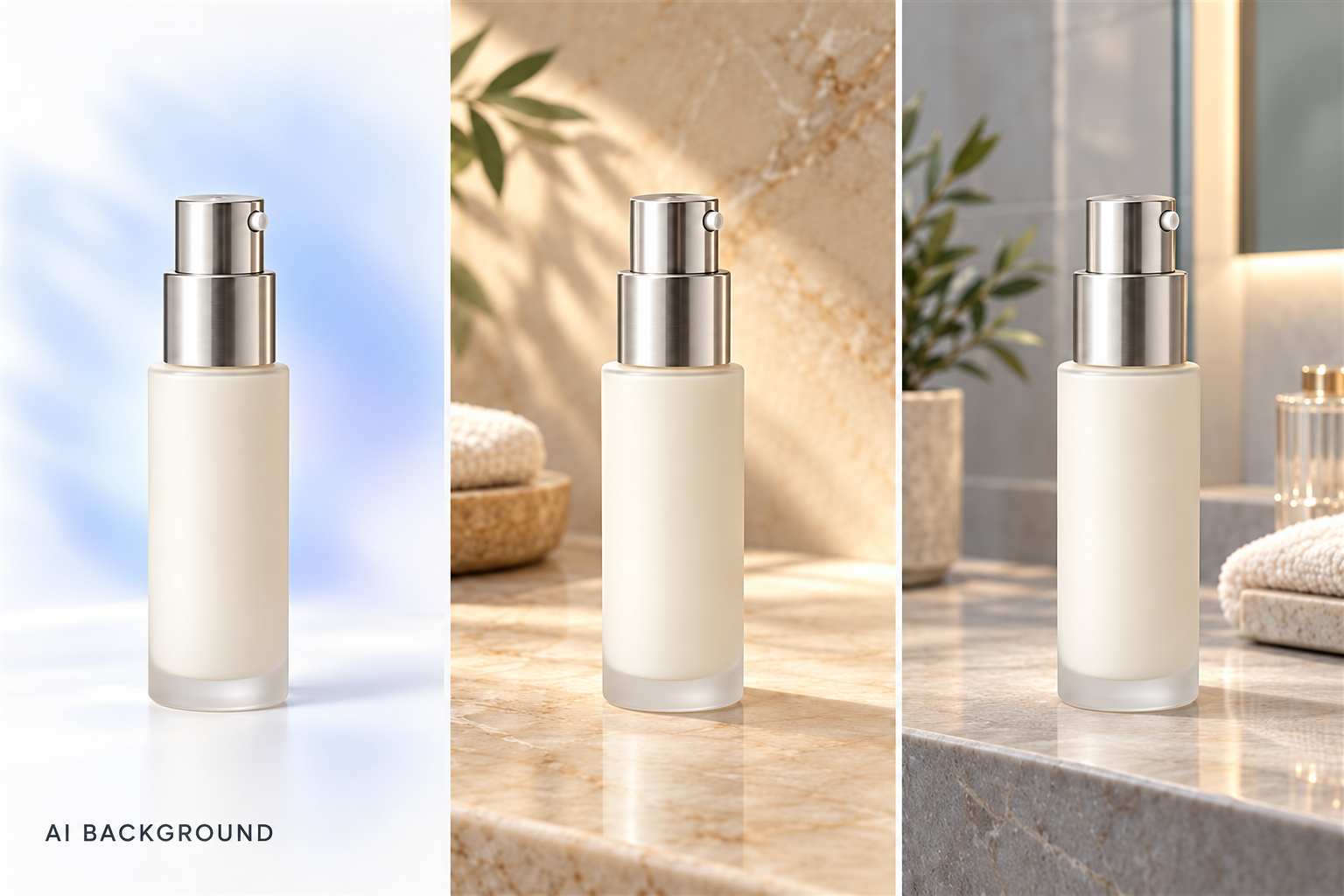
A skincare bottle photographed against white works well for a product listing. For a campaign image, the same bottle might look better on a marble counter or a bathroom shelf. The background changes how the product is presented, even though the product itself stays the same.
AI gives you more room to experiment with these choices. This guide covers background design ideas for different photos, prompts for creating them, and a walkthrough using RoboNeo.
How to Choose the Right Background Design for Different Photos
Different background designs suit different purposes. A setting that works for an Instagram post may be unsuitable for a product listing, even when both feature the same subject.
Match Backgrounds to Your Photo Subject, Purpose, and Visual Style
Consider a professional headshot. A neutral wall or softly blurred office fits most business profiles. For a personal portrait, a garden or café might feel more appropriate.
Products call for similar decisions. A running shoe on a track suggests an active setting, while a studio background makes its construction and colors easier to examine. Neither setting is universally better. One provides context; the other keeps attention on the product itself.
Use Background Colors, Contrast, and Negative Space to Highlight Your Subject
A white sneaker can lose definition against a pure white background. Light gray creates separation without changing the overall look, while charcoal produces a much stronger contrast.
When planning the background, consider:
Color: Choose tones that complement the subject and fit the brand's visual identity.
Contrast: Make sure important outlines and details remain visible.
Negative Space: Reserve room for text, prices, or logos in promotional images.
Check the image at its intended display size. A subtle background may work on a desktop screen but leave the subject difficult to recognize in a small thumbnail.
Make Backgrounds Look Natural With Lighting, Perspective, and Shadows
A background change will look natural only when the new scene matches the original camera angle. A bottle photographed from above won't sit naturally on a tabletop shown at eye level.
Lighting can reveal similar problems. If the original subject has highlights on its left side, a scene illuminated strongly from the right may look poorly composited.
Products resting on a surface also need contact shadows. Without them, the object may appear to float above the table.
What AI Background Design Ideas Work Best for Different Types of Photos?
Background design ideas become more useful when they're matched to a particular photo. A portrait rarely needs the same treatment as a jewelry advertisement, and a product listing has different priorities from a holiday campaign.
The following styles offer starting points for seven common photo categories.
Photo Type | AI Background Design Ideas | Best For |
Professional Headshots & Portraits | Neutral colors, blurred offices, subtle interiors | LinkedIn, business portraits |
E-commerce Product Photos | White studios, gradients, lifestyle settings | Listings, promotional images |
Beauty & Jewelry Photos | Marble, glass, reflective surfaces | Skincare, cosmetics, jewelry |
Fashion & Accessories | City streets, editorial interiors, studios | Clothing, shoes, handbags |
Pet & Family Photos | Gardens, lawns, comfortable interiors | Family and pet portraits |
Travel & Landscape Photos | Sunsets, seasonal landscapes, cinematic skies | Travel and lifestyle images |
Social Media & Holiday Photos | Gradients, abstract shapes, festive settings | Social posts and campaigns |
Professional Headshots & Portraits
An office background works for a business portrait, but it doesn't need to include desks, monitors, or obvious corporate decorations. A blurred window and neutral wall may be enough.
Think about the final crop. Details near the edges of a full-size portrait can become distracting when reduced to a small LinkedIn profile picture.
AI Prompt:
Replace the background with a modern office featuring soft natural light and subtle background blur. Keep the person's facial features, hairstyle, and clothing unchanged. Match the original lighting.
E-commerce Product Photos
For a main product image, the background should make the item easy to inspect. Some marketplaces also require particular background colors or image treatments.
Promotional photos allow more variety. A coffee maker could sit on a kitchen counter, while a pair of hiking boots might suit an outdoor setting.
RoboNeo AI product photo editor can help prepare product images for different presentations.
AI Prompt:
Create a clean light gray studio background with soft lighting and a natural contact shadow. Keep the product shape, color, texture, and logo exactly as shown in the original image.
Beauty & Jewelry Photos
A pale marble surface can work well with skincare packaging, although white bottles may need a slightly darker backdrop to keep their edges visible.
Glass and reflected light suit perfume photography. Jewelry often benefits from backgrounds that contrast with the metal, particularly when showing fine details.
AI Prompt:
Place the skincare product on a light marble surface with soft daylight, subtle shadows, and an elegant minimalist background. Preserve the original packaging, colors, and logo.
Fashion & Accessories
Urban streets, contemporary interiors, and studio settings create different moods for fashion photography. If harsh light washes out the clothing, learn how to fix overexposed photos before changing the background.
Casual sneakers often fit naturally into an outdoor scene. A handbag with detailed stitching or metal hardware may look better against something quieter, where those details remain easy to see.
AI Prompt:
Replace the background with a modern city street featuring soft afternoon sunlight and a stylish editorial atmosphere. Keep the original shoes, colors, materials, and proportions unchanged.
Pet & Family Photos
Gardens and comfortable living rooms make useful backgrounds for personal photos, but the original pose matters.
A dog lying on the ground fits a grassy setting more naturally than a raised table. For family portraits, choose a scene where everyone's position and lighting remain believable.
AI Prompt:
Create a peaceful garden background with green grass, soft sunlight, and natural depth of field. Preserve the pet's original appearance, fur patterns, and body proportions.
Travel & Landscape Photos
Changing the lighting can give a familiar landscape a different mood. An overcast coastline might become a warm sunset scene; autumn colors can transform a forest.
These edits are useful for creative projects, but generated weather or seasonal changes shouldn't be presented as an unedited record of the actual location.
AI Prompt:
Create a cinematic sunset atmosphere with warm golden light, soft clouds, and natural color transitions. Preserve the original landscape structure and perspective.
Social Media & Holiday Photos
Gradients, geometric patterns, and seasonal decorations give social media images more room for experimentation.
A background for design projects like promotional posts needs room for a headline. An image extender can add space around a tightly cropped photo. Keep that area simple so the text stays readable on a phone.
AI Prompt:
Design a modern pastel gradient background with subtle abstract shapes and soft lighting. Keep the main subject unchanged and leave negative space on the right for text.
How Can You Compare Different Background Designs?
Try different settings with one original photo rather than comparing unrelated images.
Photo Subject | Background A | Background B | Background C |
Portrait | Solid color | Modern office | Blurred outdoors |
Skincare product | White studio | Marble countertop | Natural bathroom |
Fashion sneakers | Minimal studio | Urban street | Modern interior |
View each version at the size you plan to publish. A detailed scene may look attractive at full resolution but become distracting in a product thumbnail.
How to Write AI Background Design Prompts for Different Photos
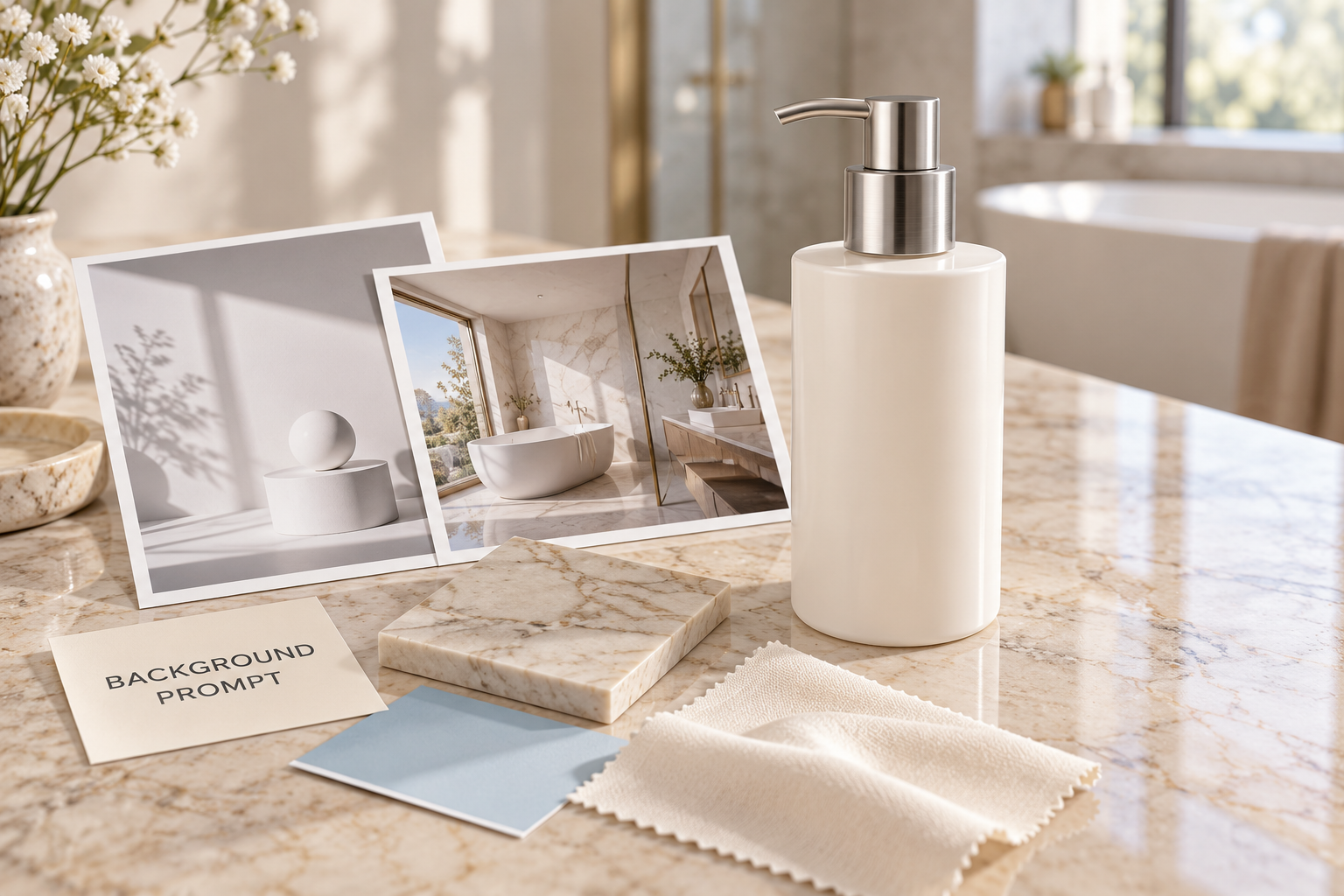
If you want to design your own background, start by describing the new setting and identifying which parts of the original image must remain unchanged. This gives AI a clearer direction before you add details about colors, materials, or lighting.
Define the Photo Subject You Want to Preserve and the New Background Scene
A portrait needs consistent facial features, hair, and clothing. For product photography, the packaging, colors, and logo are usually the details worth protecting.
If you need to isolate the subject first, RoboNeo AI background remover can separate it from the original scene. This step is optional when replacing a background.
Compare these prompts:
Simple Prompt:
Change the background to a modern office.
Improved Prompt:
Replace the background with a modern office featuring large windows, soft natural lighting, and subtle background blur. Keep the person's facial features, hairstyle, and clothing unchanged.
The improved version describes a specific office setting and identifies what should stay untouched.
Build Background Prompts With Scenes, Textures, Colors, Lighting, and Composition
For more control over the result, specify the materials, colors, lighting, and subject placement.
The following formula can help organize those details:
AI Background Design Prompt Formula
Original Subject + New Background Scene + Texture & Materials + Colors + Lighting + Composition + Subject Preservation
For a skincare photo:
Keep the original skincare bottle unchanged. Place it on a beige marble countertop in a modern bathroom with soft natural light, warm neutral colors, and subtle shadows. Center the product and preserve its original shape, packaging, and logo.
Not every background needs this much information. A plain studio setting may require only a background color, lighting direction, and shadow description.
Use Reference Images and Prompts to Maintain a Consistent Background Style
Suppose you're preparing a collection featuring three skincare products: a glass bottle, a cream jar, and a plastic container.
Using the same marble surface, wall color, and lighting direction can make the images feel connected. Reference images help when the tool supports them.
Still, the products have different shapes. Their shadows and placement may need individual adjustments, even with identical prompts.
How to Generate AI Background Designs With RoboNeo?
RoboNeo is an AI platform designed for generating and editing images and videos with multiple models. Its background design feature lets you type in a scene, style, color, and mood, and instantly generates a new background on the canvas. No manual background removal or building from scratch required. From simple product setups and lifestyle shots to creative visuals, RoboNeo helps you explore design options and generate exactly what your content needs.
We'll use one skincare bottle throughout these steps.
Step 1: Upload Your Original Photo and Prepare the Subject
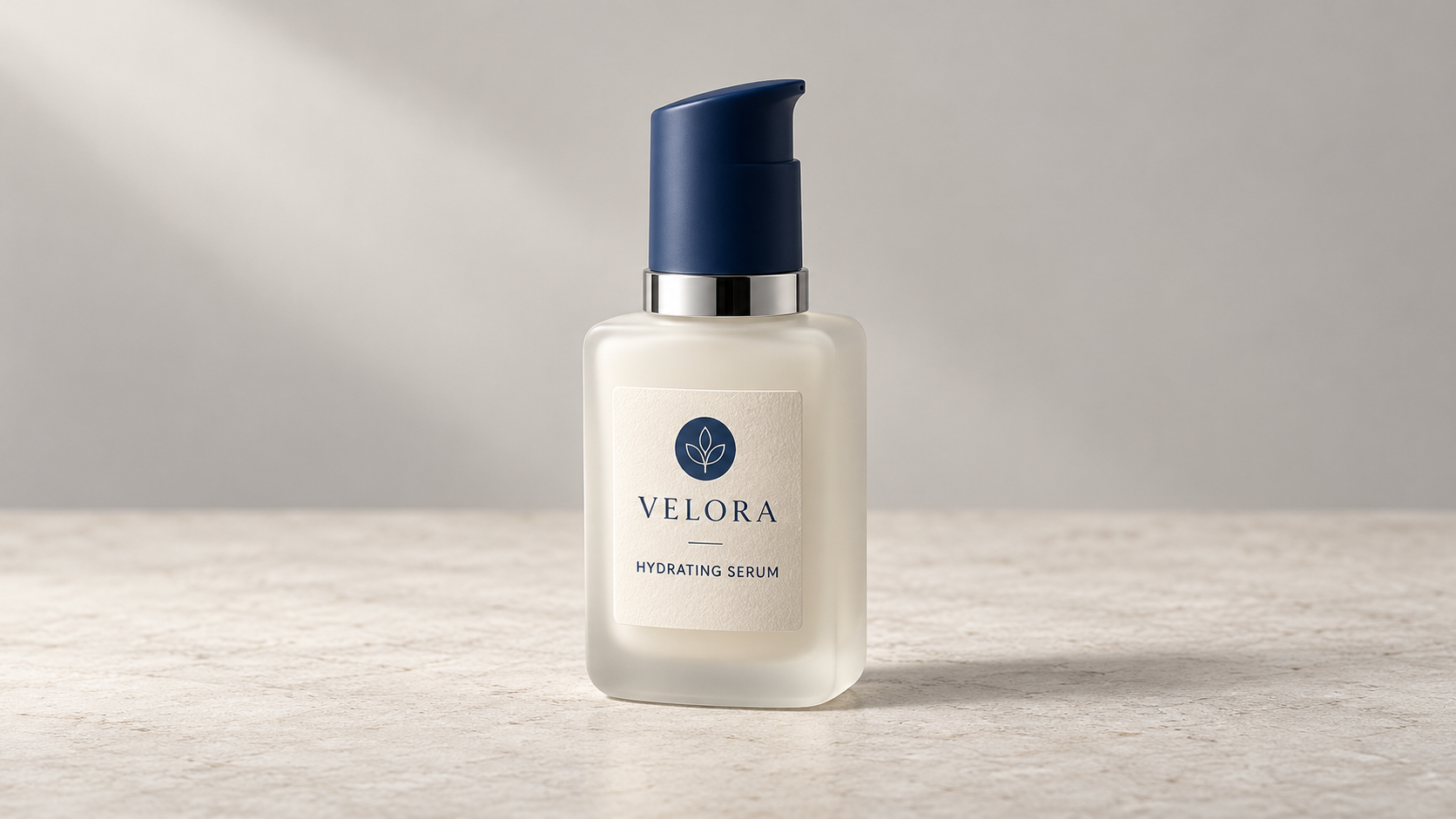
Open RoboNeo Home and upload a clear photo of your skincare bottle to the canvas.
Before editing, check the bottle's shape, packaging color, label, and logo. These details should remain consistent throughout the process.
If your original photo is blurry, you can review how to unblur an image before getting started.
Step 2: Describe Your Desired Background Style With AI Prompt
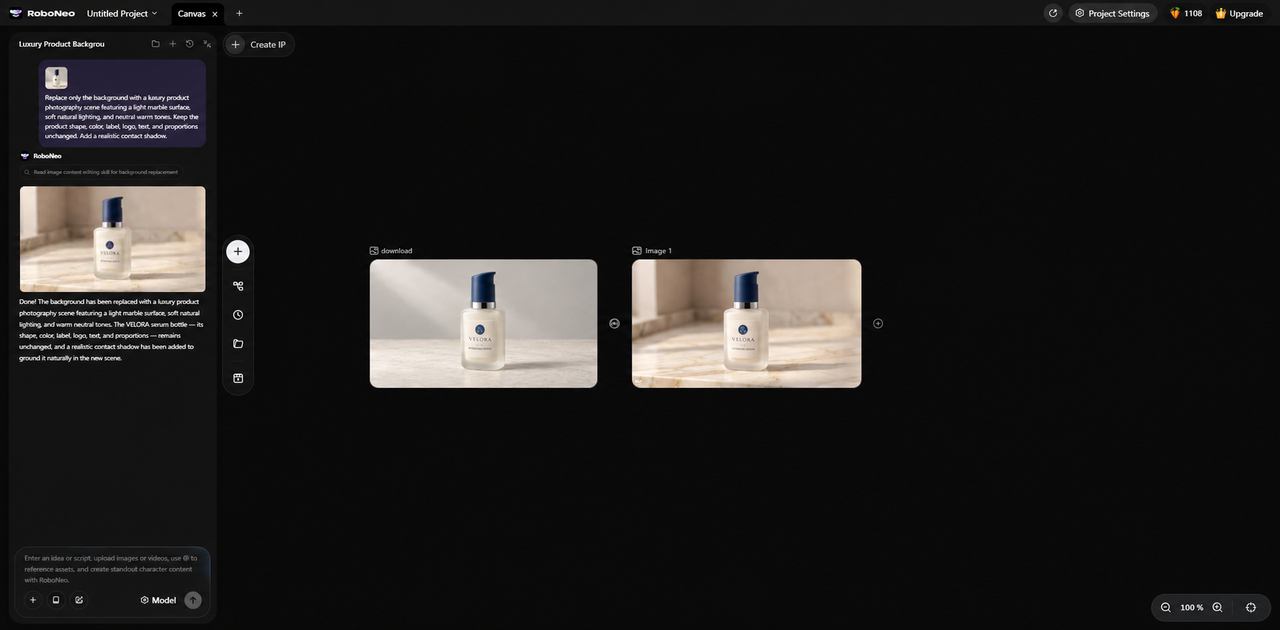
Open RoboNeo Home, upload your product photo to the canvas, and enter a prompt describing the background you want.
Choose a setting based on the final use. White studio backgrounds work well for clean product presentations. Marble surfaces can suit premium advertising, while bathroom scenes offer a natural lifestyle setting for skincare.
For a marble background, try this prompt:
"Create a luxury product photography background with a marble surface, soft natural lighting, and neutral colors. Keep the product shape, color, and logo unchanged."
Step 3: Generate Different Background Designs and Compare Results
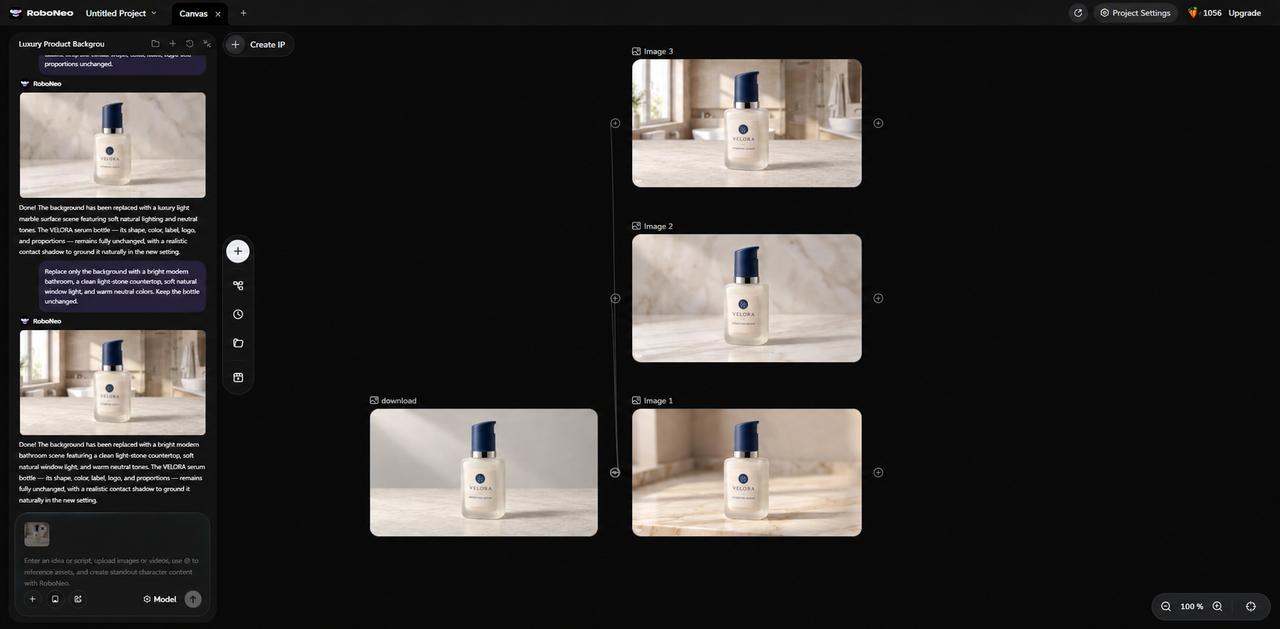
Generate the image and preview the result on the canvas. You can try different prompts with the same product photo to compare marble, studio, and bathroom backgrounds.
Check whether the bottle stands out, the lighting looks natural, and the shadows fit the scene. If something needs adjusting, refine your prompt and generate another version while keeping the original product details.
Step 4: Review the AI Background and Export the Final Image
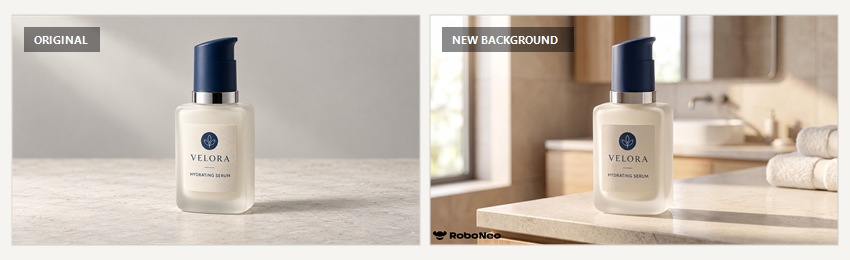
Before exporting, compare the edited photo with the original.
Inspect the bottle proportions, label, logo, and packaging color at full size. Small changes can be difficult to catch in a preview.
Choose the output size according to where the image will appear. For larger images, this guide explains how to increase image resolution.
What Common Mistakes Should You Avoid in AI Background Design?
Even a well-designed background can look wrong when it doesn't fit the original subject. These problems are worth checking before publishing.
Choosing Overly Busy Backgrounds That Distract From the Subject
A product surrounded by decorative objects and strong patterns can be difficult to notice.
Try reducing the number of props or softening the background. Promotional images also need enough clear space for important text.
Using Background Lighting and Shadows That Don't Match the Subject
A subject lit from the left may look pasted into a background illuminated from the right.
Match the light direction and color temperature. Products on tables or floors need contact shadows that fit the surface.
Creating Unrealistic Perspective, Subject Scale, or Depth
An overhead product shot rarely fits naturally into an eye-level tabletop scene.
Choose a compatible camera angle and check whether the product's size makes sense alongside nearby objects.
Accidentally Changing Facial Features, Product Colors, or Brand Details
AI background editing can sometimes alter faces, labels, packaging colors, or logos.
Compare the finished image with the original before publishing. For commercial photos, those identifying details need to remain accurate.
FAQ
Can AI generate multiple background designs for the same photo?
Yes. Change the background scene, colors, or prompt to create different versions. Generation limits depend on the tool.
How can you keep background designs consistent across multiple photos?
Reuse the same background descriptions, lighting, colors, and reference images. Review individual results for differences.
Can AI-generated photo backgrounds be used for commercial ads and e-commerce?
Generally, yes, provided you have the necessary usage rights. Product details must remain accurate.
Can you redesign a background without changing the person or product?
Yes. However, check facial features, product colors, logos, and edges after editing.
What image sizes should you use for social media, websites, and print?
Common social media ratios include 1:1, 4:5, and 9:16. Website and print requirements depend on the final display size.
You May Be Interested
How to Unblur an Image Online Free in 2026?
How to Remove Background Noise from Video: Easy Guide
Canva Watermark Remover Review: Features and Limits
3 Best Background Noise Removal Apps for 2026
Meta AI Image to Video vs RoboNeo: In-Depth Comparison