
Tips for Editing Video: Create Polished, Engaging Content
 RoboNeo TeamNovember 2, 2026
A great video is not just about a good script and good filming. Honestly, video quality and editing are just as crucial. Good editing makes the video flow way better and really improves the pacing and storytelling. So here are some tips on how to make your videos clearer, smoother, and much more engaging.
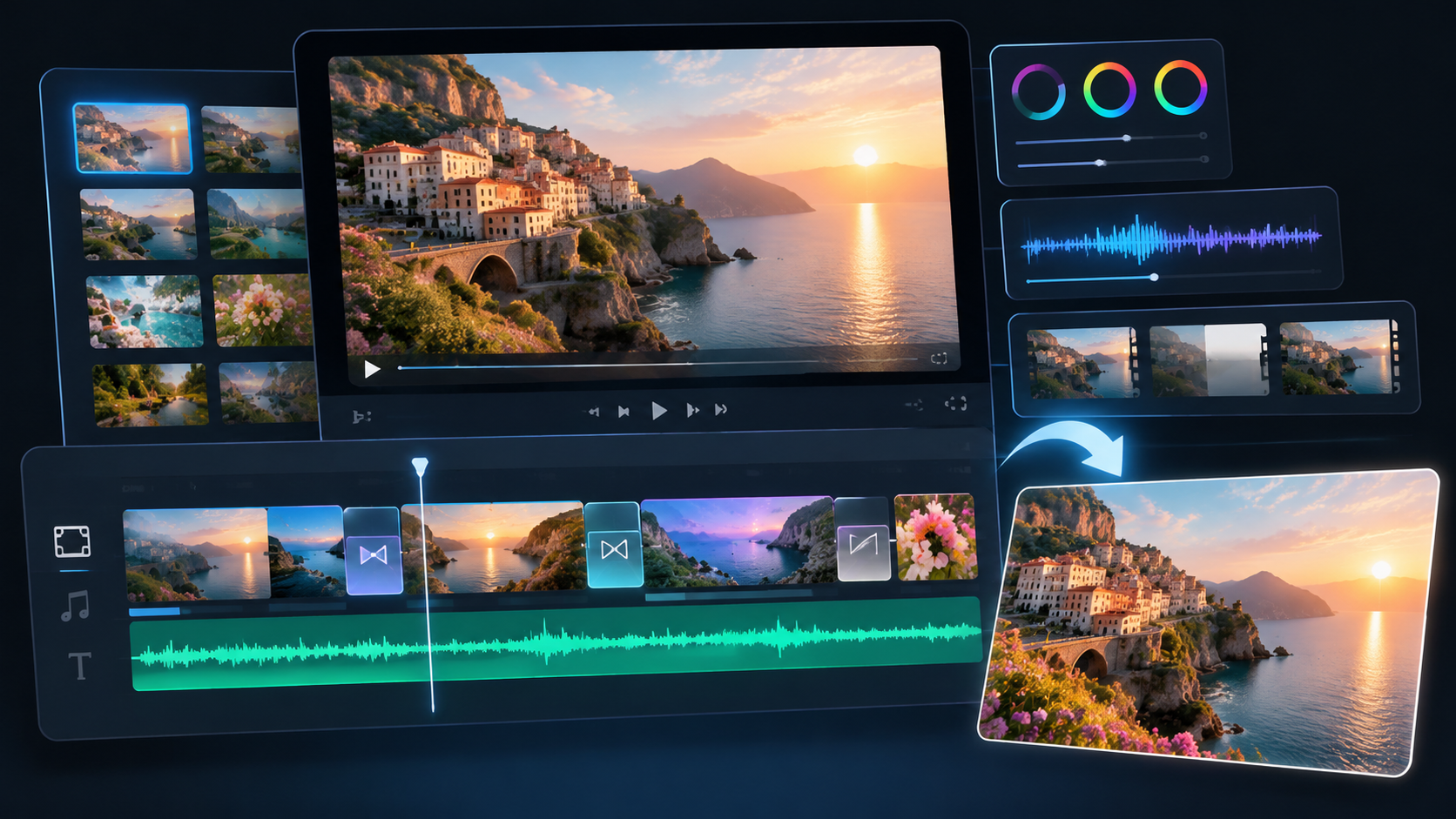
Tips for Better Video Cuts and Pacing
Good editing goes way beyond simple splicing or trimming out bad takes. Nailing a solid hook, keeping the content compact, and ensuring natural transitions all massively boost the overall quality.
Prepare a Hook That Grabs Attention
A solid video hook is what stops people from scrolling. Think about food videos starting with a mouth-watering close-up, or makeup clips showing a quick before-and-after. It instantly makes viewers want to see the full process. If your footage is missing that strong opening, just use RoboNeo AI to generate a clip for you.
Remove Pauses Without Rushing the Dialogue
Tight pacing pulls viewers along. Cutting dead air and useless clips during editing definitely makes the final video better. But for tutorials or educational stuff, you still need to leave them time to think or take screenshots.
Keep Transitions Simple and Natural
Smart transitions and effects make videos look way better, especially for colorful or anime-style clips. But keeping things natural means holding back on those heavy effects. Watching the full video afterward helps ensure the transitions actually feel smooth and cohesive.
Match Video Cuts to Music and Action
Cutting clips to the rhythm of the music or matching them to on-screen action is what viewers call beat syncing. It feels super satisfying to watch and makes the whole video way more fun.
Tips for Improving Video and Audio Quality
Good pacing isn't everything; video and audio quality determine true professionalism. Fixing color, stability, and audio in post-production saves flawed footage. Going overboard with these edits kills the natural vibe and damages the visual result.
Correct Colors and Keep Your Footage Consistent
Most editing tools offer brightness, contrast, temperature, and saturation adjustments to fix poor exposure or incorrect white balance. Learning how to improve video quality through color correction and other adjustments can help you maintain a consistent visual style across clips without making the footage look unnatural.
Stabilize Shaky Footage Without Overprocessing
Minor shakiness in dynamic footage can be fixed using software stabilization. Clips with only partial shaking are better handled by splitting them into segments. A final overall check ensures the video meets expectations.
Improve Audio Quality and Add Background Music
Sound effects and background music can make videos more engaging, but clear audio should come first. If your footage contains wind, traffic, or unwanted background sounds, you can remove background noise from video before adding music. Choose tracks that match the mood, such as suspenseful music for dramatic scenes or upbeat music for travel clips, and keep the volume balanced with dialogue.
Keep Captions Readable and Effects Simple
Captions improve the viewing experience and help viewers understand the video better. Keeping them clear of main visuals or key info is crucial. Proper font settings, sizing, and background contrast prevent the text from blending in and becoming invisible.
Tips for a Faster, More Efficient Editing Workflow
A mature workflow boosts editing efficiency and prevents messy files, endless revisions, or repetitive tasks. This section covers how to build an efficient editing process and how to use RoboNeo to cut down on redundant work.
Organize Your Footage Before Editing
Before editing, dealing with multiple clips often means constantly checking their sequence. A personal naming system significantly reduces the time spent identifying footage.
Create a Rough Cut Before Adding Effects
A rough cut establishes what content and clips to keep, removes useless shots, and shortens the overall length. Color grading, music, and effects come only after the narrative order and logic are finalized.
Use AI Tools to Simplify Video Editing
RoboNeo allows video content modification through natural language descriptions. This significantly boosts efficiency for users unfamiliar with complex editing. Its features include removing objects, adjusting backgrounds, and upscaling video quality. Below is the prompt-based editing workflow.
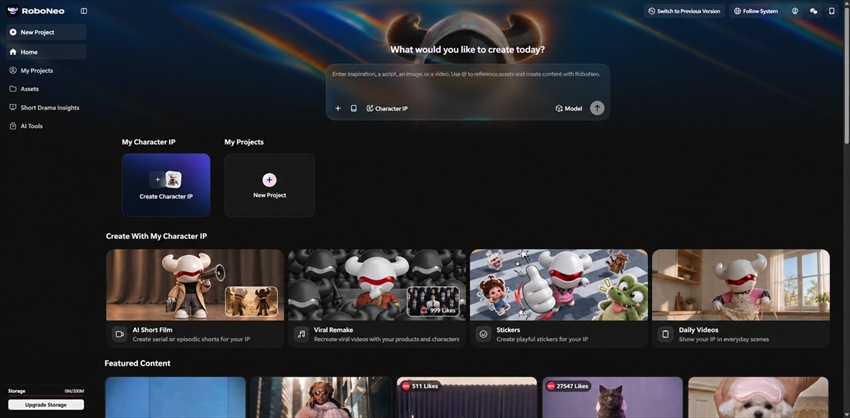
Step 1: Open RoboNeo AI Video Editing
Accessing RoboNeo AI Video Editing opens the workspace, where the appropriate editing feature is selected based on current needs.
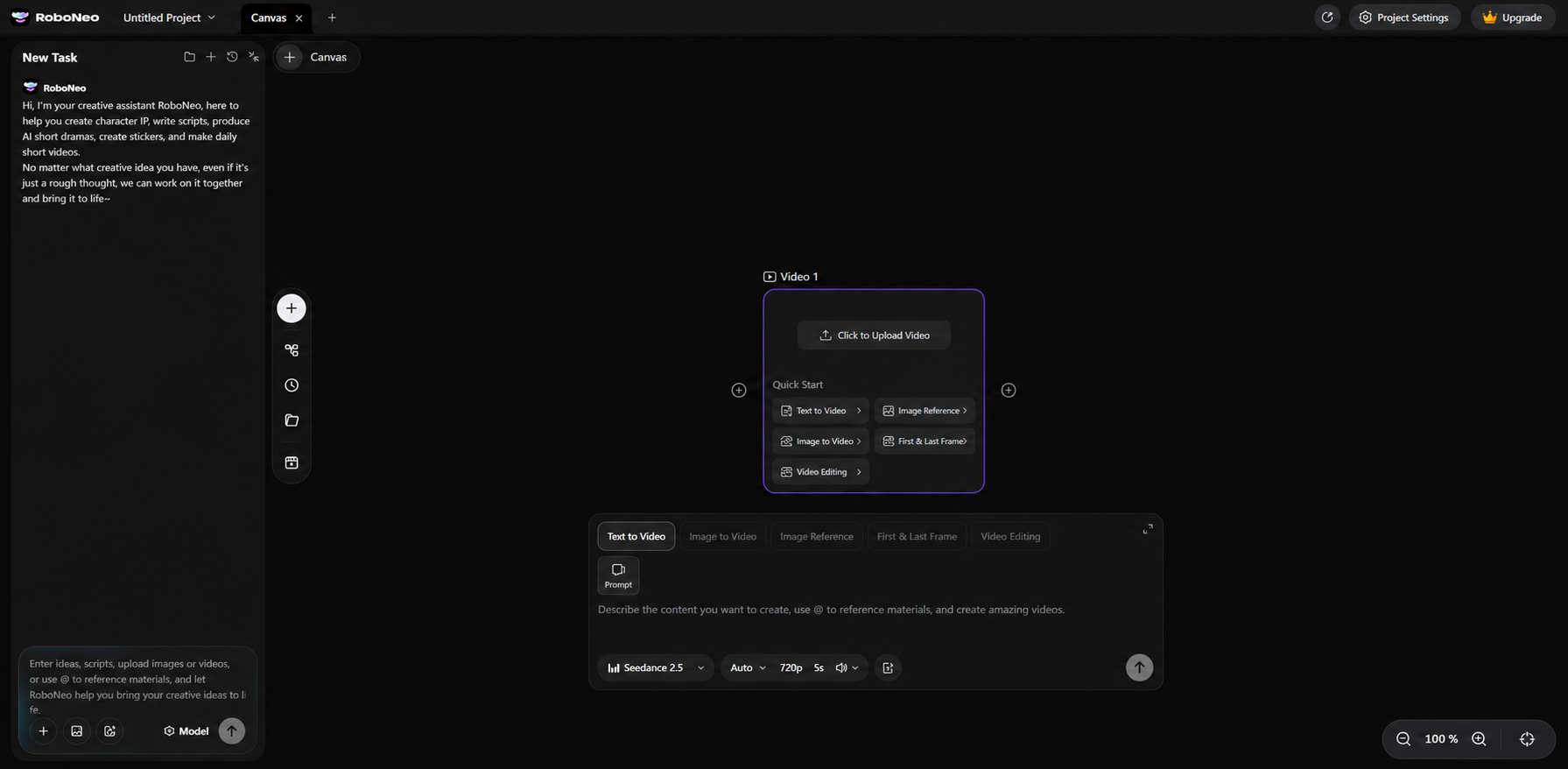
Step 2: Upload Your Video
Uploading the target video is the first step. Clear footage with a distinct subject is highly recommended, as this allows the AI to process the required edits much more accurately.
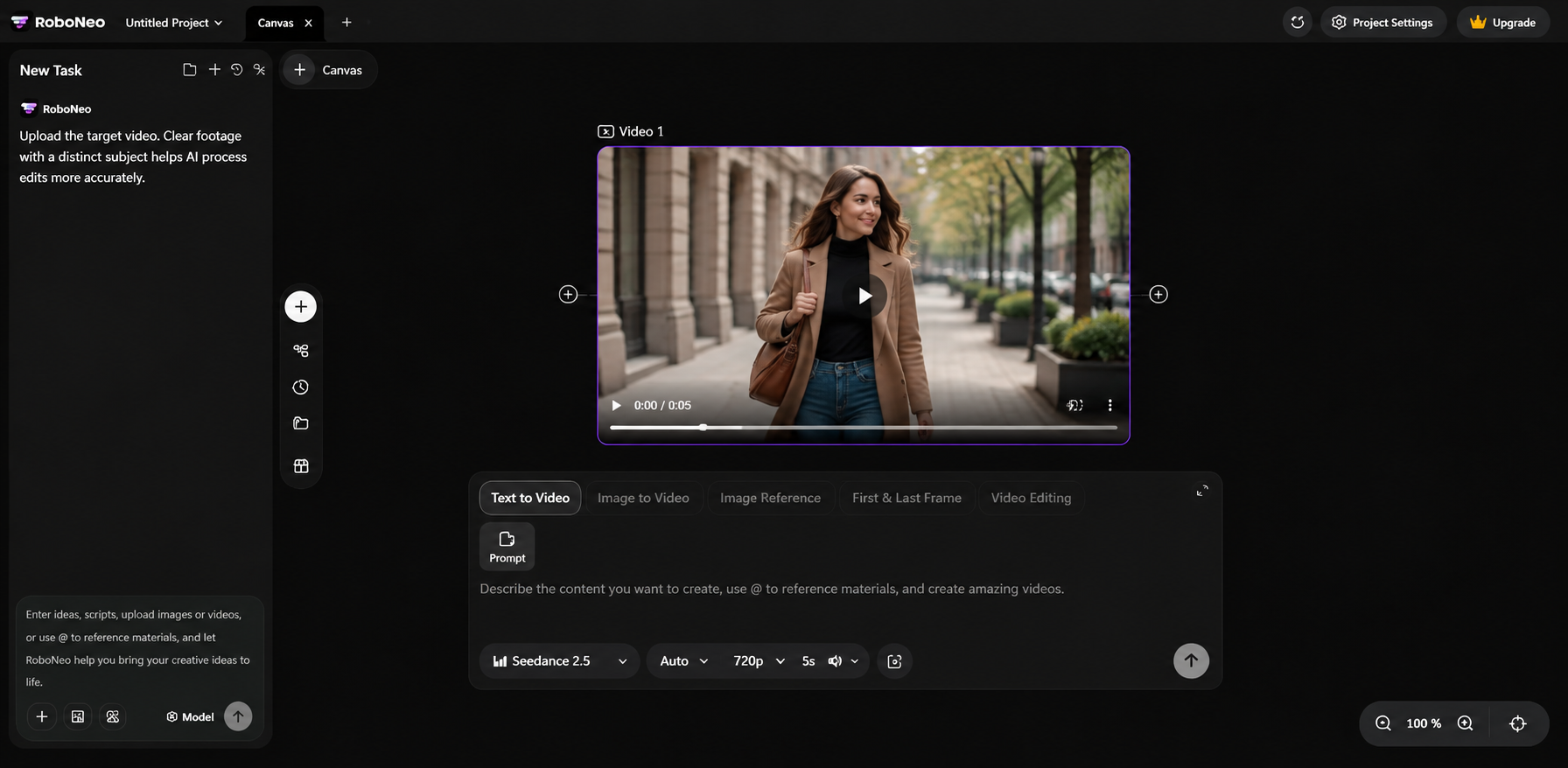
Step 3: Describe Your Edits With a Prompt
Natural language descriptions clarify the desired modifications. For instance, entering "Remove the objects in the background while keeping the main subject unchanged" simplifies the scene. Highly specific prompts clearly define which elements to alter and which to retain.
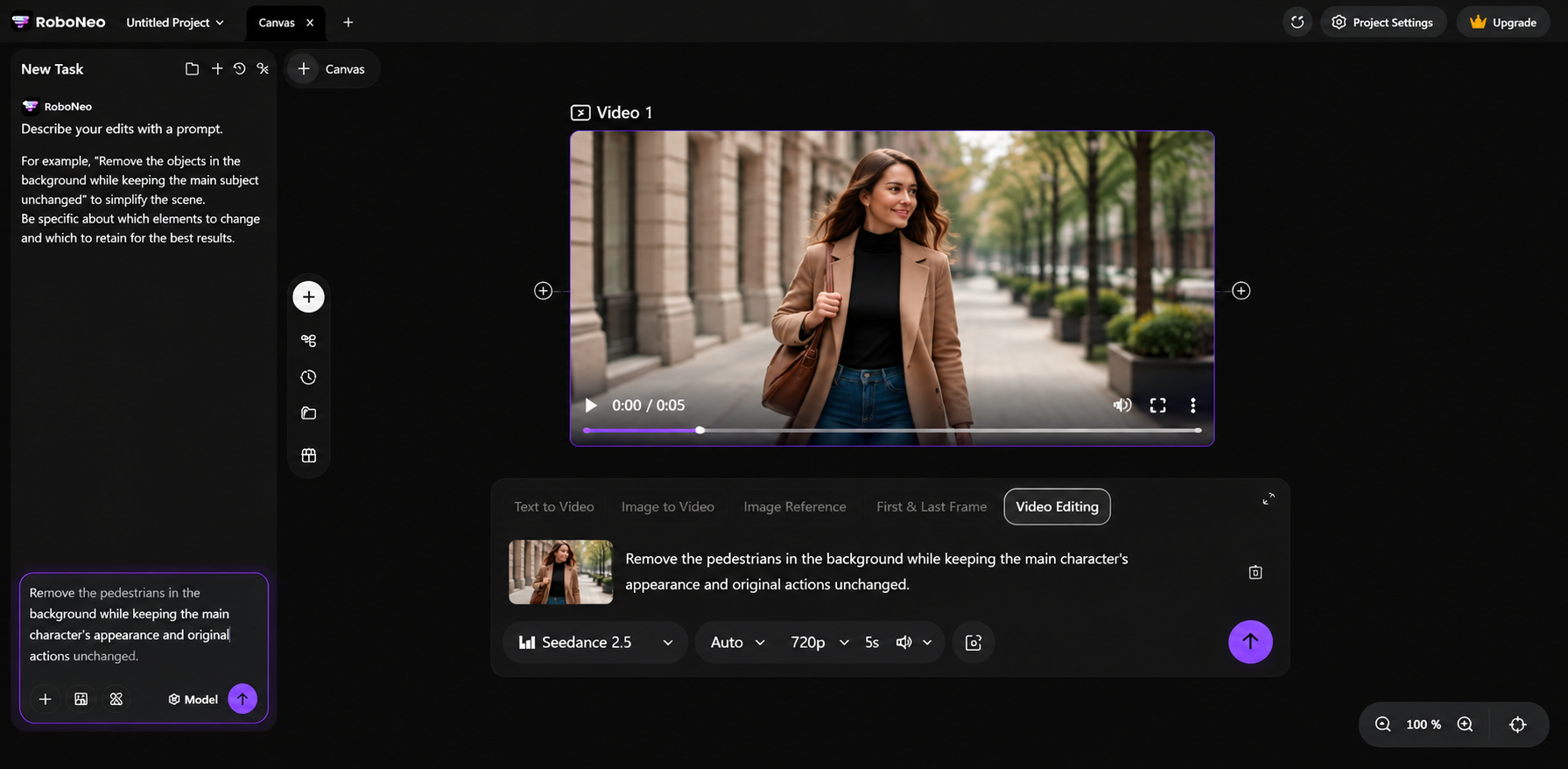
Step 4: Generate, Review, and Refine
Post-generation checks focus on character motion, visual details, and overall results. Unsatisfactory outputs require prompt adjustments and regeneration. Confirmed videos are downloaded for further edits in traditional software when needed.
For less manual work, RoboNeo AI video editing tools use simple text commands to optimize content.
Save Time With the Right Export Settings
Before exporting, check the aspect ratio, resolution, frame rate, and file format required by your publishing platform. A 9:16 vertical format works well for TikTok and YouTube Shorts. If you're publishing on TikTok, follow these high-quality TikTok video upload settings to help preserve clarity after uploading.
FAQ
Can beginners create professional-looking videos without editing experience?
Yes. Basic trimming, clip sequencing, and simple audio adjustments are great starting points. Video tutorials help with the learning process, and RoboNeo AI provides solid assistance when necessary.
Why does my video editing software keep crashing?
This is usually tied to low memory, insufficient storage, incompatible formats, or software version issues. Checking device memory, closing unused apps, and updating the software are highly recommended. If the problem continues, sending a screenshot to customer service is the best way to get help.
Can you edit videos with different frame rates for the same project?
Most professional video editors support mixed frame rates in one project, though conversion can cause duplicated or dropped frames. Setting the project frame rate based on the main footage and final output needs help. Smooth motion requires a quick check.
Can you use copyrighted music in edited videos?
Using copyrighted music requires permission or compliance with license terms. Unauthorized use leads to muted videos, content removal, or copyright strikes. Prioritizing licensed audio and confirming commercial use rights is essential.
Can you undo or change edits after exporting a video?
Exported videos generally cannot be modified directly. Re-editing requires access to the original source footage.
You May Be Interested
Best Setup for AI Video Generation: Benefits, Setup & Tips

How to Fix Overexposed Photos: Better Editing Tips
How to Make a Meme Video: Types, Steps, and Simple Tips
How to Make a Memorial Video: AI Tips for Meaningful Memories
How to Make AI Videos: Beginner Tips and Best Tools