
How to Remove White Background in Illustrator: Logos, Images, & Transparent PNG Export
 RoboNeo TeamOctober 28, 2026
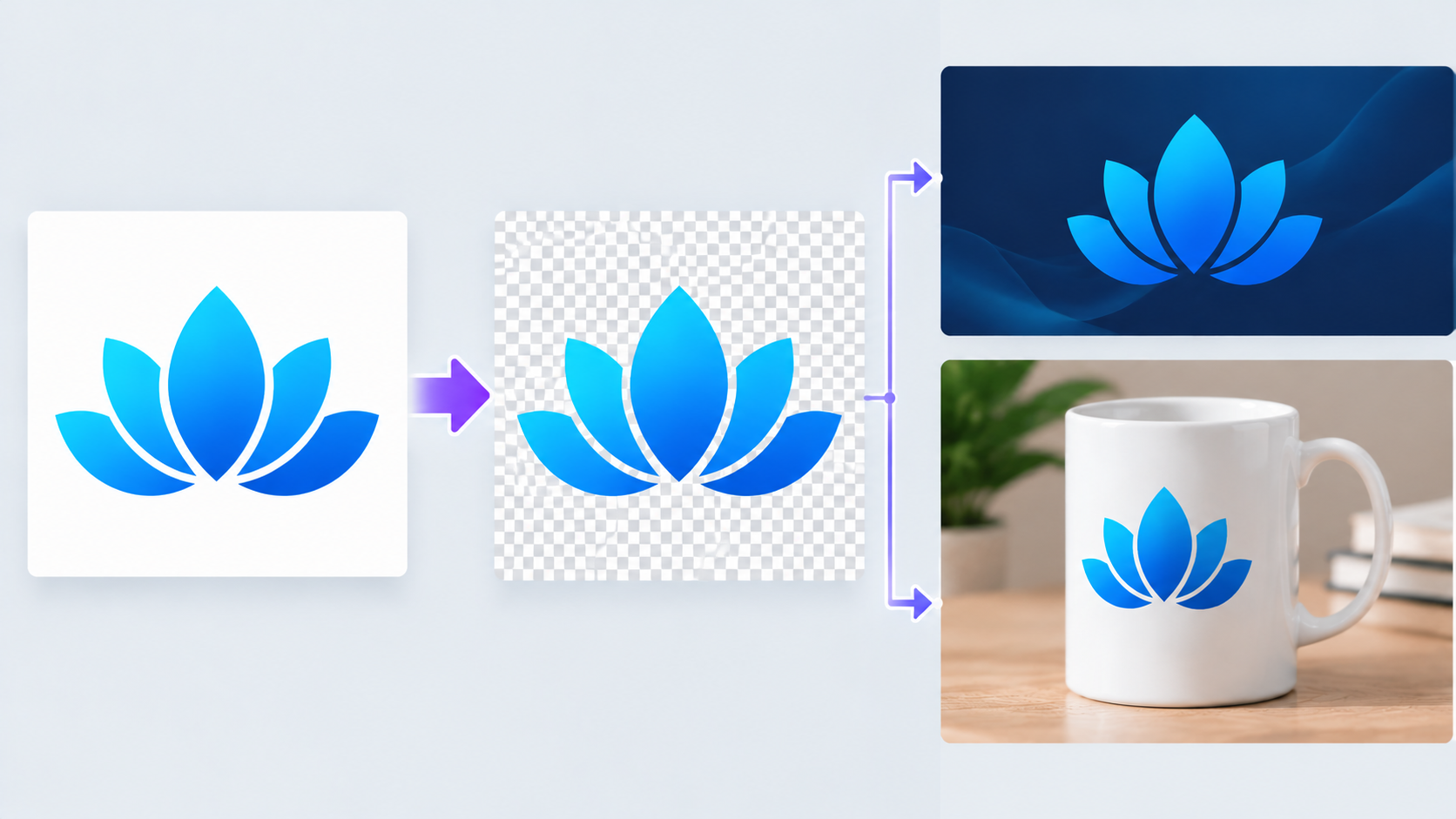
A white background can make a logo look like a solid rectangle when you place it over a colored banner, product label, or presentation slide. Adobe Illustrator offers several ways to remove it, but the right method depends on whether your artwork is a vector logo, a raster graphic, or a photograph.
This guide explains how to remove a white background in Illustrator, check the edges, and export a transparent PNG. It also covers common problems and an alternative for product photos that need clean cutouts without converting the original image into vector artwork.
What Type of Artwork Are You Working with in Illustrator?
Before removing a white background, check how the artwork is built. The distinction matters because a white vector shape can usually be selected and deleted, while white pixels in a photograph are part of the image itself.
Vector logos: These contain editable paths and shapes. If the white background is a separate object, you can select and delete it directly.
Raster logos: PNG and JPEG logos contain pixels rather than individually editable shapes. A simple, high-contrast graphic may work well with Image Trace, although complex details can be lost.
Photographs: Product shots, portraits, and other detailed images need their background separated from the subject. Image Trace is generally not the best choice when you need to preserve photographic texture, realistic shadows, or subtle color transitions.
A quick check can save considerable editing time. Select the artwork with the Selection tool (V). If individual shapes can be selected, you may be working with vector artwork. If the entire image moves as one object, it may be a placed raster image.
How to Remove a White Background in Illustrator

The following steps explain how to remove the white background in Illustrator when working with a vector logo or a simple raster graphic. The exact panel layout and available options may vary by Illustrator version.
Step 1: Open Your File and Show the Transparency Grid
Open your artwork in Illustrator and save a working copy before making changes.
Choose View > Show Transparency Grid to display a checkerboard behind transparent areas. This makes it easier to distinguish an actual white background from Illustrator's white artboard.
Select the artwork and inspect its structure. For a vector logo, use the Selection tool to locate the white rectangle behind the design. If the object is locked or sits on a locked layer, unlock it through the Layers panel before proceeding.
A logo intended for a dark website header may appear correct on a white artboard but become unreadable when placed on a navy background. The transparency grid helps reveal whether a white rectangle is part of the artwork.
Step 2: Remove the White Background
The method depends on how the file was created.
For a vector logo with a separate white background:
1. Choose the Selection tool (V) and click the white background object.
2. If the background is difficult to select, use the Layers panel or temporarily move overlapping objects to locate it.
3. Press Delete or Backspace to remove the selected object.
4. Check that the logo's white text, highlights, and internal shapes remain intact.
This method works when the background is a distinct object. If the white area is part of a compound path or grouped artwork, you may need to edit the group or its individual paths instead.
For a simple raster logo or graphic:
1. Select the placed image.
2. Open Window > Image Trace.
3. Choose a suitable preset, such as Black and White Logo for monochrome artwork, or adjust the mode and threshold for colored designs.
4. Expand the Advanced options and enable Ignore White, if available in your version, to exclude white areas from the traced result. Be aware that this may also remove white details within the logo.
5. Click Trace, then select Expand to convert the traced result into editable vector paths.
Inspect the traced result carefully. Ignore White removes white areas from the tracing, including any white details inside the logo that should remain visible. If this happens, trace again without Ignore White, click Expand, and use the Direct Selection tool (A) to delete only the unwanted white background.
If the artwork contains compound paths, you can use Object > Compound Path > Release where necessary to edit individual shapes, then restore the intended white fills. Check the result against the original logo before proceeding.
If you need to remove a white background from an image in Illustrator while preserving photographic detail, avoid tracing the entire photograph just to make its background transparent.
Step 3: Check the Edges and White Details
A transparent background does not automatically mean the cutout is clean. Zoom in around the edges and inspect the artwork against both light and dark colors.
Pay particular attention to small gaps, thin outlines, white lettering, and areas where the subject meets the original background. A white logo detail may look missing on the transparency grid simply because it blends into the interface.
For a vector logo, use Direct Selection (A) to inspect individual anchor points and paths. For traced artwork, review the expanded shapes and remove unwanted fragments without disturbing the main design.
A product logo with a thin white outline may look fine on a light packaging mockup but disappear against a dark one. Checking both backgrounds helps identify these issues before the file reaches production.
Step 4: Export a Transparent PNG
Once the artwork is ready, export it with transparency enabled.
1. Choose File > Export > Export As.
2. Select PNG as the file format and choose a destination.
3. Enable Use Artboards if you want the exported dimensions to match the artboard.
4. Click Export and set the PNG background color to Transparent in the export options.
5. Confirm the settings and save the file.
Open the exported PNG in another application or place it over a colored background to verify the result. A transparent PNG should show the new background through the removed areas rather than displaying a white rectangle.
If the image looks soft at its intended display size, check its pixel dimensions before exporting again. The right approach to making a picture higher resolution depends on the original file and how the image will be used.
If you need to continue editing vector paths, keep an AI copy. SVG may also be appropriate for web logos and scalable graphics. For animated brand assets, a transparent PNG or SVG can also serve as source artwork for a logo video creator.
How to Fix White Background Removal Problems in Illustrator
Even after following the main steps, small defects can remain. Most problems come from selecting the wrong object, tracing overly complex artwork, or exporting with the wrong settings.
Clean Up White Edges
A faint white halo may appear around a cutout when the original image contains anti-aliased pixels that blend the subject with its white background.
For traced graphics, inspect the paths at high magnification and remove unwanted white shapes. If the image is a photograph, a dedicated AI background remover may preserve soft edges more effectively than converting the entire image into vectors.
Restore Missing Logo Details
When white lettering or highlights disappear, check whether Ignore White removed those details along with the background. Undo the trace or return to the original file, then use a more suitable tracing setting or edit the relevant paths manually.
A logo with white text inside a dark emblem needs more care than a simple black icon. The goal is to remove only the outer background, not every white area in the design.
Fix a White Background After Export
If the PNG still appears white, first place it over a colored rectangle in Illustrator. If the white area remains visible, the background may not have been removed from the artwork itself.
If the artwork looks transparent in Illustrator but not in the exported file, export it again and check that the PNG background is set to Transparent rather than White. Also confirm that you exported the correct file and did not reopen the original JPEG.
When an image contains unwanted marks as well as a background that needs attention, the appropriate cleanup method depends on the problem. Removing a watermark from a photo requires repairing or replacing the marked area, rather than simply making the background transparent.
When to Remove a White Background Outside Illustrator
Illustrator works well for editable logos and vector shapes, but removing backgrounds from detailed product photos can require more work. RoboNeo AI Cutout automatically separates subjects from their backgrounds, reducing manual editing while helping preserve product details. Beyond background removal, RoboNeo's AI Agent and canvas allow creators to develop new visuals, reuse image assets, and prepare content for marketing or video projects.
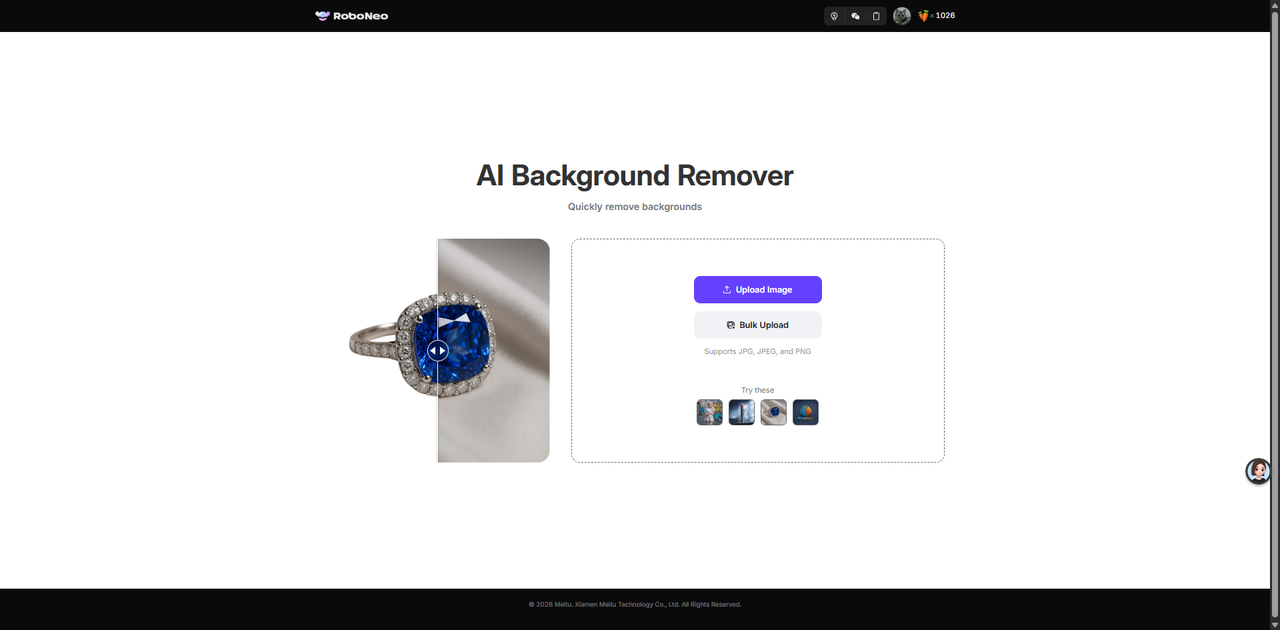
Step 1: Upload Your Image and Remove the Background
Open RoboNeo AI Cutout and upload your product photo. The tool automatically removes the white background, allowing you to review the subject's edges, shadows, and fine details before downloading a transparent PNG.
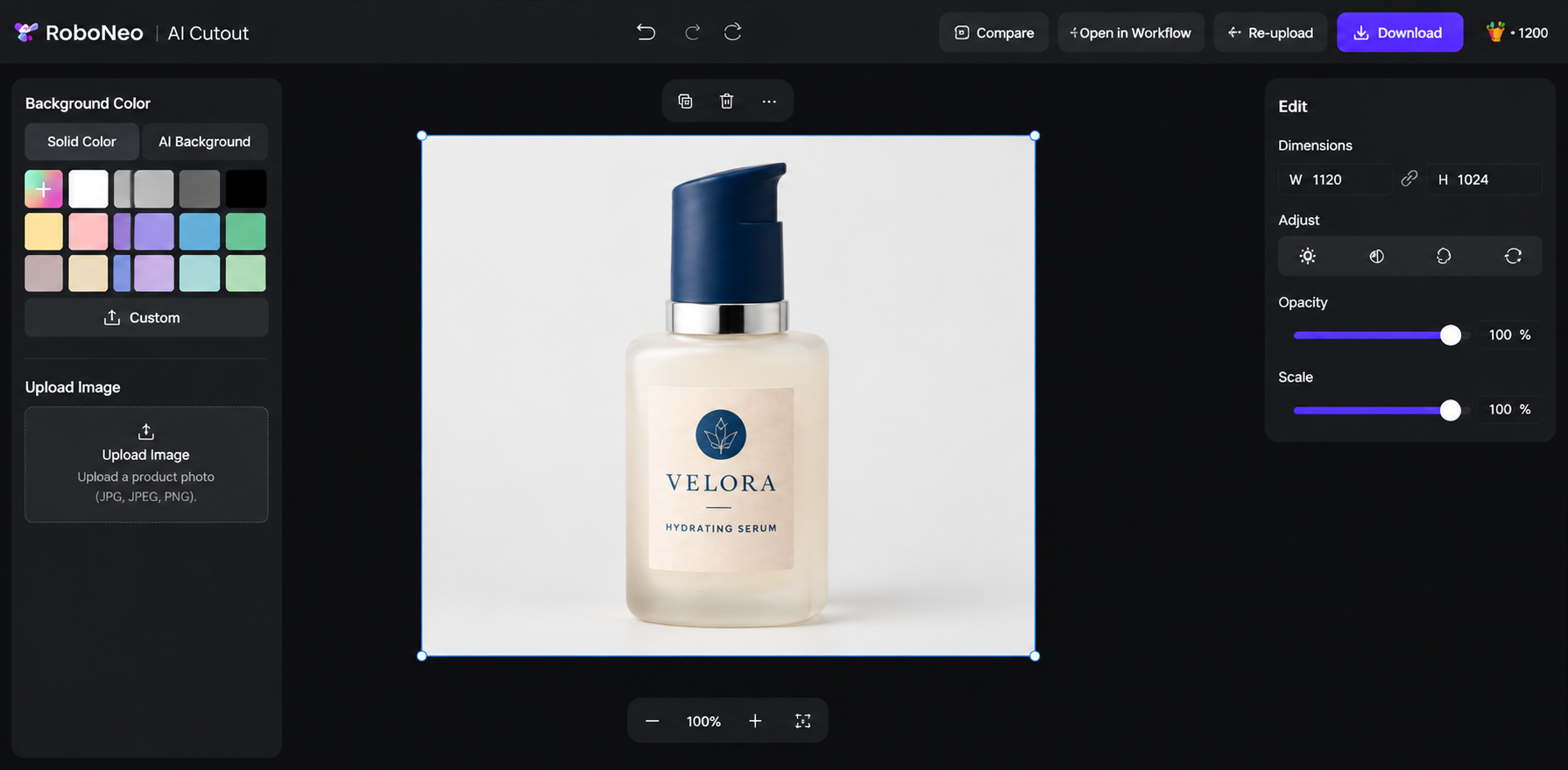
Step 2: Download and Continue Editing
Download the transparent image and import it into Illustrator for layout, typography, or packaging design. You can also continue working in RoboNeo's AI Agent and canvas to create additional visuals or reuse the image in other creative projects.
For product catalogues, advertisements, and packaging mockups, this approach avoids tracing photographs into vector shapes. Illustrator remains useful for precise layout and vector editing, while RoboNeo handles the initial cutout and offers options for further image creation.

FAQ
Why is the Remove Background option missing?
Illustrator does not provide the same one-click photo background-removal workflow found in some dedicated image editors. For vector artwork, you can delete a separate background object. For simple raster graphics, Image Trace with Ignore White may help, depending on the version and artwork. Detailed photographs usually require a different approach.
Should I save a transparent logo as PNG or SVG?
PNG is a practical choice for transparent logos used in presentations, product images, and raster-based designs. SVG is better for many web applications because it retains scalable vector artwork. Choose the format based on the intended use and whether the artwork needs to remain editable.
Can I replace the white background with another color?
Yes. Once the background is transparent, place a colored rectangle behind the artwork or change the design's underlying background layer. This lets you preview the logo against different colors without rebuilding the cutout.
Does removing the background reduce image quality?
Deleting a separate vector background does not inherently reduce the quality of the remaining vector artwork. However, tracing a raster image can simplify shapes and discard fine details. Exporting a PNG at an insufficient resolution can also make edges appear less sharp.
Can I restore the original background later?
If you saved a separate working copy, reopen it to recover the original artwork. You can also undo the deletion before closing the document, or retain a duplicate background object on a hidden layer. Once a flattened raster image has been modified and overwritten, restoring the exact original background may not be possible.
You May Be Interested

AI Tool for Removing Background from Image: 8 Picks for 2026

Background Design: AI Styles for Every Photo

Canva Watermark Remover Review: Features and Limits

3 Best Background Noise Removal Apps for 2026

How to Remove Background Noise from Video: Easy Guide