How to Add a Background to a Photo: Easy Methods and Tips
 RoboNeo TeamOctober 28, 2026
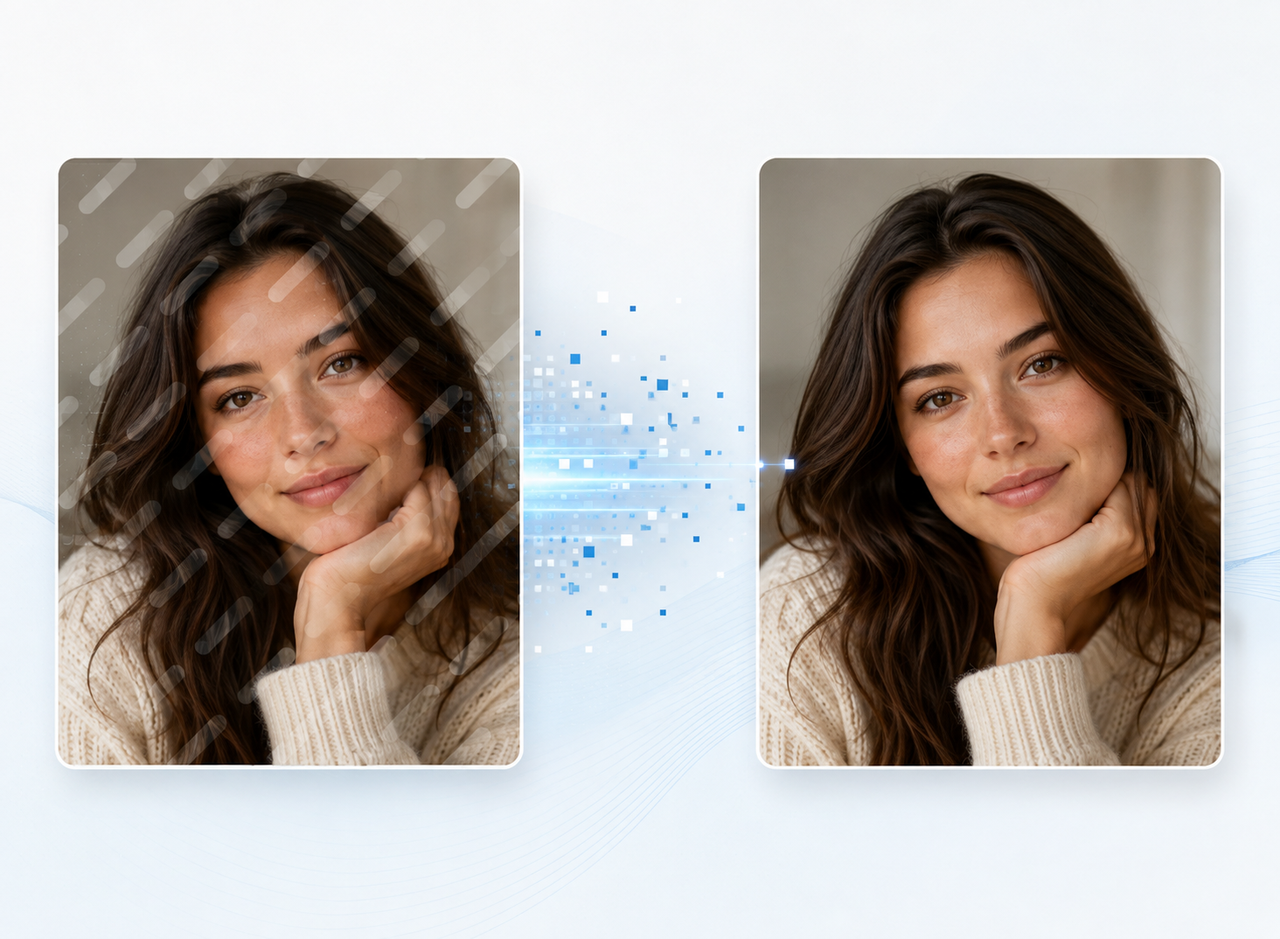
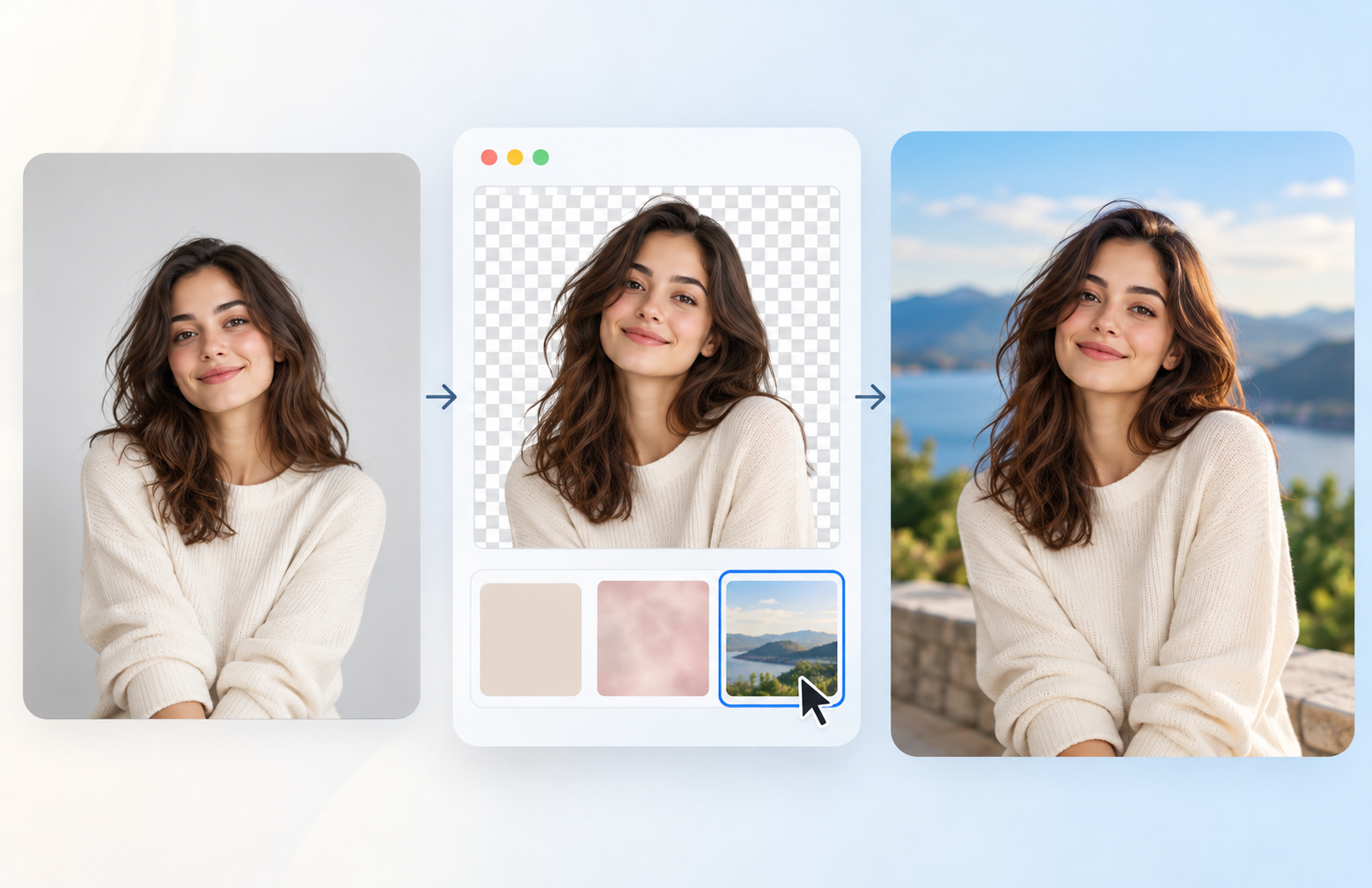
Adding a new background to a photo can be done with AI tools, online editors, or professional software. The right method depends on whether you want a simple color change, a completely new scene, or precise control over every detail. This guide explains how to add background to photo, compares common methods, shows how to use AI to create a new background, and covers tips for making the final image look natural.
What Are the Different Ways to Add a Background to a Photo?
Use AI to Automatically Generate and Add a New Background
AI background tools can create a completely different scene without manually editing layers. This approach works well for portraits, product photos, and creative images that need a realistic new setting.
Change a Photo Background with RoboNeo AI
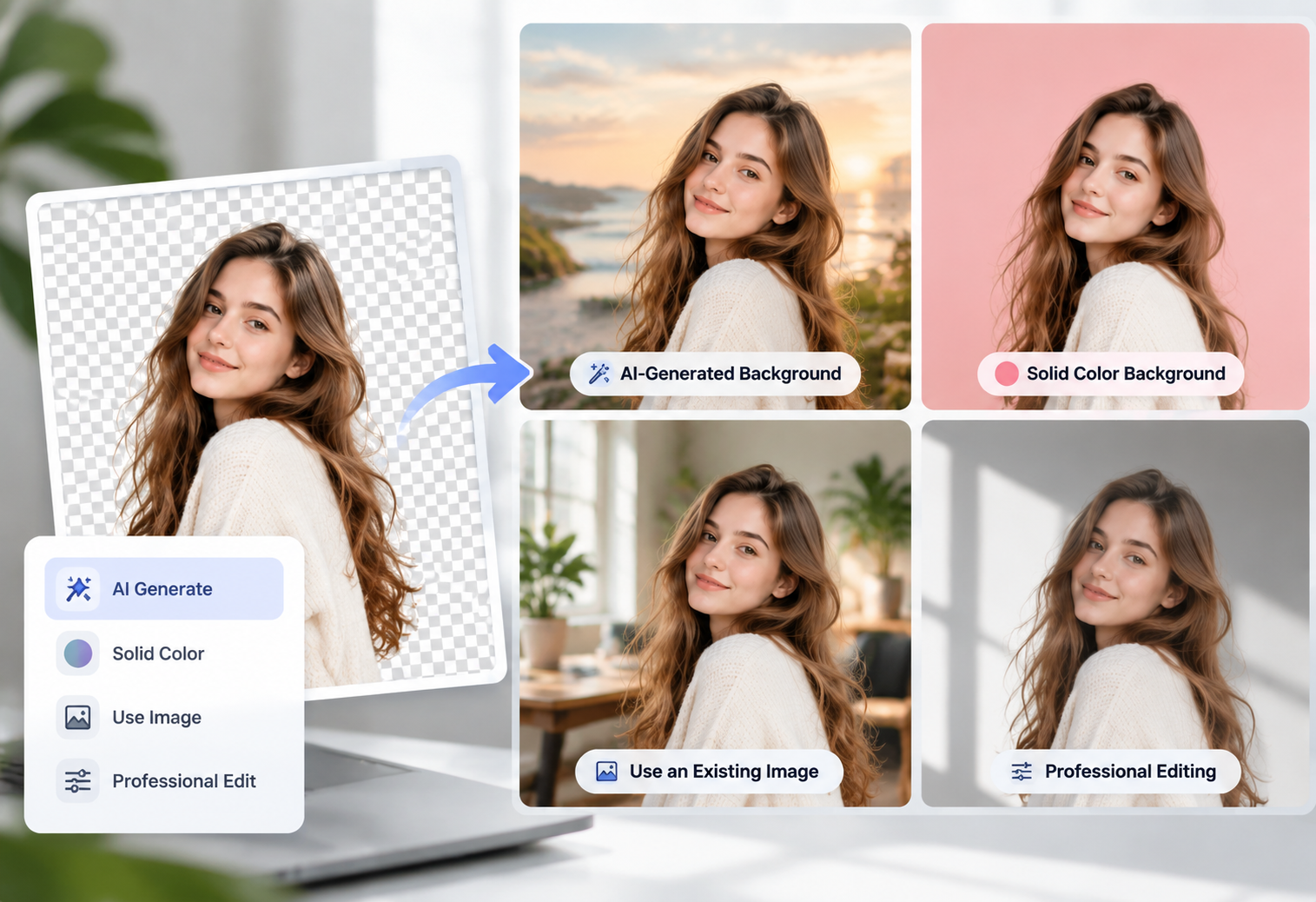
RoboNeo AI Background Remover makes background changes easier by combining automatic cutout with built-in background options. After you upload an image, the subject is cut out automatically. You can then switch between a free solid colour background and an AI-generated background, depending on the result you want.
Remove Photo Background With AI
Step 1: Upload Your Photo
Open the RoboNeo AI Background Remover and upload your image. RoboNeo automatically removes the original background after the image is uploaded.
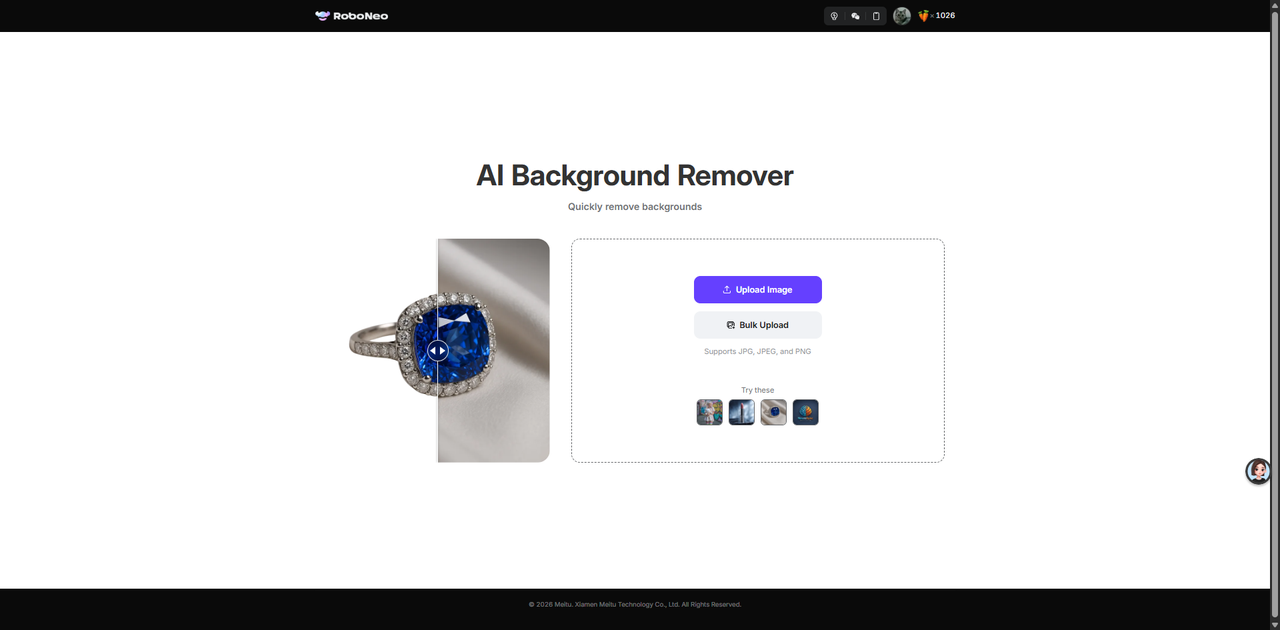
Step 2: Choose a Background Type
After the cutout is ready, choose between Solid Color and AI Background. Solid Color lets you use RoboNeo's free preset colours or add a custom colour, while AI Background lets you create a new scene with a prompt.
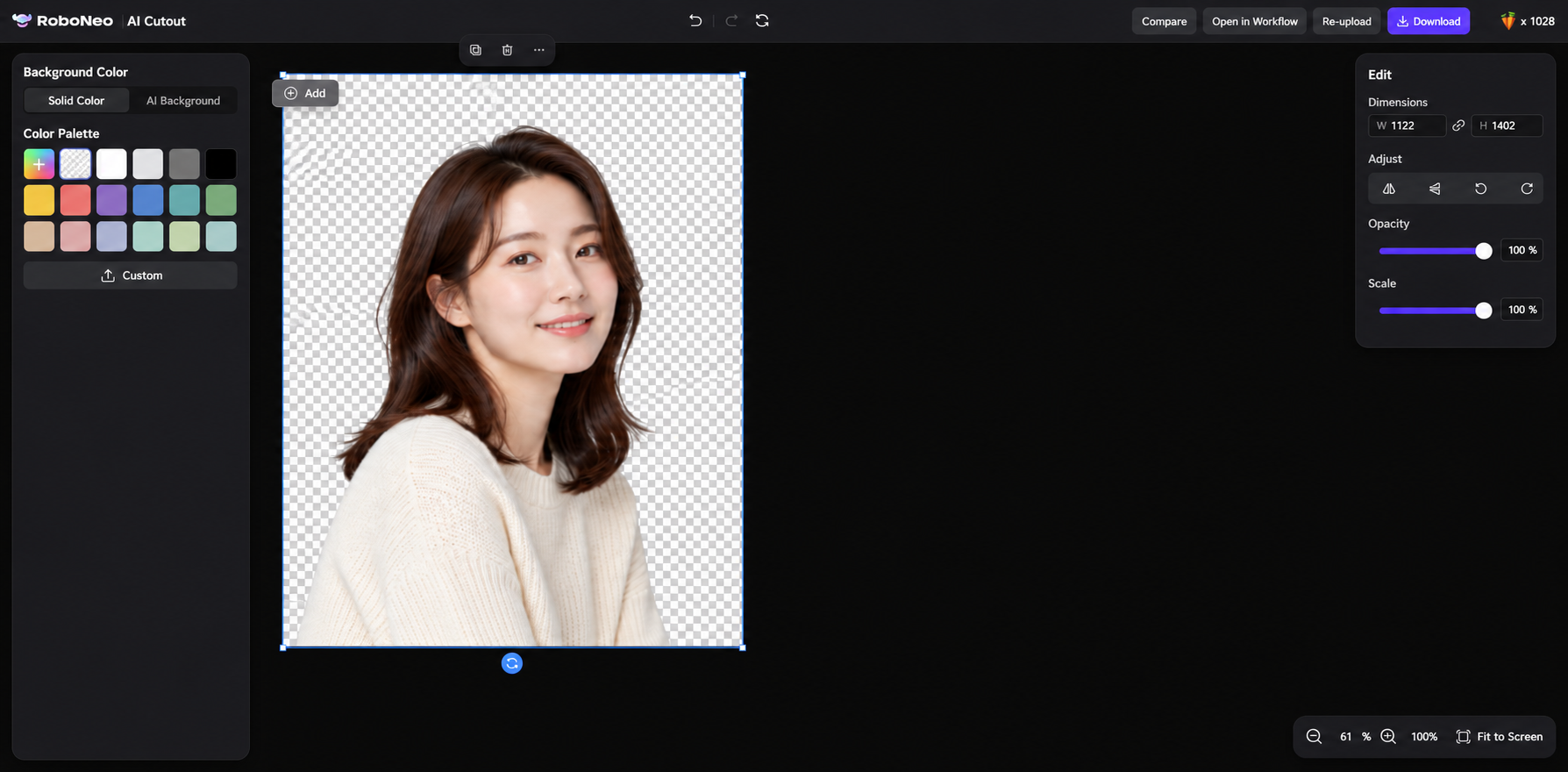
Step 3: Set Your New Background
If you choose Solid Color, pick a preset colour or upload a custom one. If you choose AI Background, enter a prompt describing the scene you want, such as a studio, office, or outdoor setting.
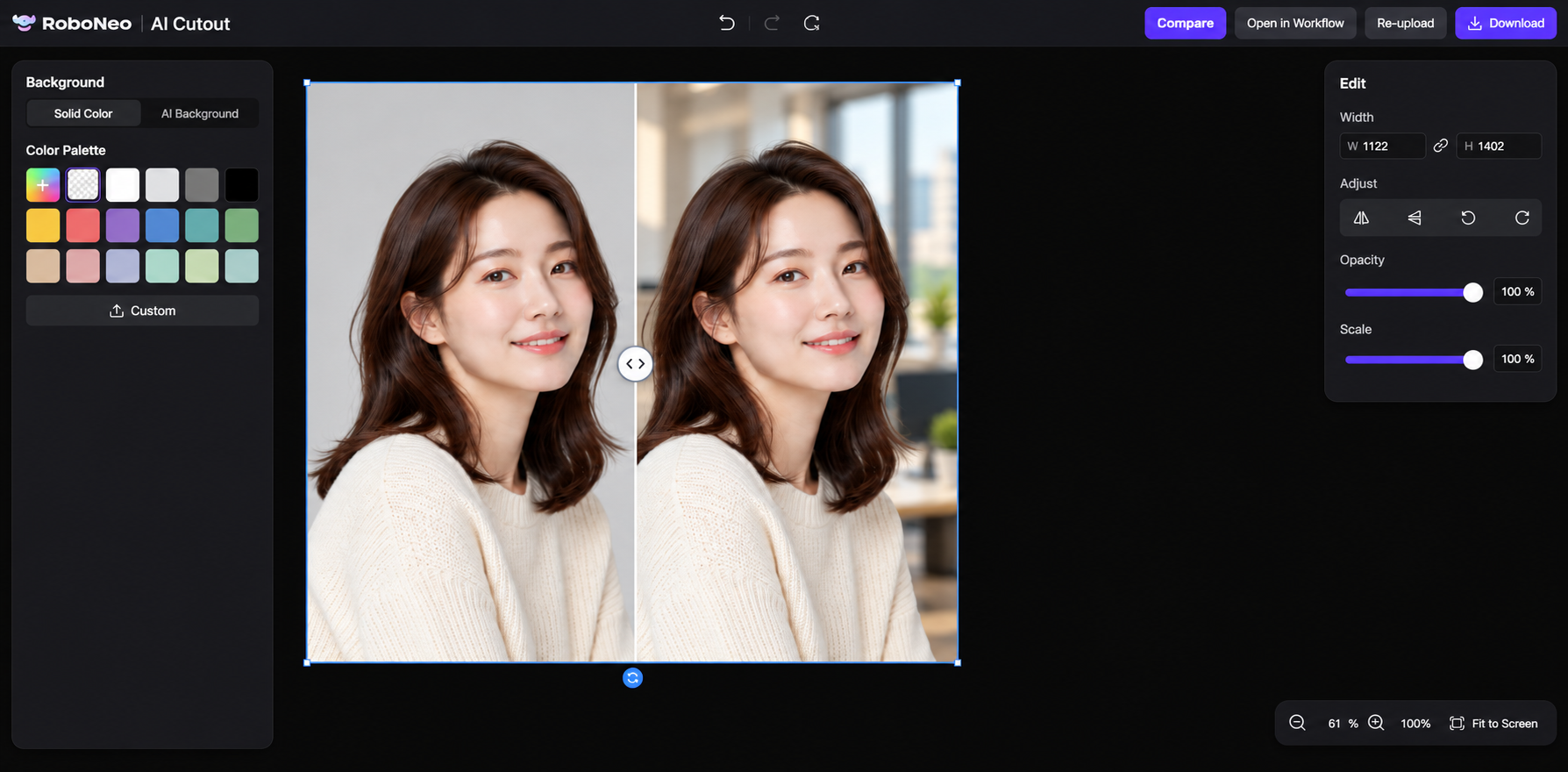
Step 4: Review and Download
Check the subject edges, colours, and overall background result. If needed, switch backgrounds or adjust the prompt, then download the finished image once it looks right.
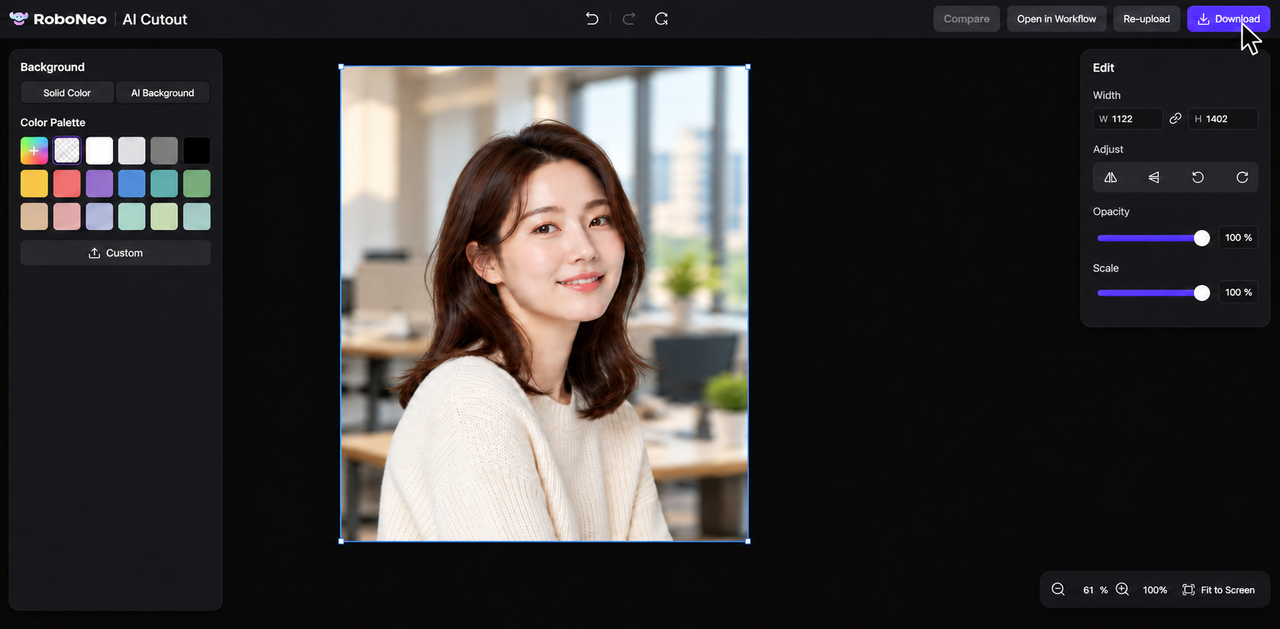
RoboNeo gives you two ways to replace a background after automatic cutout, making it suitable for both simple colour changes and more creative scene generation.
Add a Solid Colour Background With Canva

Canva offers a straightforward way to add solid colour backgrounds to profile photos, ecommerce images, and branded designs. Its BG Remover feature is available on paid plans.
Step 1: Upload Your Image
Open a Canva design and upload your photo through the Uploads panel.
Step 2: Remove the Background
Select the image and click BG Remover in the editor toolbar to isolate the subject.
Step 3: Choose a Background Colour
Select the page background, open the background colour settings, and choose a colour that suits your design.
Step 4: Download the Image
Adjust the subject's size and position, then go to Share > Download to save your design.
A solid colour keeps the focus on the subject, although it does not provide the depth of a realistic scene.
Add a Solid Colour Background With Adobe Express
Adobe Express also supports background removal and colour replacement, making it useful for headshots, product listings, and simple marketing visuals.
Step 1: Open Your Photo
Open a design in Adobe Express and upload the image you want to edit.
Step 2: Remove the Original Background
Select the photo, then choose Remove Background from the Image panel.
Step 3: Add a Background Colour
Click outside the photo to select the page, open Background, and choose your preferred solid colour.
Step 4: Download Your Photo
Check the image layout and select Download to save the finished result.
This method works well for clean, consistent backgrounds without needing advanced photo-editing skills.
Edit Backgrounds With Photoshop Layers and Masks
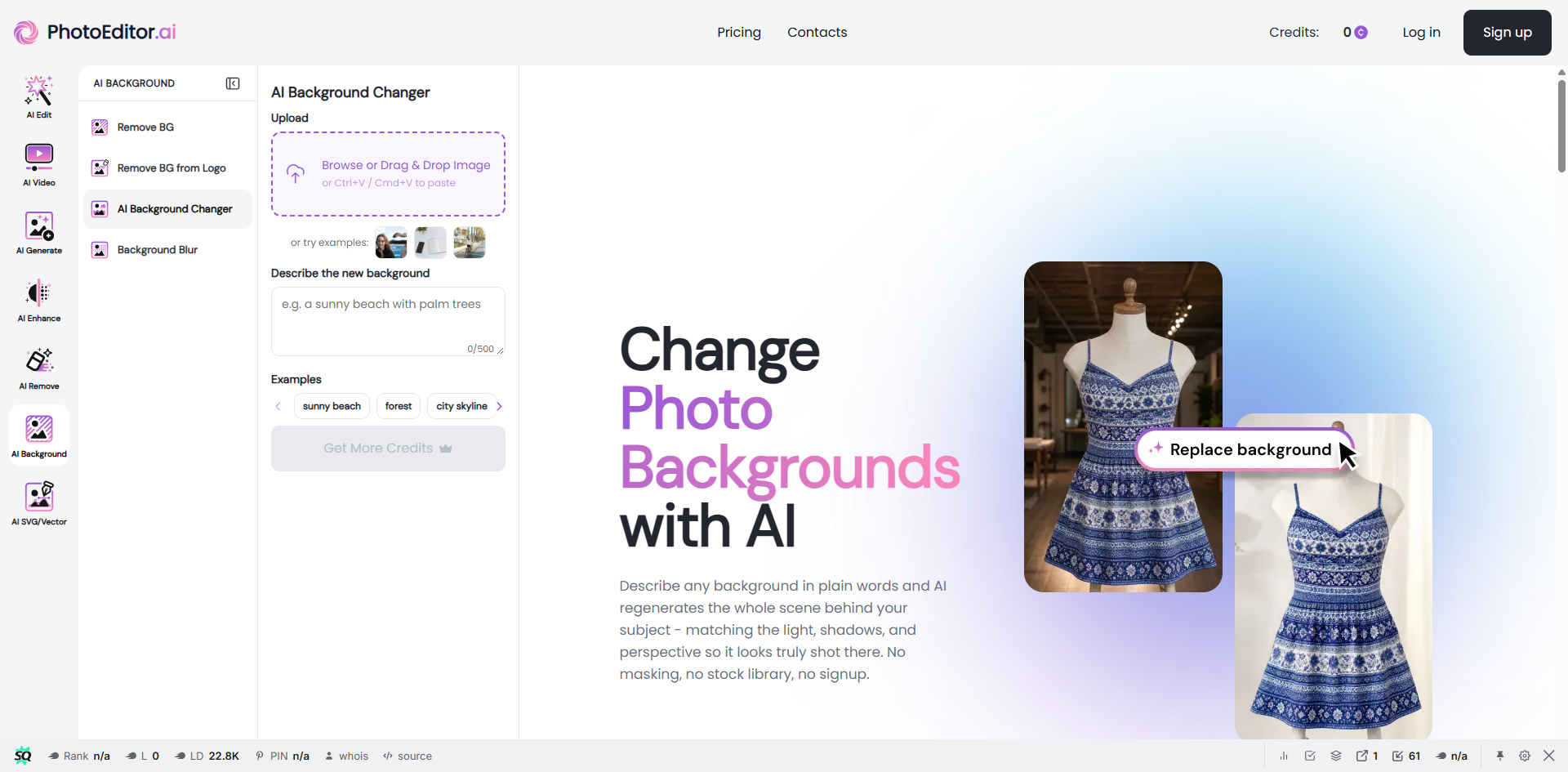
Photoshop provides detailed control over background replacement. Its selection and layer mask tools are particularly useful for photographs with complex edges or lighting.
Step 1: Open Your Photo
Open the image in Photoshop and select the image layer in the Layers panel. Unlock the layer if necessary.
Step 2: Select the Subject
Go to Select > Subject to isolate the main object or person. Use Select and Mask if the edges need refinement.
Step 3: Create a Layer Mask
With the subject selected, click Add Layer Mask at the bottom of the Layers panel to hide the original background.
Step 4: Insert a New Background
Choose File > Place Embedded to add a background image, then move its layer below the masked subject layer.
Step 5: Refine and Export
Adjust the lighting and position. Refine the mask with the Brush tool if needed, then export the finished image.
Photoshop gives photographers and designers more control over the final composition, but the process takes more time than automatic background replacement.
| Method | Best For | Advantages | Limitations | Difficulty |
| AI-Generated Background | Portraits, products, creative images | Quickly generates new scenes from prompts | Requires detail checking | Easy |
| Canva Solid Colour Background | Headshots, ecommerce photos | Simple, consistent backgrounds | BG Remover requires a paid plan | Easy |
| Adobe Express Solid Colour Background | Business photos, product images | Quick background removal and colour changes | Limited visual depth | Easy |
| Photoshop Layers and Masks | Detailed professional editing | Precise control over edges and layers | Requires more time and editing skills | Advanced |
Simple background editors work well for colour changes or replacing a scene with an existing photo. AI tools offer more flexibility for generating entirely new environments, while Photoshop is useful when detailed manual adjustments are needed.
How to Make a New Photo Background Look Natural
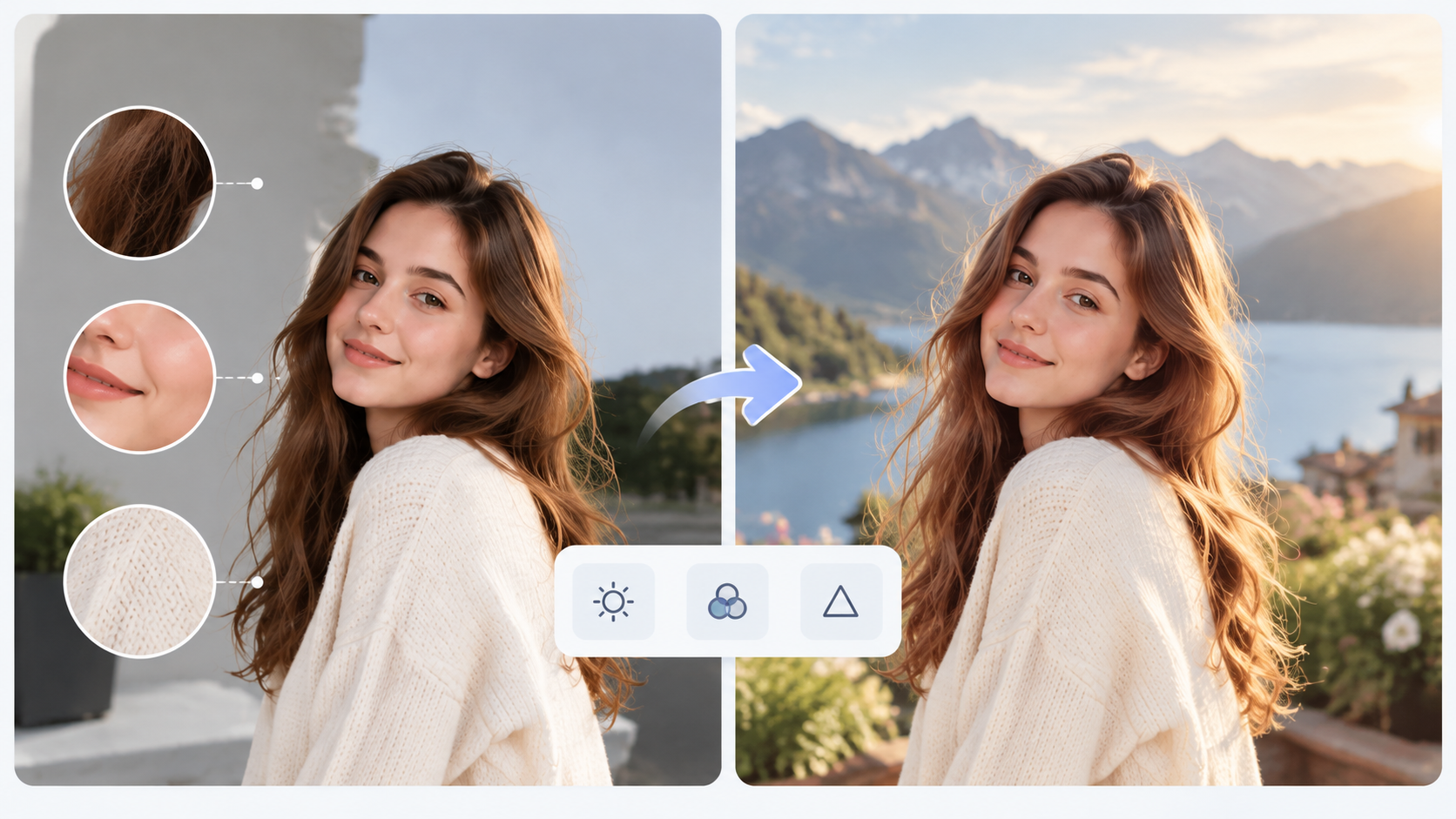
A successful background replacement depends on more than simply adding a new scene. The subject and background should appear as if they were captured together. Adjusting lighting, colours, and clarity with AI photo retouching can help improve the final result.
Match the Background Lighting Direction to the Original Photo
Lighting differences are one of the most noticeable signs of an edited image. If the subject was photographed with light coming from one side, the new background should follow a similar direction.
Adding lighting details to an AI prompt can help create a more consistent result. A portrait taken near a window, for instance, usually looks more natural with a background that includes similar soft daylight.
Adjust Shadows, Brightness, and Color Temperature
The subject and background should have similar brightness and color tones. A warm indoor background may not match a subject photographed under cool outdoor lighting.
Shadows also affect realism. Products placed on a table or people standing on the ground should have reasonable contact shadows that match the environment.
Refine Edges and Subject Details
Small details around hair, clothing, and transparent objects can affect the final quality. Check whether edges look natural and whether important details have been removed or distorted.
If the background does not blend well, changing the source image or adjusting the AI prompt may produce a better result.
How to Save Photos With New Backgrounds for Different Uses
After adding a background, choose the file format and size based on where the image will appear.
Format | Best For |
JPG | Everyday photos, websites, and social media |
PNG | Images needing transparency or detailed edges |
WebP | Web images requiring smaller file sizes |
For ecommerce, websites, and social platforms, check the recommended image dimensions before uploading. Creating consistent visual assets is also important when using AI for content creation. Keeping a high-quality original version makes it easier to create different sizes later.
FAQ
Can AI add a new background without manually removing the original one?
Yes. Many AI tools can recognize the main subject and replace the background automatically. However, images with complex edges or transparent materials may still require careful review.
Can you add a background to a photo on your phone?
Yes. Many mobile editing tools allow users to upload photos, replace backgrounds, and save edited images directly from a phone.
Will AI change facial features or product details when adding a background?
It can happen. AI may affect small details during image generation, so reviewing the final result and using clear prompts can help protect important elements.
Are there free online tools to add backgrounds to photos?
Yes. Some tools offer free background editing features, although advanced AI functions and export options may have limitations.
How can you keep the same background style across multiple photos?
Using the same background image, color style, or AI prompt can help create consistent results across product photos, team images, or branded content.
You May Be Interested
AI Tool for Removing Background from Image: 8 Picks for 2026
Background Design: AI Styles for Every Photo
3 Best Background Noise Removal Apps for 2026
Canva Watermark Remover Review: Features and Limits

How to Remove Background Noise from Video: Easy Guide