How to Combine Multiple AI Models for Design: Practical Guide
 RoboNeo TeamOctober 28, 2026
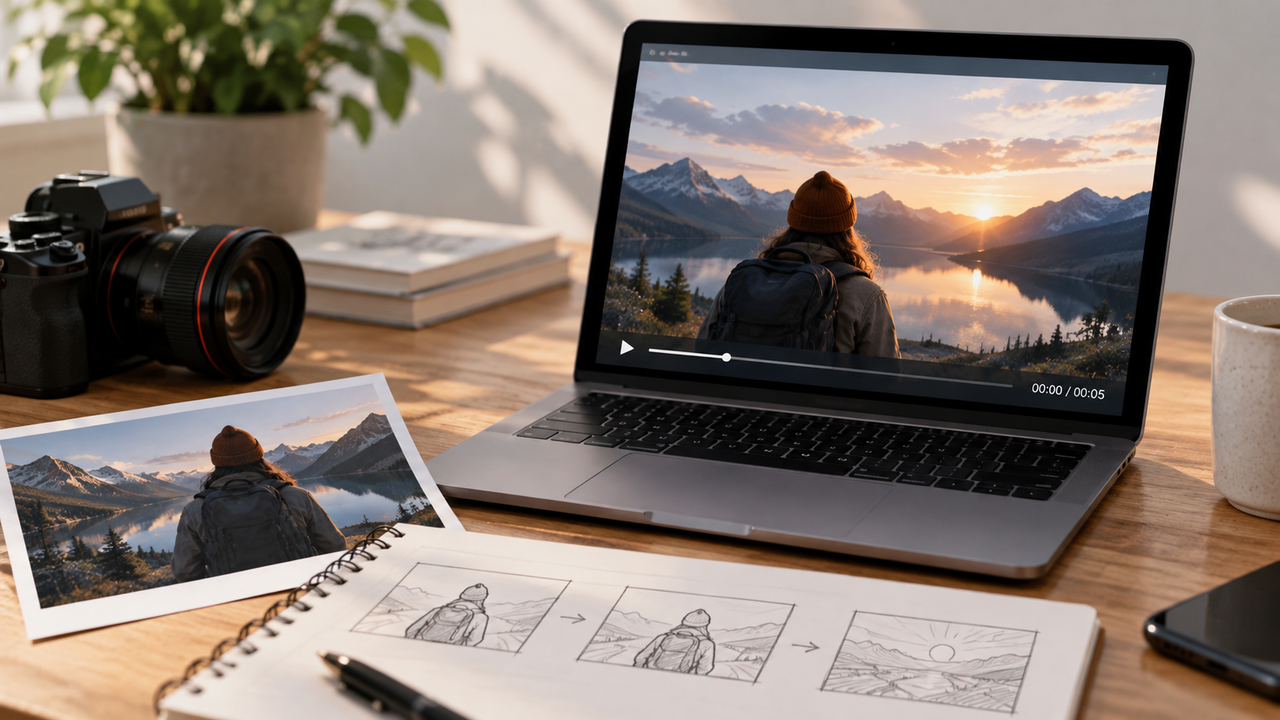
Designing with multiple AI models is all about task delegation. You route different tasks to the models that handle them best, then manually review and merge the outputs into one final piece.
The two most common setups are the Sequential Workflow, where each model builds on the previous one's output, and the Parallel Workflow, where models handle separate tasks simultaneously so you can select and merge the best results. You can flexibly combine these two methods based on your project requirements.
This guide shows how to combine multiple AI models for design through a product video example, from brainstorming and generation to final editing.
Why Use Multiple AI Models for Design?
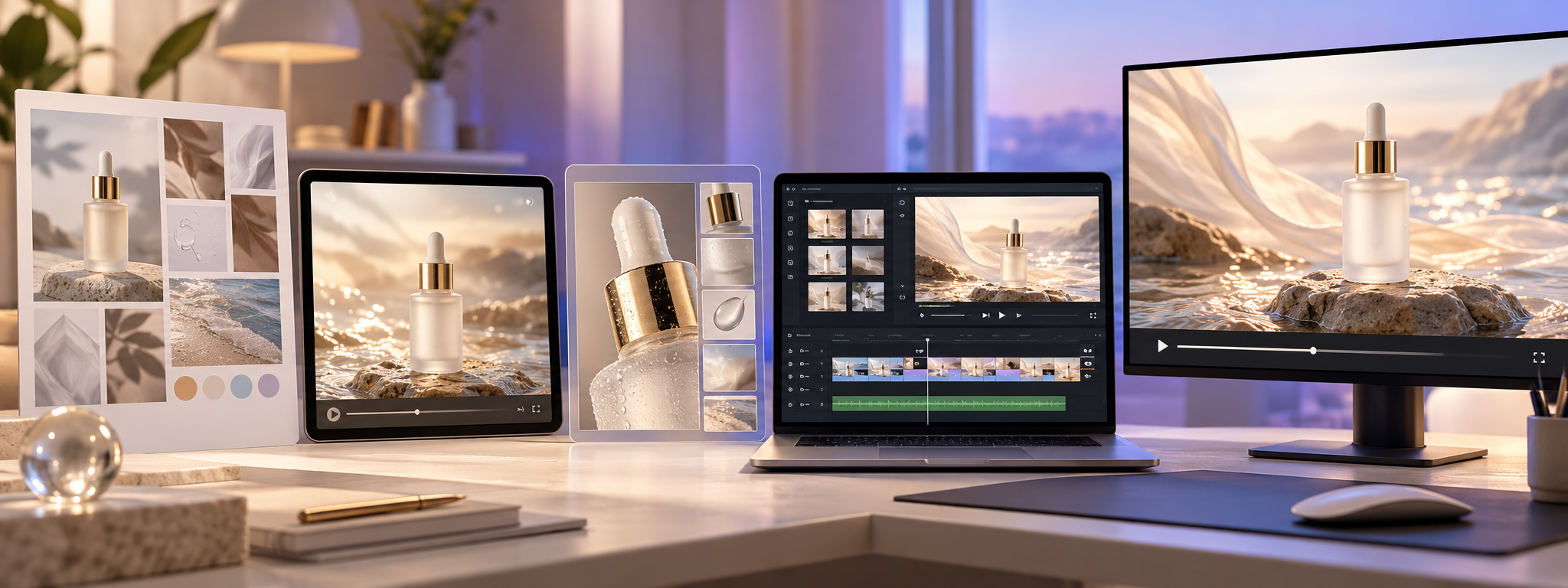
A complete video project may involve script writing, visual generation, motion, audio, and editing. Different models can handle different parts of that process, so you can use each one where it performs best.
The goal is not to use multiple AI models at once just because you can. If you plan to use multiple AI at once, keep each tool focused on a clear task. A smaller workflow with clear handoffs is usually easier to review, revise, and repeat. This is the practical advantage of combining AI models.
What Should You Prepare for a Multi-Model Design Workflow?
Before using several AI tools, organize the video requirements, reference materials, and task responsibilities. A shared brief gives each model the same direction and reduces the risk of losing important details between stages.
Define the Design Requirements
Start by defining the delivery format, target audience, and use case. For a product video, decide where it will be published, which aspect ratio it needs, how long it should be, and which product benefit should receive the most attention.
Also list anything that must not change, including the product appearance, brand name, approved copy, and brand colors. For video projects, define important character actions, camera direction, and visual elements that need to remain consistent.
Gather References and Source Files
Prepare the original product image, logo, approved copy, reference videos, visual references, and any audio assets you plan to use. Label each reference by purpose, such as camera direction, motion, composition, color, or product appearance, so the model knows what it should learn from each file.
Use clear source files whenever possible. Keep original assets, generated clips, and approved versions separately so another round of combining AI models or editing does not require rebuilding the project.
Choose Models for Each Task
Break your design process into smaller tasks and match each one with the right model. If you're unsure which model to choose, this AI video generation model guide explains their strengths and practical use cases. The table below breaks down what needs to happen at each stage and which AI tools can help you get it done.
| Task | Model Type | Examples | Why | Handoff |
| Brief & Copy | Text generation models | ChatGPT, Claude | Develop creative concepts, write scripts, and plan shots | Creative brief, script, shot list |
| Still Image | AI image generation models | Midjourney, FLUX | Create product visuals, scene images, and style references | Generated images, visual references |
| Image-to-Video | AI video generation tools | RoboNeo, Kling, Runway | Turn static images into moving clips and explore different motion effects | Video clips, selected versions |
| Asset Refinement | AI video editing and refinement tools | RoboNeo, Runway | Refine backgrounds, apply blur effects, and improve visual details using supported features | Refined assets, approved clips |
| Voiceover (TTS) | AI voice generation models | ElevenLabs | Turn scripts into voiceovers and adjust pacing, tone, and voice style | Audio files, voiceover script |
| Compositing & Editing | Video editing and compositing tools | CapCut, Adobe Premiere Pro | Combine clips, voiceovers, music, captions, and transitions into a finished video | Edited timeline, final video export |
Create a Design with Multiple AI Models in an AI Agent
RoboNeo lets you plug into a wide range of AI models to generate and process both images and videos. You can connect different task nodes on a single canvas to build out a complete creative workflow. These workflows are fully reusable, which cuts down on repetitive tasks and speeds up your future projects. This setup is especially handy for multi-step productions like short-form dramas or ad creation. For more complex jobs that require multiple roles to work together, RoboNeo also offers Agent Teams to help coordinate everything smoothly.
Step 1: Build a Workflow on the Canvas.
Add and link up different task nodes based on your creative goals—things like image generation, video generation, and asset optimization. This way, the output from one step flows right into the next.
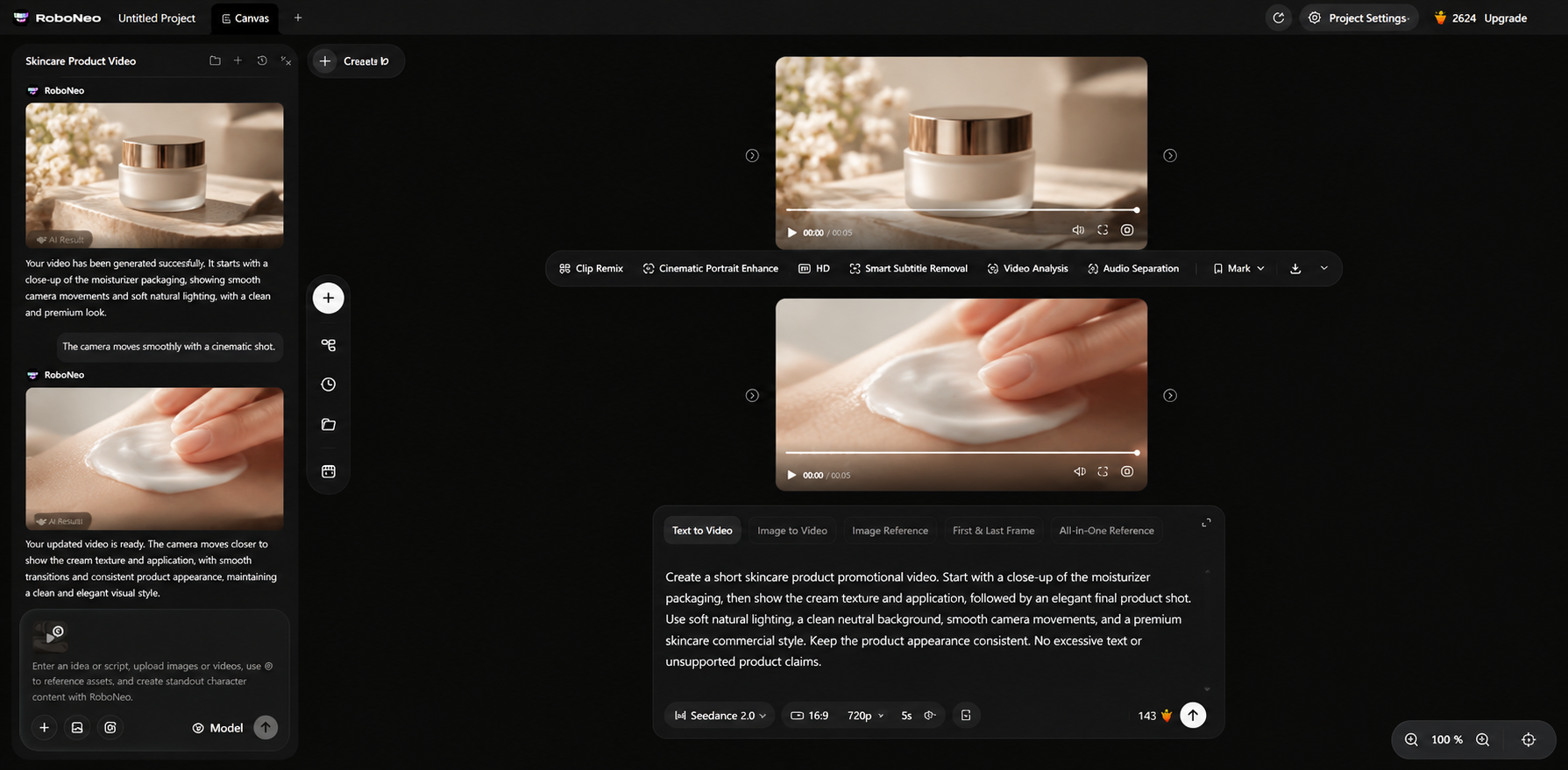
Step 2: Switch Generation Modes Based on Your Needs
Use Text-to-Video for generating clips directly from a written description. If you already have product images, character art, or scene references, switch over to Image-to-Video and turn those stills into dynamic footage.
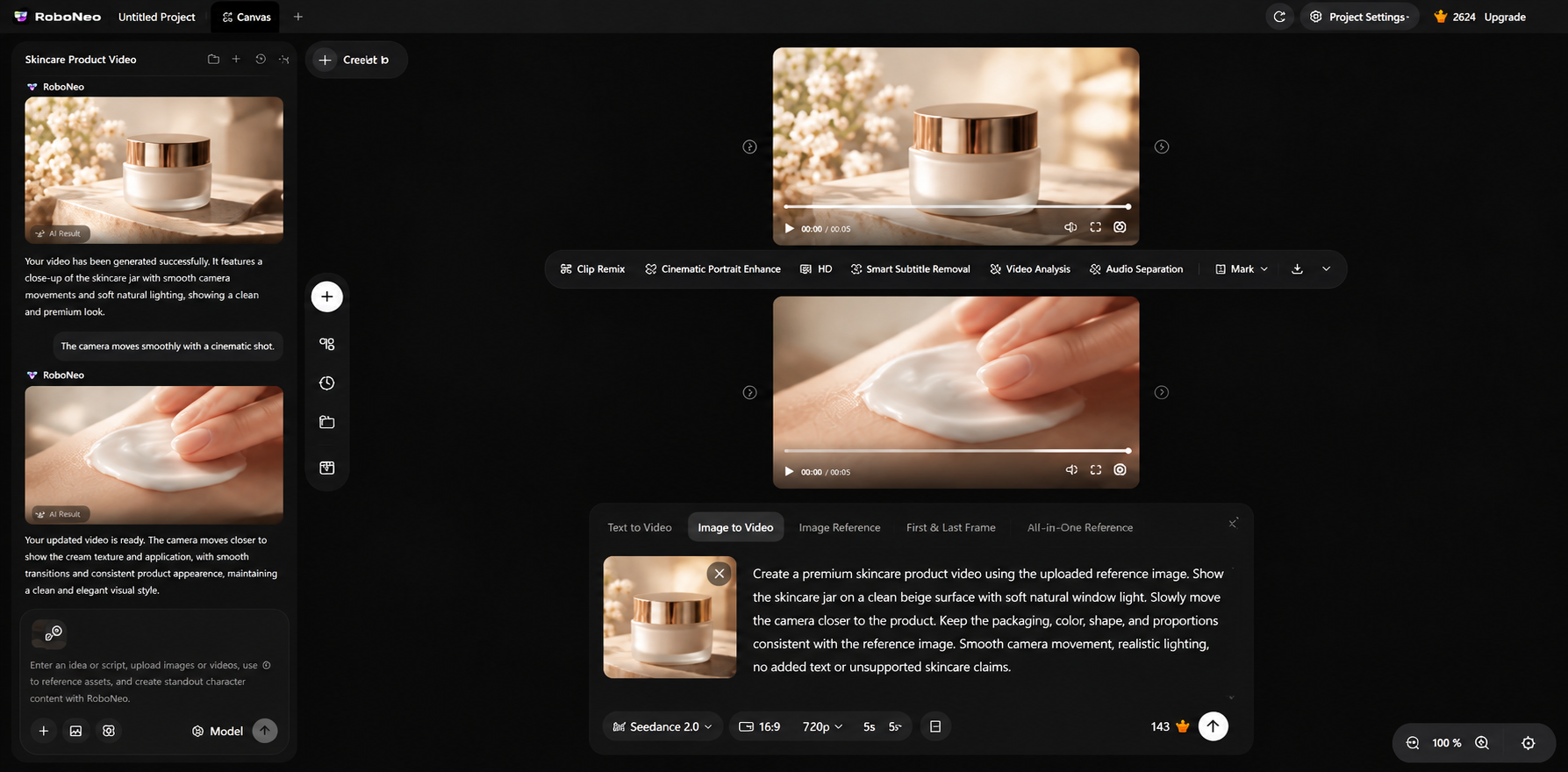
Step 3: Reference Assets Using @
To connect specific assets, simply use the @ symbol in the node's prompt to reference them. This creates a seamless flow between steps, ensuring your scenes, characters, and visual style stay perfectly consistent.
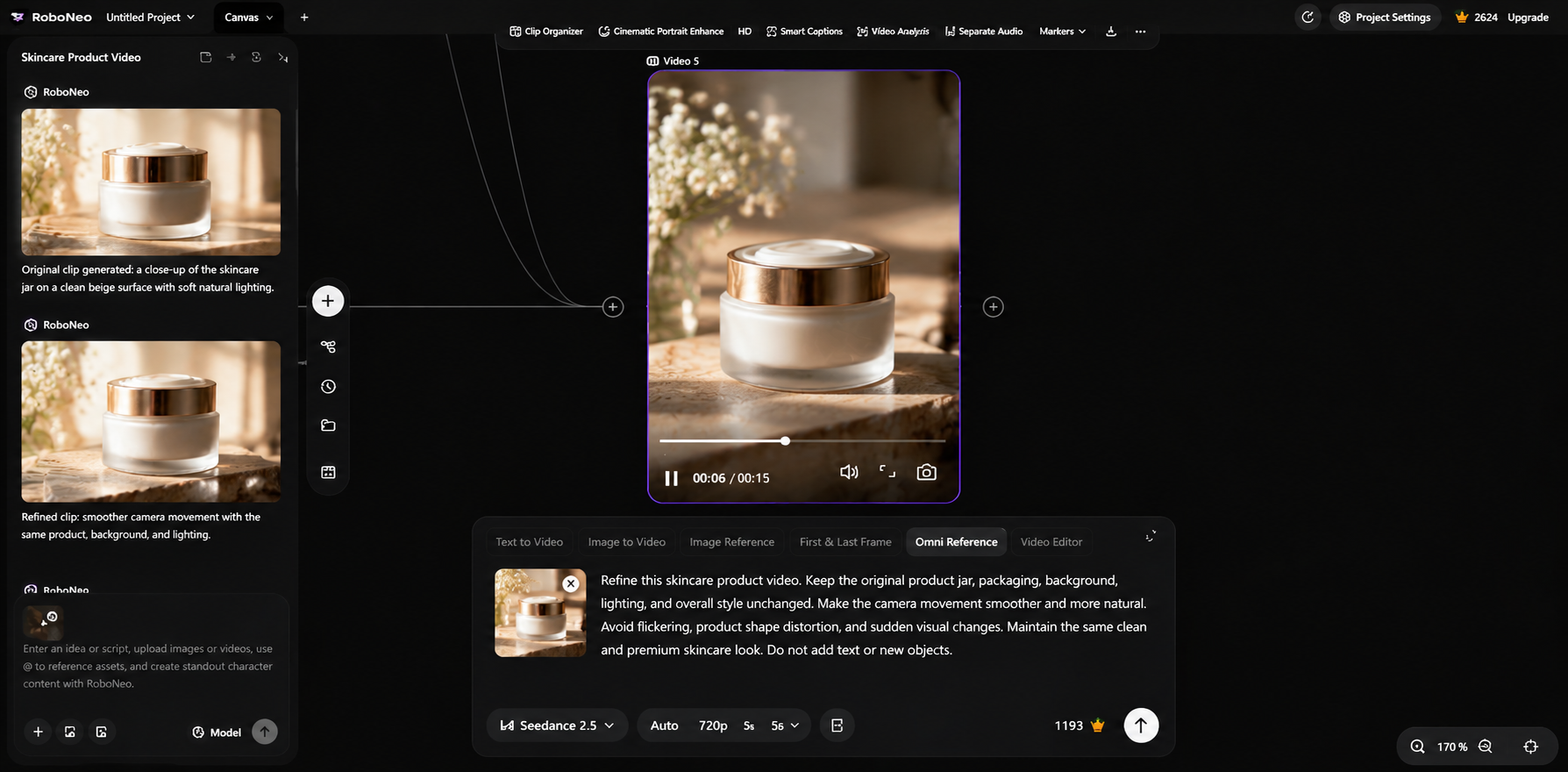
Step 4: Use Agent Teams to Coordinate Complex Tasks
If you only have a raw story, RoboNeo's Agent Teams takes over by coordinating different roles like screenwriters and directors. Together, they help transform your product idea or short drama into a complete, well-executed video.
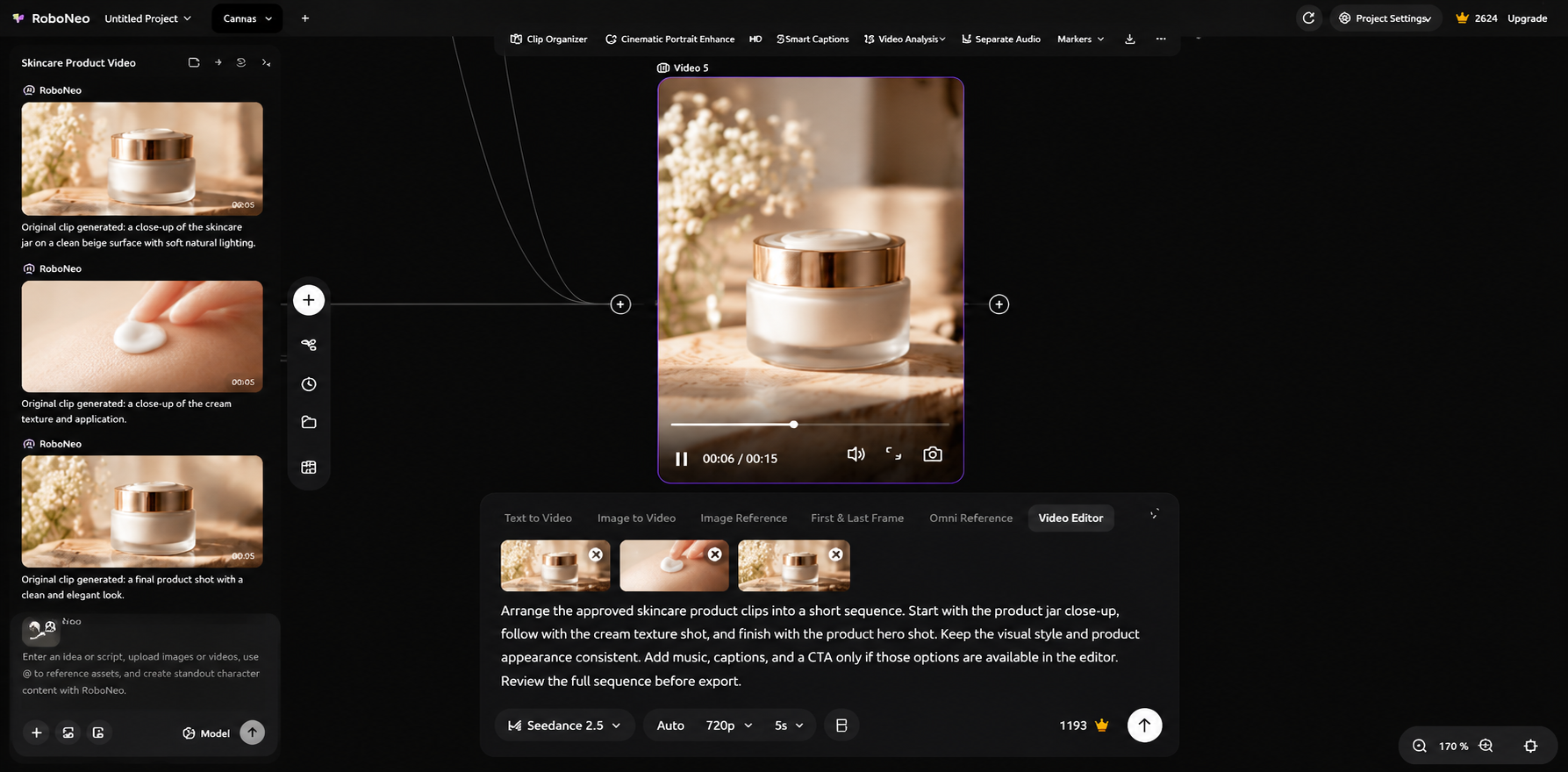
Step 5: Review and Refine the Results
After generating the video, review the visuals, action, character consistency, and transitions. Adjust your prompt or rerun the generation if needed. Once the results meet your requirements, select the approved assets for final editing. For a broader walkthrough, follow this step-by-step AI video creation guide.
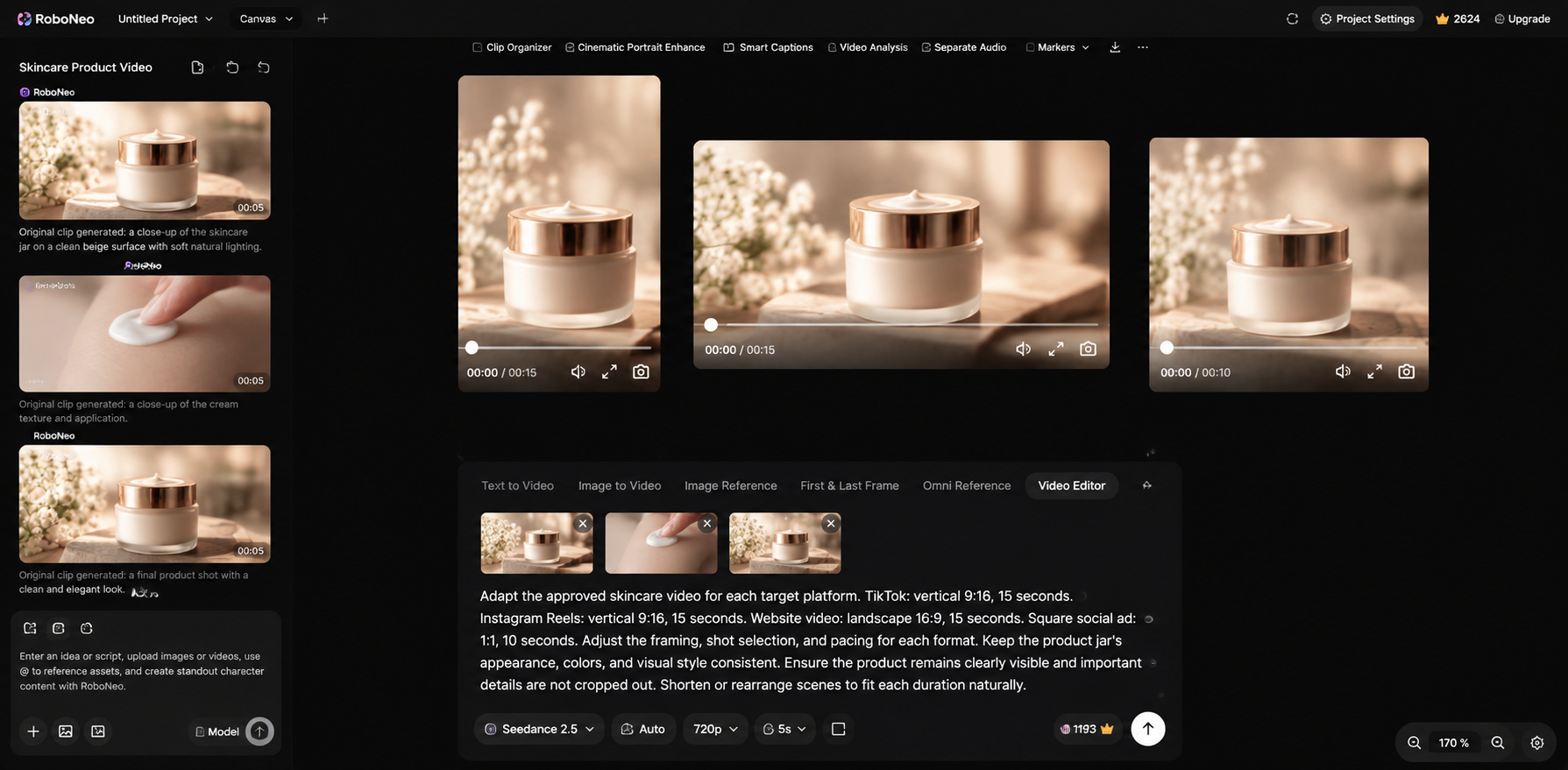
Don't hit publish right away. Every platform is different—TikTok, Instagram Reels, websites, and ads all have specific requirements for dimensions, length, and framing. Cropping one version for everything can hide your subject, cut off text, and hurt the viewing experience. Format your video for the target platform first.
Check these before publishing:
Subject & core message
Logos, text & CTAs
Quality & aspect ratio
Pacing & flow
Audio sync
Reusing a concept across platforms means keeping your raw footage and editable timelines. This saves you from starting from scratch when adjusting aspect ratios, text, and pacing. For better product demos, check our product video creation guide to learn how to plan videos around specific goals.
Finally, check your export against the target platform's specifications. Save your assets, prompts, and project settings to make future updates easier and avoid unnecessary rework.
How Do You Refine the First Design Draft?
After combining clips from different AI models, the first cut may have inconsistent colors, awkward movement, inaccurate details, or uneven pacing. Review the video as a whole and fix the specific problem instead of regenerating every asset.
Match Colors and Visual Style
Different models can produce clips with different color temperature, brightness, lighting, and visual treatment. For example, a warm product shot may feel disconnected from a cooler scene that follows it.
Use the approved brand colors and main visual as the reference point. Adjust tone, contrast, and lighting during editing. If one clip still looks too different, refine or regenerate that clip without changing the product's original color.
Fix Text and Image Details
Check titles, product names, prices, and other on-screen text for spelling or accuracy. In AI-generated video, also inspect packaging, logos, faces, hand movement, and other details that can change during generation.
Keep subtitles, logos, and important product structures consistent with the approved source. When you find a problem, fix the affected clip first instead of changing footage that already works.
Balance the Layout
A finished video should make the main point clear without making viewers wait too long. If the opening takes too long to reach the subject, a clip stays on screen too long, or captions and CTAs occupy too much space, adjust the timeline.
Change shot order, clip length, text timing, or screen space to improve the viewing rhythm. Do not keep footage simply to fill time, and check the final framing on the screens where the video will actually be watched.
FAQ
Do I need coding skills?
No. Most AI tools with visual interfaces can be used without coding. Programming is mainly needed when connecting multiple models through APIs or building automated workflows.
Can I reuse prompts across models?
Yes. You can reuse the core idea, subject, and brand requirements, but adjust the instructions for each model's specific task.
Do I need multiple subscriptions?
Not necessarily. Some platforms provide access to multiple AI models in one workspace, so compare available models, usage limits, and pricing before subscribing to additional tools.
Can I keep the final design editable?
Yes. Save the editable project file along with the original clips, captions, and audio tracks so individual elements can be changed later.
Can I use AI-generated designs commercially?
Often, but check the commercial-use terms of the AI platform and the rights for any images, videos, logos, fonts, or other reference materials you use.
You May Be Interested
Multimodal generative AI models: What creators should know
What Is An AI Model? A Guide to Types, Examples, and Uses
What AI Model Writes Stories Best? 7 Tools Compared
Beneficial Practices for Training AI Models With Prompts
What Are Foundation Models in Generative AI? Types, Uses & Examples