
Seedance 2.0 Prompt for Better AI Video Creation
A clear Seedance 2.0 prompt helps turn your idea into a short video with more control over scenes, motion, camera direction, and sound. In RoboNeo, you can write and refine prompts, add visual or audio references, generate clips, and adjust video settings in the same workspace.
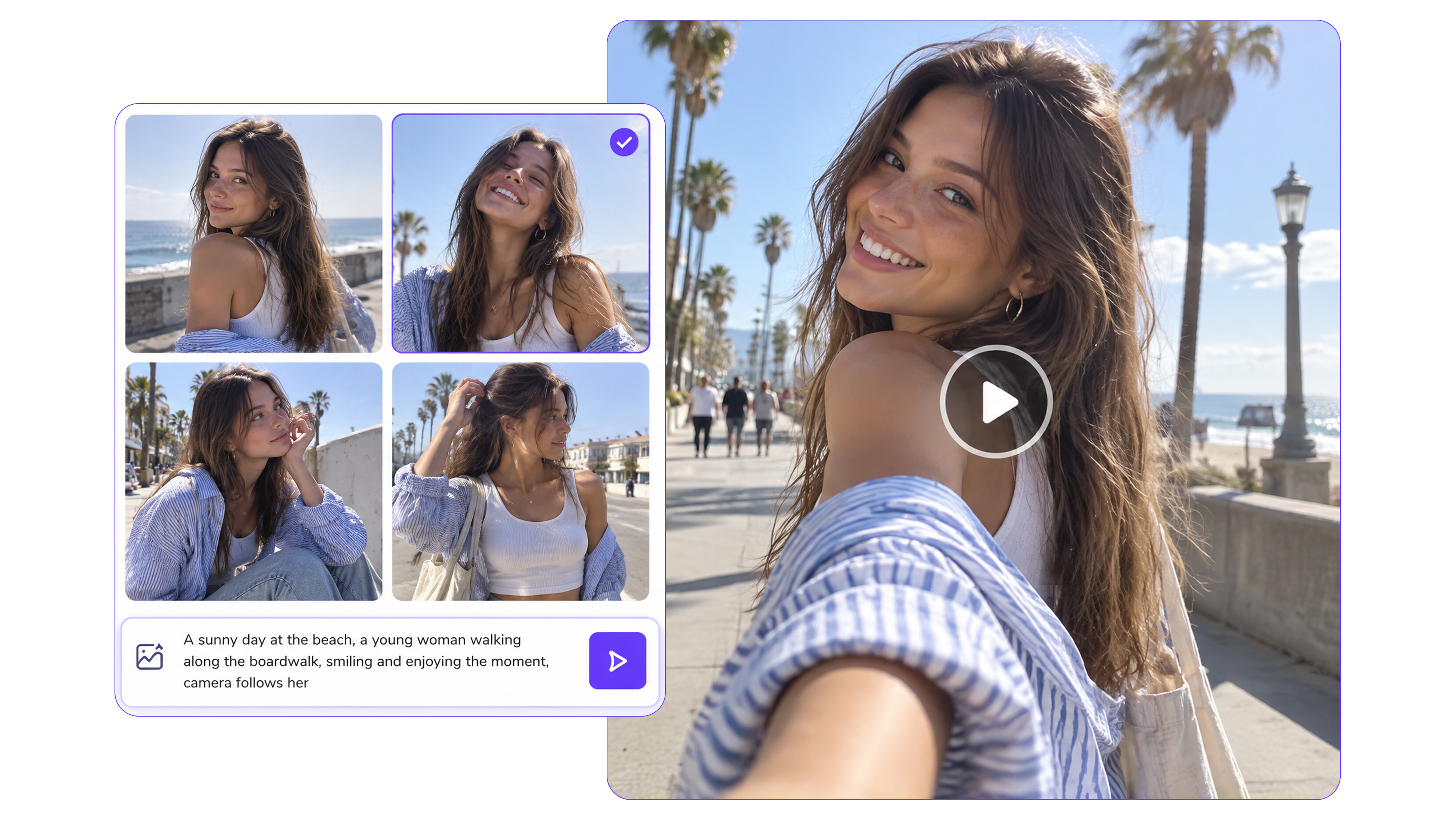
How to Use a Seedance 2.0 Prompt in RoboNeo
Your Video Idea and Prompt
Start with the short video you want to create, including the subject, action, setting, camera movement, or sound that matters to the scene. Enter your Seedance 2.0 prompt in a Text Node so the main creative direction is clear before generation.
Prompt Support in the Text Node
If you need help developing the wording, RoboNeo provides Generate Prompt and prompt references for camera movement, FPV shots, and scene transitions. You can use these as a starting point and adjust the details to fit your video idea.
Visual and Audio References
A prompt can also be paired with images, video, or audio when you want more control over the result. Connect the relevant assets to the Video Node and use the @ symbol to reference specific materials during generation.
Generation and Prompt Refinement
Connect your prompt to the Video Node, select Seedance 2.0, and generate the clip with the settings you need. If the result is not quite right, update the prompt, adjust the generation settings, and regenerate without rebuilding the project.
Better Seedance 2.0 Prompts in One Workspace
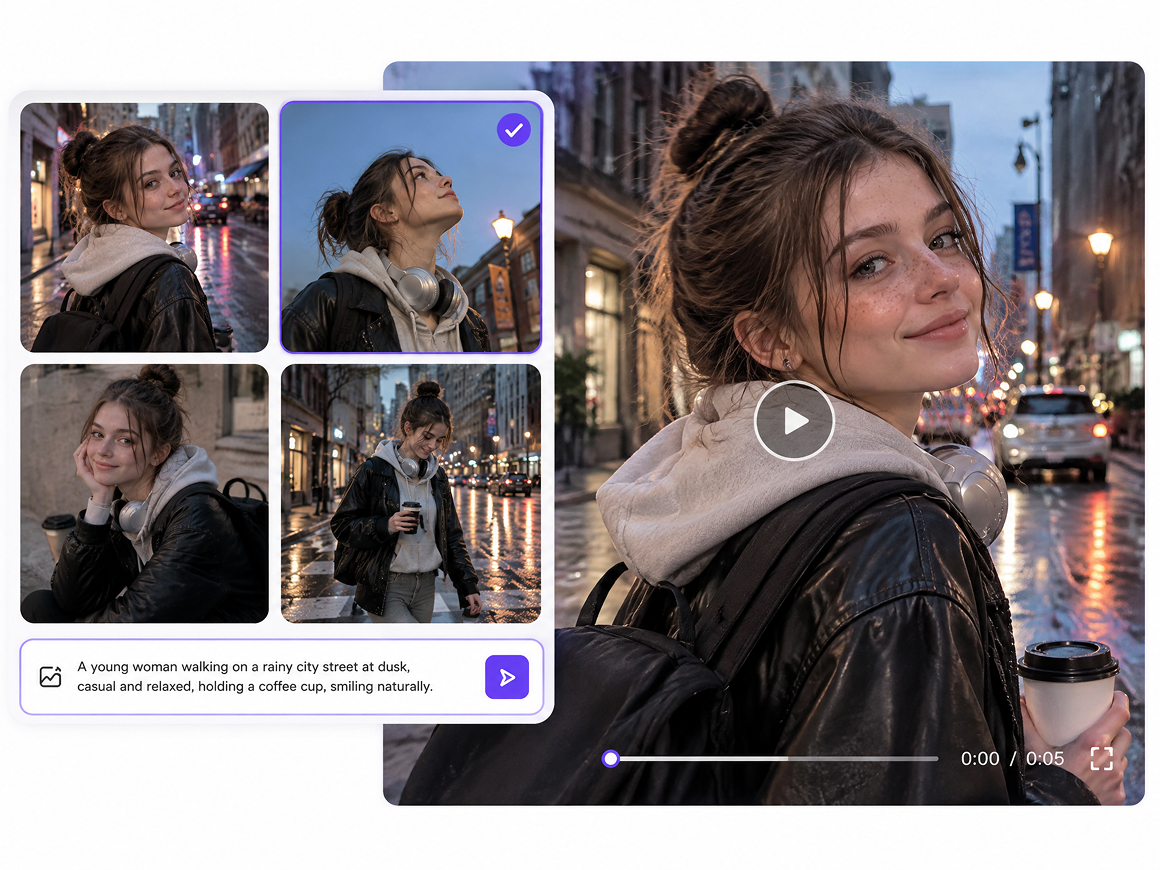
Prompt Support for Clearer Video Results
The Text Node gives you a practical place to develop a Seedance 2.0 prompt before video generation. Generate Prompt can provide a starting point, while prompt references for camera movement, FPV shots, and scene transitions help add clearer direction to each video idea.
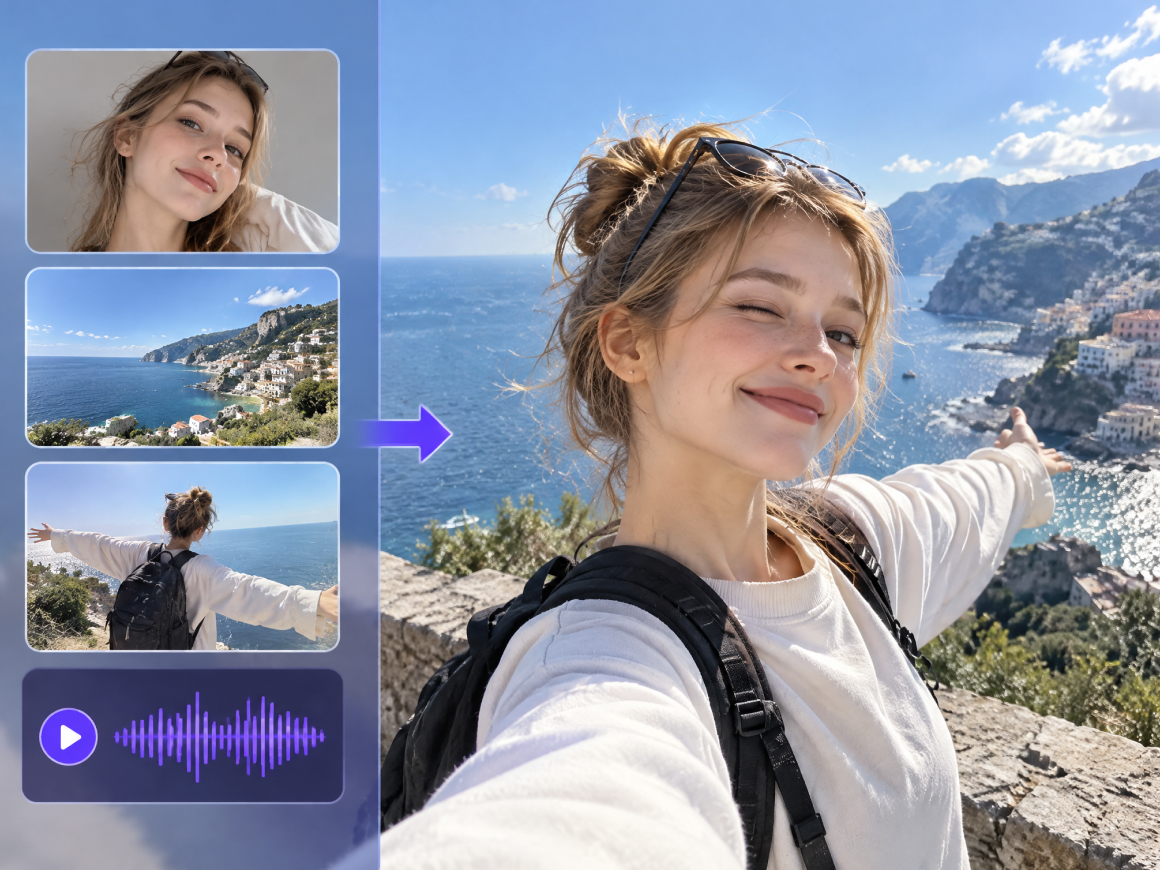
Flexible References for More Visual Control
RoboNeo supports text, images, video, and audio as references for video generation. Specific assets can be called with the @ symbol, allowing your prompt to work alongside visual and audio material when a scene needs clearer direction for appearance, movement, pacing, or sound.
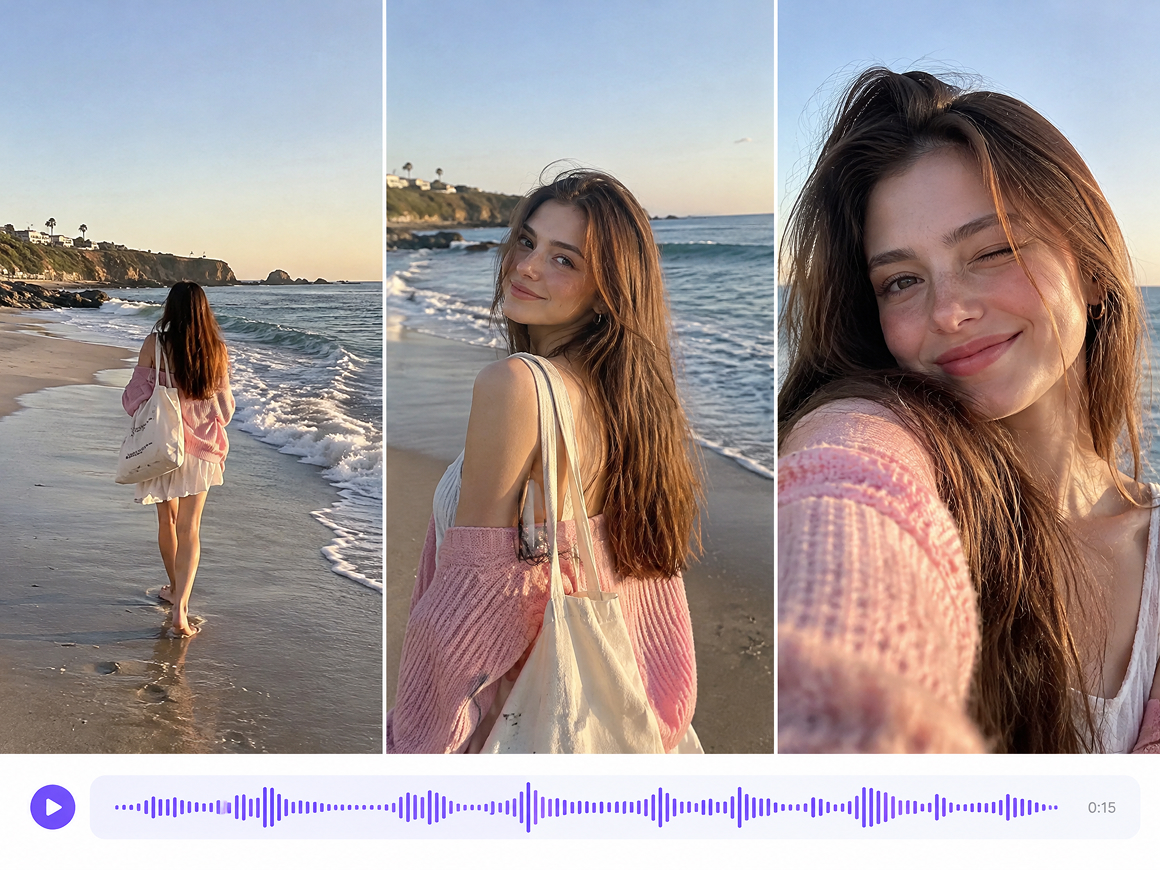
Camera and Audio Control for Every Scene
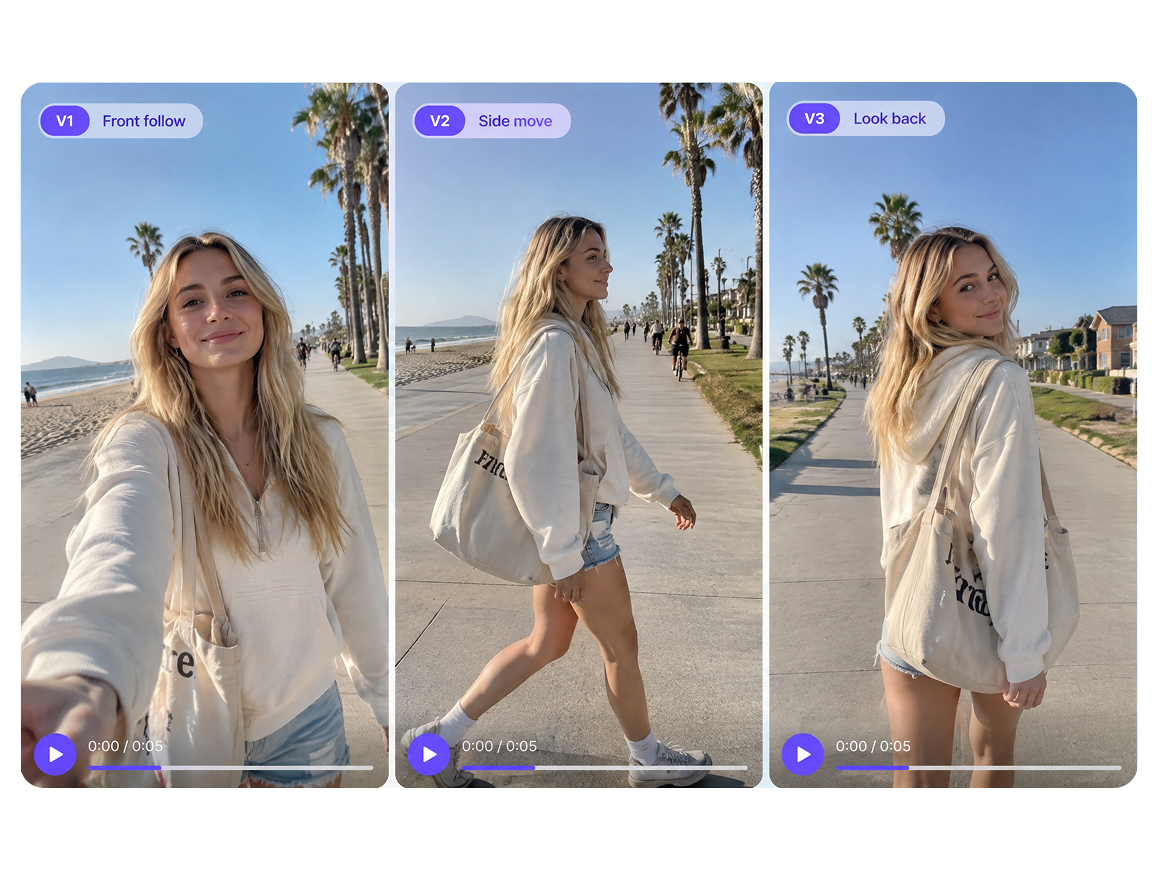
Seedance 2.0 supports precise camera motion control and synchronized audio and video for clips up to 15 seconds. Prompt instructions can cover shot direction, movement, and sound, while duration, resolution, aspect ratio, and audio settings provide additional control before generation.
One Canvas for Prompt Testing and Revisions
Prompts, reference assets, generated clips, and later revisions can stay on the same canvas. When a result needs changes, the prompt or generation settings can be updated directly before another version is generated, making Seedance 2.0 prompting easier to manage across repeated tests.
Seedance 2.0 Prompts for Different Video Projects
Social Media Video Ideas
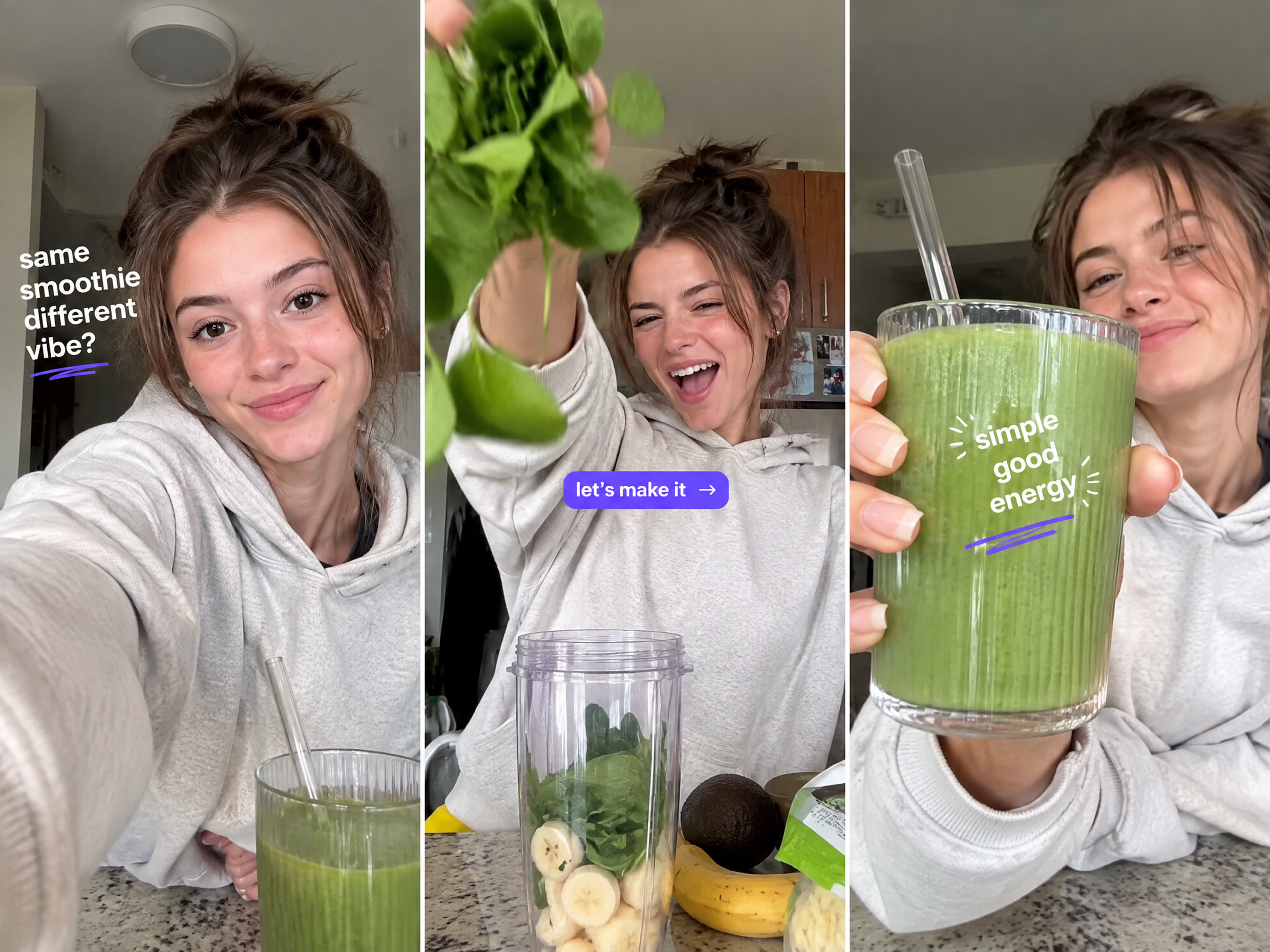
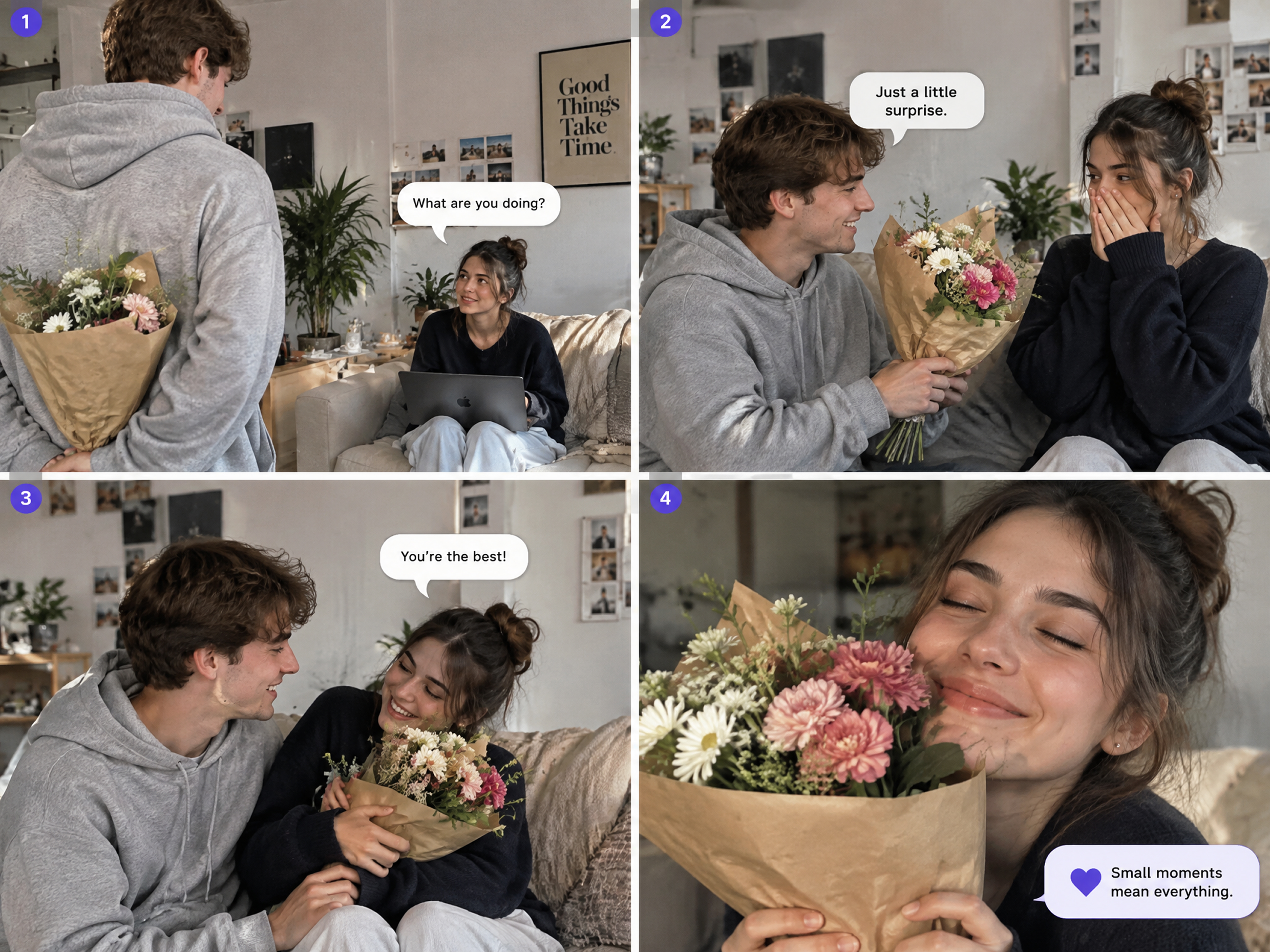
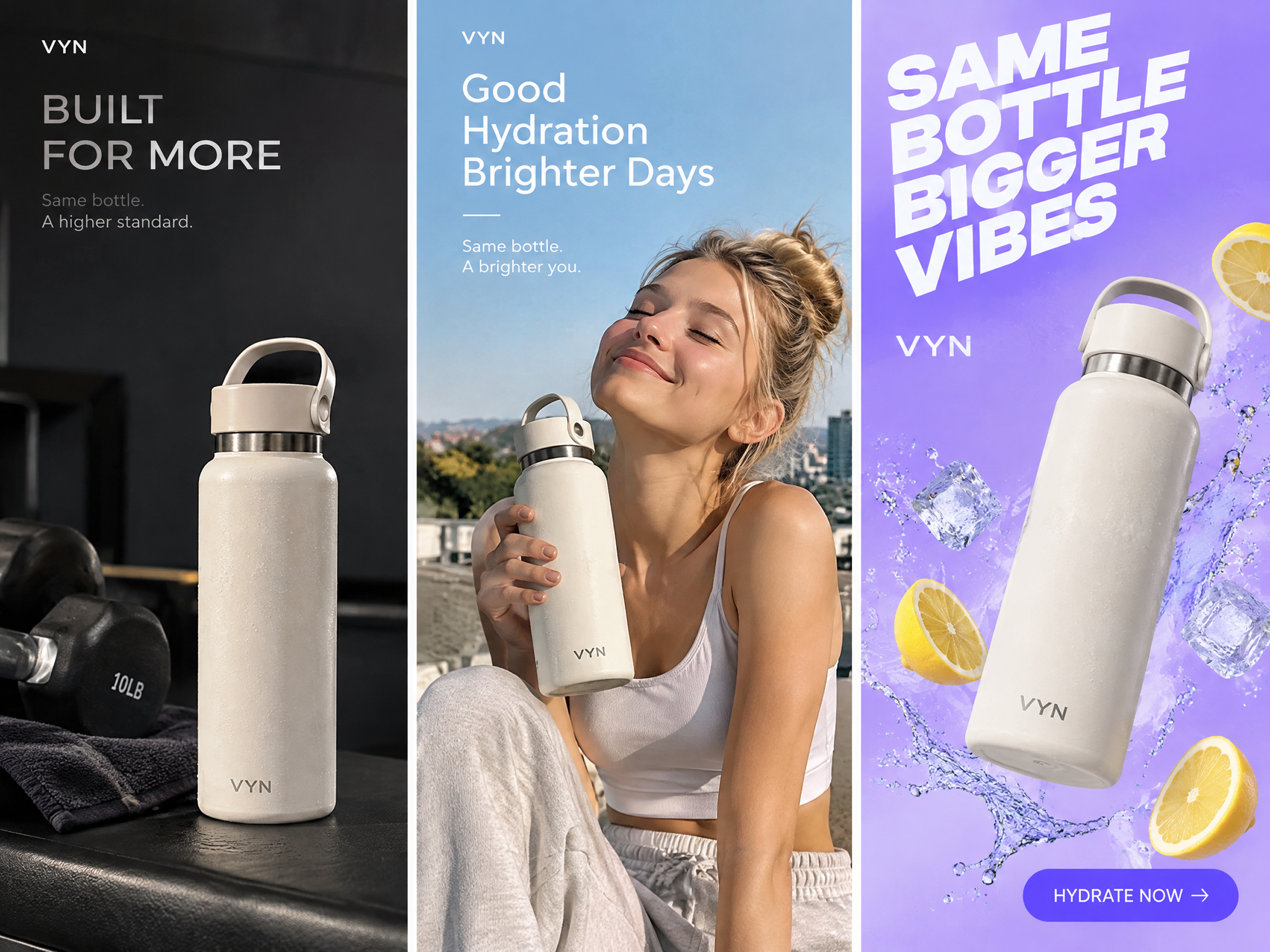
Social media creators can use Seedance 2.0 prompts to shape short videos for TikTok, Reels, Shorts, and paid campaigns. Clear scene direction, camera movement, pacing, and sound make it easier to test different hooks and story angles, helping teams produce more platform ready concepts without starting over for every variation.

Frequently Asked Questions
How do I start a prompt?
What are some examples of good prompts?
Good prompts make the action and shot easy to picture. Example: "A sneaker rotates on a white pedestal while the camera pushes in slowly." Another: "A cyclist speeds through downtown at night with handheld camera movement and traffic sound."
Can RoboNeo help me write Seedance 2.0 prompts?
In RoboNeo, the Text Node includes Generate Prompt plus prompt references for camera movement, FPV shots, and scene transitions. You can use those suggestions as a base, then rewrite the wording to match the exact video you want.
Can I use images, video, and audio with my prompt?
RoboNeo supports text, images, video, and audio as mixed references for Seedance 2.0. Use the @ symbol to call a specific asset when you want the generation to follow a particular image, clip, or audio reference.
Can I change my Seedance 2.0 prompt after generating a video?
Edit the prompt directly after a generation, change the wording or camera direction, and generate another version. You can also adjust video settings before regenerating, so you do not need to rebuild the project from the beginning.
Can I reuse Seedance 2.0 prompts in other projects?
Save the prompt setup with its connected nodes in My Nodes, then reuse that group in another project. RoboNeo keeps the saved node group’s original parameter settings, which is useful for repeated video formats or recurring production workflows.
Seedance 2.0 Prompts, Ready for Video
Your Seedance 2.0 prompt can stay connected with references, generated clips, and later revisions in RoboNeo. The same workspace gives you room to test different directions, adjust the details that matter, and develop a short video without restarting the creative process.
What Users Say About Seedance 2.0 in RoboNeo
I usually start with a pretty simple prompt and add more camera details after the first result. Having the prompt, references, and generated clips together in RoboNeo makes that back and forth easier when I am testing several versions of one short scene.
I have been using Seedance 2.0 for short social clips, and the biggest difference for me is how much the prompt can change the feel of a shot. A small change to the camera movement or action can give me a completely different version to work with.
More complicated scenes can still take a few tries, but I like being able to adjust the prompt and regenerate in RoboNeo instead of setting everything up again. It is useful when I need to compare a few directions before deciding which clip to take further.