
Animated Video Creator
RoboNeo keeps the whole animation workflow on one visual canvas, from scripts and storyboards to characters, scenes, motion, and final video. The animated video creator turns text, images, and reference clips into connected animated scenes, so your story can take shape without jumping between separate tools.
How to Create an Animated Video with RoboNeo
Describe Your Animated Video Idea
Describe the animated video you want to make, including the main concept, characters, setting, or key scene. If you are still shaping the idea, a sample case can give you a starting point.
Review the Script and Structure
RoboNeo turns your idea into a script and story structure on the canvas. Review the content and make any changes you need before moving into character design, scene development, and animation planning.
Build Characters and Storyboards
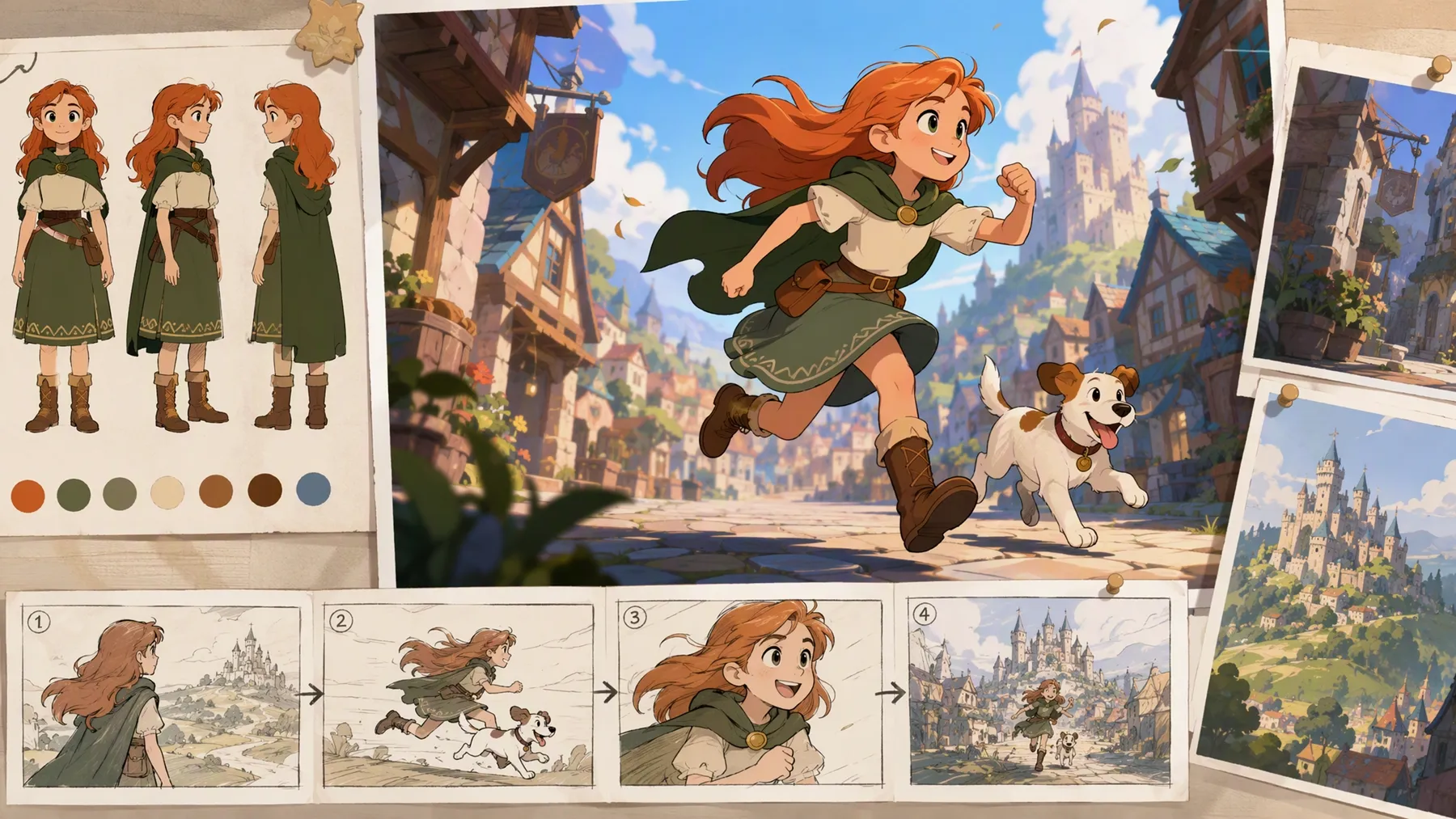
Choose an animation style that fits the video. The Art Director then generates character turnarounds, scenes, props, and a storyboard that lays out the shots, frame content, sound, camera direction, and pacing.
Generate the Animated Video
Once the storyboard is confirmed, RoboNeo turns the storyboard frames into video. You can review the generated scenes, make further adjustments, and continue refining the video before export.
Create Animated Videos in One Visual Workflow
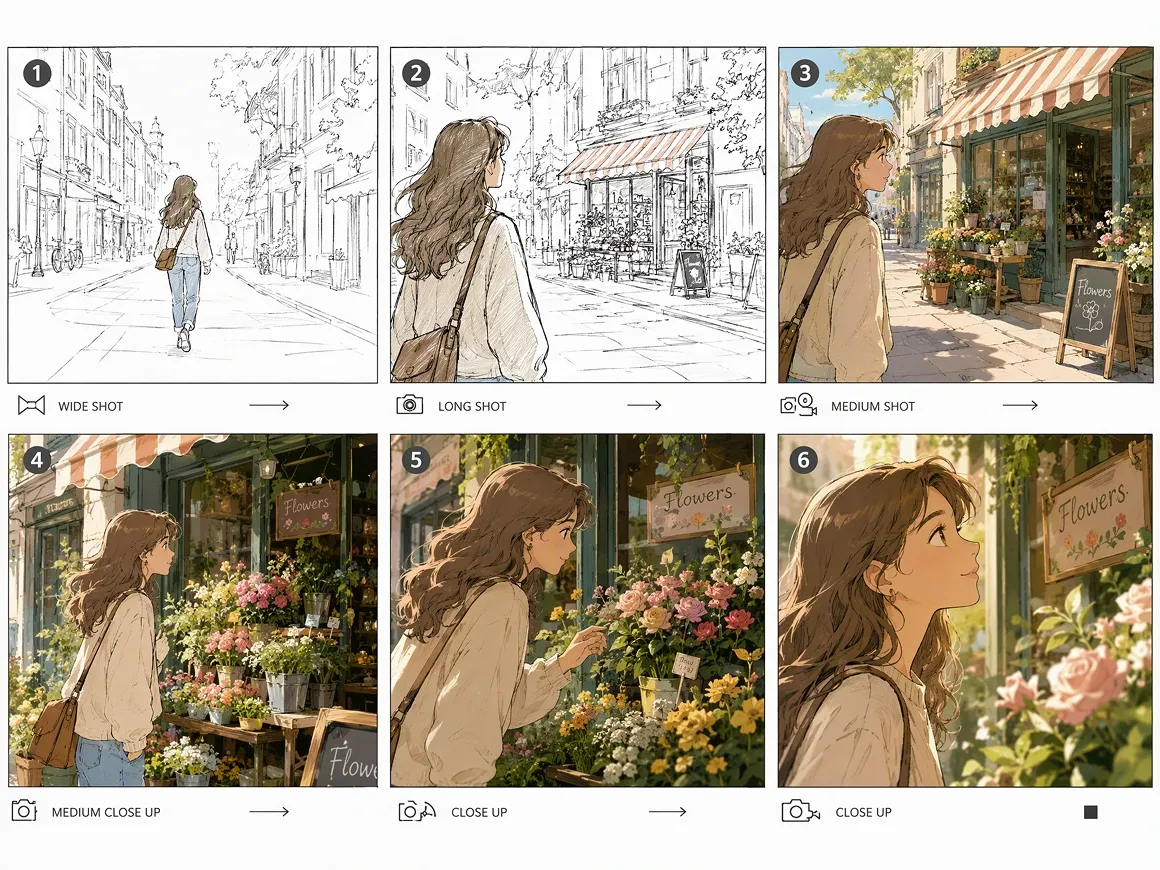
Turn Ideas Into Storyboards on One Canvas
The RoboNeo Agent develops the story structure and script directly on the infinite canvas, where generated content stays visible as the project takes shape. Storyboards can be reviewed and adjusted in context, making it easier to plan animated scenes before moving into video generation.
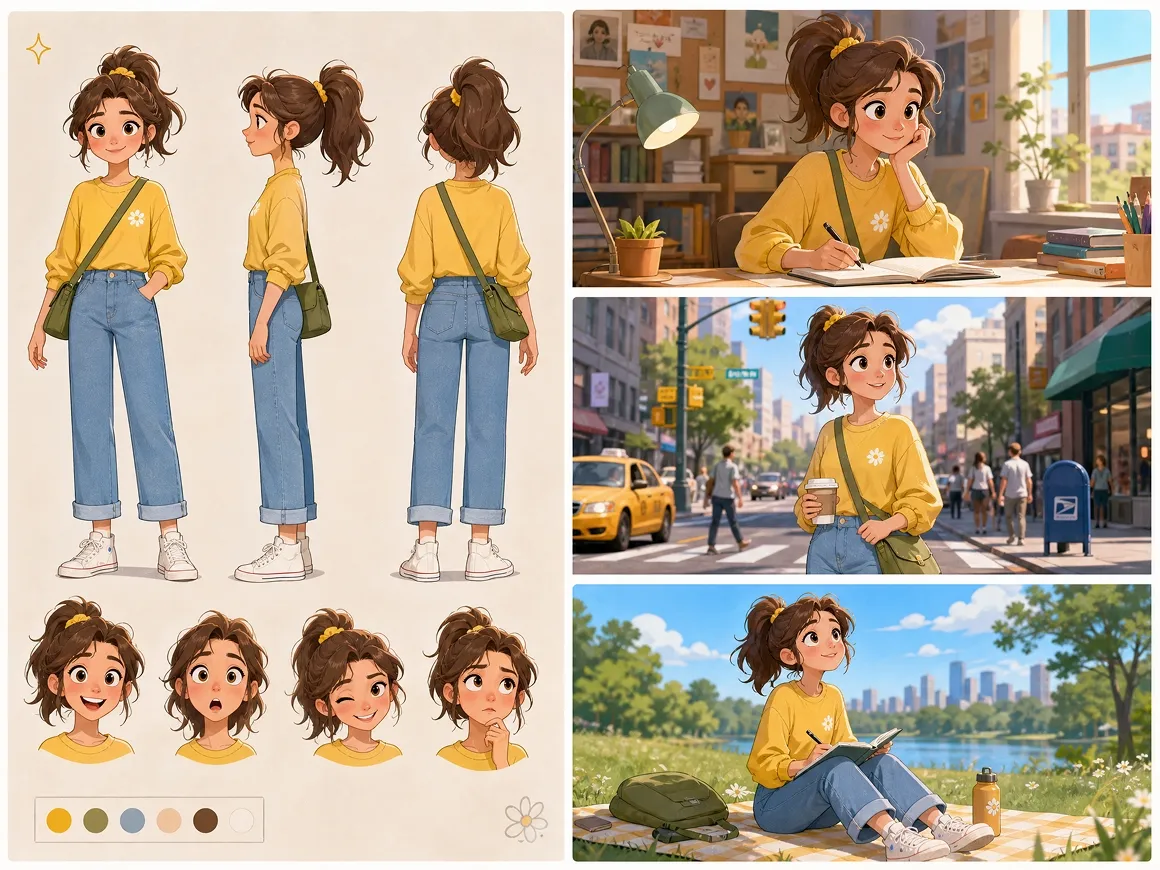
Keep Characters and Scenes Easier to Reuse
The Art Director can generate character turnarounds, scenes, props, and storyboard assets from the screenplay. Reusable assets can also be stored in the Asset Library, helping creators carry established characters and visual materials into later scenes or future projects with less repeated setup.
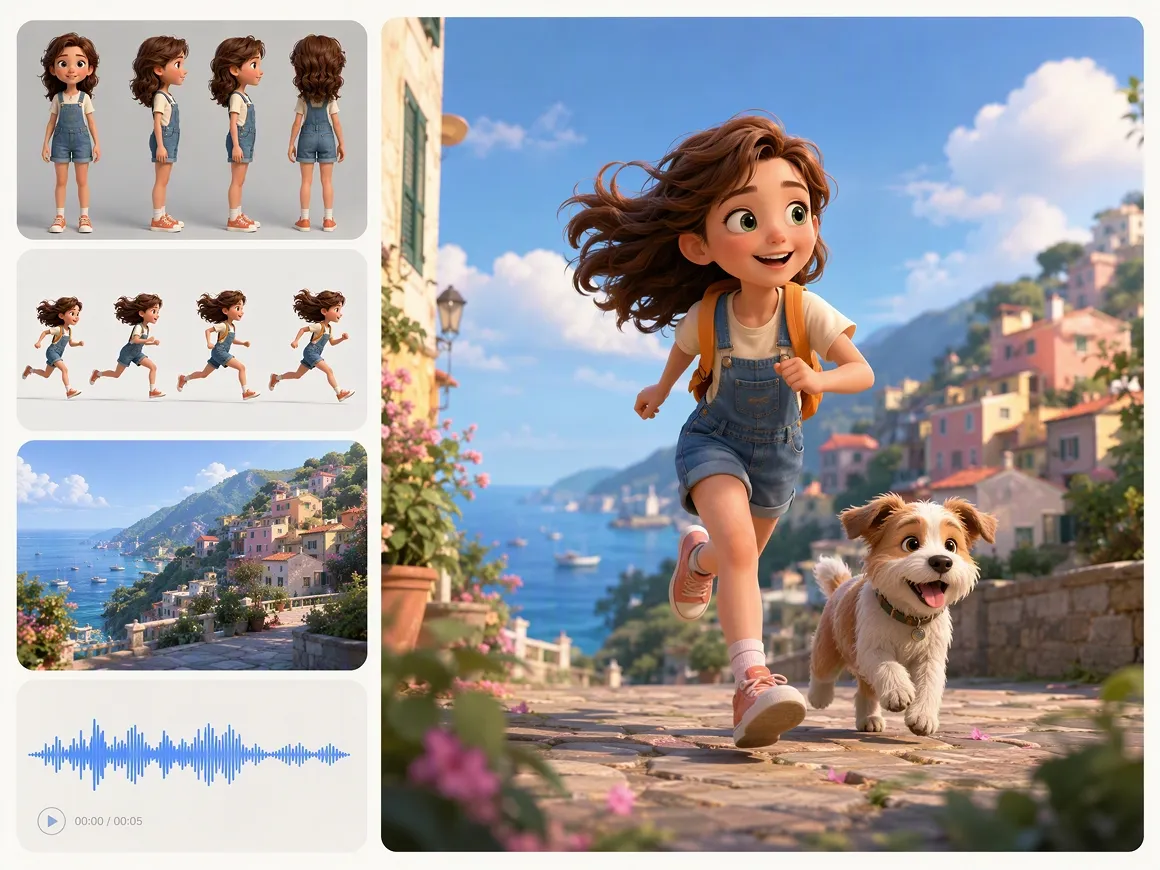
Animate From Text, Images, or Referencesards
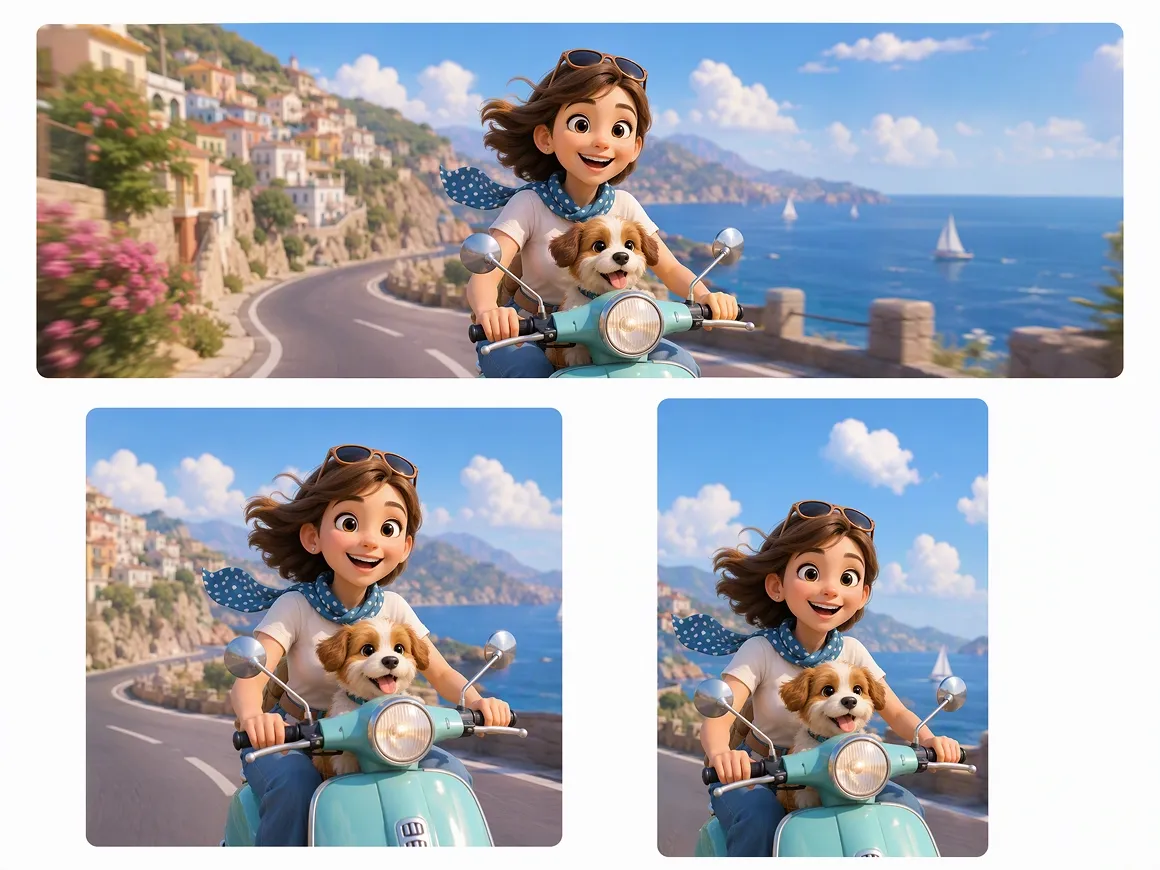
The Video Node supports text to video, image to video, Universal Reference, Motion Control, and start and end frame generation. This gives creators several ways to animate a scene, whether the starting point is a prompt, still image, reference footage, audio, or planned movement.
Refine Animated Clips Before Export
Generated videos can be refined with built-in editing tools for splitting clips, adding media or text, switching aspect ratios, and previewing changes. Once the animated video is ready, the finished result can be exported without moving the project into a separate editing workspace.
Animated Video Use Cases for Different Creators
Short Drama Animation
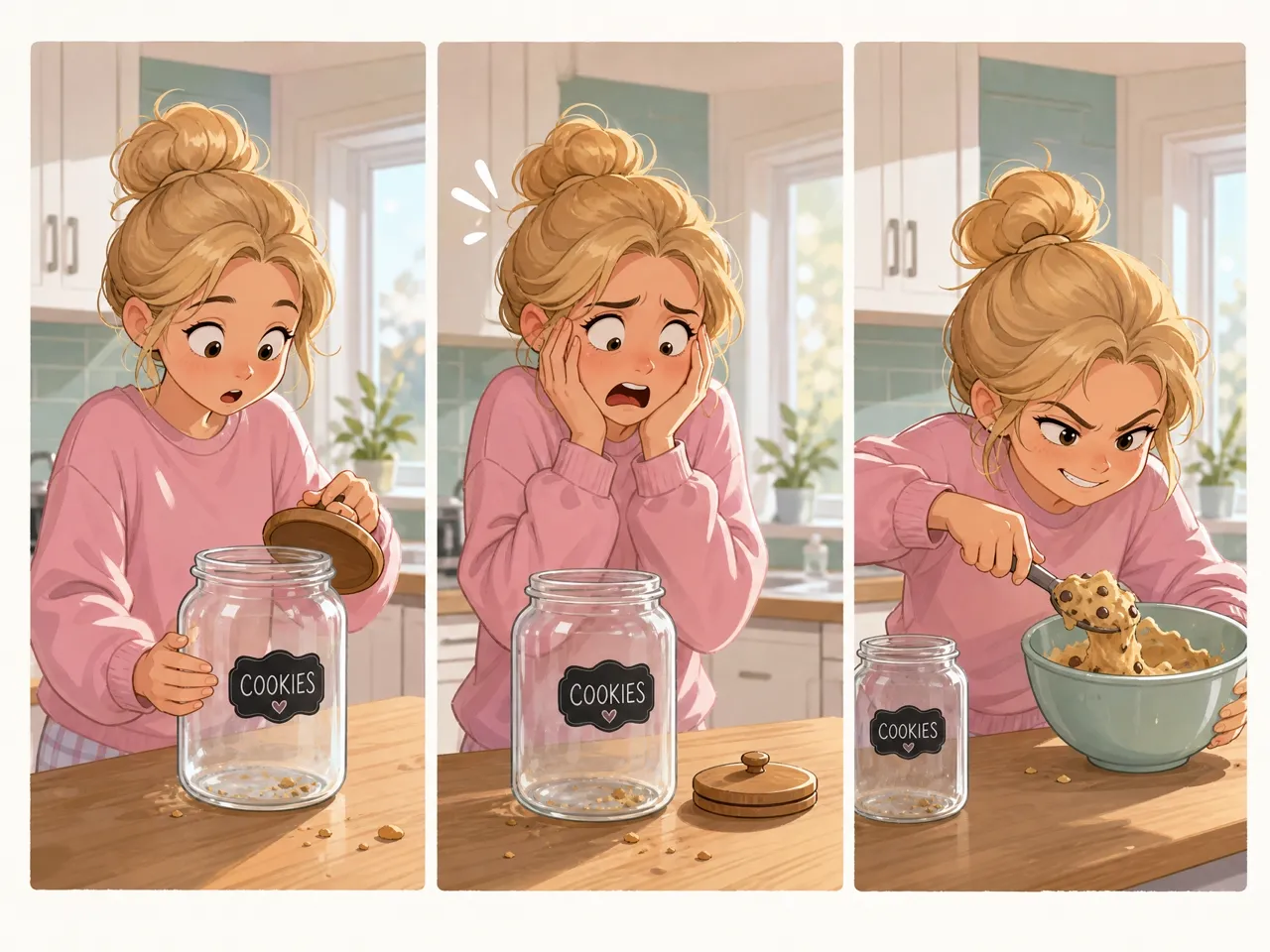
Short drama creators can turn scripts and recurring characters into animated episodes while keeping scenes, storyboards, and visual assets organized across the production process. This works well for serialized content where the same characters, settings, and visual direction need to carry from one episode or scene to the next.

Frequently Asked Questions
How can I create my own animated video?
Can I make an animated movie by myself?
Yes. Break the movie into shorter scenes, plan each scene with a storyboard, generate the shots individually, then edit them together. This makes a longer animation much easier for one creator to manage.
How do I keep the same character across multiple scenes?
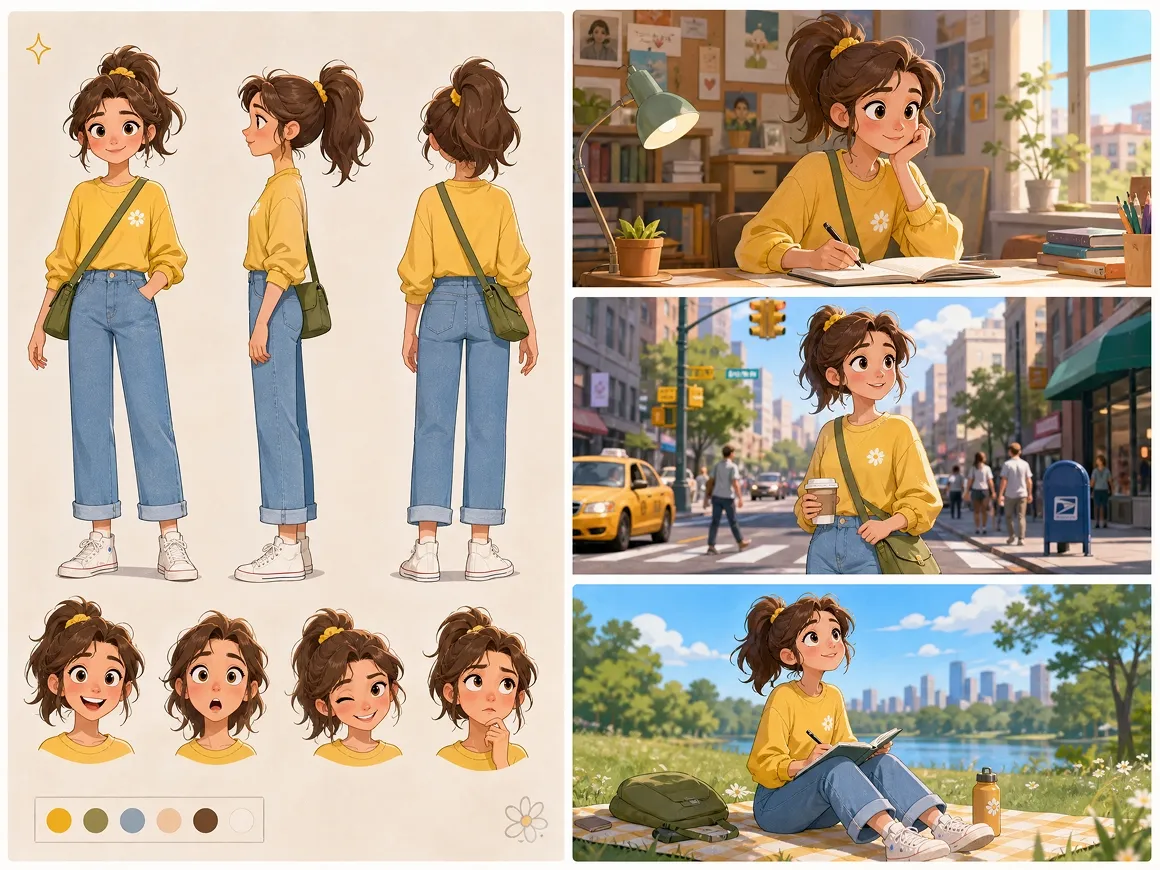
Create a consistent character reference first, then reuse the same character images or turnarounds in later shots. Keeping the face, clothing, colors, and other defining details consistent gives each scene a clearer visual reference.
How can I control exactly how a character moves?
Use Motion Control with a character image and a reference video. The image defines the character’s appearance, while the reference video provides motion guidance for how the character should move in the generated clip.
Is image to video better for consistent animation?
It can be, especially when the character or scene design already exists. Using the same reference image across related shots gives the model a more consistent visual starting point than generating every scene from text alone.
How do I make AI animation follow a specific action?
Use a reference video that clearly demonstrates the action, such as turning around, waving, or walking forward. Motion Control can use that movement as guidance instead of relying only on a written description.
From Scene Planning to Final Animation
A finished animation comes down to more than generating individual clips. RoboNeo helps you develop the shots, pacing, and visual continuity needed to turn separate scenes into a complete video.
Creator Feedback on RoboNeo Animation
Motion Designer
I uploaded a portrait and asked RoboNeo to add a smile and blinking. The animation was subtle, but it made the still image feel much more alive.
I used one photo to make a short animated clip with a simple prompt. It came out better than I expected for just a few minutes of work.
I use RoboNeo for AI video generation, and the results can get very close to what I have in mind. Clearer instructions definitely help when I want more control over the final video.