
AI Clip Maker
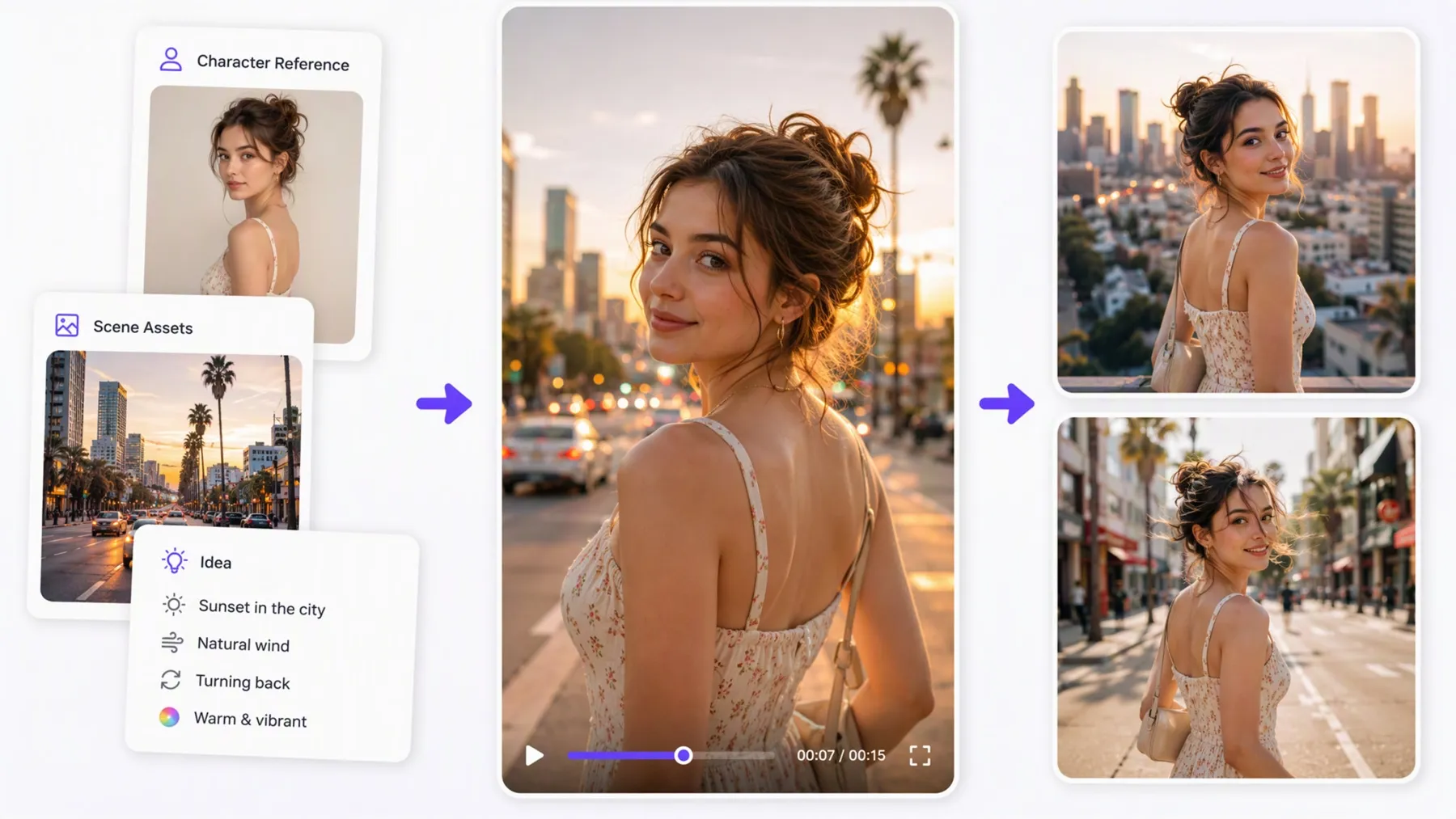
A prompt, image, or reference clip can become a polished video in RoboNeo. The AI clip maker brings different generation modes, video models, and outputs into one workspace, so you can explore creative directions, compare results, and refine the clip without rebuilding the project each time.
How to Make AI Clips with RoboNeo
Start with a Video Node
Add a Video Node to your RoboNeo canvas. This is where the clip takes shape, with your prompt, reference files, model choice, and generated results kept together in the same project.
Decide How the Clip Should Begin
Pick the generation mode that matches what you already have. You can work from text, an image, reference media, motion guidance, or defined start and end frames.
Give the Model More Direction
Add a prompt that explains the scene, movement, camera behavior, or overall look you want. When needed, bring in images, video, or audio references to give the generation a clearer visual direction.
Match the Output to Your Project
Select the video model and adjust the available settings for your clip, including aspect ratio, resolution, duration, audio, and the number of versions you want to generate.
Compare the Results and Keep Refining
Review the generated clips side by side and see which direction works best. You can adjust the prompt, references, or settings, then generate another version without rebuilding the project from the beginning.
What the AI Clip Maker Can Do in RoboNeo
Make a Clip from Text, Images, or References
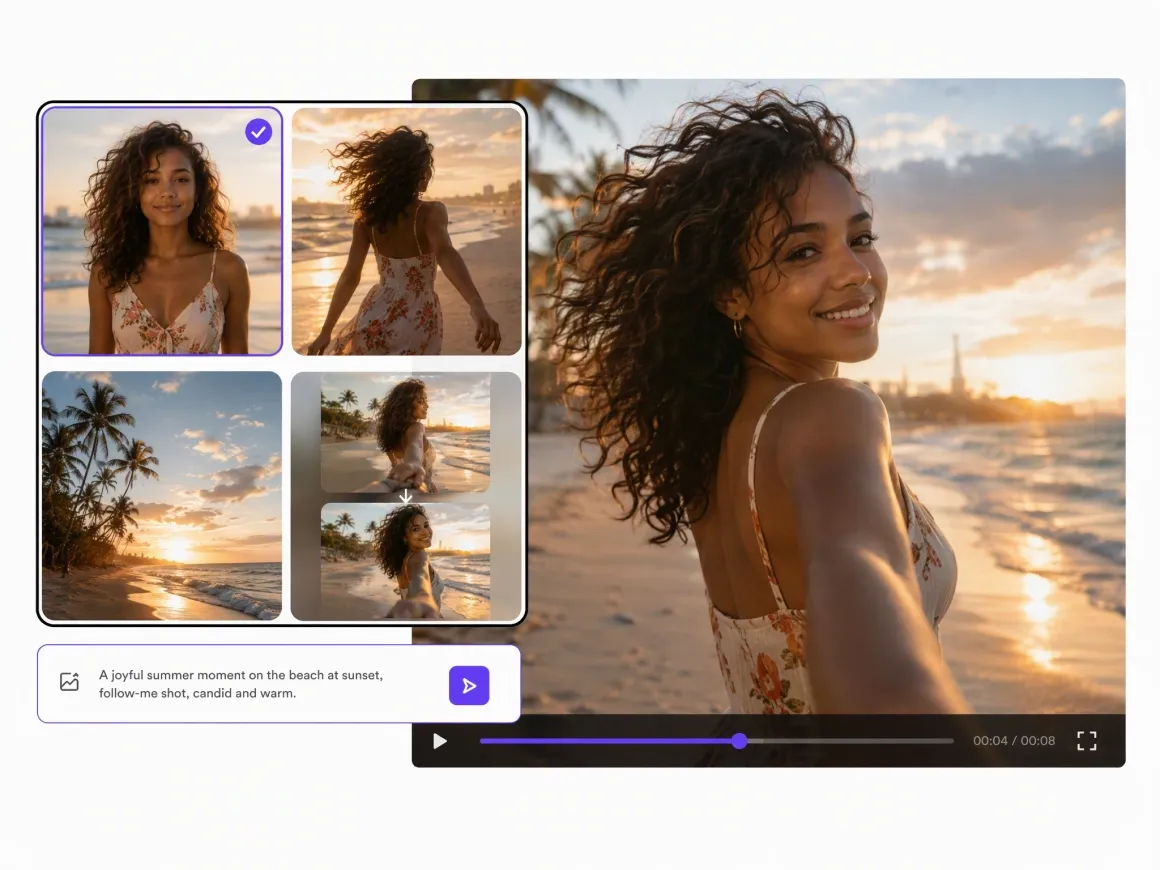
A new clip can start with a prompt, an image, start and end frames, or other reference media. This makes the tool useful whether you are creating something from scratch or turning existing product shots, artwork, or campaign assets into video.
Keep the Clip Closer to Your Visual Direction
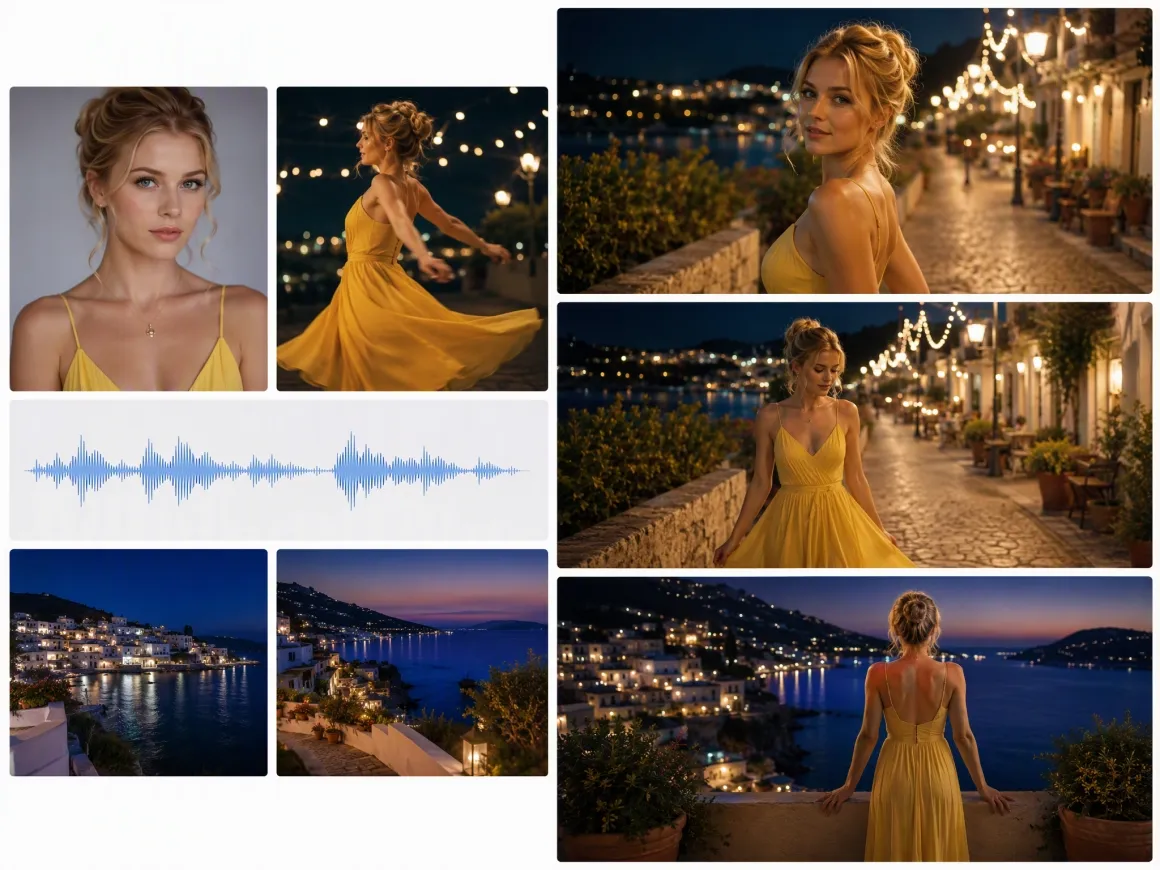
Reference images, video, audio, motion guidance, and frame controls can give the model more context about how the clip should look or move. They are especially useful when the result depends on a specific character, product, scene, or transition.
Compare Several Versions Before You Choose
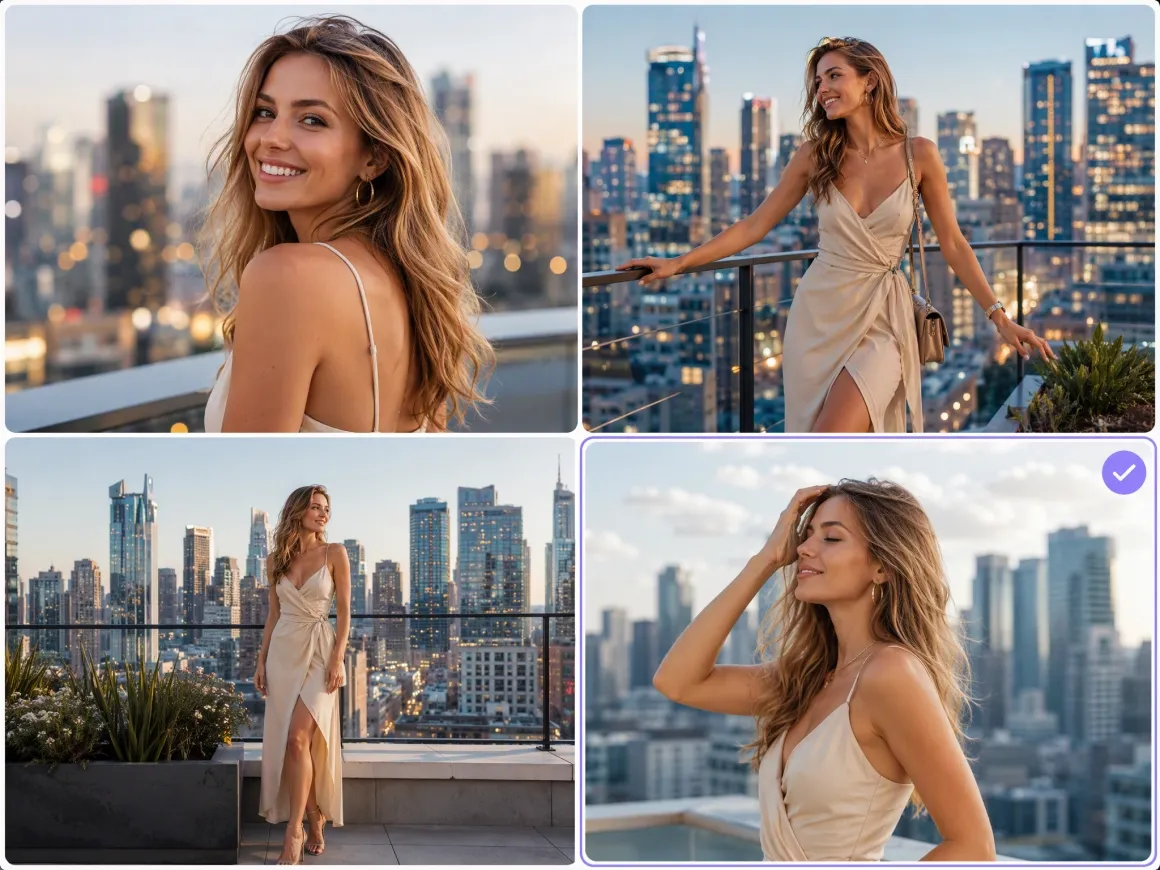
The same clip idea can produce very different results. RoboNeo lets you generate multiple versions from one setup, review them together, and continue with the one that has the strongest movement, framing, or overall visual direction.
Set the Clip Format for Different Platforms
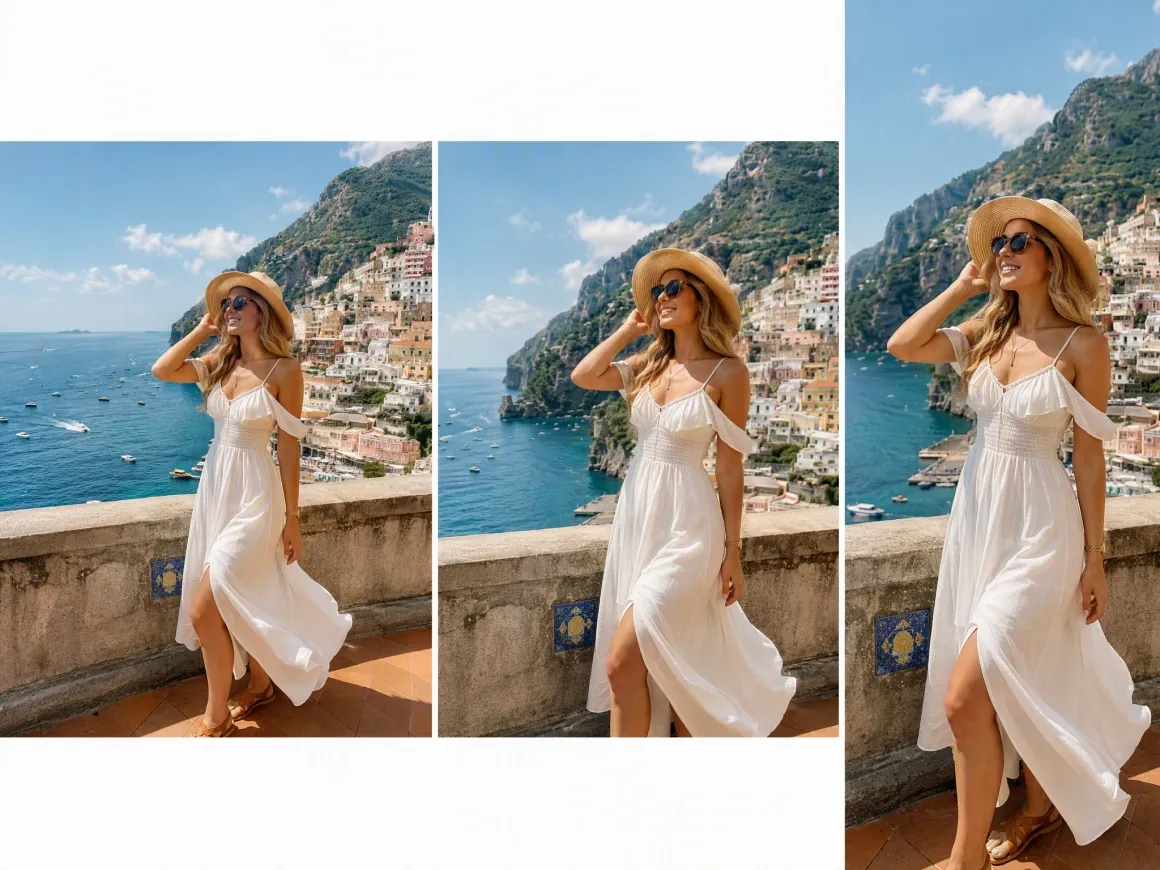
Aspect ratio, resolution, duration, audio, and output quantity can be adjusted based on the selected model. This makes it easier to prepare the same clip concept for social posts, ads, product content, or other placements without starting again.
Where AI Clips Work Best
Short Films and Story Scenes
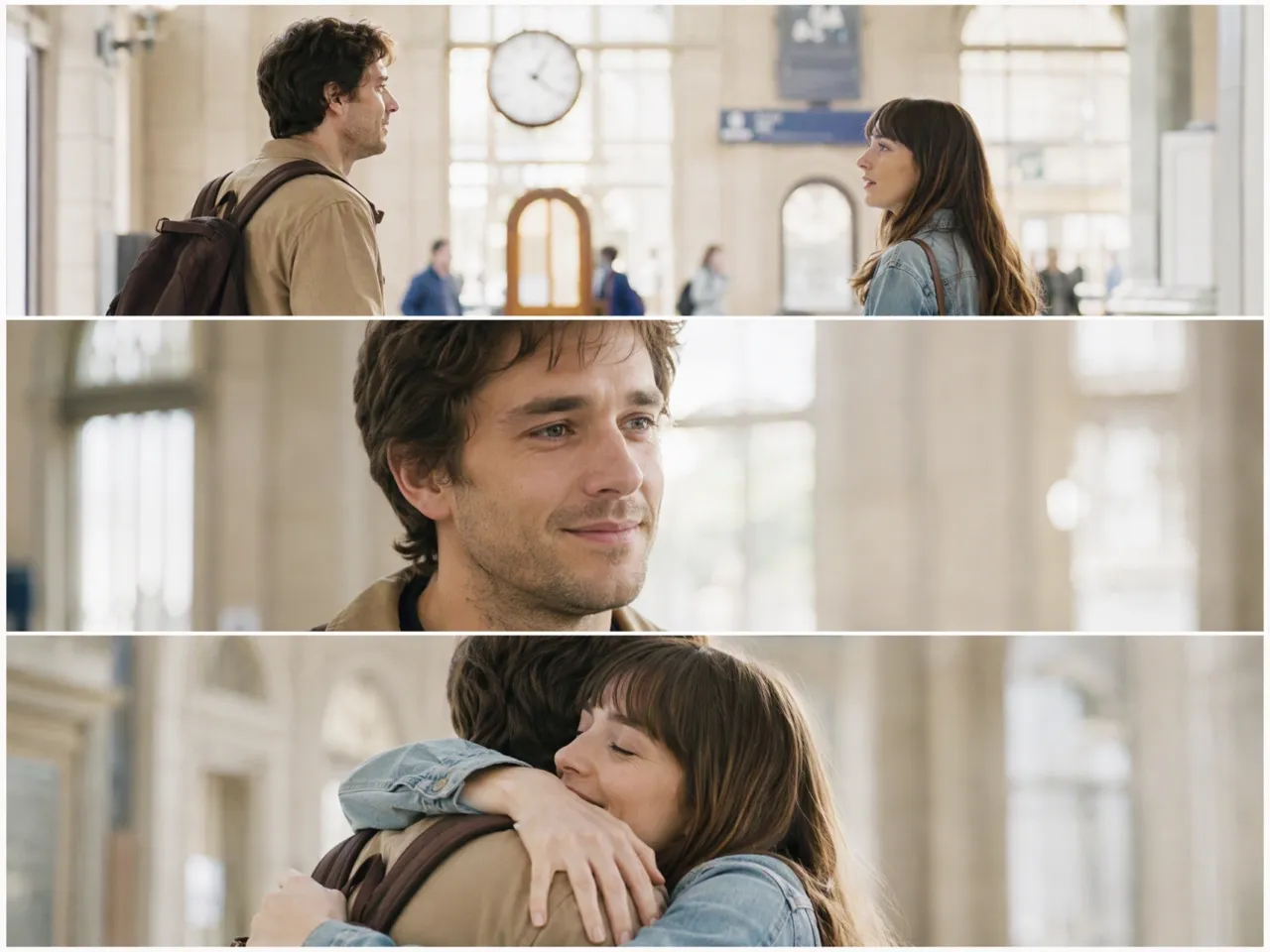
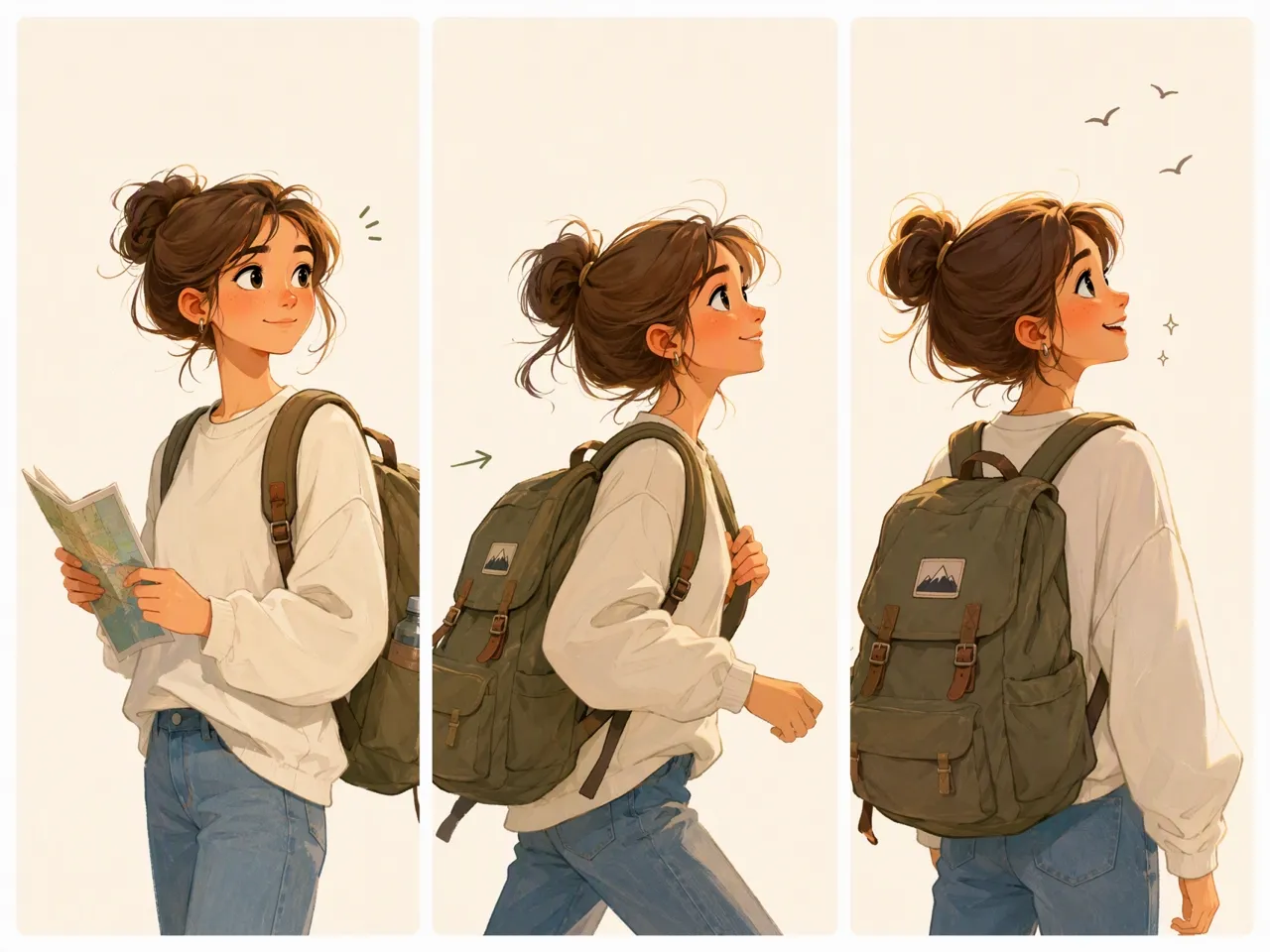
The AI clip maker can help turn a short film idea or story scene into video from a script, storyboard, or visual reference. You can shape the characters, pacing, and mood around your idea, whether you are making a complete short piece or creating one scene for a larger project.
Frequently asked questions
Is there a free AI clip maker?
Do I need video editing experience to make AI clips?
No. RoboNeo uses a node based creation process rather than requiring a traditional editing timeline, so you can build and revise clips without advanced video editing experience.
How can I keep the same character across AI clips?
Use the same clear character reference whenever possible and keep important visual details consistent. Reference images can help reduce changes in appearance, although some variation may still occur between generations.
Can an AI clip include sound?
Yes, depending on the video model. RoboNeo includes audio options for supported models, while models such as Seedance 2.0 can work with audio references and synchronized sound.
What should I include in an AI clip prompt?
Keep the prompt clear about the main subject and what should happen in the shot. Add camera direction, setting, or visual details when they matter rather than filling the prompt with unrelated descriptions.
Can a reference video guide the motion of a new clip?
Yes, with supported generation modes and models. A reference video can provide motion, camera movement, or pacing for the new clip instead of relying only on a written description.
AI Clip Creation in RoboNeo
Short clips are easier to develop when your ideas, references, and generated versions stay in the same project. With the RoboNeo AI clip maker, you can keep refining the same clip until it fits the story, campaign, or content you are working on.
What Users Say About Making Clips in RoboNeo
I've been really happy with the video results, especially the overall quality and how faces come out. I only wish there were more opportunities to generate videos for free.
I really like RoboNeo for video generation and editing. The results are worth waiting for, although generation has become slower for me after the recent update.
I get the kind of AI video result I'm looking for with RoboNeo. The result depends a lot on how clearly I write the instructions, but when the prompt is right, it works really well for me.