
Remove Background From Video
Upload a clip and remove background from video online without tracing every frame by hand. RoboNeo separates the main subject from the original setting, then keeps your project open for background replacement, scene design, and follow-up edits in one connected visual workspace.
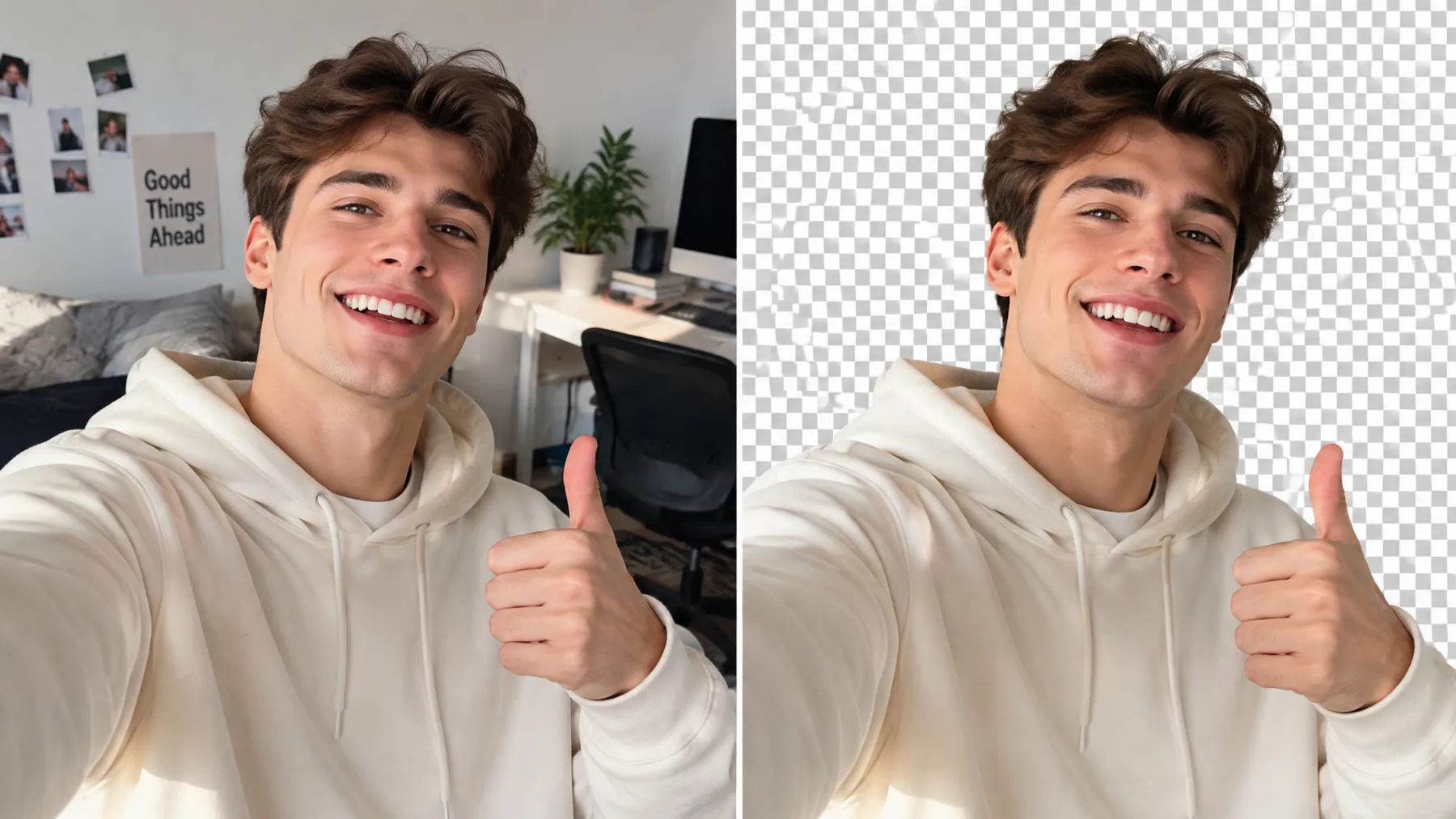
How to Remove Background From Video Online
Upload Your Video
Upload the video you want to edit to RoboNeo. Clear footage with a visible subject and balanced lighting may help the AI distinguish the subject from the surrounding background.
Tell the AI to Remove the Background
Describe the change in a simple prompt, such as “Remove the background from this video.” You can also mention the subject you want to keep or describe the new setting you have in mind.
Review and Continue Editing
Check the processed video on the canvas to see how the subject looks throughout the clip. If needed, ask the AI to refine areas where the background remains. Once satisfied, export your video in a supported format, such as WebM or MOV, with transparency where available.
Remove Video Backgrounds and Continue Editing
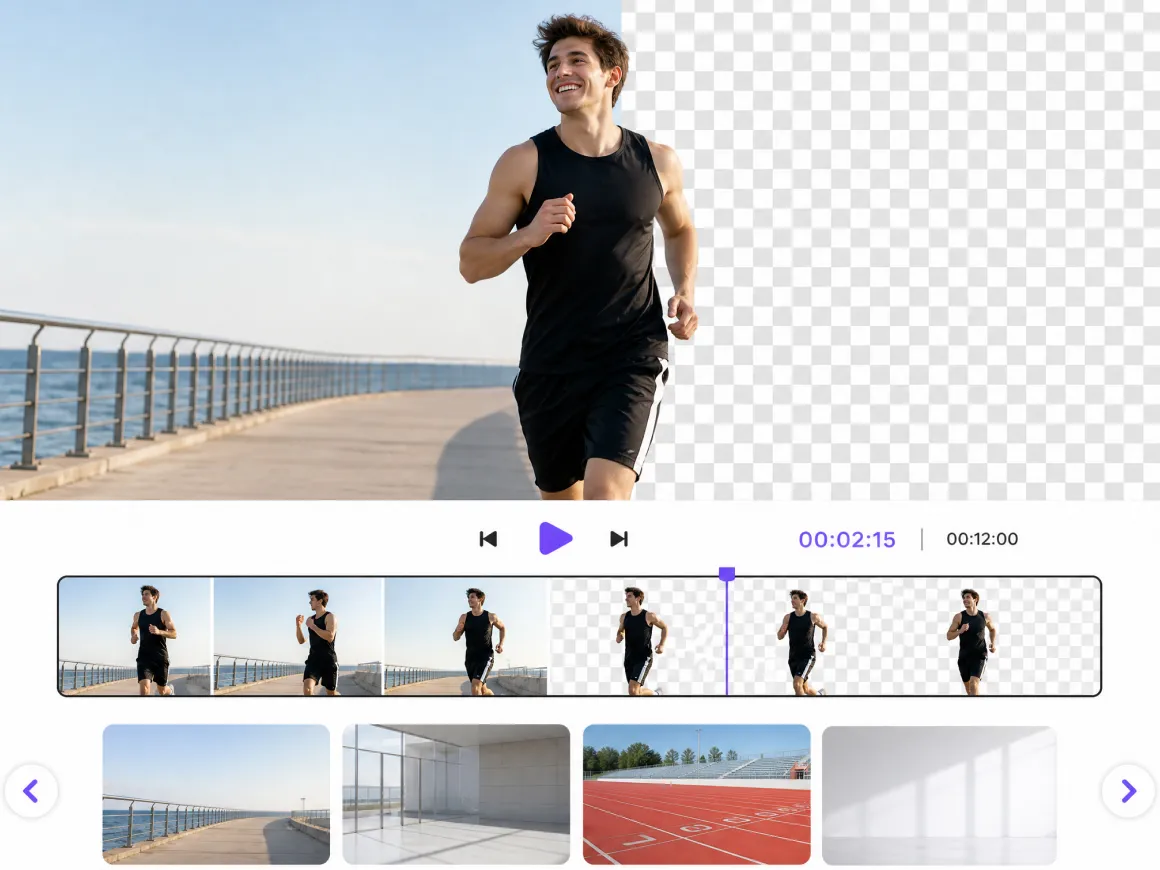
Keep Subject Edges Consistent While Moving
RoboNeo follows the main subject through changing poses and camera movement, helping edges remain consistent from frame to frame. This can reduce distracting halos and sudden cutout shifts that make a background change look unfinished on social feeds, product pages, or campaign videos.
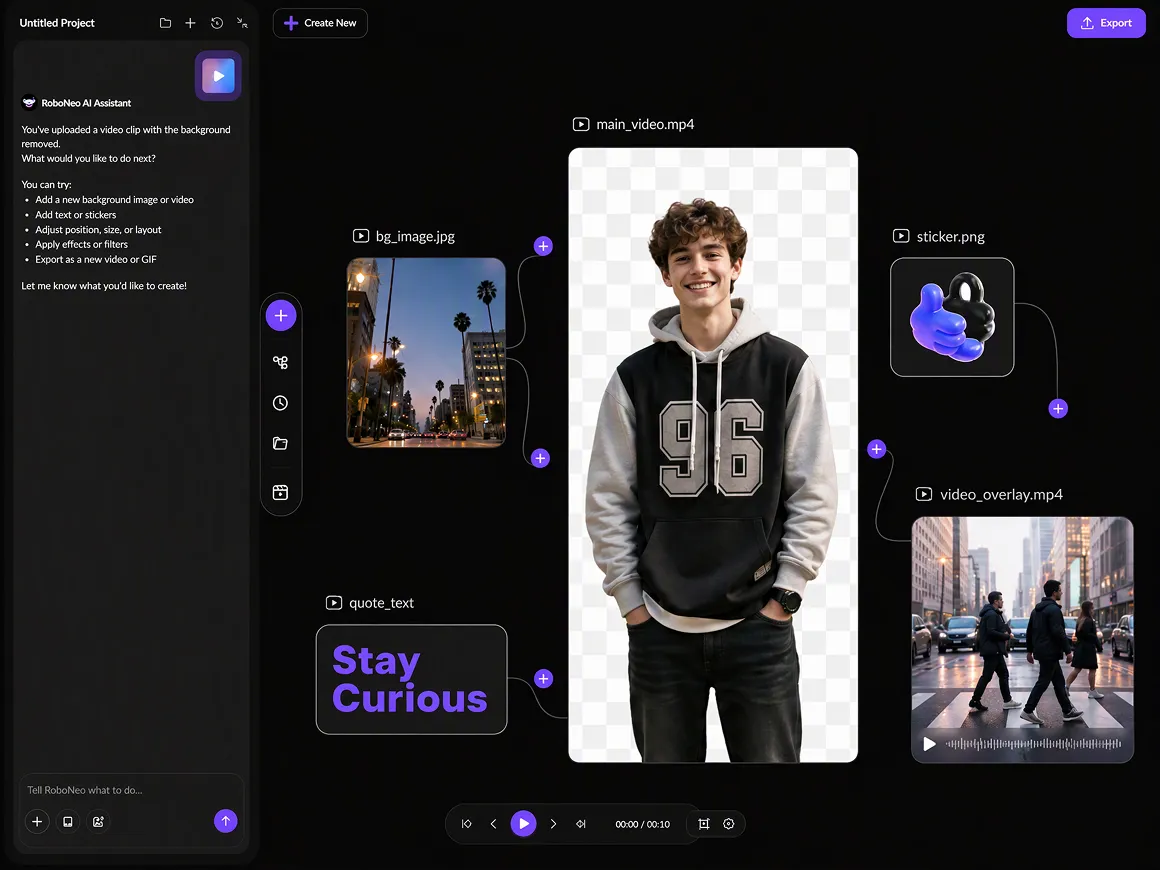
Continue Editing on the Same Visual Canvas
After you remove background from video, continue on the canvas instead of moving the file into another editor. Add a new setting, refine the composition, create supporting visuals, or develop the clip into a larger campaign while keeping the project organized in one workspace.
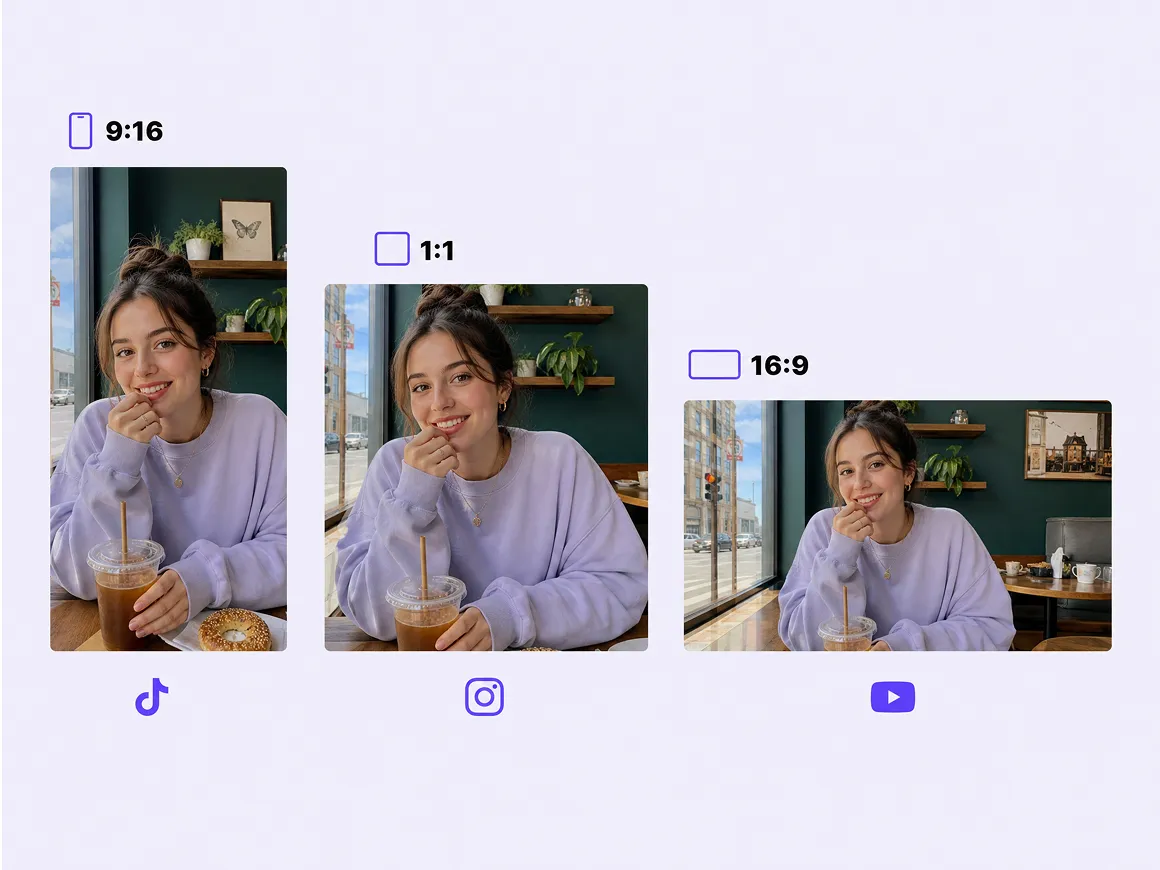
Adjust Video Size for Different Platforms
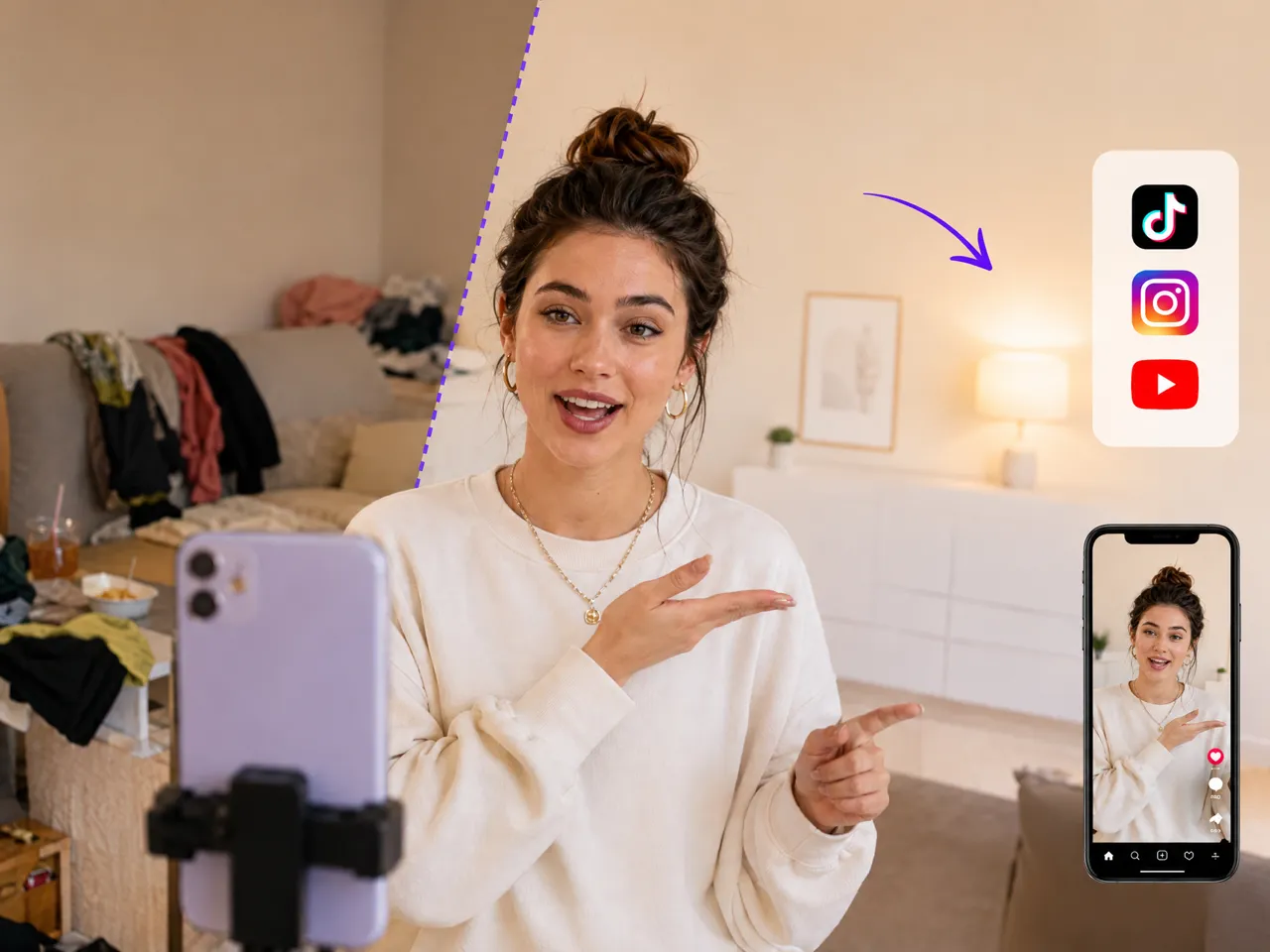
After removing the background, resize the video for TikTok, Instagram Reels, YouTube Shorts, product pages, or digital ads. Different aspect ratios and layouts can be prepared from the same source clip, helping you reuse content across platforms without repeating the entire edit.
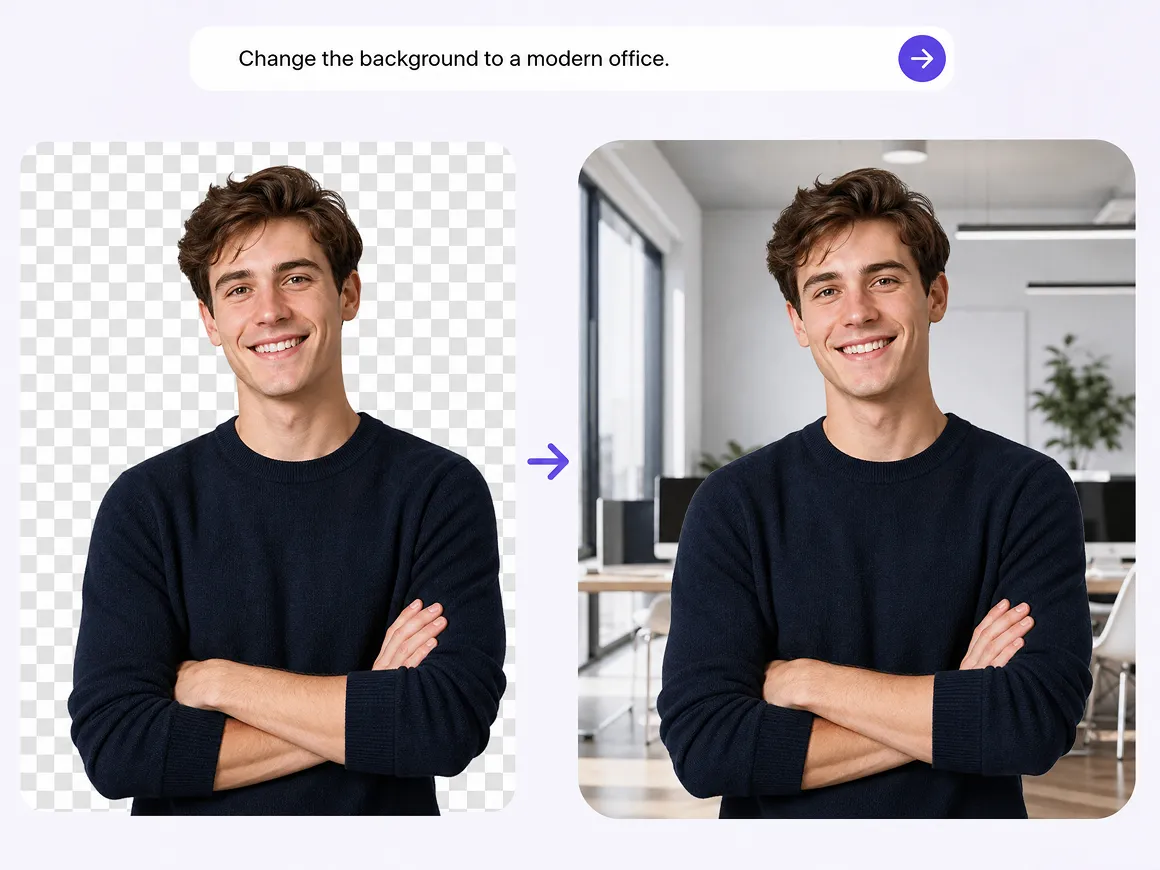
Change Video Backgrounds With Simple Prompts
Tell RoboNeo what kind of background you want instead of drawing masks or adjusting each frame manually. You can request a clean studio, office, outdoor scene, or branded setting, then review the result and ask for changes in the same conversation.
Put Your Video Into the Right Setting
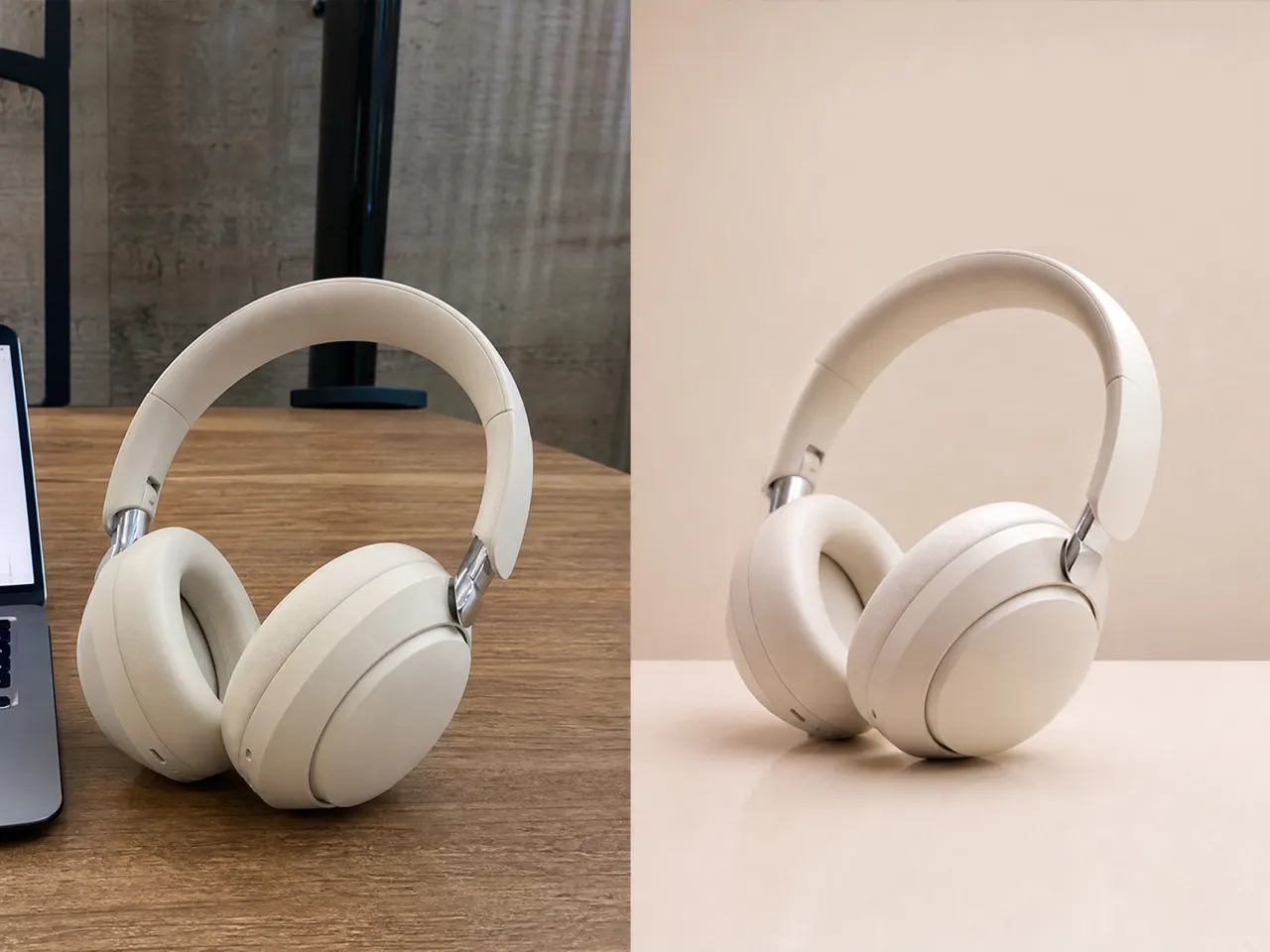
Social Media Content
Creators can clean up distracting rooms, crowded locations, or inconsistent filming spaces before publishing short-form content. A background remover for video makes it easier to create a more intentional look and reuse the same clip across TikTok, Instagram Reels, and YouTube Shorts.

Frequently Asked Questions
Can I use a remove BG video tool without a green screen?
What makes a video background remover work well?
A clear subject, steady footage, and consistent lighting usually help. Fast motion, heavy blur, overlapping objects, or hair blending into the setting may require closer review and additional refinement.
Can a background remover video tool handle moving subjects?
It can process moving subjects across multiple frames. Results may vary when movement is extremely fast or when parts of the subject repeatedly disappear behind objects in the foreground.
Can I remove video background and add a new scene?
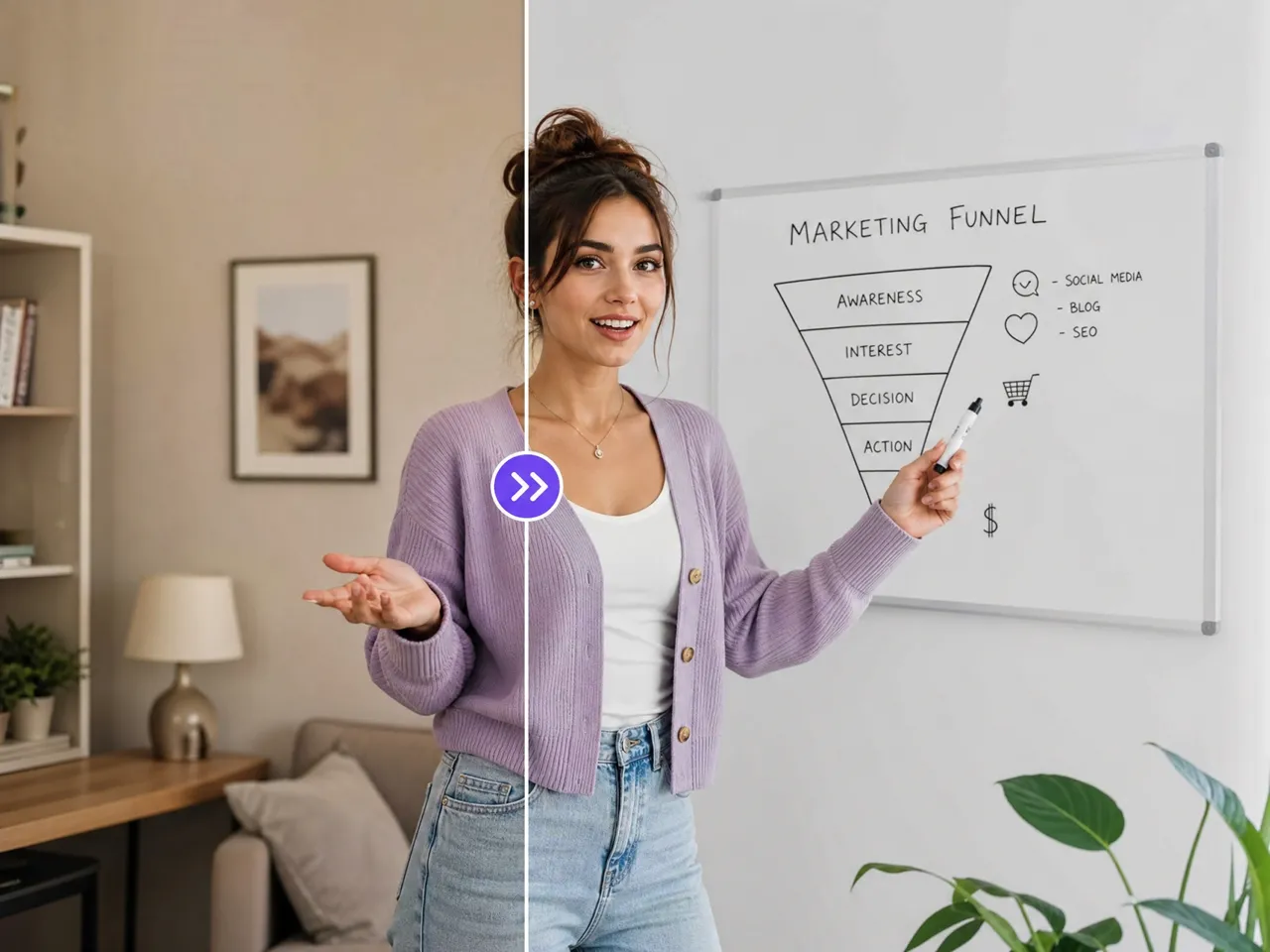
Yes. After clearing the original setting, you can place the subject into a different visual environment and continue refining the composition within the same creative workflow.
What should I check in a background remover for video result?
Review hair, hands, clothing edges, shadows, and areas affected by motion blur. Play the full clip rather than checking a single frame so you can spot flickering or inconsistent edges.
Why does AI sometimes miss fine details when removing video backgrounds?
Fine hair, transparent materials, motion blur, and low contrast can make subject boundaries harder to identify. Using sharper footage with balanced lighting can help the workflow preserve more detail.
Remove Background From Video and Create a New Scene
Your footage is already captured. Now give it a setting that fits your idea. Upload the video, tell RoboNeo to remove the background, then create a new scene for your next social post, ad, tutorial, or campaign.
What Users Say About RoboNeo
I film a lot of quick clips at home, and the room behind me isn't always something I want in the final post. Removing the background gives me more freedom to reuse the footage for different social content.
We had a good product demo, but the background didn't match our new campaign. I changed the setting instead of asking everyone to shoot it again. That saved us quite a bit of time.
My recording space is pretty basic and sometimes looks distracting on camera. I removed the background and used a cleaner setting, which made the lesson look more focused without pretending I had a full studio.
Masking a moving person frame by frame gets tiring very quickly. Here, I could upload the clip and explain what I wanted removed. I still checked the edges afterward, but the starting point was much easier.
I often need one video in several sizes for ads and social posts. After changing the background, I could prepare different versions without going back to the original footage and rebuilding everything from scratch.