
Kling AI Video Generator
Your next video idea starts with the Kling AI video generator in RoboNeo. Whether you are exploring a free Kling AI video generator option or creating advanced videos with different models, Kling AI gives you more control over how your video looks and moves.
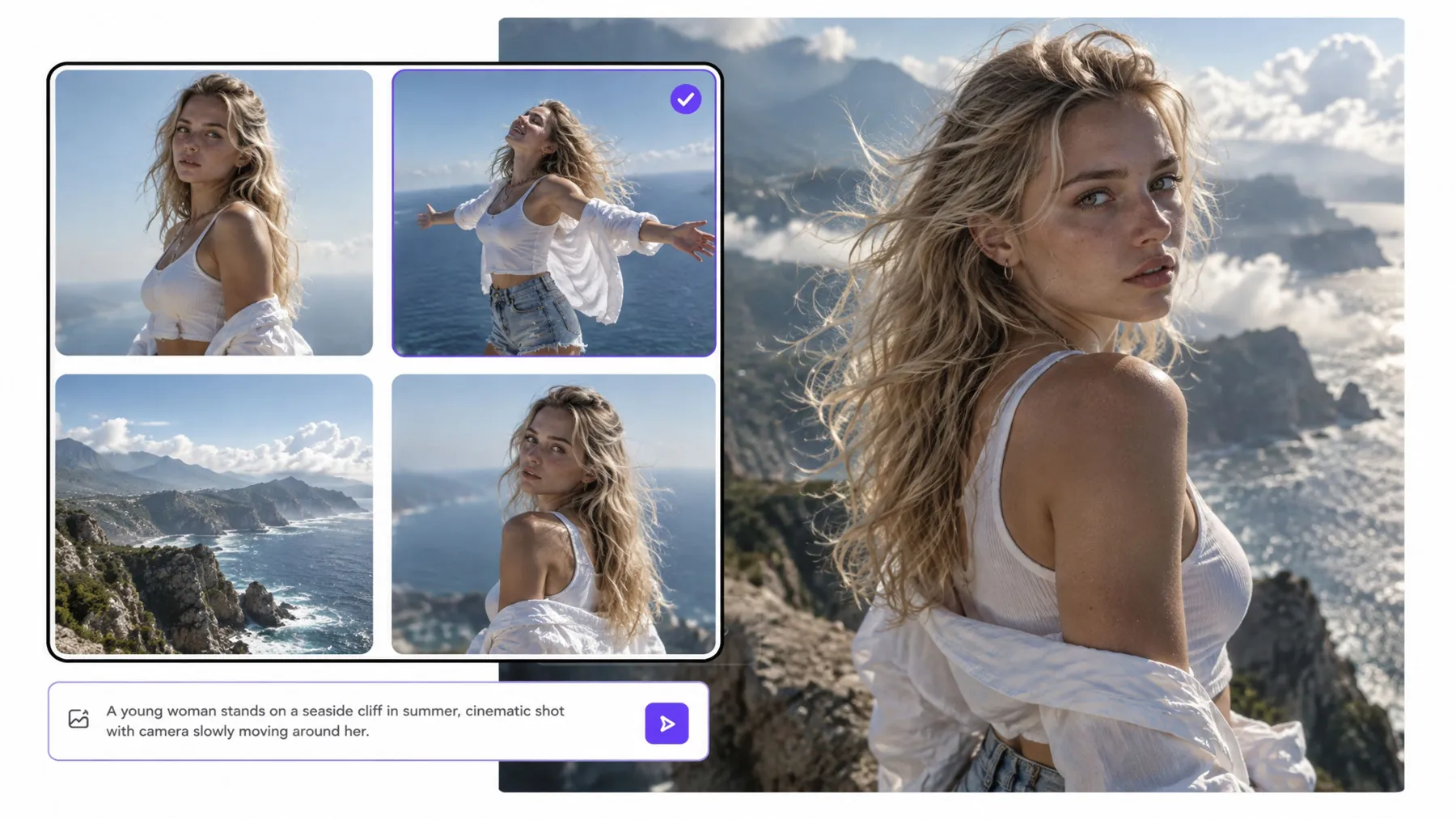
How to Use the Kling AI Video Generator
Add a Video Node and Select Kling
Go to RoboNeo and add a Video Node to your project canvas. In the Video Node, choose Text to Video or Image to Video, then select an available Kling model.
Add Your Prompt or Image
Enter a prompt describing the scene, characters, actions, and camera movements you want. For Image to Video, upload a reference image in the Video Node to guide the generated video.
Set Your Video Preferences
Adjust the available video settings for your selected Kling model, such as aspect ratio, resolution, and duration. Review your settings before generating.
Generate and Refine Your Video
Generate your video in the Video Node and preview the result. If needed, adjust your prompt or settings and regenerate. You can also refine the output with RoboNeo's editing tools.
Create and Edit Videos with Kling AI
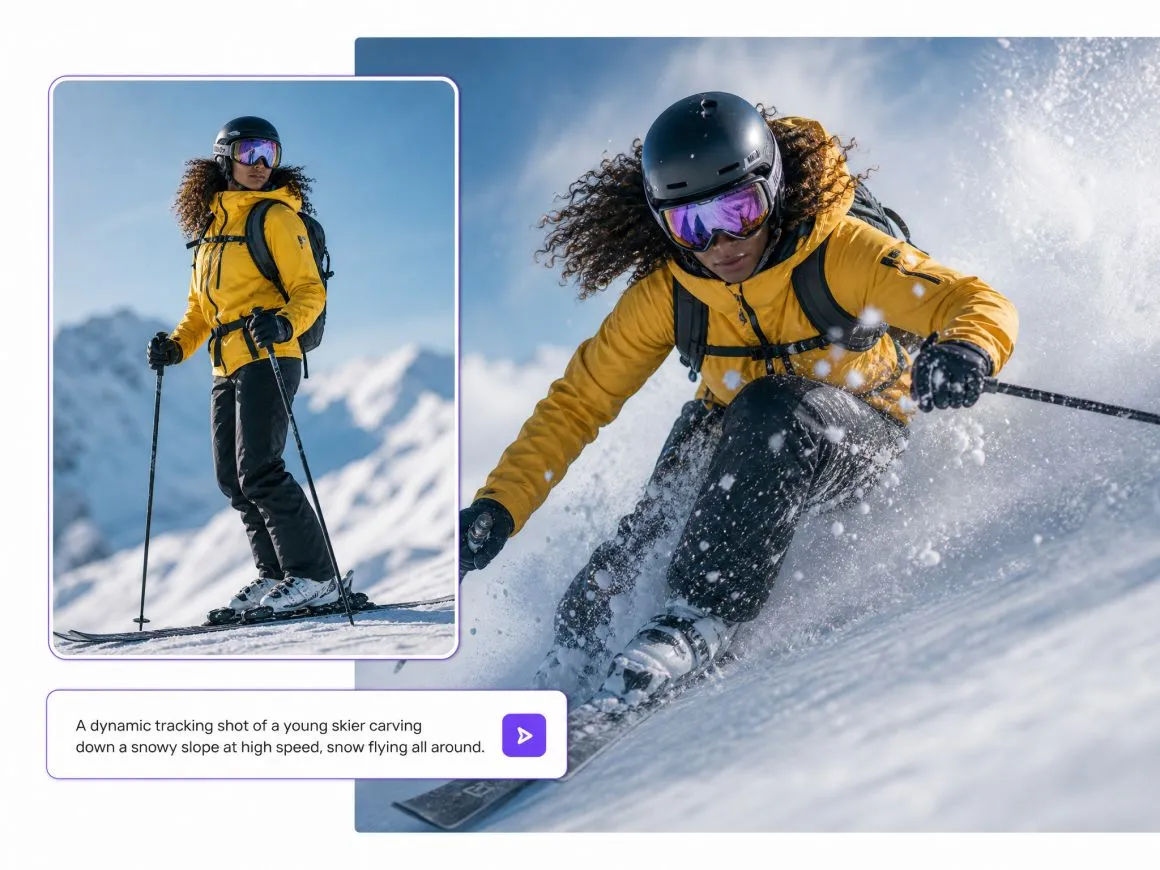
Turn Text Prompts and Images into Videos
The Kling AI video generator in RoboNeo supports both text-to-video and image-to-video creation. Describe a scene to generate a clip, or start with an existing image and specify how you want it to move.
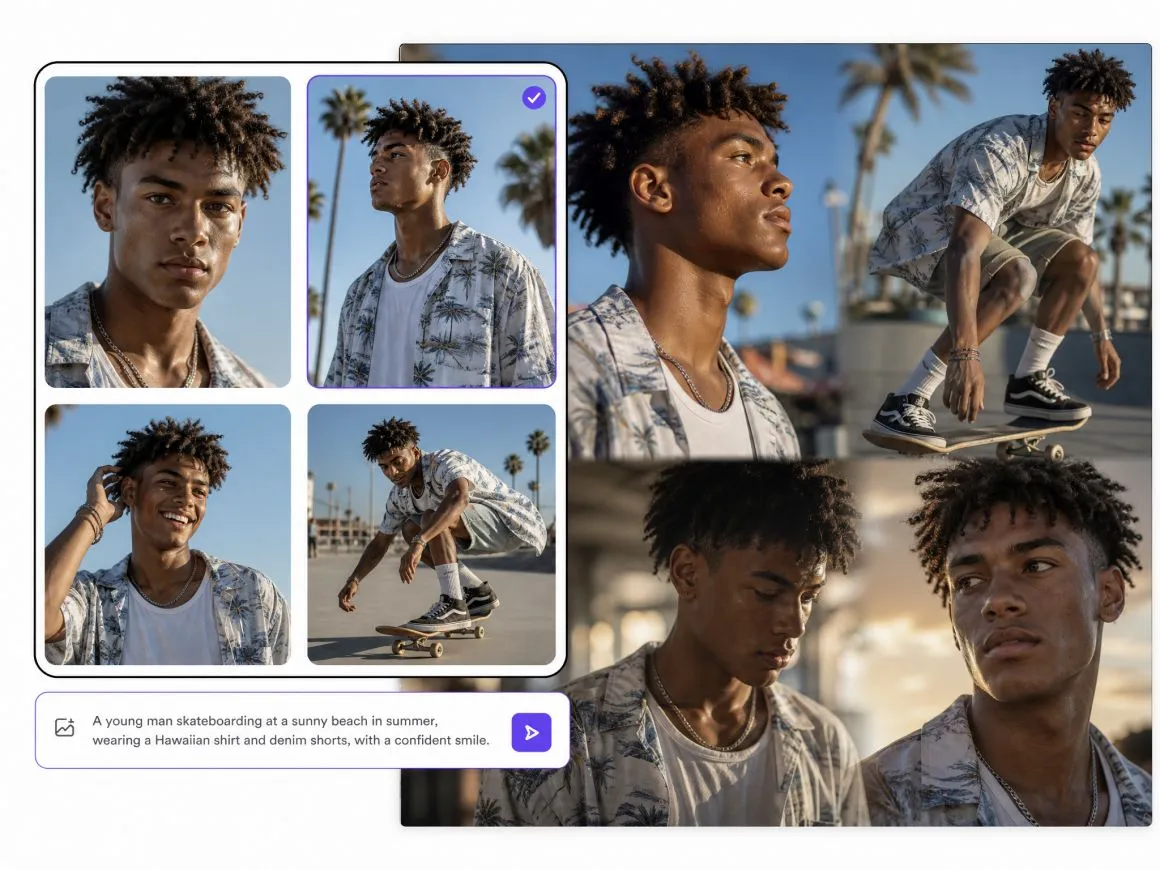
Keep Characters Consistent Across Shots
Characters can look noticeably different when the camera angle changes. Kling 3.0 supports multi-shot generation with improved subject consistency, helping you keep characters recognizable across different perspectives in short dramas and cinematic sequences.
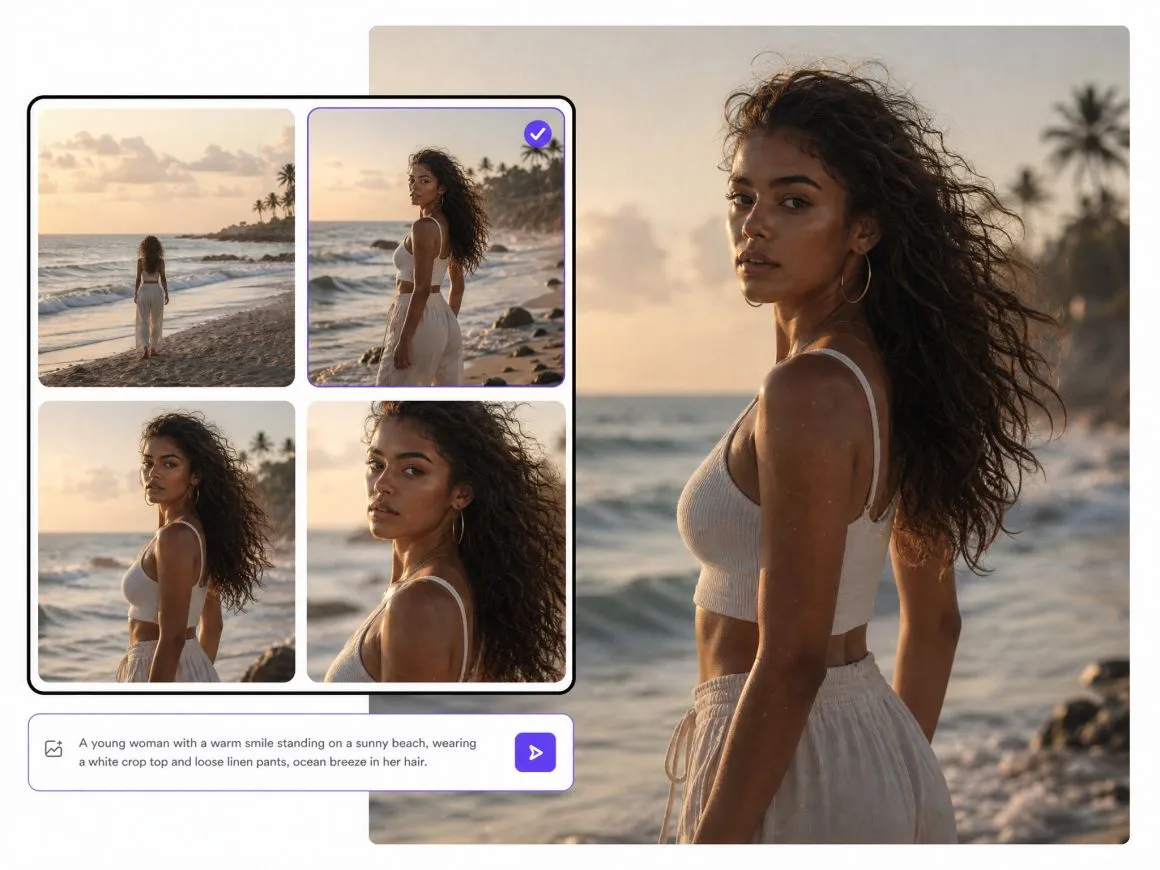
Plan Your Shots with AI Storyboards
Turn your script into a storyboard in RoboNeo, with shot numbers, scene descriptions, camera movements, and durations. Review and adjust the sequence before using Kling AI to generate the footage.
Choose a Kling Model and Edit Your Clips
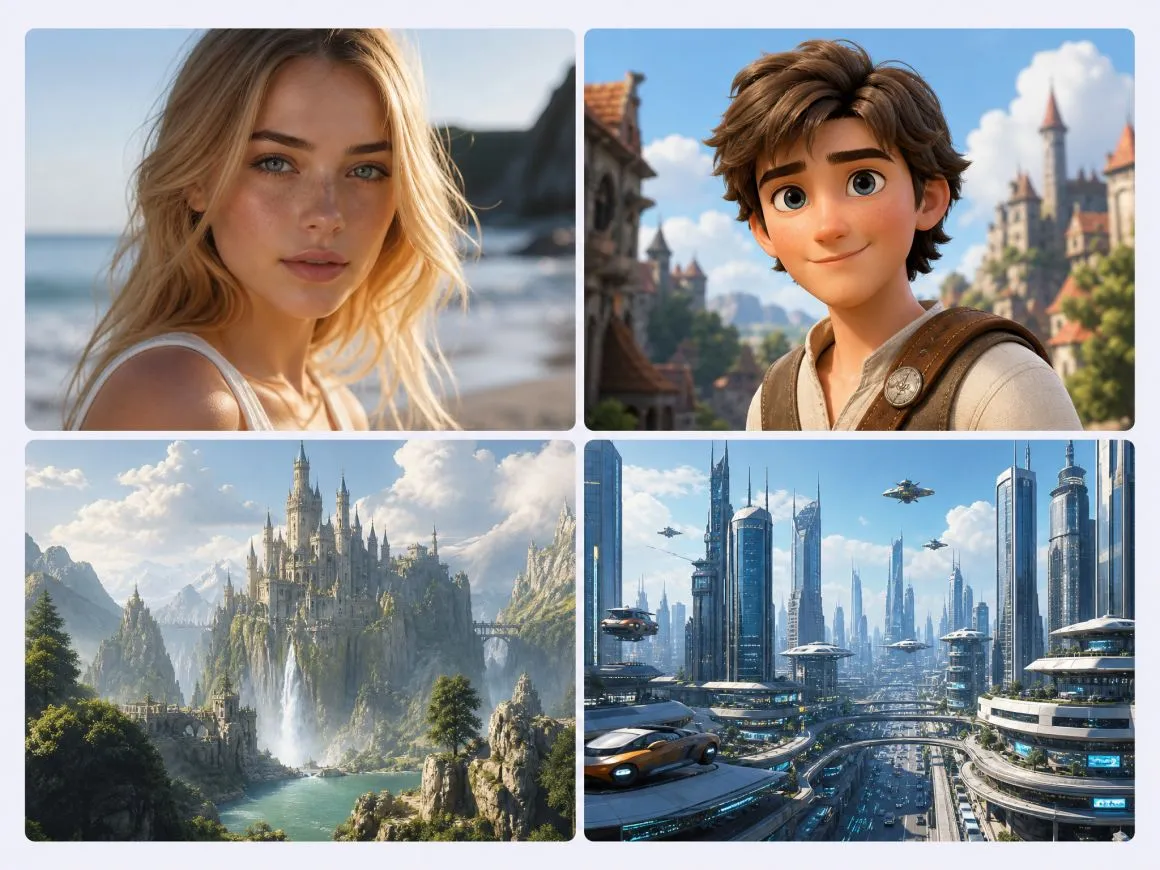
Choose from Kling 3.0, Kling O3, and other supported models in RoboNeo. After generating your footage, preview clips, arrange scenes, add media, and edit the video in the same workspace.
Kling AI for Stories, Ads, and More
Short Dramas and Episodic Stories
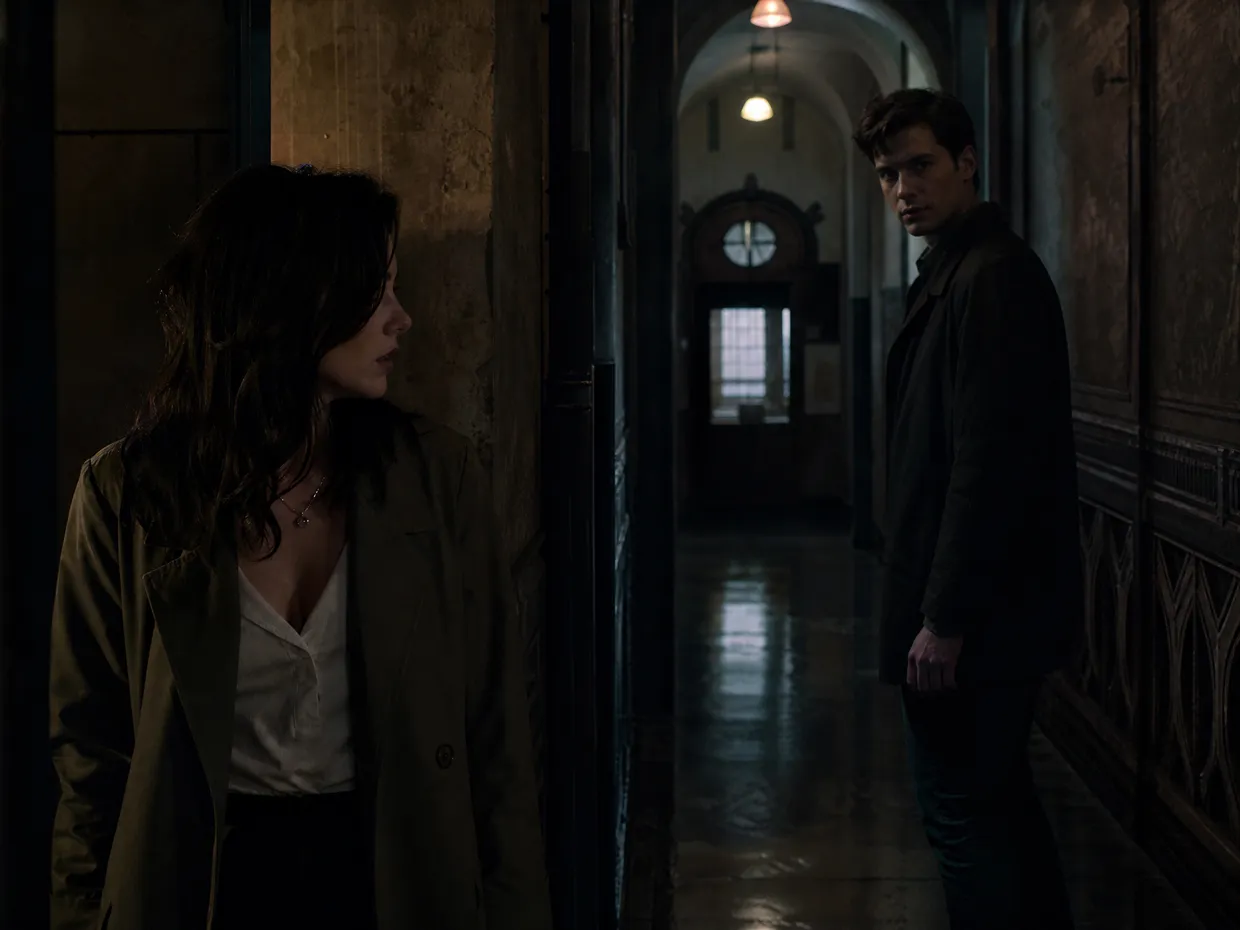
A secret revealed through a glance, a tense argument, or a surprise reunion can set a story in motion. With the Kling AI video generator in RoboNeo, creators can turn scripted moments into video clips and organize connected scenes with AI storyboards.


Frequently Asked Questions
Is Kling the best AI video generator?
Why isn't Kling AI following my video prompt?
Overly complicated or vague prompts can confuse the model. Describe the subject, action, and camera movement clearly. If the result looks off, simplify your instructions and try generating the clip again.
Why is my image not moving in Kling AI?
If your video only zooms or pans, the prompt may lack clear action. Instead of saying "animate this image," try "the woman turns her head and waves" to describe the movement you want.
How long does Kling AI take to generate a video?
Generation time depends on the Kling model, video settings, and server demand. Some clips may take longer than others. You can check the generation progress in RoboNeo while your video is processing.
How can I keep my original art style in Kling AI videos?
Include specific style instructions in your prompt, such as "hand-drawn 2D animation" or "watercolor illustration." Use your original image as a reference and avoid prompts that introduce conflicting visual styles.
Can I use Kling AI videos for commercial projects?
Commercial use depends on the licensing terms of the platform and model. Before using Kling AI videos in ads, client projects, or paid content, review the applicable RoboNeo terms and any model-specific restrictions.
Create Your First Kling AI Video
Start with a text prompt or reference image, choose a Kling model, and generate your clip in RoboNeo.
What Users Say About Kling AI in RoboNeo
I wasn't expecting much from my first attempt, but the character looked surprisingly close to my reference image. Still had to tweak a couple of shots, though.
Made a video of my cat running a coffee shop. Don't ask me why. My friends loved it.
We were working on a skincare campaign and needed something besides static product shots. I tried a few different movements with Kling, and one of the clips ended up in our client presentation.
I use Kling AI to explore different video concepts before deciding which ideas are worth developing. Having the generation tools and project workflow together in RoboNeo saves time when testing new scenes.
Kling AI makes it easier to experiment with characters, camera movements, and creative scenes. RoboNeo gives me a convenient place to organize ideas and refine videos for different projects.