
Kling AI Image to Video Generator
With Kling AI image to video in RoboNeo, your photos and illustrations can become dynamic video clips. Text prompts help guide movement and camera angles, making it easier to create content for social media, short dramas, and creative projects.
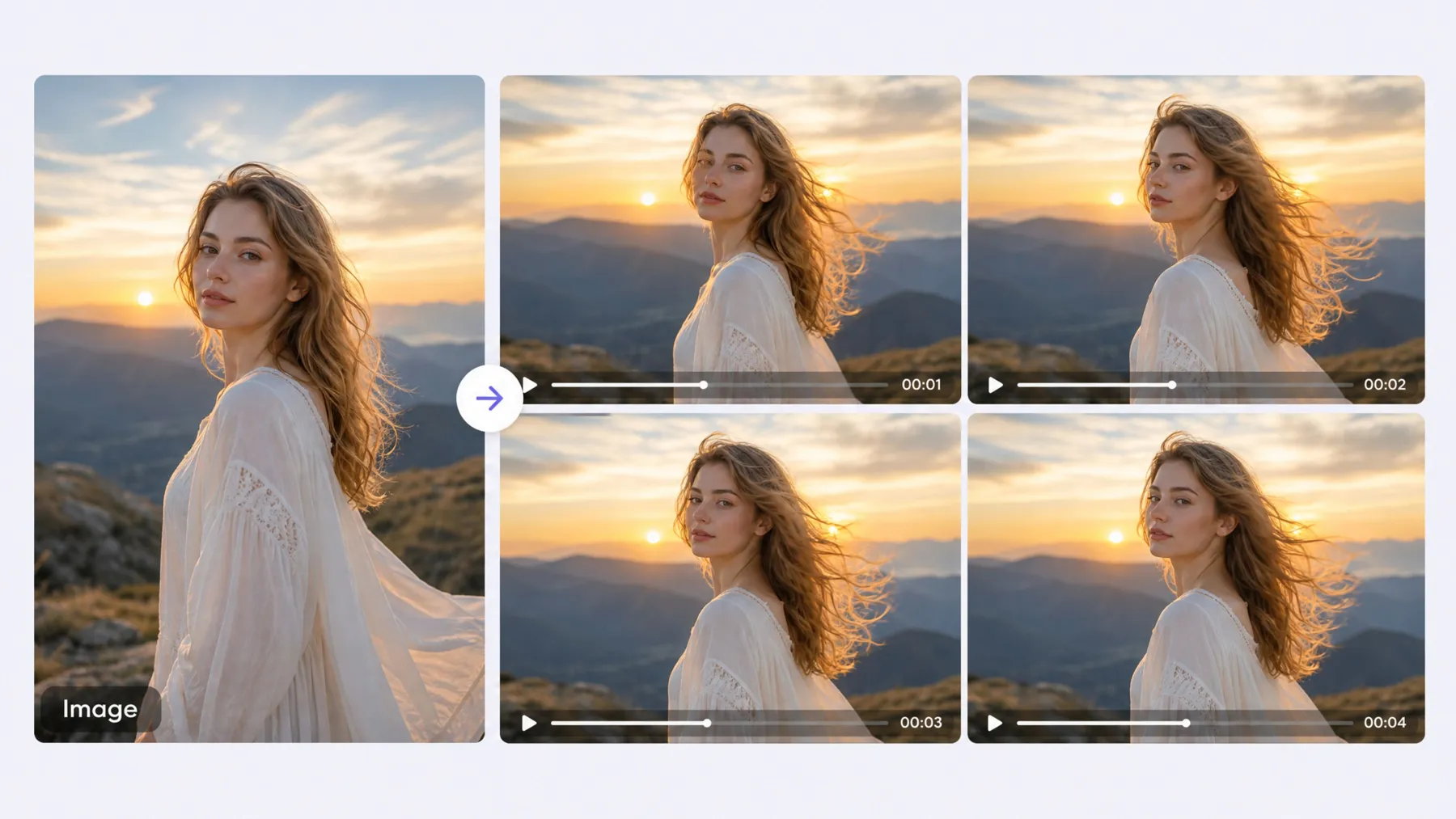
How to Create Kling AI Image to Video in RoboNeo
Upload Your Image
Open RoboNeo and add a Video Node to the canvas. Upload a photo or connect an existing Image Node to use it as your video reference.
Select a Kling AI Model
Choose a Kling model, such as Kling 3.0, from the available video models. Select Image-to-Video to animate your reference image.
Describe the Motion
Enter a prompt describing how the subject should move, what happens in the scene, and how the camera should behave. Adjust the available video settings before generating.
Generate and Download
Generate your video and preview the result. If needed, revise the prompt or settings and regenerate the clip. Download the finished video or continue editing it in RoboNeo.
What Kling AI Image to Video Offers in RoboNeo
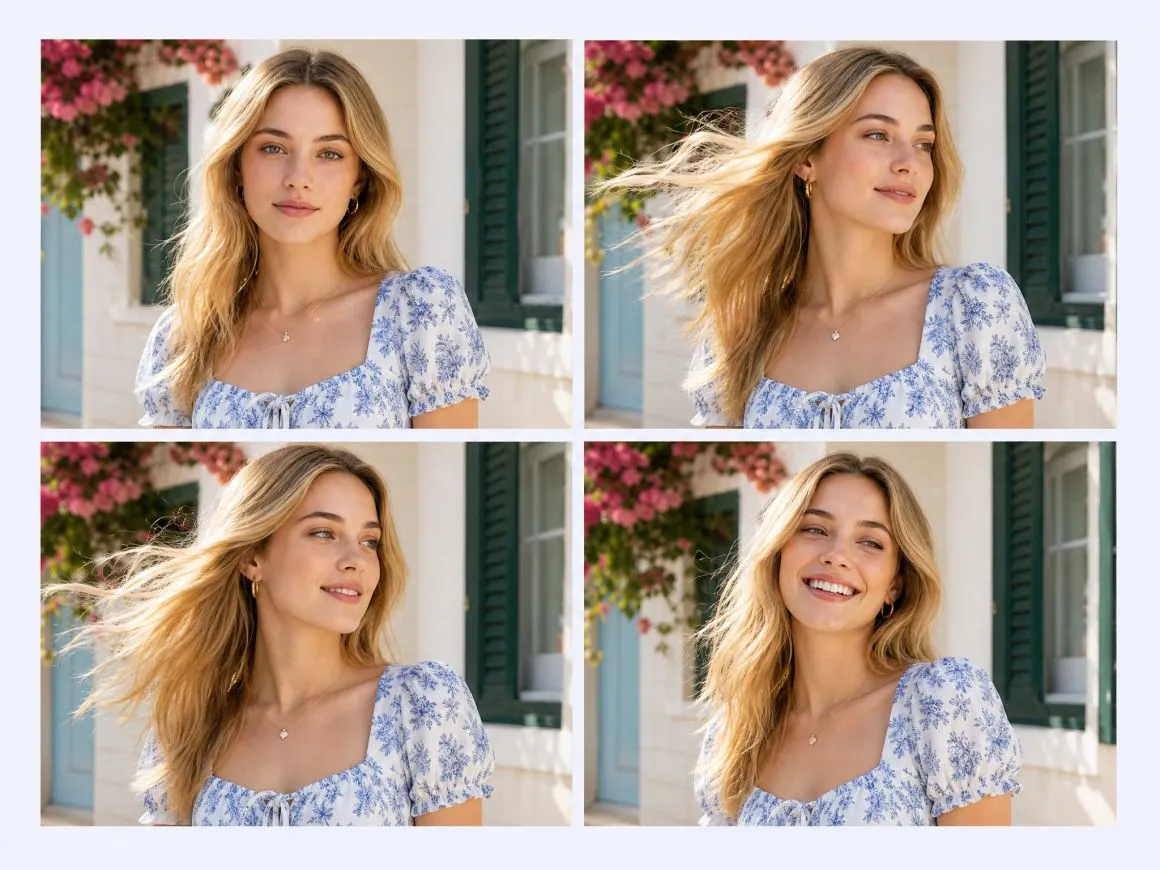
Natural Motion for Photos and Illustrations
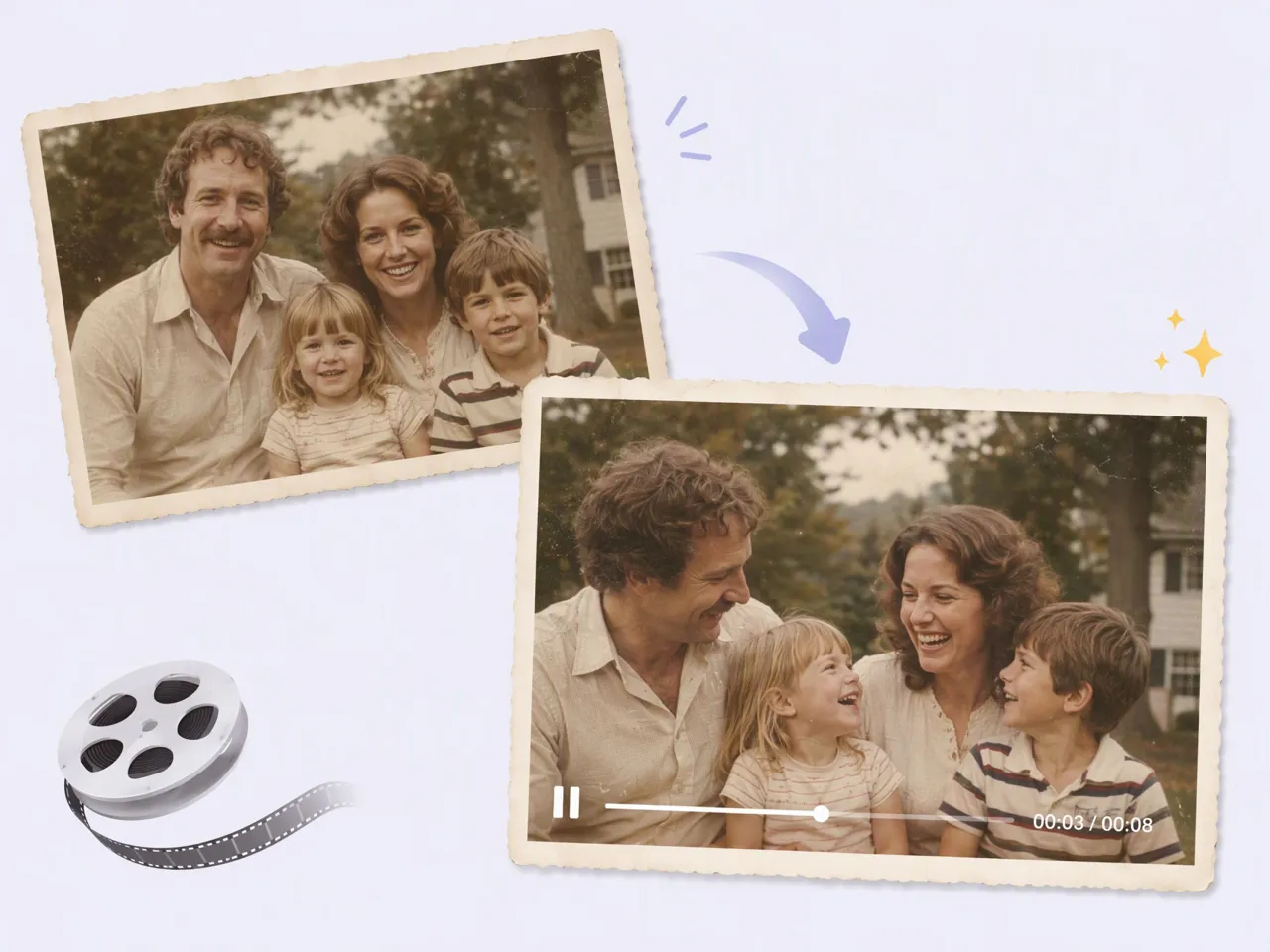
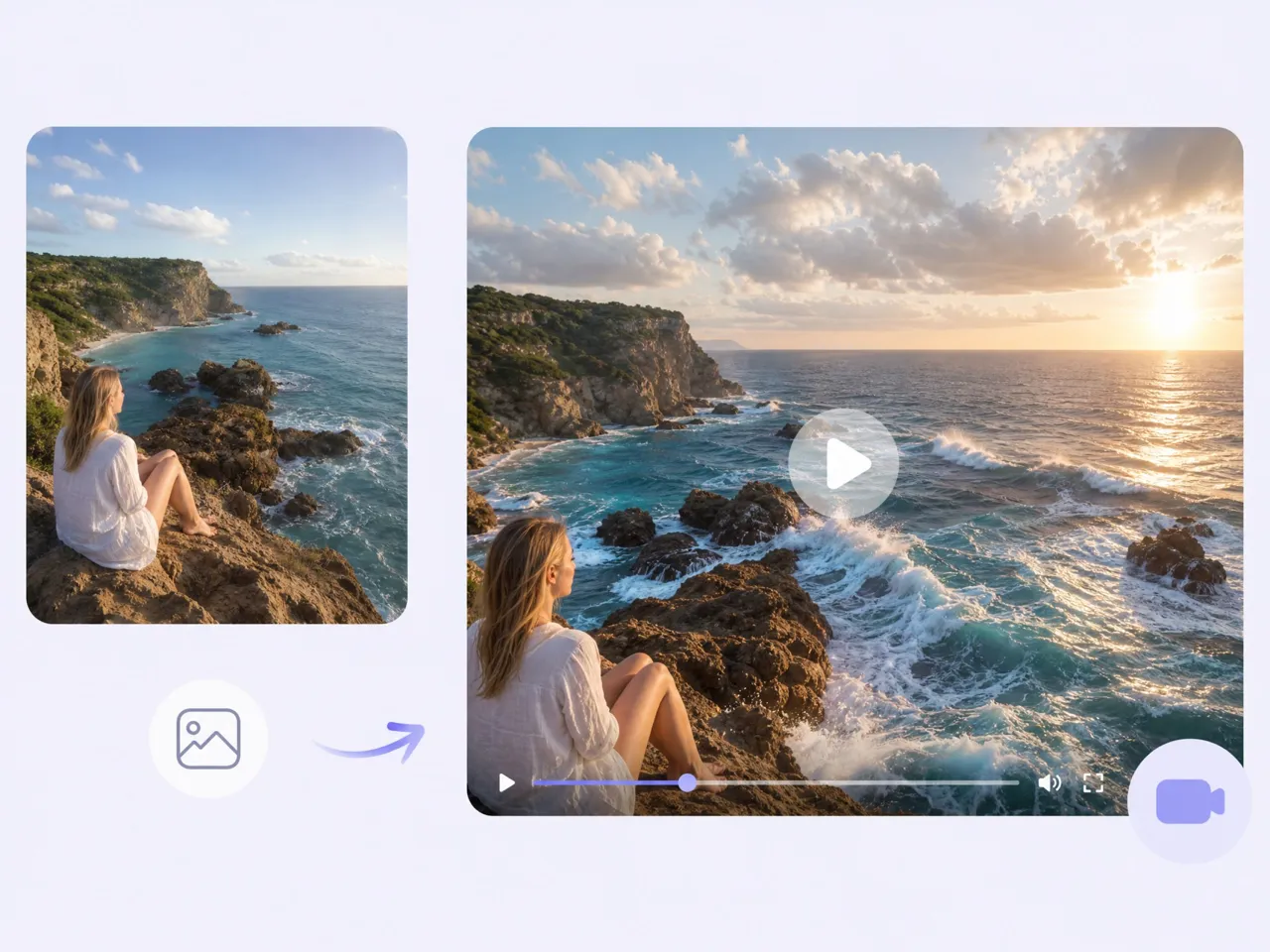
A still image can become the starting point for a video. With Kling AI image to video, portraits, illustrations, and other visuals can gain movement based on your text prompts. From subtle expressions to more noticeable actions, different motion ideas can be explored without filming new footage.
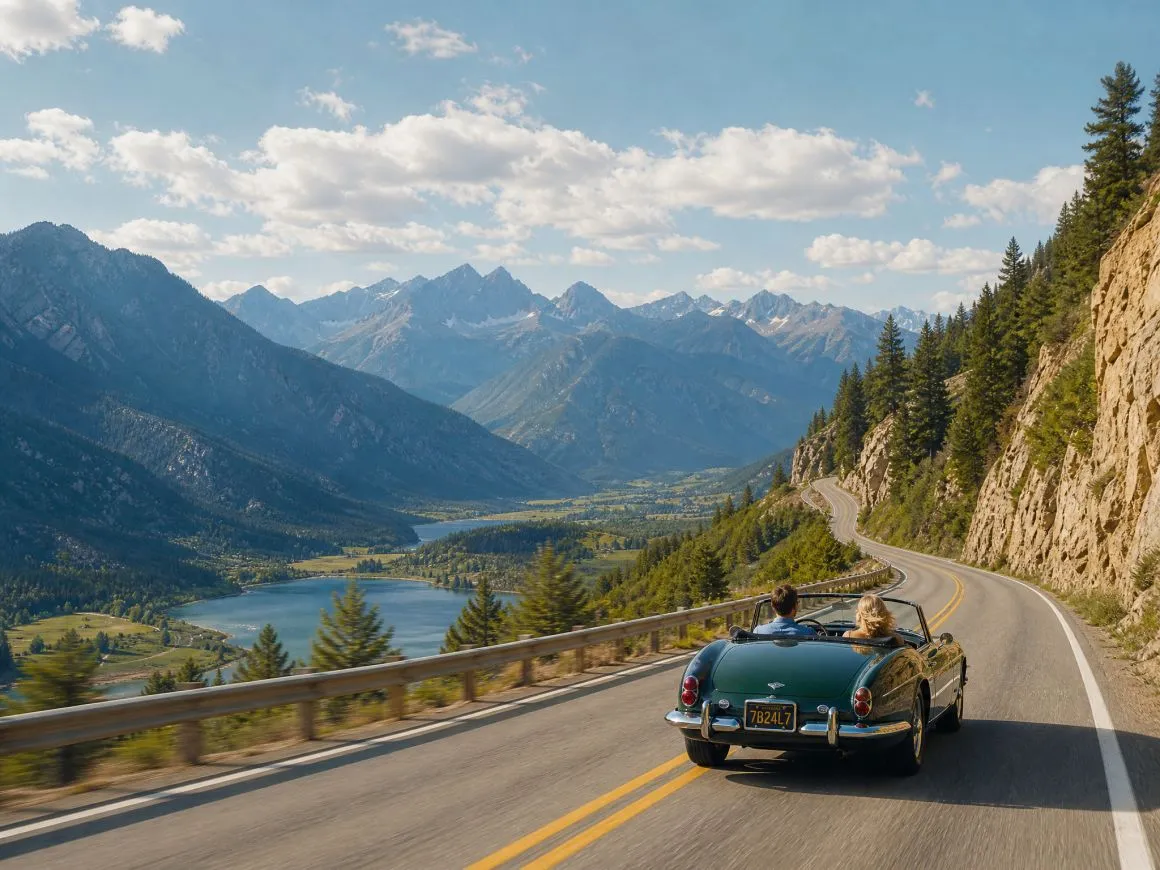
More Control Over Camera Movement
Camera movement can change the mood of an entire scene. A slow push-in may create tension, while a sweeping pan can reveal more of the setting.The Kling AI image-to-video workflow lets you describe these movements in text and experiment with different visual styles.
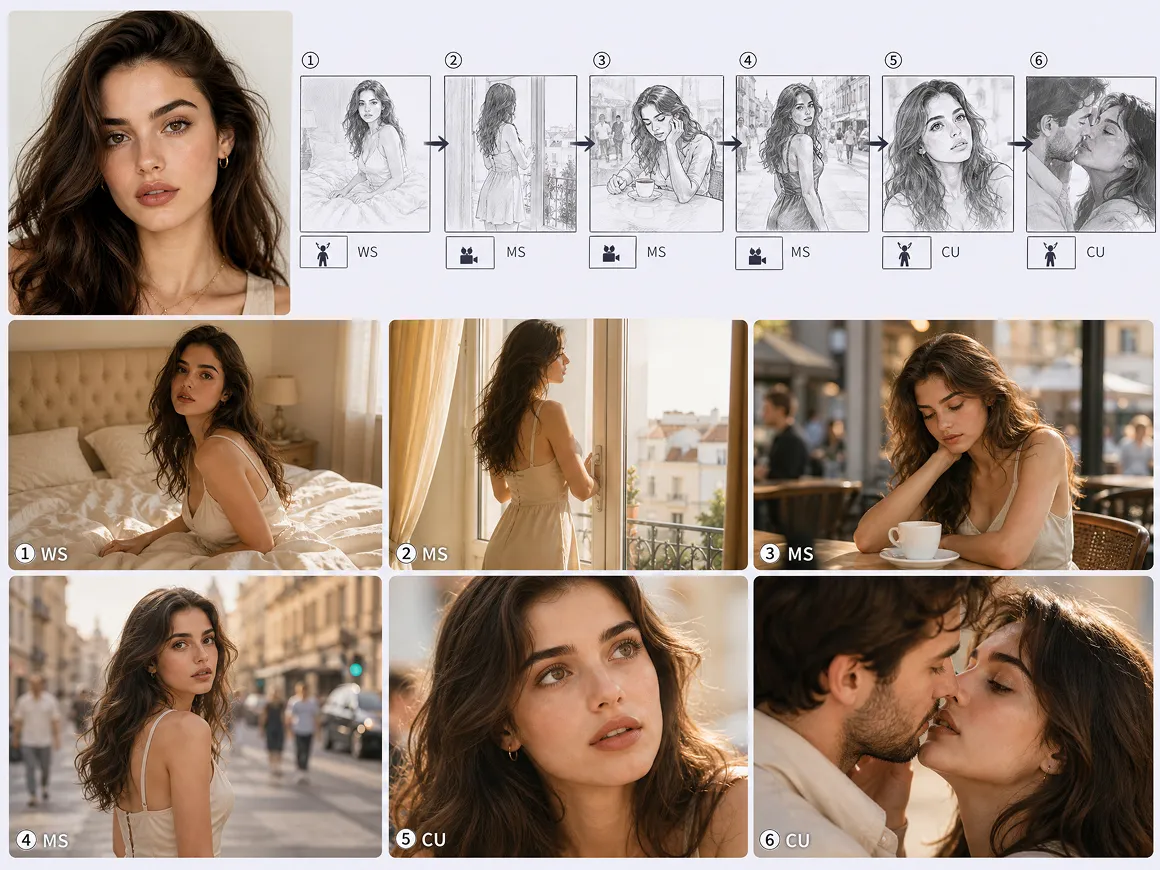
A Visual Workspace for Connected Scenes
For projects involving multiple shots, keeping everything organized can be difficult. RoboNeo brings images, scripts, storyboards, and videos together on an infinite canvas. Related assets stay accessible as you develop new scenes, making it easier to work on short dramas and other multi-scene projects.
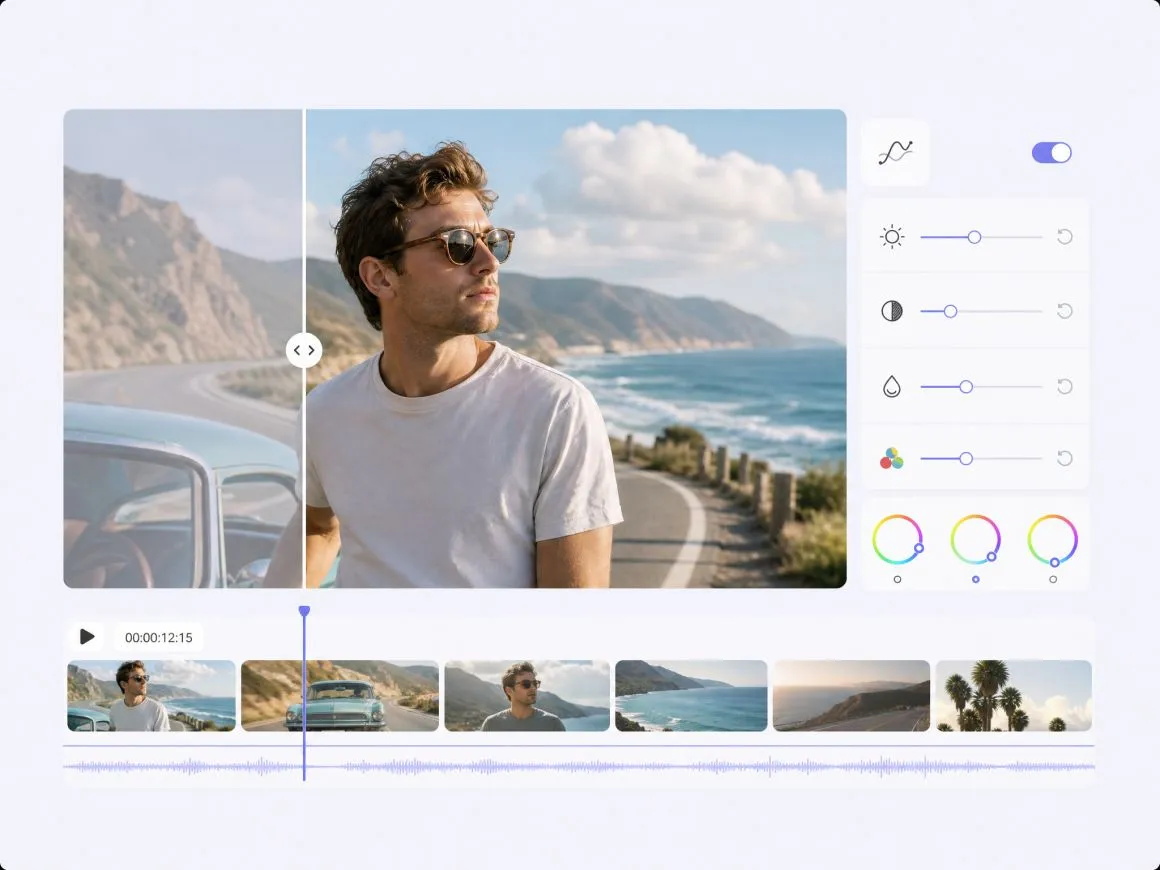
Video Editing Beyond AI Generation
Generated clips often need a few adjustments before they're ready to share. RoboNeo includes video editing, resolution enhancement, and subtitle removal tools in the same workspace. Your Kling AI image to video results can be reviewed and refined without switching between multiple platforms.
Where Kling AI Image to Video Fits Best
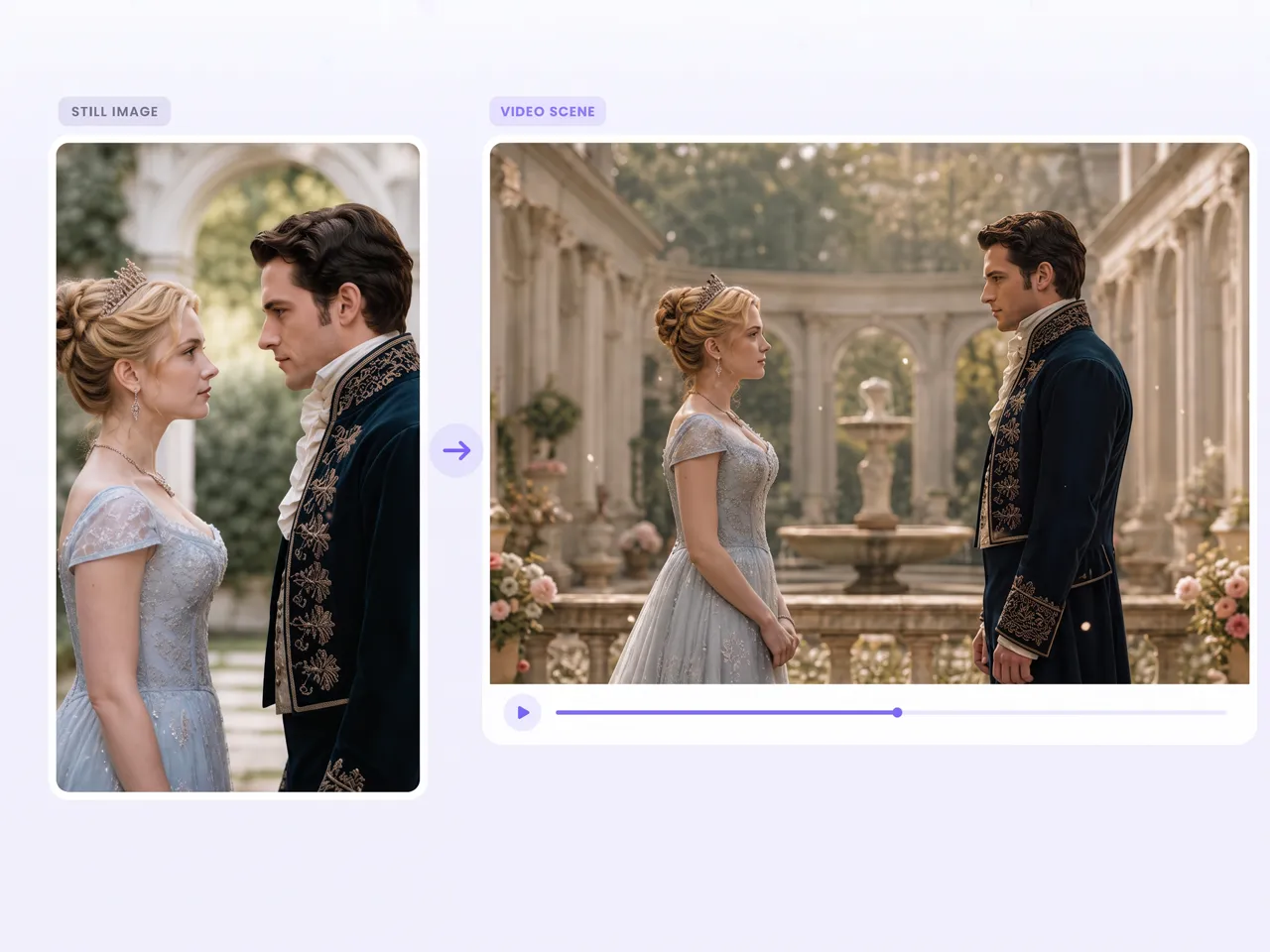
Short Dramas and Cinematic Scenes
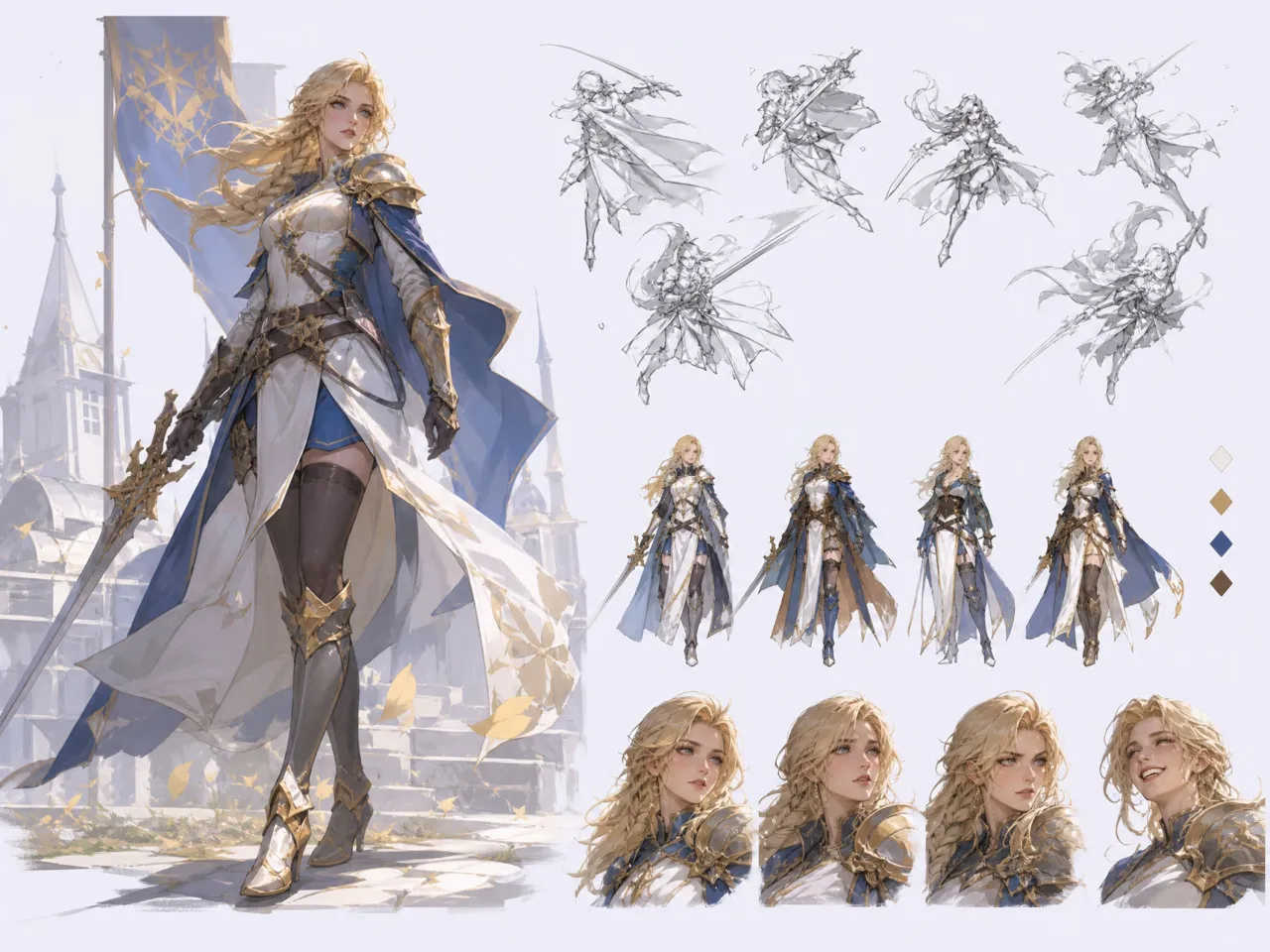
Character portraits and storyboard images can serve as the starting point for short dramas. With the Kling AI image to video generator in RoboNeo, users can explore character actions, camera movement, and scene transitions without filming every shot. Scripts, images, and generated clips can also stay organized on the same canvas as an episode takes shape.
Frequently Asked Questions
How do I turn an image into a video with Kling AI?
Can I use Kling AI image to video for free?
If you're exploring Kling AI image to video free options in 2026, check RoboNeo's available credits and pricing. Generation costs vary by model, and free usage may be limited.
What images work best with Kling AI?
Clear images with a well-defined subject generally make it easier to describe the intended motion. Portraits, landscapes, illustrations, and character artwork can all serve as starting points for video generation.
Can Kling AI animate people in photos?
Kling models can generate motion from portrait photos. You can describe facial expressions, head movements, or other actions in your prompt, although the final result may vary.
Can I control camera movement in Kling AI videos?
Camera directions such as zooms, pans, and tracking shots can be included in your prompt. How closely the generated video follows those directions depends on the selected model.
Can I download videos generated with Kling AI in RoboNeo?
Once your video has been generated, you can preview the result and download the finished clip. RoboNeo also provides editing tools if you want to make further adjustments before exporting.
More Possibilities with Kling AI
One image doesn't have to lead to just one result. Different prompts and Kling models can produce new movements, camera angles, and moods from the same starting image. See which version works best for your idea with Kling AI image to video in RoboNeo.
What Users Say About RoboNeo
The visual canvas makes it easier to keep character images, storyboards, and generated scenes together while working on a short drama.
I like being able to explore how a character illustration might move before committing to a more detailed animation project.
Having AI video generation and editing tools in one workspace makes it easier to test ideas and refine clips.
I use Kling AI image to video to bring old photos and creative designs into motion. RoboNeo makes it convenient to try different prompts and compare different video results.
Kling AI image to video helps me create early visual concepts from images before moving into production. The ability to organize assets and adjust clips in RoboNeo saves time during the creative process.