
White Background Remover for Photos


How to Remove White Background from Image
Upload Your Images
Choose a JPG, JPEG, or PNG from your device, or use bulk upload for multiple files. Sign in if prompted to continue.
Review the Cutout
Let RoboNeo separate the subject from its background. Check the outline and small details, especially where light-colored objects meet the white backdrop.
Choose Your Background and Download
Download a transparent PNG cutout, or swap in a solid color or AI scene before you export.
Remove White Backgrounds, Keep Subjects, Change the Scene
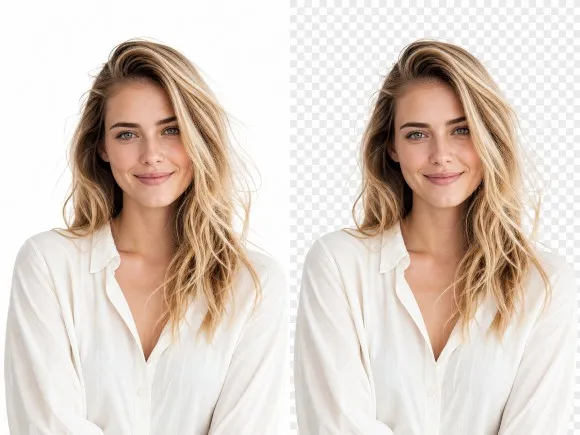
AI White Background Removal (Not a Color Wipe)
RoboNeo uses AI to identify the main subject and remove the surrounding white background automatically. This gives you a clean starting cutout without tracing each edge by hand, helping you prepare product photos, portraits, and other images for new layouts more efficiently.

Remove White Backgrounds from Photos in Bulk
When a catalog includes dozens of product shots, processing them one at a time slows the workflow. RoboNeo supports bulk uploads, allowing you to remove white backgrounds across multiple images and prepare a more consistent set for product pages, ads, or seasonal campaigns.

Replace White Backgrounds with Brand Colors
A white backdrop may suit a catalog photo but clash with the next campaign. After removing it, use the white background editor to choose a solid color that better matches your brand, marketplace listing, or surrounding page design without reshooting the product.
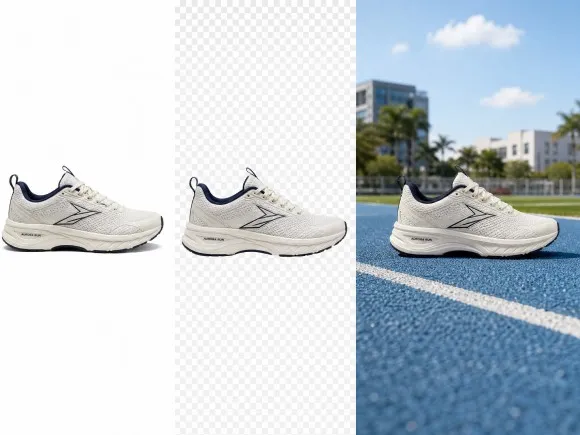
Create New Scenes After Background Removal
After removing a white background in RoboNeo's workflow, you can use the canvas to continue editing the image, add a new background, or refine the composition with the AI Agent. This lets you move from a clean cutout to a finished visual for product listings, social media posts, or marketing campaigns without switching between separate tools.
Give Existing Photos More Places to Work

Product Photos Beyond the Catalog
Online sellers often have usable product photos that still carry a white rectangle into every new layout. Remove that backdrop to place the product on a branded banner, promotional graphic, or collection page. The same source photo can support more placements without scheduling another shoot for each campaign.



Frequently Asked Questions
Does a white background remover delete every white pixel?
How can I keep white parts of a product or logo?
Use a sharp image with clear edge contrast. After RoboNeo removes the background, inspect white fabric, pale packaging, reflective surfaces, and enclosed logo details. These areas are more likely to blend into a white backdrop.
Why is there a white outline around my cutout?
A white halo usually comes from edge pixels or JPEG compression that blended the subject with the original backdrop. Preview the cutout on a dark color, where any pale fringe will be easier to spot.
Can I keep the original shadow after removing the white background?
RoboNeo can preserve the original shadow when removing a white background, helping product photos retain a natural look. This is particularly useful for product images where shadows add depth and make the subject appear more realistic. Review the result before downloading to ensure the shadow blends naturally with the new background.
Why does the background turn white again after saving?
JPEG cannot store transparency, and some apps display transparent areas against white. Check the image on a colored background and choose an available output format that supports transparency when you need a background-free result.
Are the gray-and-white squares part of the image?
The checkerboard normally represents transparency and should not appear in the finished image. If the squares remain visible after download, they may have been embedded into the image instead of appearing only in the editor preview.
Remove the White Background. Reuse the Photo.
Get a transparent cutout or a new background in RoboNeo—then drop the same subject into ads, listings, and posts.
What Users Say About the White Background Remover
Our product photos were already shot on white, but that background didn’t work in our promotional banners. Removing it gave us more ways to use the photos we already had.
I needed the same product in several campaign layouts. Having a cutout meant I could change the surrounding colors and text without working around a white box every time.
Client photos don’t always match the slide design. Removing the white background made it easier to place products beside headlines and diagrams without making the slides feel crowded.
Our listing photos came from different suppliers, so the white backgrounds never looked consistent. Removing them gave us cleaner cutouts that were easier to place into the same product layout.
We reuse the same photos across emails, ads, and social posts. Clearing the white background made it much easier to adapt each image without asking for a new product shoot.