
Remove Background from Signature Online
How to Remove Background from Signature
Upload Your Signature
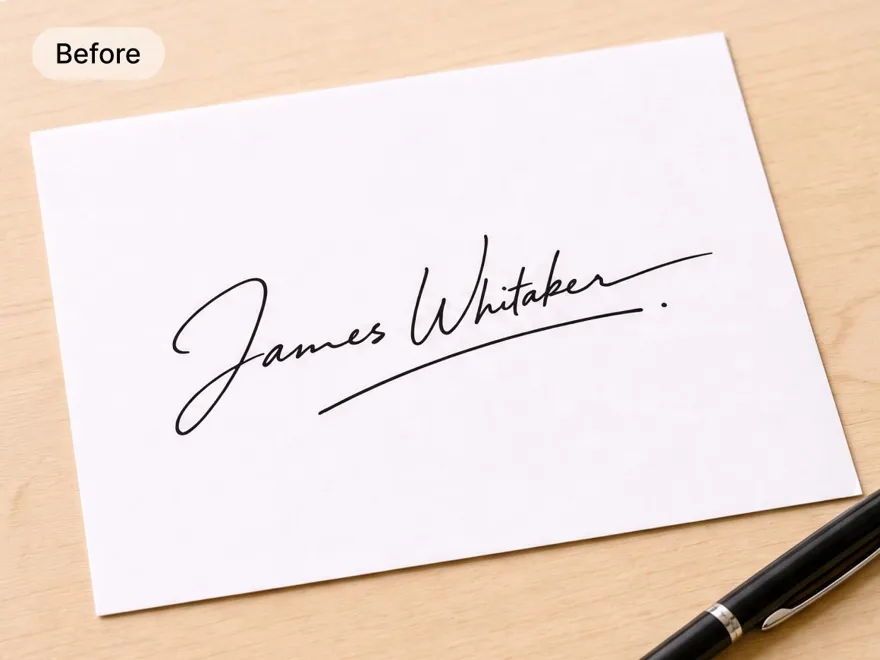
Choose a JPG, JPEG, or PNG image of your handwritten signature. A clear photo or scan with good contrast between the ink and background works best.
Remove the Signature Background
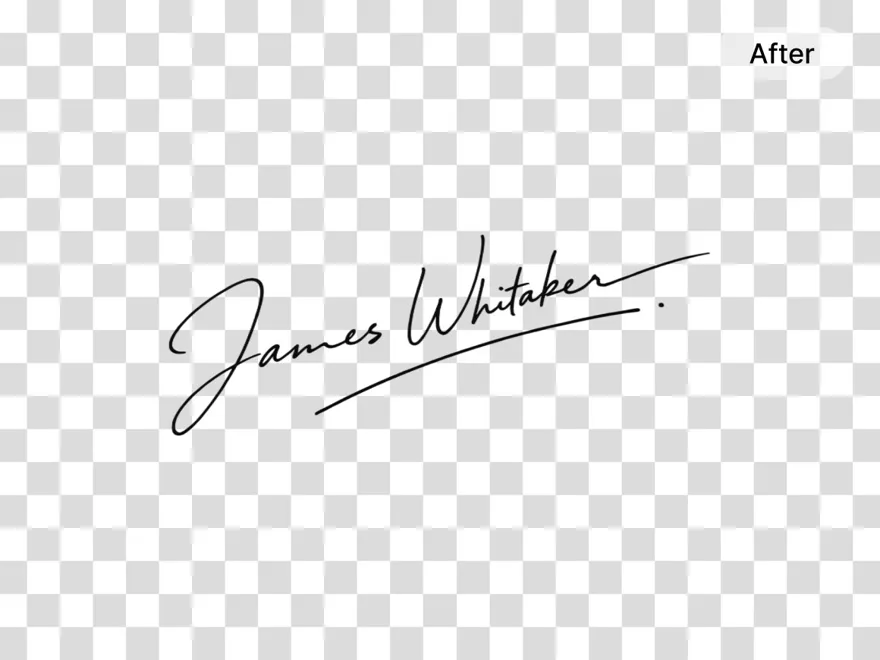
Let RoboNeo AI identify the signature and separate it from the surrounding paper. The background remover handles the cutout without requiring you to trace individual letters.
Review and Save Your Signature
Check that the handwriting looks complete and the background has been removed. Save the finished image in a transparency-supporting format, such as PNG, when available.
Signature Background Remover Without Manual Tracing
Remove Signature Backgrounds with AI Precision
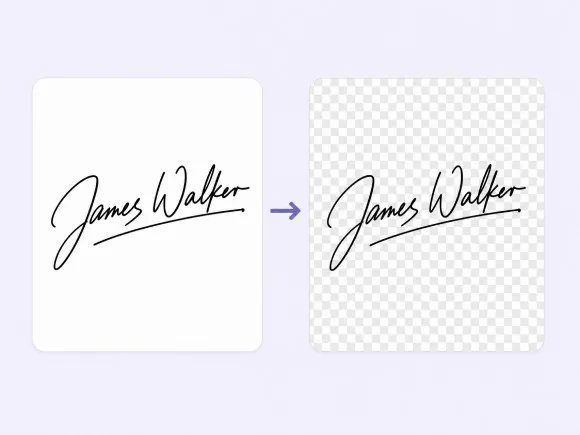
Need to remove a signature background without spending time on manual selections? RoboNeo separates handwriting from the surrounding paper, helping you turn photographed or scanned signatures into cleaner digital assets while reducing the need for tedious editing.
Keep Fine Handwriting Details Clear and Sharp
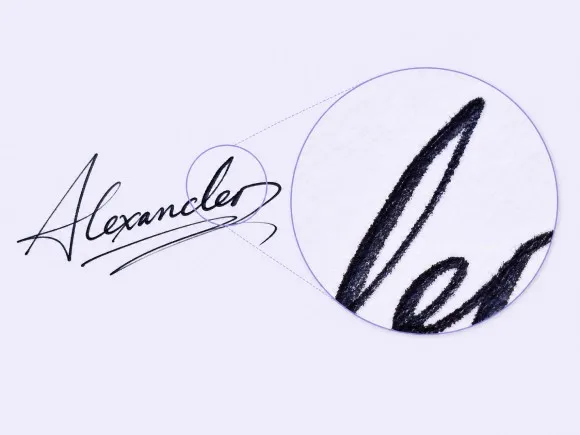
Thin strokes, loops, and small lettering can easily disappear during background removal. RoboNeo analyzes image boundaries to help preserve recognizable handwriting, making it useful as a signature extractor from image files when you need to retain your original writing style.
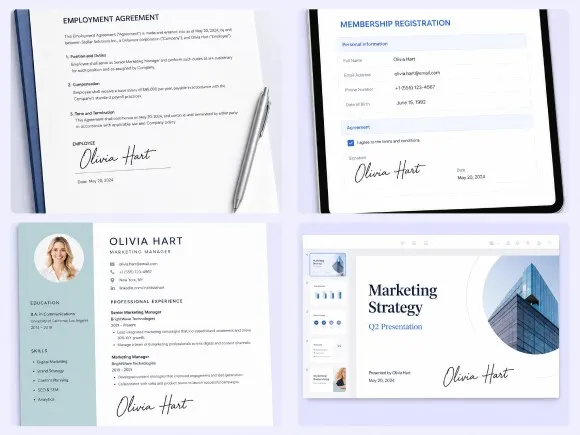
Create Transparent Signatures for Documents
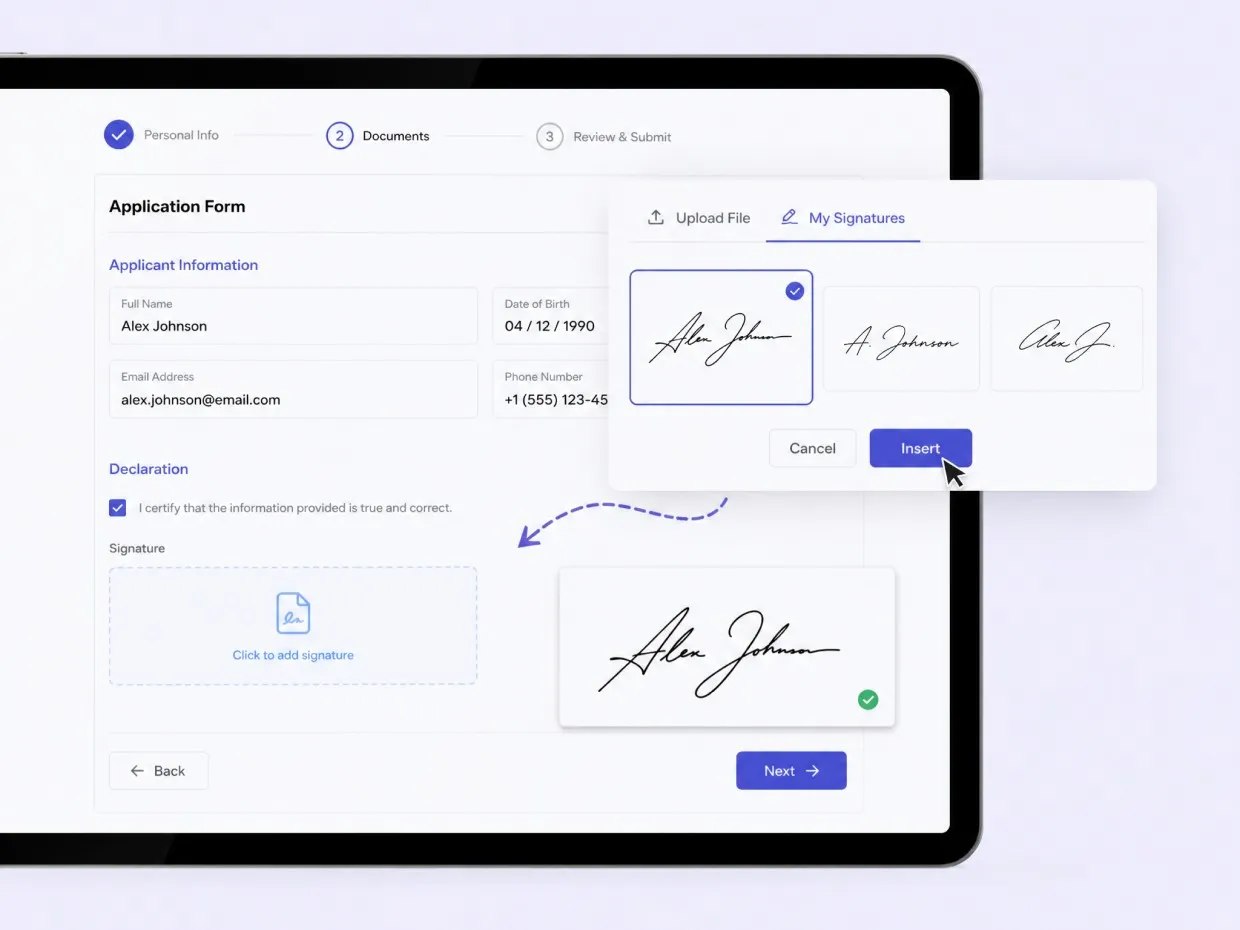
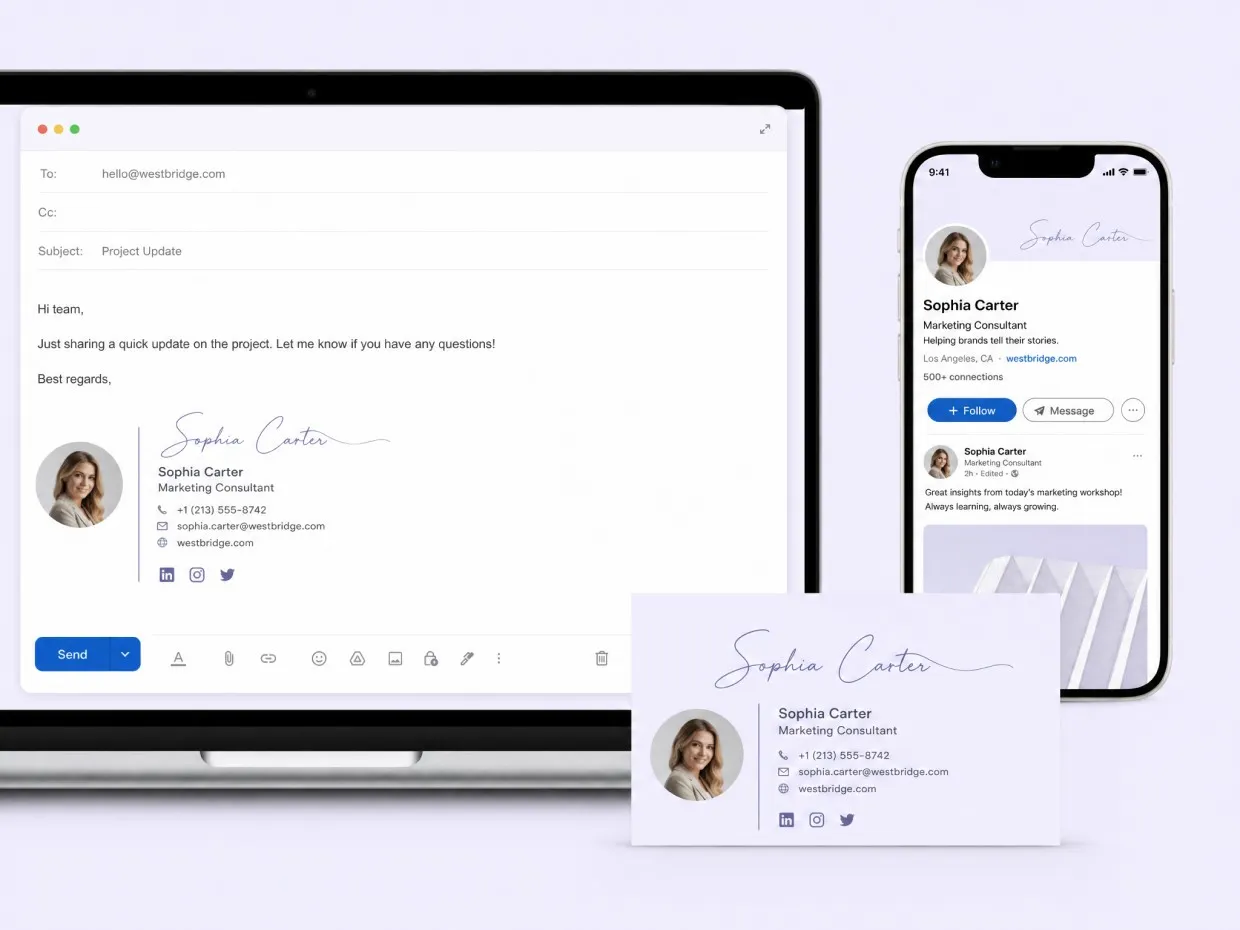
A signature with a white paper background can look out of place on digital documents. Use RoboNeo as a background remover for signature images to prepare cleaner cutouts that can sit naturally on PDFs, forms, presentations, and other layouts.
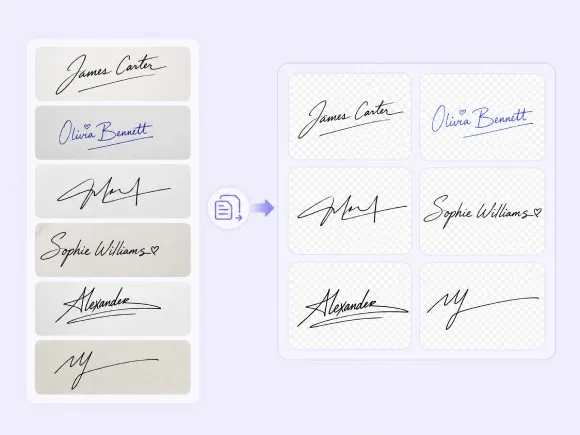
Process Up to 30 Signature Images at Once
Working with multiple signature scans? RoboNeo lets you upload up to 30 images at once, making it easier to remove signature backgrounds in batches. Prepare clean signature images for business documents, digital forms, and design projects without uploading each file separately.
Where to Use a Signature Without a Background
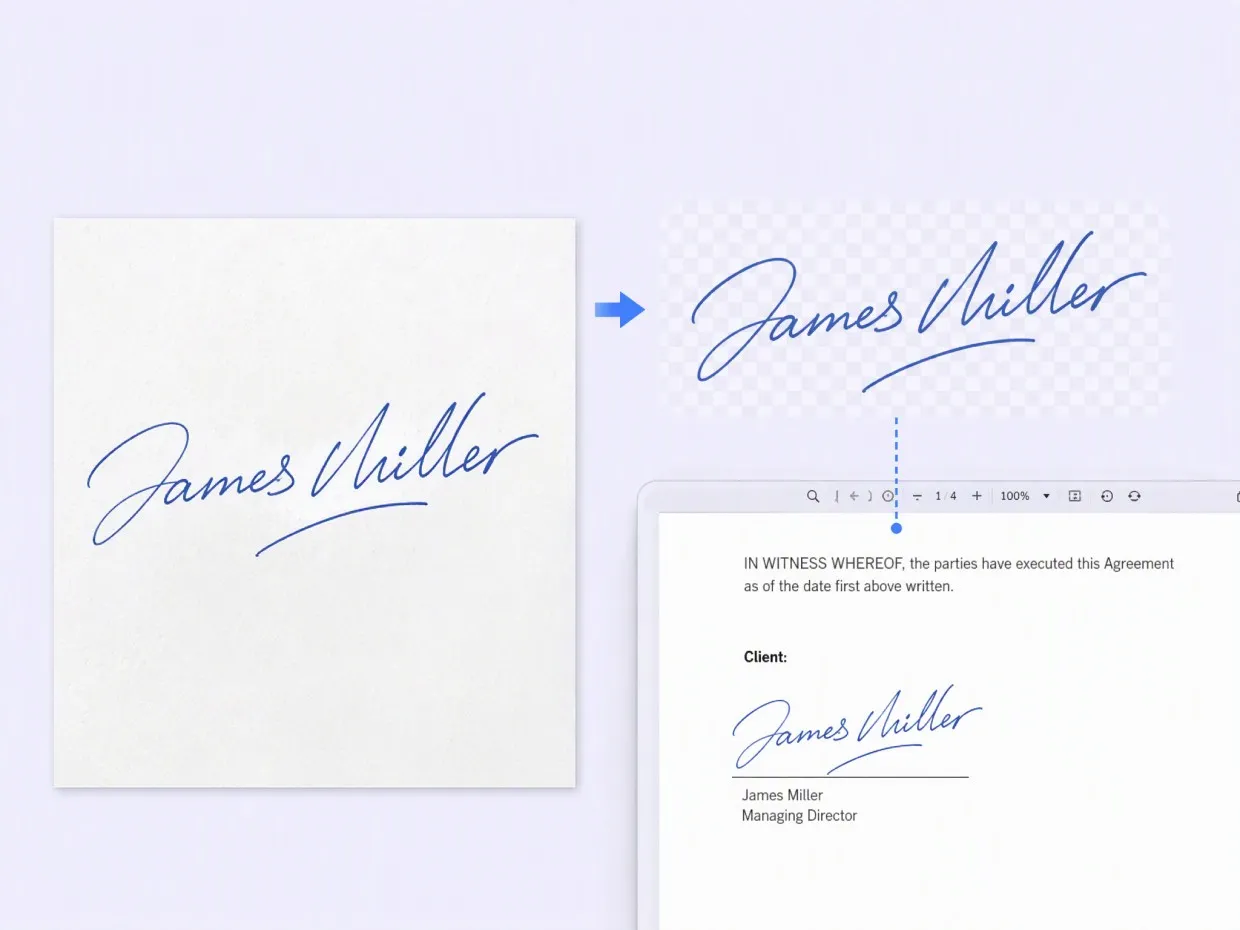
Sign Business Documents
Business owners and office professionals often need to add handwritten signatures to digital paperwork. Removing the paper background makes a scanned signature easier to place in PDFs, invoices, approval forms, and internal documents without an unwanted white rectangle covering the surrounding content.

Frequently asked questions
What is a signature background remover?
How to remove background from signature online?
Take a clear photo of your signature on plain paper or use a scanned copy. Upload the JPG, JPEG, or PNG file to RoboNeo, remove the background, and check that all handwritten strokes remain intact.
Can I remove a signature background for free?
RoboNeo offers online background removal, but free credits and usage limits depend on the current plan. Check the available credits before uploading your signature to see whether you can process it for free.
How do I remove the white background from my signature?
Upload your signature on white paper and use RoboNeo to remove the background. Dark ink on clean white paper works best. Avoid shadows, ruled paper, and nearby text that could interfere with the cutout.
Can I make my signature background transparent without Photoshop?
Yes. Use RoboNeo to remove the paper background, then download your signature directly as a PNG. PNG supports transparency, allowing you to place your signature over digital documents without a white rectangle.
Can I use a transparent signature in Word or PDF documents?
Yes. In Word, select Insert > Pictures and choose your signature PNG. For PDFs, use Adobe Acrobat's Fill & Sign or another compatible editor. Make sure the document accepts image signatures before submitting it.
Will a signature background remover preserve my handwriting?
It can preserve clear strokes, but faint ink and thin lines may disappear. Use a sharp scan at 300 dpi or higher, preferably with dark ink. Check loops, dots, and letter endings before downloading.
Is my signature image uploaded or stored?
Yes. Cloud-based background removal requires uploading your image to RoboNeo's servers for processing and returning the cutout. For details about how uploaded images and other data are handled, read the RoboNeo privacy policy.
Remove Signature Backgrounds with RoboNeo AI
Turn scanned or photographed signatures into clean, reusable images without complicated editing. RoboNeo helps remove unwanted backgrounds while retaining the handwriting that makes your signature unique. Get your signature ready for documents, forms, and creative projects in a few simple steps.
What Users Say About RoboNeo Signature Background Removal
I had a signature saved as a phone photo, but the paper background made it difficult to use on invoices. Removing the background gave me a much cleaner image to work with.
I wanted to use my handwritten signature on a few branding materials without recreating it digitally. The cutout helped me keep the original look while making it easier to fit into different layouts.
Working with scanned paperwork means dealing with signatures on different backgrounds. Having a simple way to clean up those images makes document preparation much more convenient.
I use my handwritten signature on property documents and client letters. The background remover helped me get rid of the white paper around it, so I can place my signature on different files without it looking out of place.
I wanted to add my signature to thank-you cards and order inserts, but my scanned version had a gray background. RoboNeo helped clean it up while keeping the handwritten look I wanted.