
Kling AI Text to Video Generator Online
The Kling AI text to video generator in RoboNeo turns your ideas into video clips without filming. With multiple Kling models and customizable video settings, you can make videos for social media, storytelling, and more.
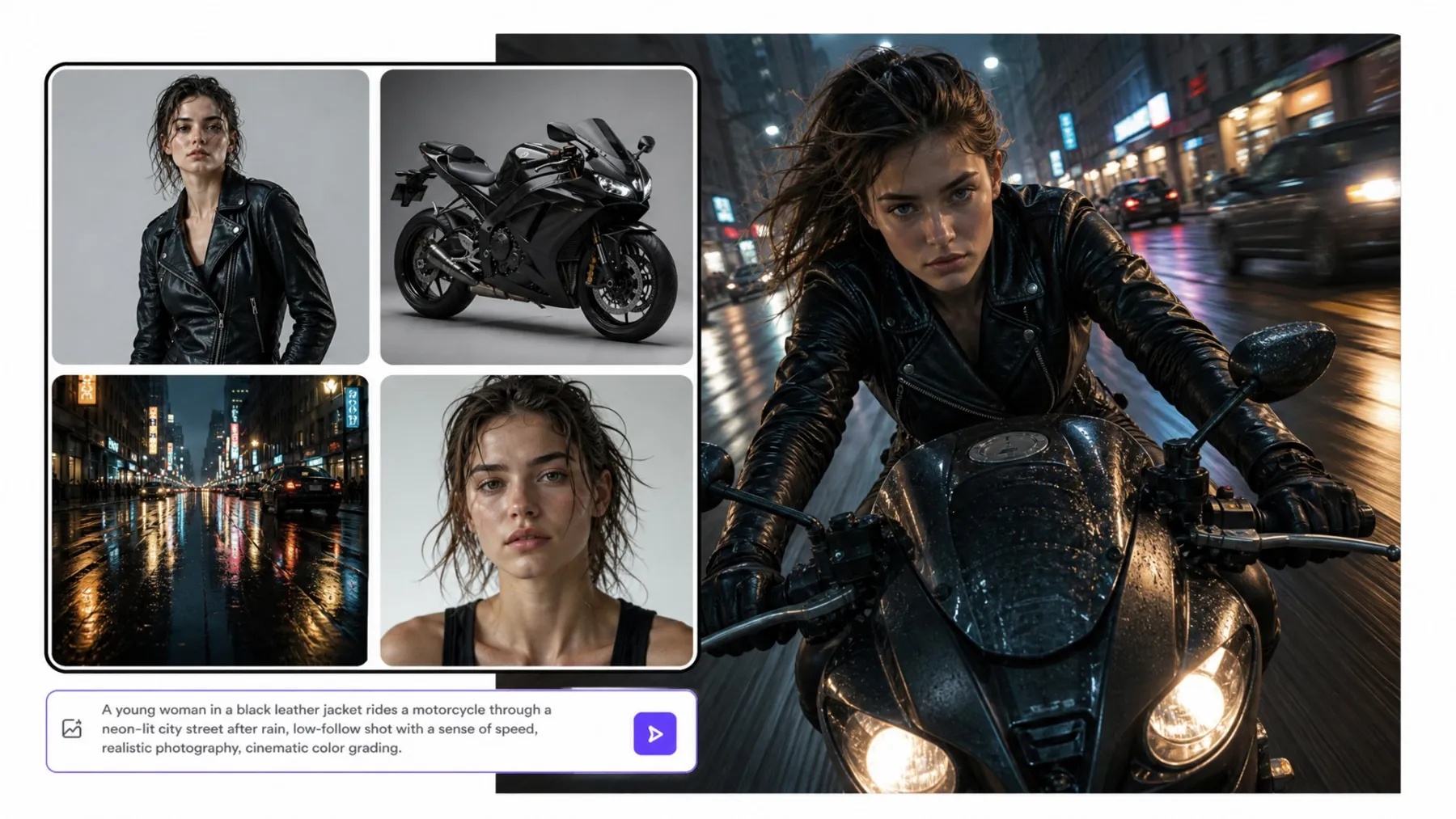
How to Create a Kling AI Text to Video Clip
Start with Text to Video
Open RoboNeo and add a Video Node to the canvas. Select Text-to-Video.
Describe Your Scene
Write a prompt that describes the setting, characters, and actions you want to see. Then choose Kling 3.0 or another supported Kling model.
Choose Your Video Settings
Adjust the aspect ratio, resolution, and duration for your project. Available settings vary by model.
Generate and Review Your Video
Generate the clip and preview it on the canvas. You can revise the prompt, try different settings, regenerate the scene, or download the finished video.
Kling AI Text to Video Generator Features
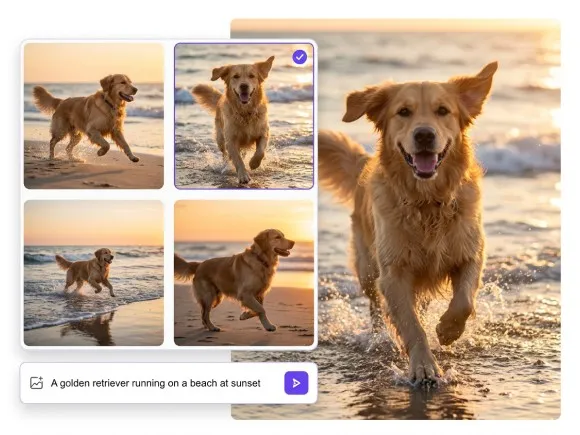
Video Creation From Simple Text Prompts
A written description is all you need to get started with the Kling AI text to video generator. Characters, actions, and settings can all be described in your prompt, giving you a way to create story scenes and original footage without a camera.
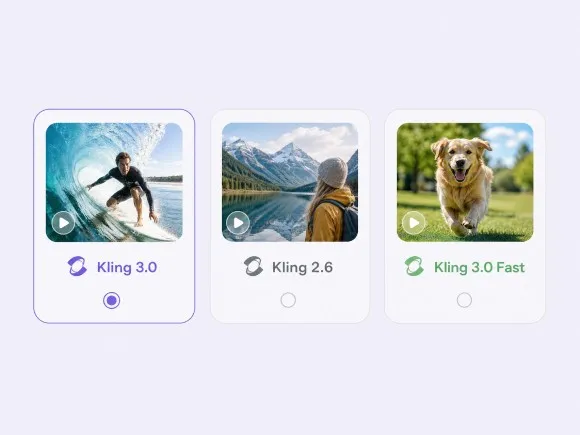
Multiple Kling Models for Creative Projects
RoboNeo supports Kling 3.0, Kling 2.6, and Kling 3.0 Fast for text to video creation. With multiple models available, you have more options for developing cinematic scenes, short-form content, and early creative concepts.
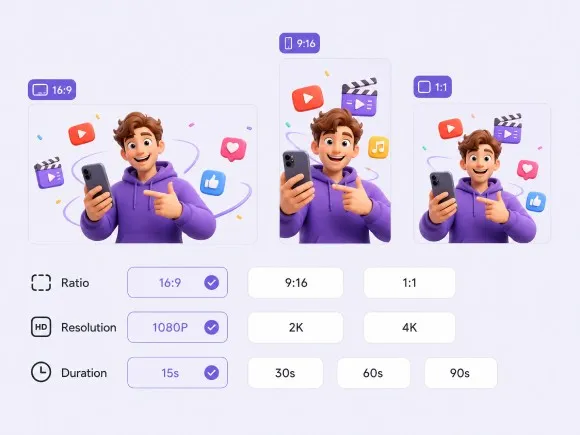
Flexible Settings for Different Video Formats
A vertical social media clip and a widescreen story scene call for different settings. Kling AI text to video generation in RoboNeo supports adjustments to aspect ratio, resolution, and duration, depending on the selected model. This flexibility helps you create videos for different platforms and projects.
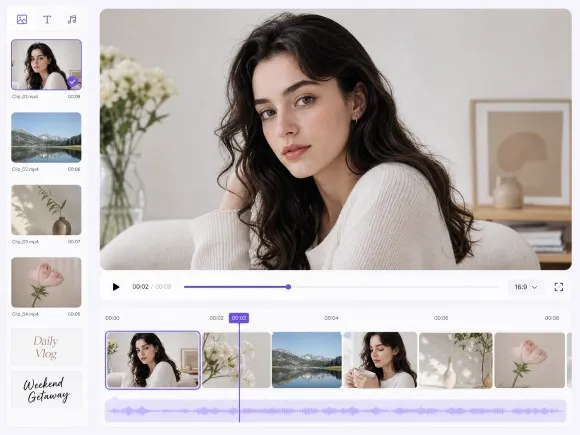
A Visual Workspace for Video Editing
Beyond video generation, RoboNeo provides a canvas where clips and creative assets stay organized. You can revise prompts, regenerate scenes, and use the video editor to arrange clips, add media and text, or make further adjustments before exporting your work.
New Possibilities with Kling AI Text to Video
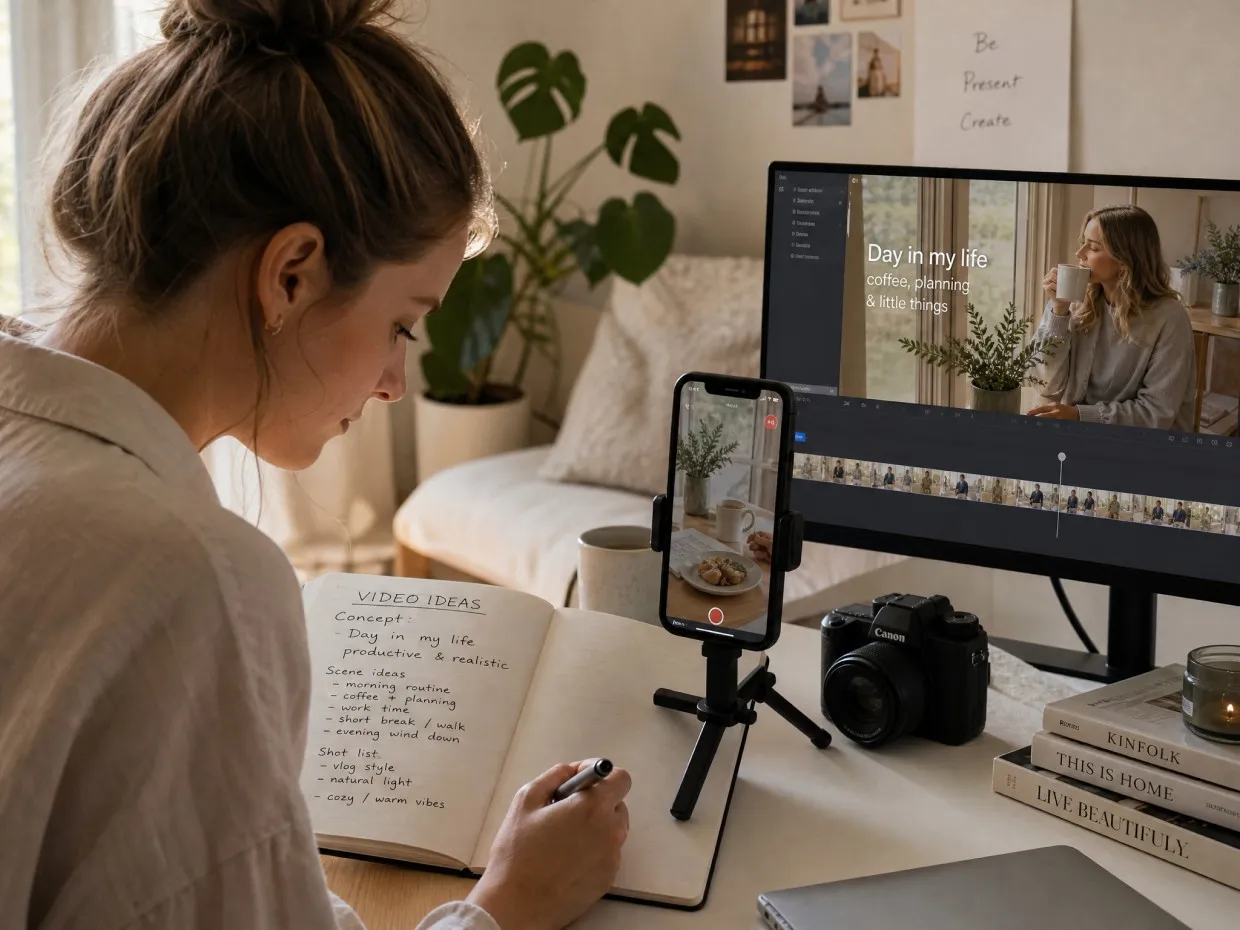
Short Dramas and Plot Twists
A secret revealed at dinner, an unexpected reunion, or a confrontation that changes everything. Short drama creators can use Kling AI text-to-video generation to develop these moments into visual scenes. RoboNeo also provides storyboard and character tools to help build connected storylines across multiple clips.
Frequently Asked Questions
How can I convert text to an animated video?
Is there a free and unlimited text to video AI generator available?
Most AI video generators have usage limits or credit-based pricing. RoboNeo uses credits for video generation, with costs varying by model. Check the available credits and pricing before getting started.
How do I write a good Kling AI video prompt?
A good prompt describes the subject, its actions, and the setting. Details about lighting, mood, and camera movement can help guide the result. Clear, specific descriptions generally work better than overly complicated instructions.
Why doesn't my Kling AI video match my prompt?
Complex instructions or unclear descriptions can lead to unexpected results. With RoboNeo, you can revise your prompt, simplify the scene, or regenerate the video until you get a result closer to your idea.
Can Kling AI generate videos with sound?
Yes, some Kling models support synchronized audio and video generation. In RoboNeo, audio options depend on the model you select, so check the available settings before generating your clip.
How long can Kling AI text to video clips be?
RoboNeo supports video durations from 4 to 15 seconds across its video tools. The available length for Kling AI text-to-video generation depends on the specific Kling model and its supported settings.
Kling AI Text to Video Starts Here
A dramatic plot twist, an imaginary world, or a scene you've always wanted to create. With the Kling AI text to video generator, these ideas can become videos worth sharing. See what your imagination can create with RoboNeo.
What Users Say About Kling AI Text to Video
I wanted to test a few video ideas without filming each one. Being able to describe a scene and try different Kling models made the process much easier.
The canvas is useful for keeping track of different scenes. I can review generated clips, make changes, and continue working on my story without switching between several tools.
I like being able to test video concepts from a written description. It gives me a way to explore different ideas before deciding which ones are worth developing further.
I use the Kling AI text to video generator in RoboNeo to test different video ideas before production. It helps me quickly turn concepts into visual drafts.
RoboNeo makes it easier to create short videos from simple prompts. The Kling AI text to video generator is useful for exploring content ideas without starting from a blank timeline.