
Change Background Color with AI
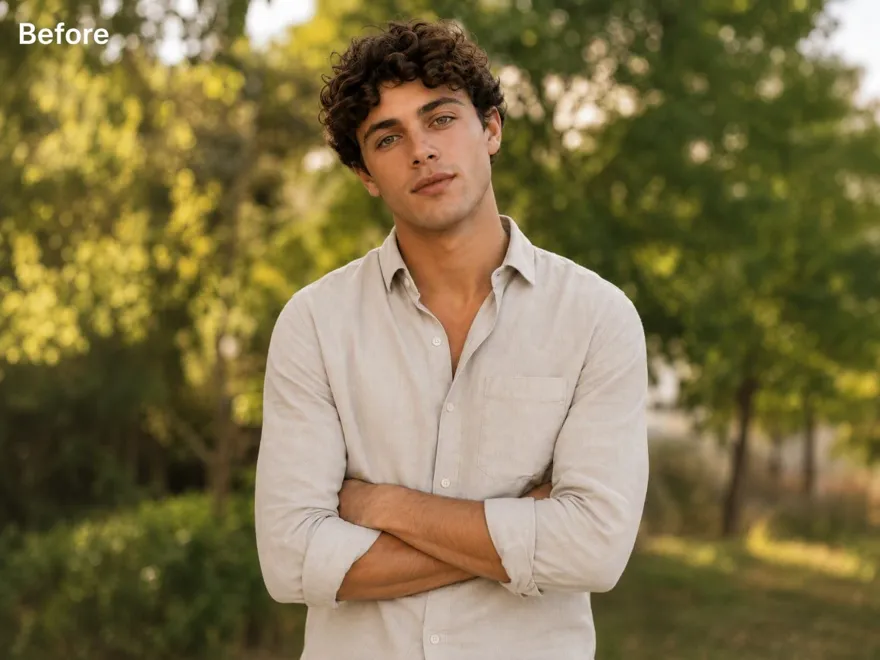
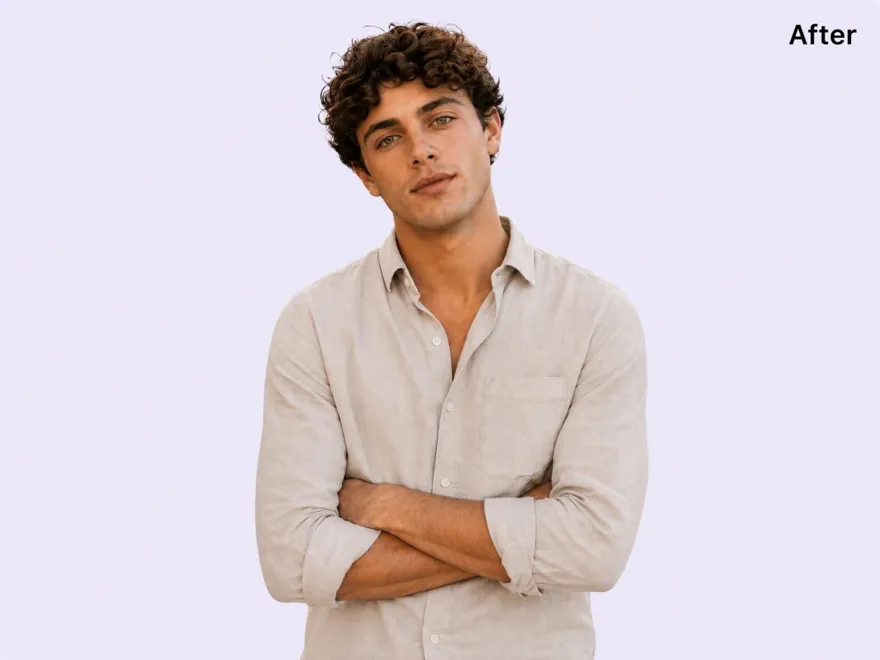
How to Change Color of Background
Upload Your Photo
Upload a JPG, JPEG, or PNG image to RoboNeo. Choose a product photo, portrait, or any picture with a background you'd like to change.
Remove the Original Background
Use AI Cutout to separate your subject from its existing background. The tool handles background removal automatically, so you don't have to trace outlines or erase unwanted areas by hand.
Apply a New Background Color
Ask RoboNeo to place the subject on a solid background in your preferred colour. For example, enter: "Place the subject on a solid #0055FF background" or specify your brand colour. This helps you create a consistent look while keeping the subject intact.
Review and Save Your Image
Check the subject's edges and the overall color balance. Once the updated background looks right, save your image for your website, online store, presentation, or social media post.
Change Photo Background Colors—Keep the Subject Intact

Remove Old Backgrounds Without Manual Editing
You don't need to spend time tracing objects or erasing backgrounds by hand. RoboNeo AI Cutout identifies the main subject and removes the surrounding background automatically. Start with a cleaner image and move on to your new color without complicated editing steps.

Keep Your Subject Clear Against New Colors
A new background shouldn't make your subject look like a rough cutout. RoboNeo is designed to retain important details around hair, clothing, and product edges. Whether you're changing a portrait or product image, these details help the result look more natural.
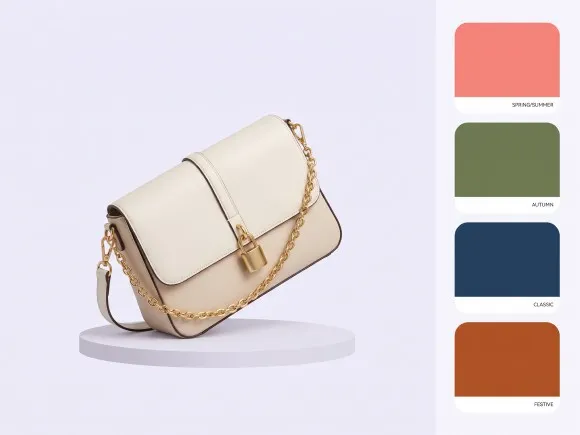
Match Background Colors to Your Brand Style
Your background colour can make a big difference in how a photo feels. Use RoboNeo background change tool to apply colours that suit seasonal campaigns, product collections, or branded graphics without taking new photos for every design.
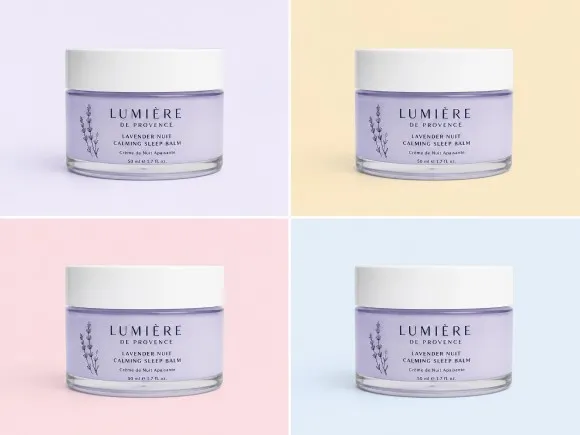
Reuse Your Photos Across Different Projects
One good photo can work in more than one place. Replace a busy background with a neutral color for a product listing, then create a brighter version for social media. You can give existing images a new look without starting another photo shoot.
Give Every Photo the Right Background Color
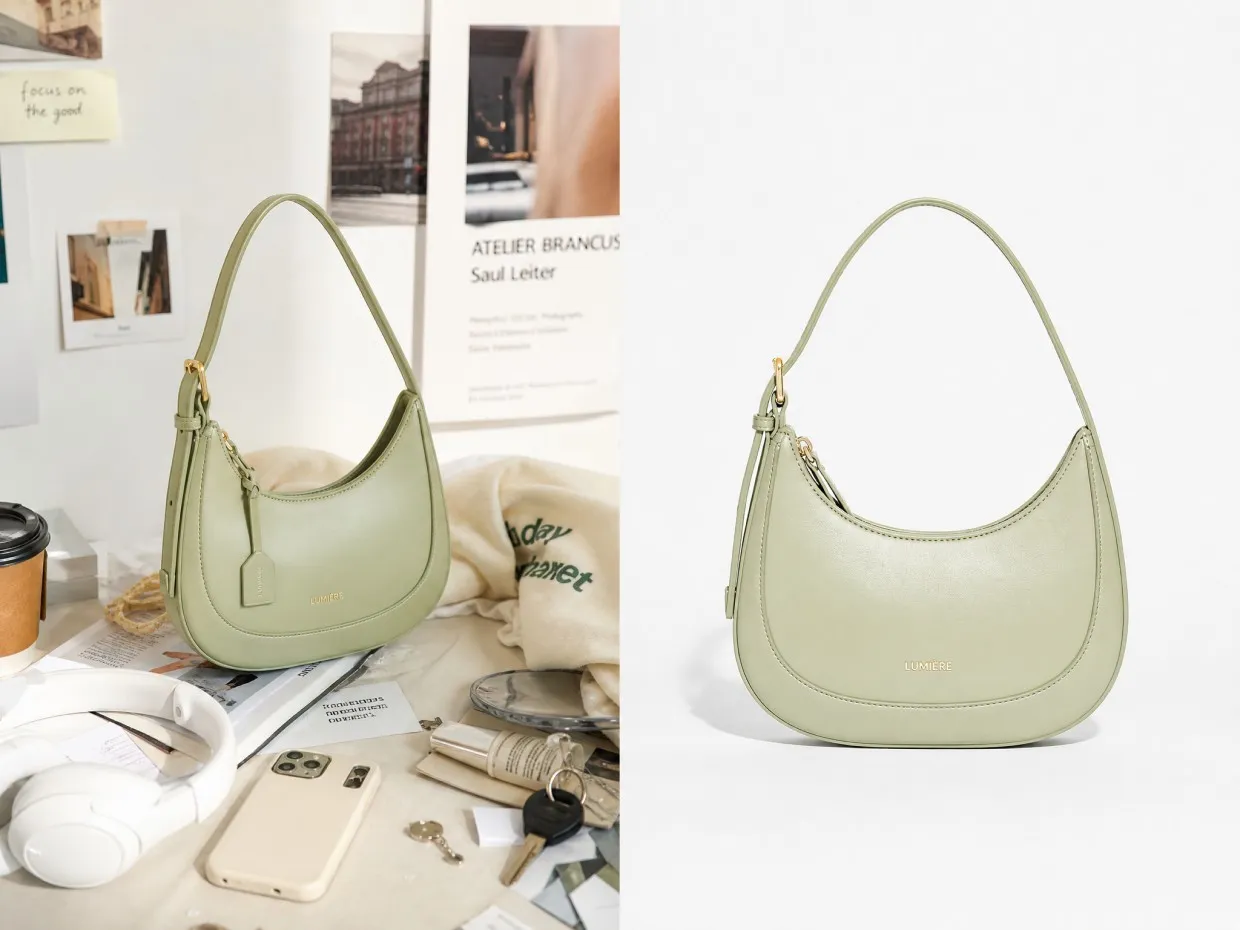
Product Photos for Online Stores
Online sellers often need product photos with clean, consistent backgrounds across multiple listings. Replace cluttered surroundings with white, gray, or another suitable color so shoppers can focus on the item itself. It's a practical way to refresh storefront visuals and prepare photos for different marketplaces without scheduling another shoot.



Frequently Asked Questions
What Is a background color changer?
Is RoboNeo's background color change free?
Yes. Changing your background to a solid colour provided by RoboNeo is free. If you use an AI prompt to generate or customise a background, each generation costs 8 credits. This lets you choose a ready-made colour at no cost or use AI-powered customisation when you need a more specific look.
Can I change the background color without changing the subject?
Yes. RoboNeo AI Cutout separates the subject from its background, allowing you to replace the surrounding color. Check the result carefully, especially when the subject and original background have similar colors.
Why do white edges appear after changing the background color?
White outlines often come from leftover pixels around the original background. They're especially noticeable against dark colors. Start with a high-resolution image and inspect hair, clothing, and product edges before saving.
What background color works best for product photos?
White is a reliable choice for clean product listings, while light gray or neutral tones can complement reflective products. For branded images, choose colors that provide contrast without distracting from the product.
Can I change a photo background from white to black?
Yes. Remove the white background with RoboNeo AI Cutout, then apply black using background editing tools. Pay attention to light-colored edges and shadows, which can look unnatural against darker backgrounds.
Will changing the background color remove natural shadows?
Removing the original background doesn't always remove natural shadows, but replacing it with a solid colour may cover or alter them. For realistic product photos, review the result after changing the background and check whether the shadows still look natural against the new colour.
What if my subject and background are similar colors?
AI may struggle to separate areas with little color contrast, such as white clothing against a white wall. Use a sharper image with better lighting and review the edges for missing details or unwanted cutouts.
Change Background Color to Match Your Style
The right background color brings your images together, whether you're building a storefront, updating your portfolio, or planning your next campaign. Keep your visuals consistent and make every photo feel like part of your brand with RoboNeo.
What Users Say About Changing Background Colors
I wanted my product photos to look more consistent without having to photograph everything again. Changing the backgrounds made it easier to create a cleaner look across my store.
I often need different versions of the same photo for campaigns. Being able to update the background instead of starting over makes content preparation much more manageable.
Removing the old background is usually the most tedious part of a simple edit. Starting with a clean cutout gives me more flexibility when trying different background colors.
I needed to update some promotional images for a seasonal campaign. Changing the background colors helped everything fit the new theme without having to create new photos from scratch.
I use different background colors depending on where my clients plan to share their portraits. It's a simple way to give them more options without setting up another photo shoot.