
Free AI Video Brightener for Dark Videos
How to Brighten a Dark Video Online
Video Upload
Start with the dark, soft, or low-resolution clip that needs improvement. Once uploaded, the video appears in the workspace, where the original footage remains available for comparison.
Enhancement Setup
Output options include 2K, 4K, and AI 4K+. Auto-Detect can choose a suitable enhancement, or you can select Portrait, Product, Night View, Natural, Game, or Animation yourself.
Result Review
After processing, compare the enhanced version with the original. Pay particular attention to faces, product colors, highlights, shadows, text, and fine patterns before choosing the final result.
Download or Workflow Storage
The completed clip can be downloaded or added to your RoboNeo workflow as a reusable asset. It will remain available for future edits, campaign versions, and platform-specific cuts.
Better Visibility for Dark and Soft Footage
Resolution Options for Different Screens
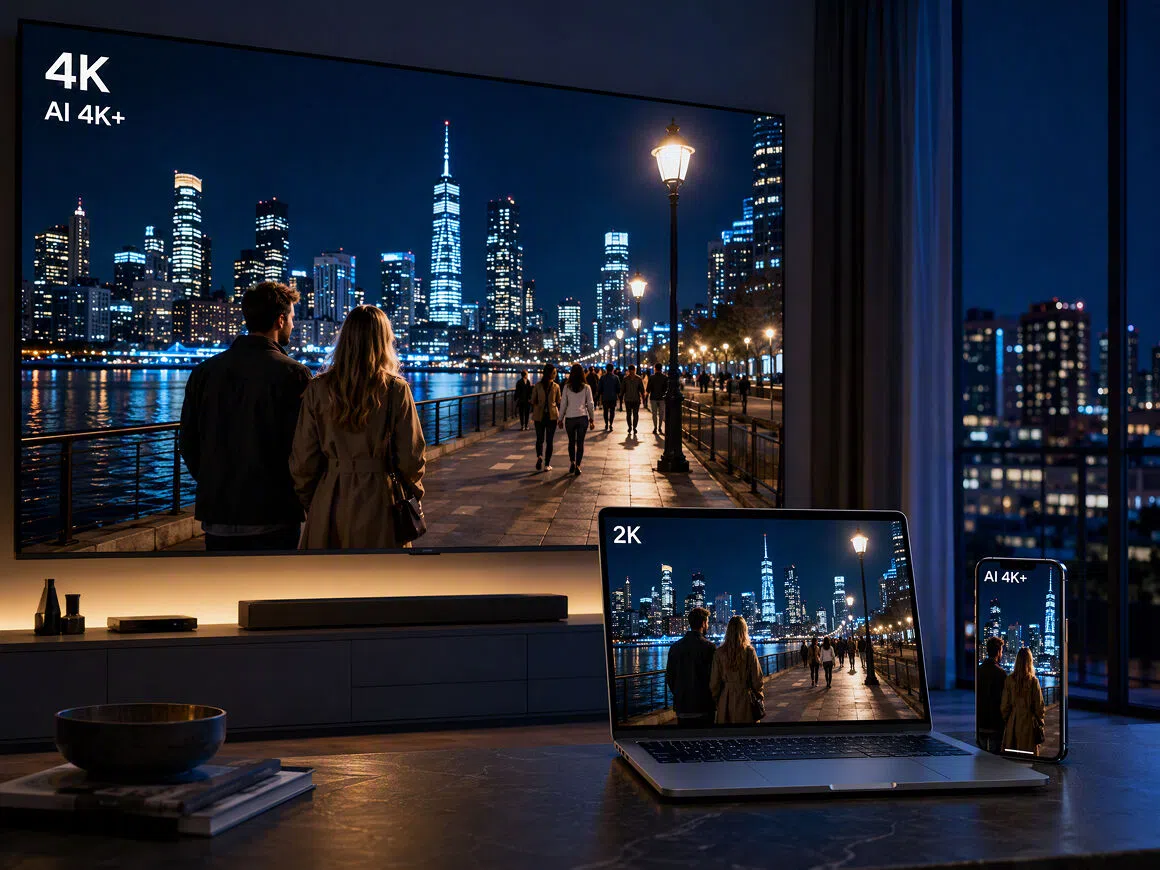
The video brightener supports 2K, 4K, and AI 4K+ output, giving creators control over the final resolution. A social clip may only need 2K, while footage intended for a product page, presentation, or larger display may benefit from 4K.
Scene-Specific Enhancement With Auto-Detect
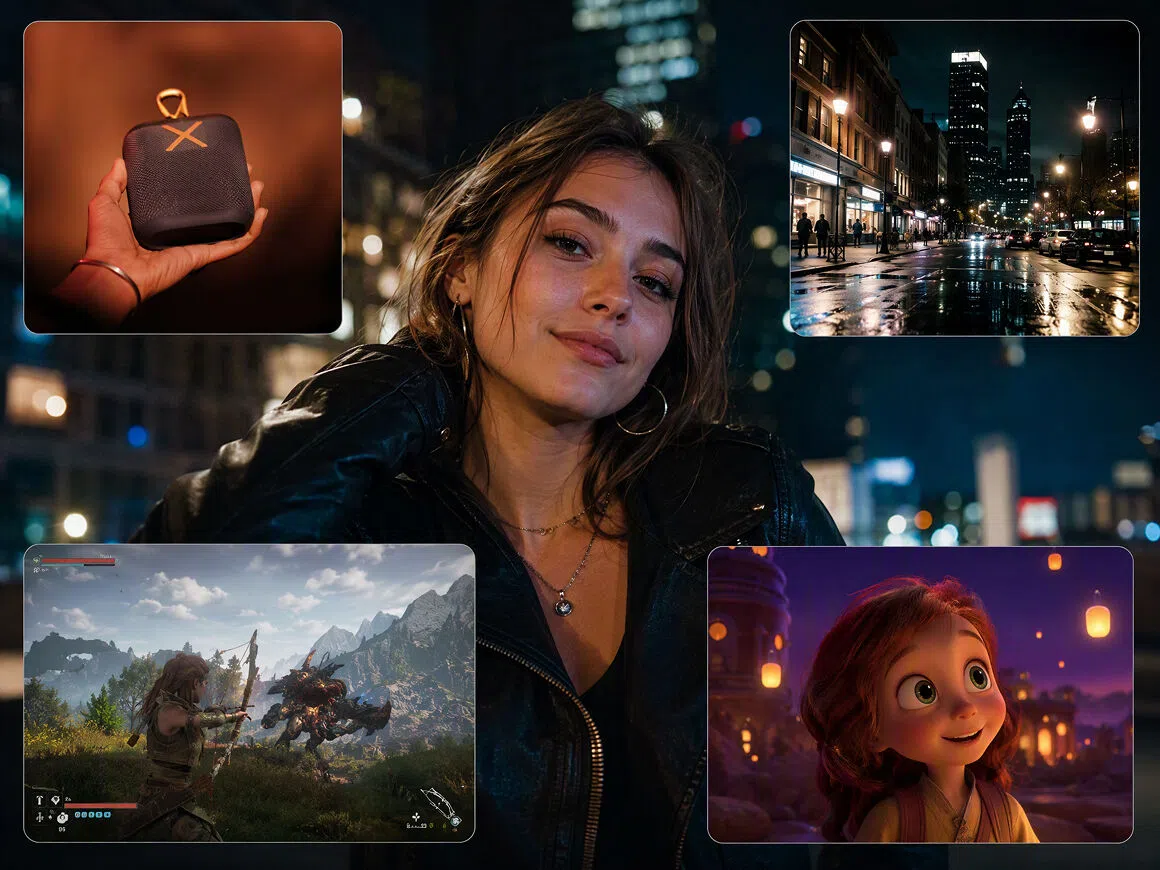
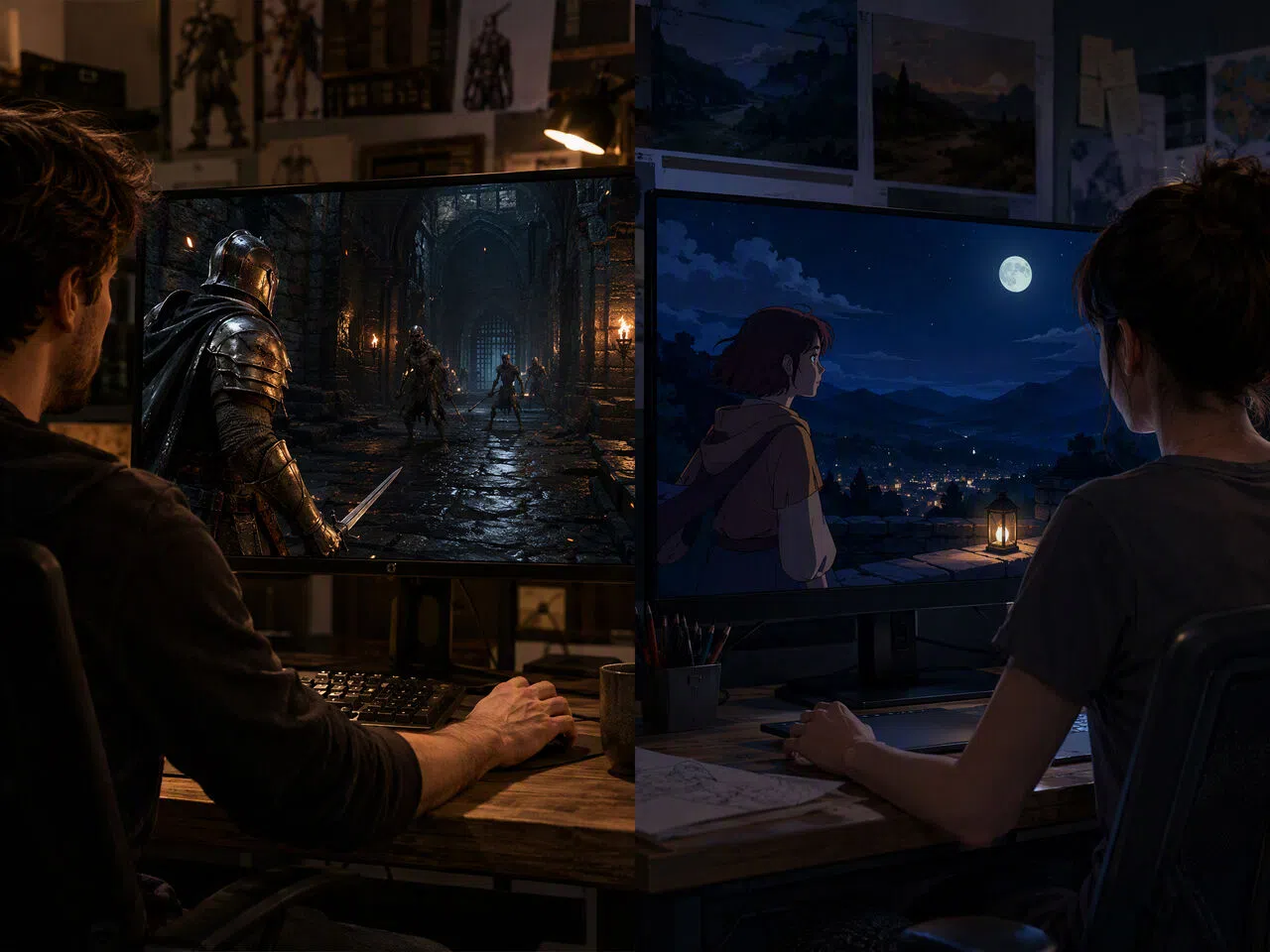
Portraits, product demonstrations, night footage, gameplay, and animation contain different visual details. Auto-Detect matches the enhancement to the content, while six dedicated settings offer more control when the type of footage and intended result are already clear.
Reusable Videos Inside One Workflow
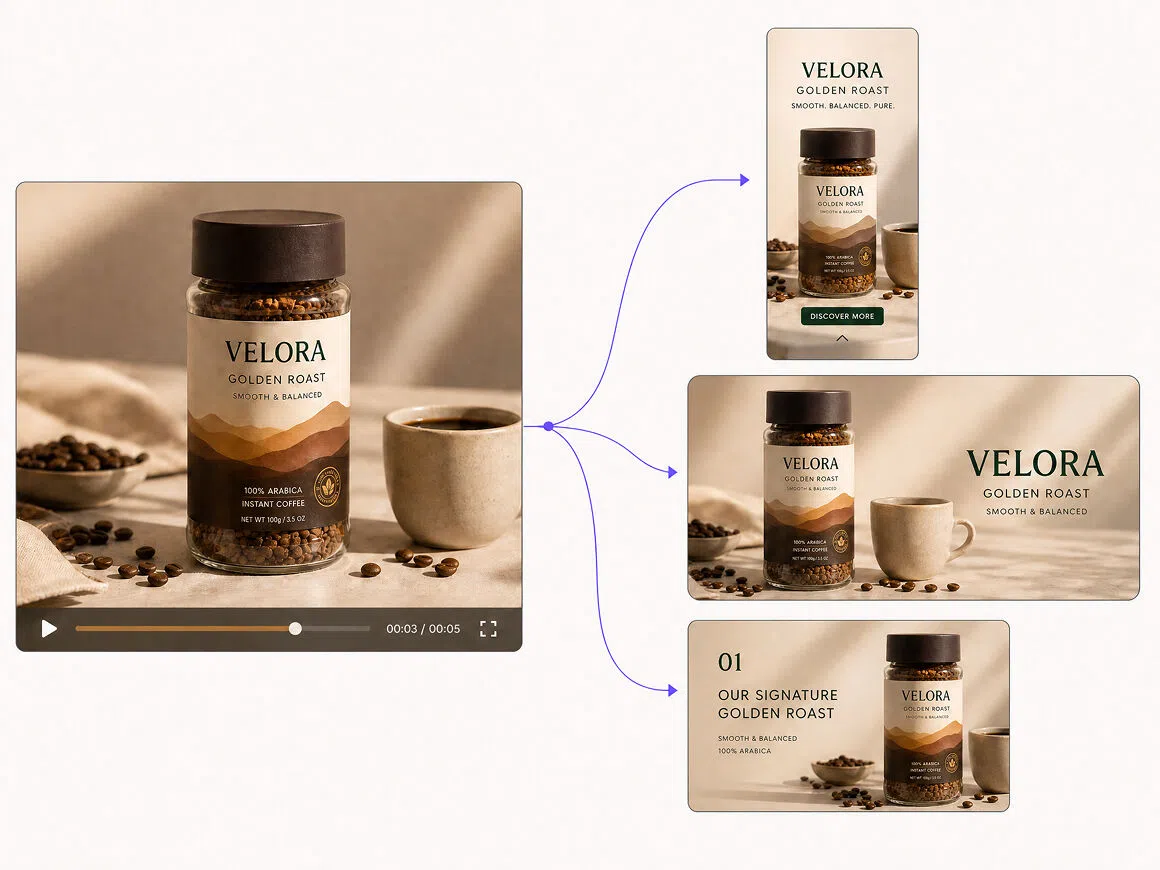
Enhanced clips can move directly into a RoboNeo workflow instead of sitting in a separate download folder. Marketing teams can reuse the same asset for shorter ads, campaign updates, new aspect ratios, or later publishing rounds without uploading the original again.
Clearer Results Without Timeline Editing
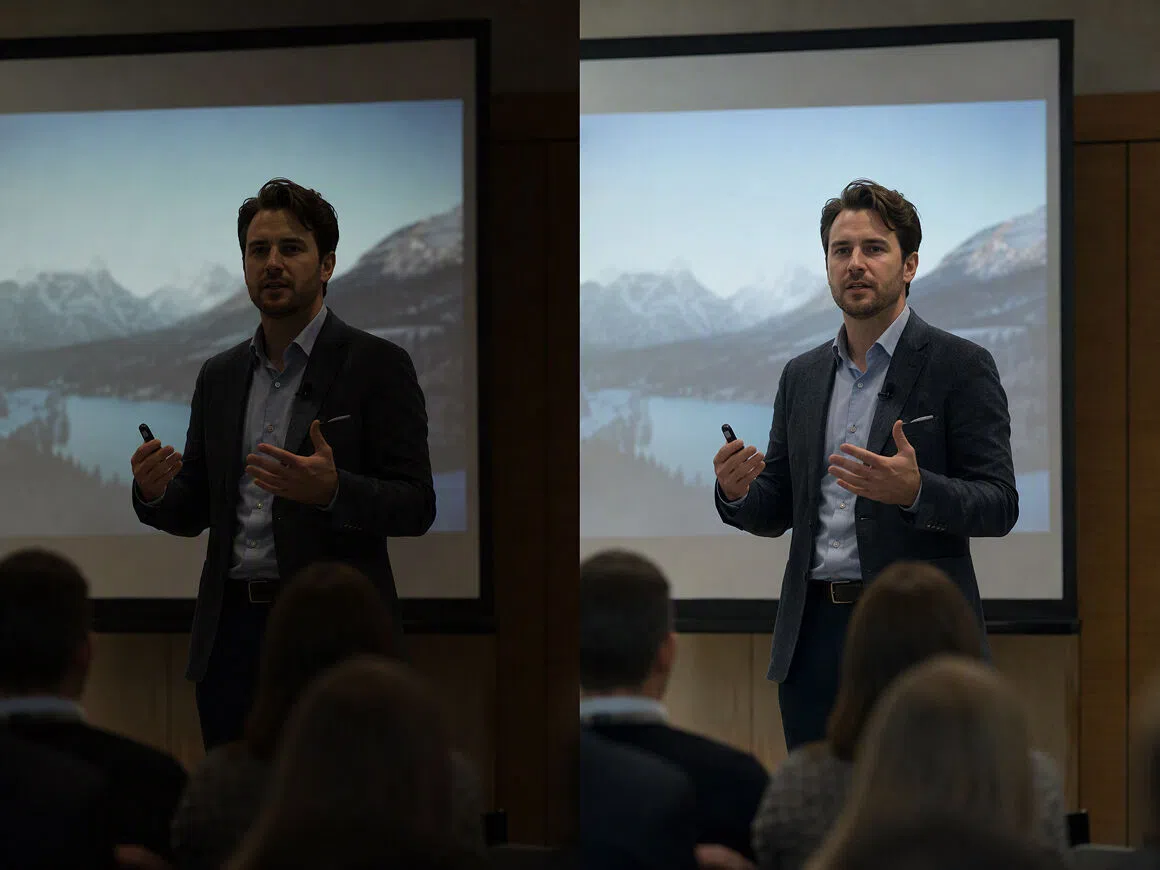
Traditional editors often require separate adjustments for exposure, sharpness, noise, and resolution. With this AI video brightener, the main decisions are the output resolution and scene setting. The simpler workflow helps users improve footage without working through individual frames or multiple effects.
Dark Video Fixes for Different Types of Work
Social Creators Filming at Night
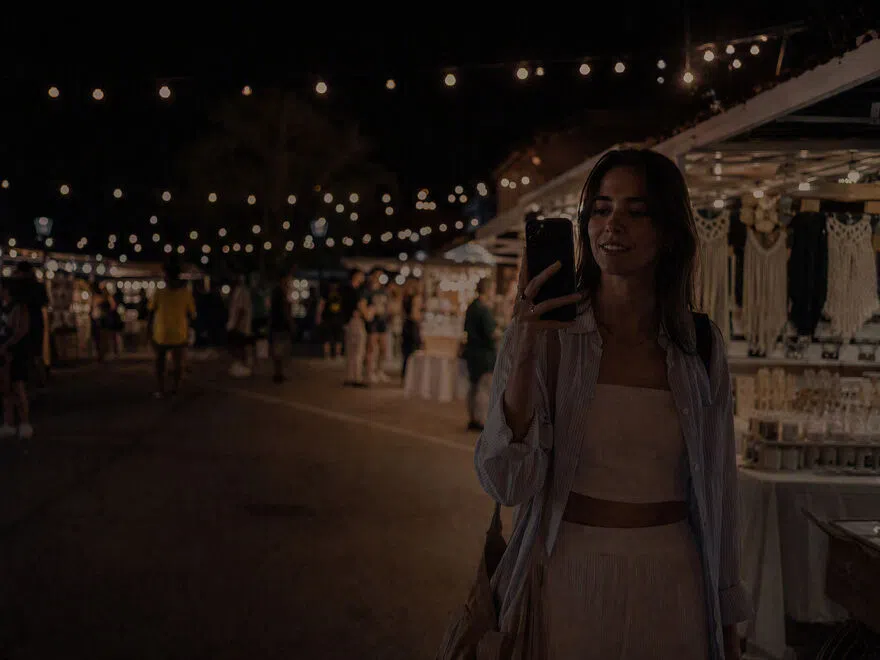
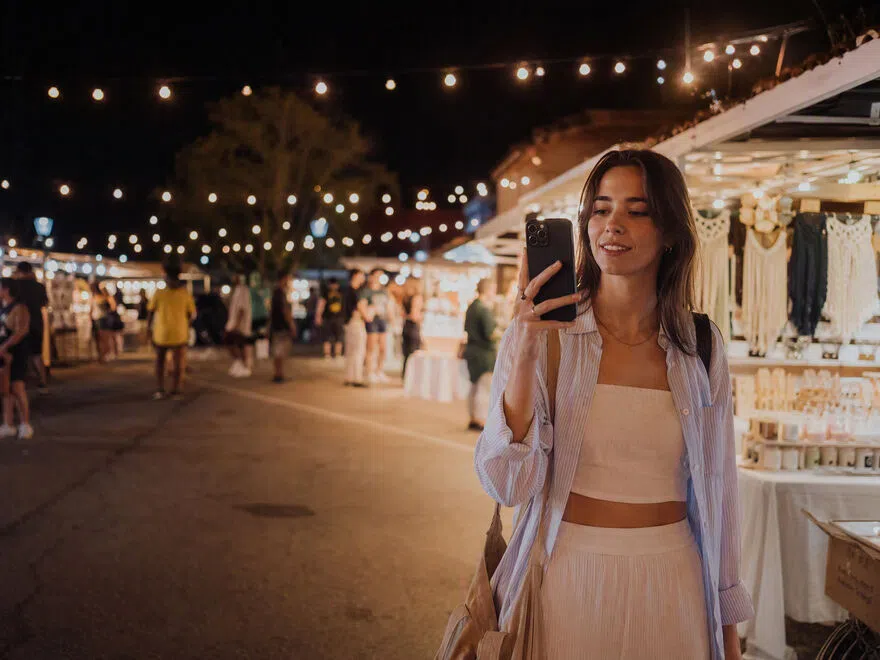
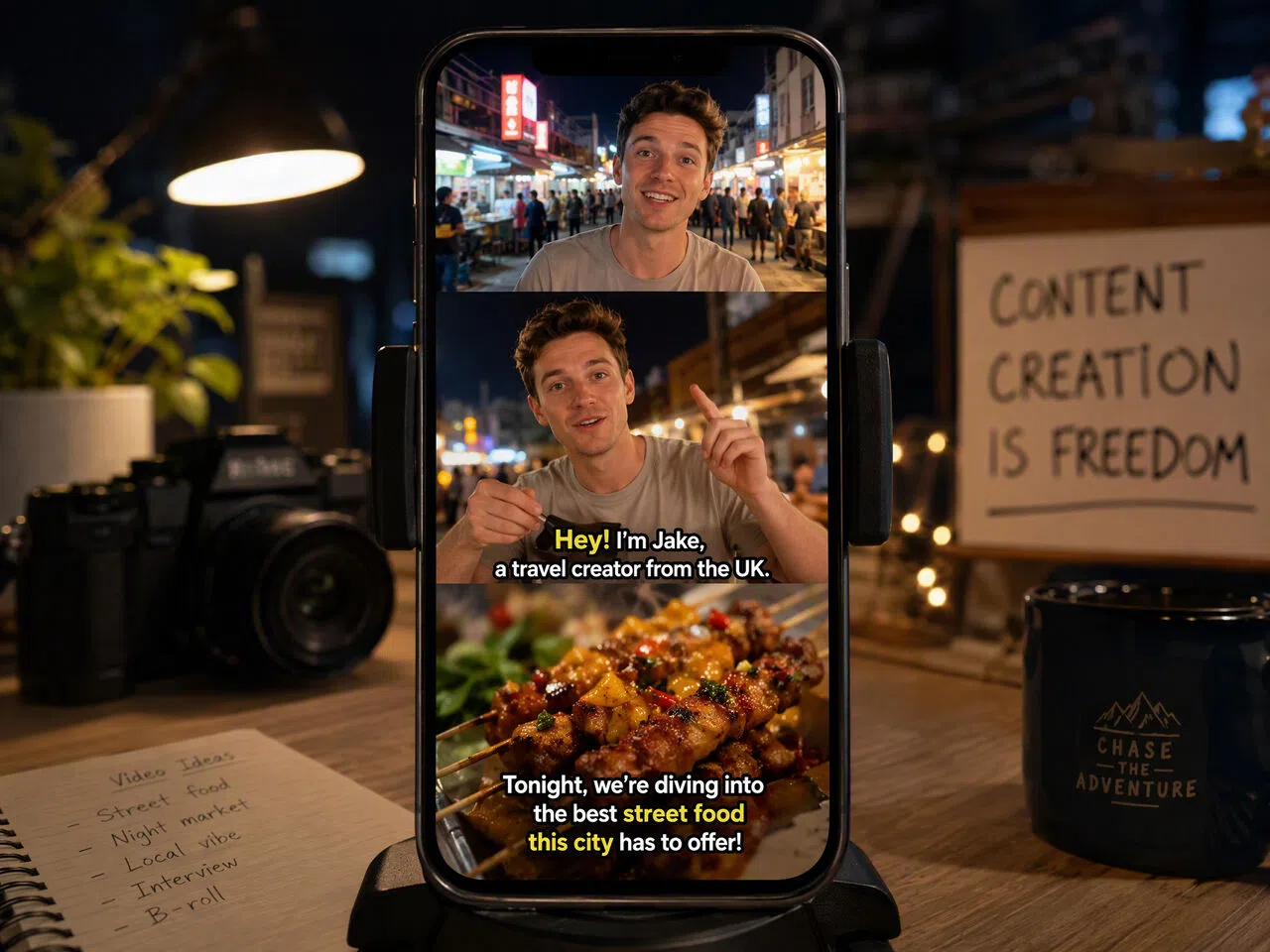
Concerts, street markets, restaurants, and evening events often look darker on a computer than they did on a phone screen. A video brightener gives creators more usable footage for TikTok, Instagram Reels, and YouTube Shorts without requiring another shoot.
Frequently asked questions
Is there a way to brighten a video?
How to brighten face in video?
For targeted facial brightening, use an editor with exposure or masking controls. RoboNeo offers a Portrait setting that can improve clarity in face-focused footage, but it does not include a separate control for brightening only the face.
Can I brighten up a really dark video?
Possibly. Night View can optimize dark footage, while 2K, 4K, or AI 4K+ upscaling may improve visible detail. Completely black areas cannot be reliably recovered when the original recording contains no usable visual information.
How can I enhance the quality of a dark video?
Select Night View or Auto-Detect in RoboNeo, choose an appropriate output resolution, and preview the result before downloading. This process can improve visible detail and overall clarity, although the final quality still depends on the source footage.
Why does my video look grainy after brightening it?
Brightening dark footage also makes sensor noise and compression artifacts more noticeable. A video brightener may reduce their appearance by improving clarity and detail, but heavily underexposed footage can still look grainy. Increasing the output resolution will not restore information that the camera did not capture.
Can AI recover details from a dark or blurry video?
AI can sharpen visible edges, reduce some noise, and improve the appearance of details that already exist in the footage. It cannot reliably reconstruct faces, text, or objects that were never captured. RoboNeo can enhance usable details through Night View and resolution enhancement, but results will vary with the original video quality.
Better Quality From the Footage You Already Have
A dark or low-resolution clip may still be usable. The RoboNeo video brightener applies scene-specific enhancement and upscales footage to 2K, 4K, or AI 4K+, preparing your video for social posts, product pages, presentations, or personal projects.
What Users Say About the Video Brightener
I had several clips from an outdoor market that looked fine on my phone but much darker on my laptop. The Night View setting made the people and vendor booths easier to see, and the colors did not end up looking pale or washed out.
I needed to brighten my video online because reshooting every product demo would have delayed the campaign. The enhanced versions were much easier to review, and saving them as assets helped when I made shorter cuts for our social posts.
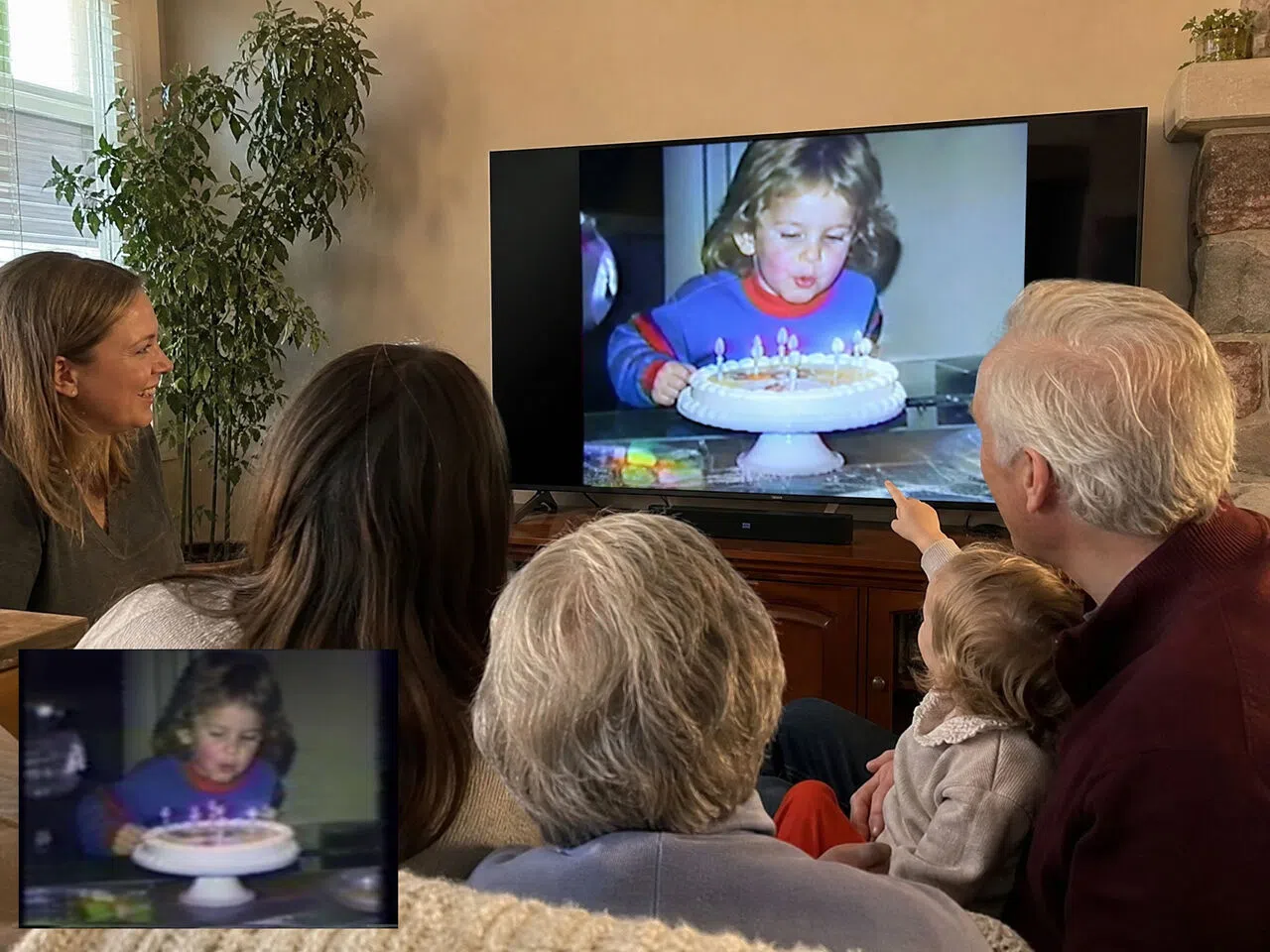
One of our older birthday videos was dark and pretty soft, especially when we played it on a television. The updated version was easier to watch, and the process did not involve learning color correction or working through a complicated editing timeline.