
Transparent Background Maker


How to Make Background Transparent Online
Upload Your Image
Choose a JPG, JPEG, or PNG from your device, or add several files for batch processing.
Remove the Background
RoboNeo identifies the subject and uses a transparent background remover to clear the surrounding area automatically.
Review and Download
Review the cutout, make any needed adjustments, then download it as a high-quality transparent PNG.
A Transparent Background Maker for Any Image
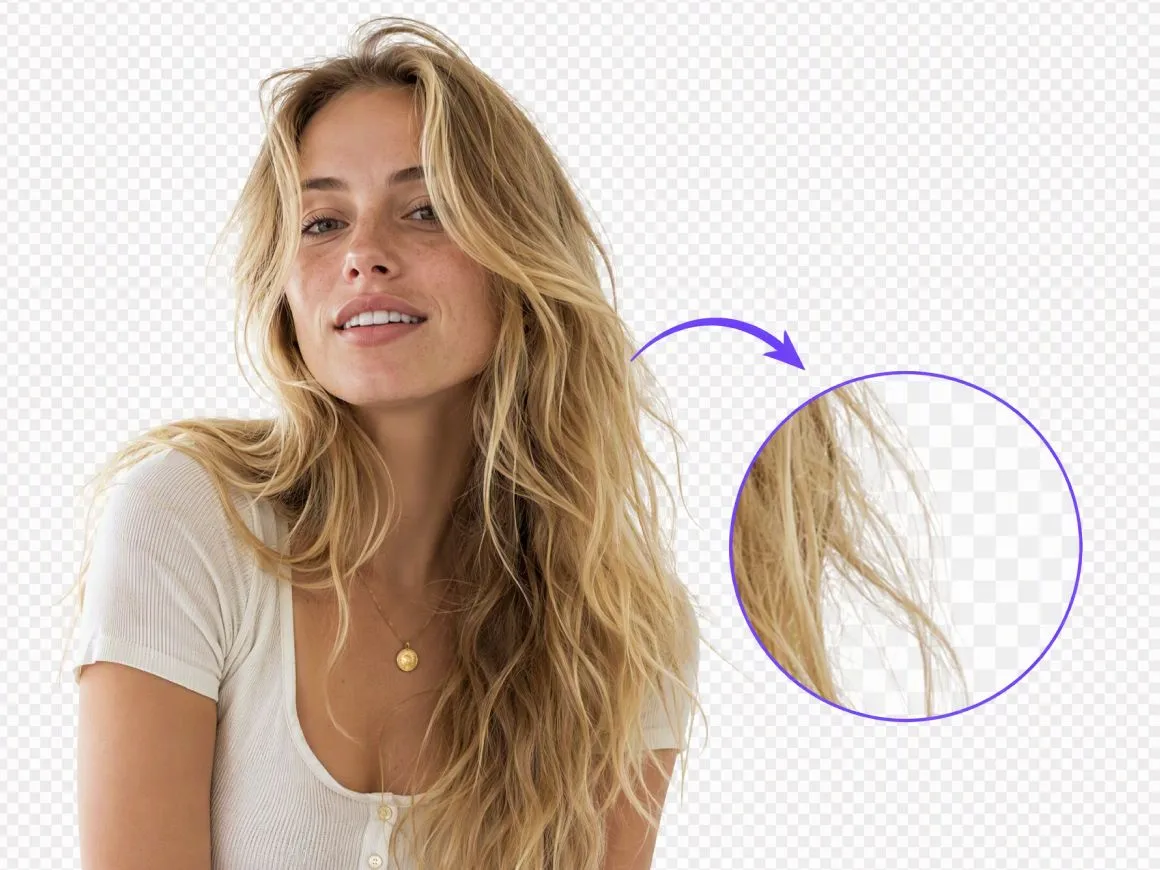
Keep Fine Edges Clean Around Every Subject
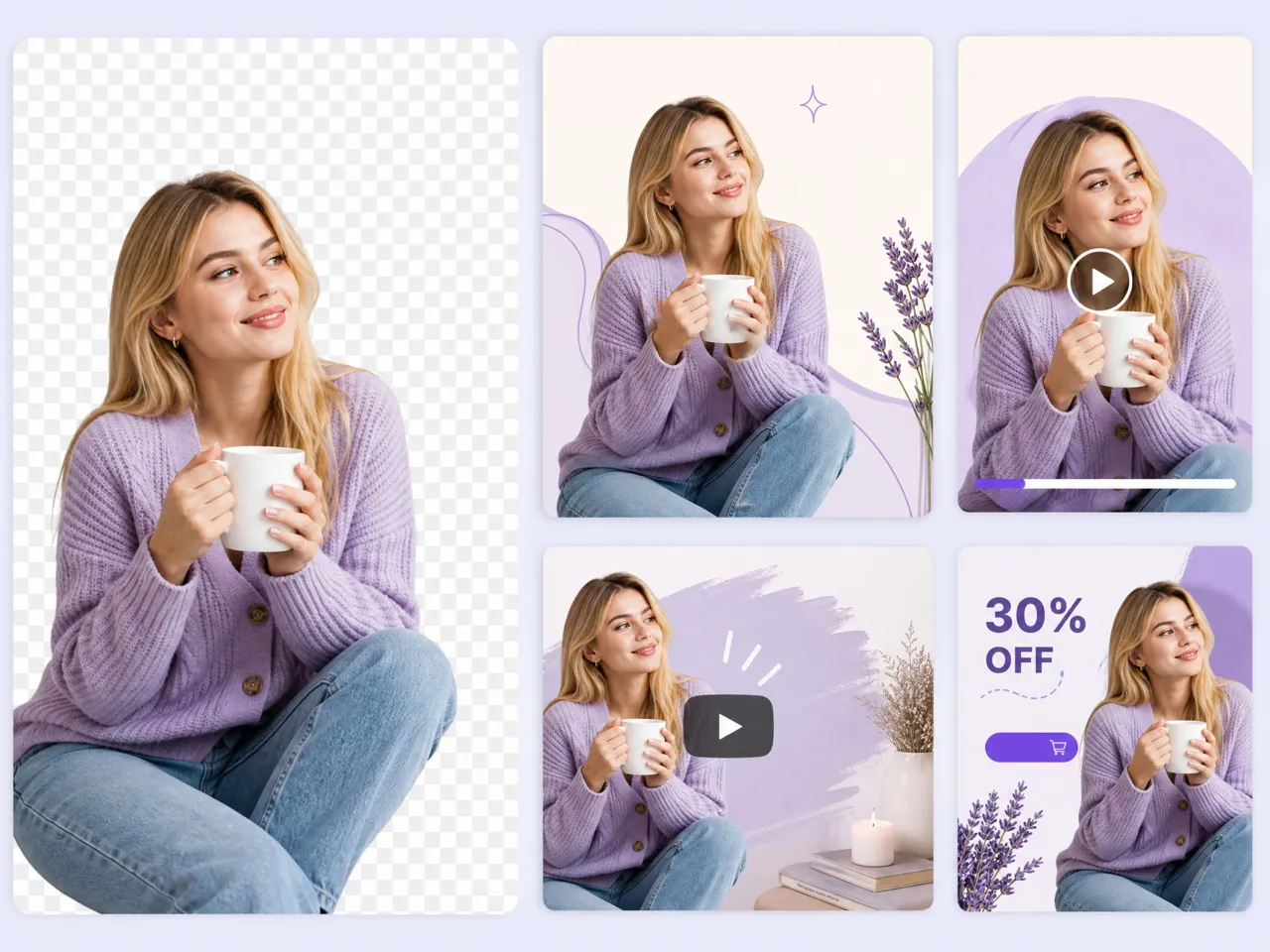
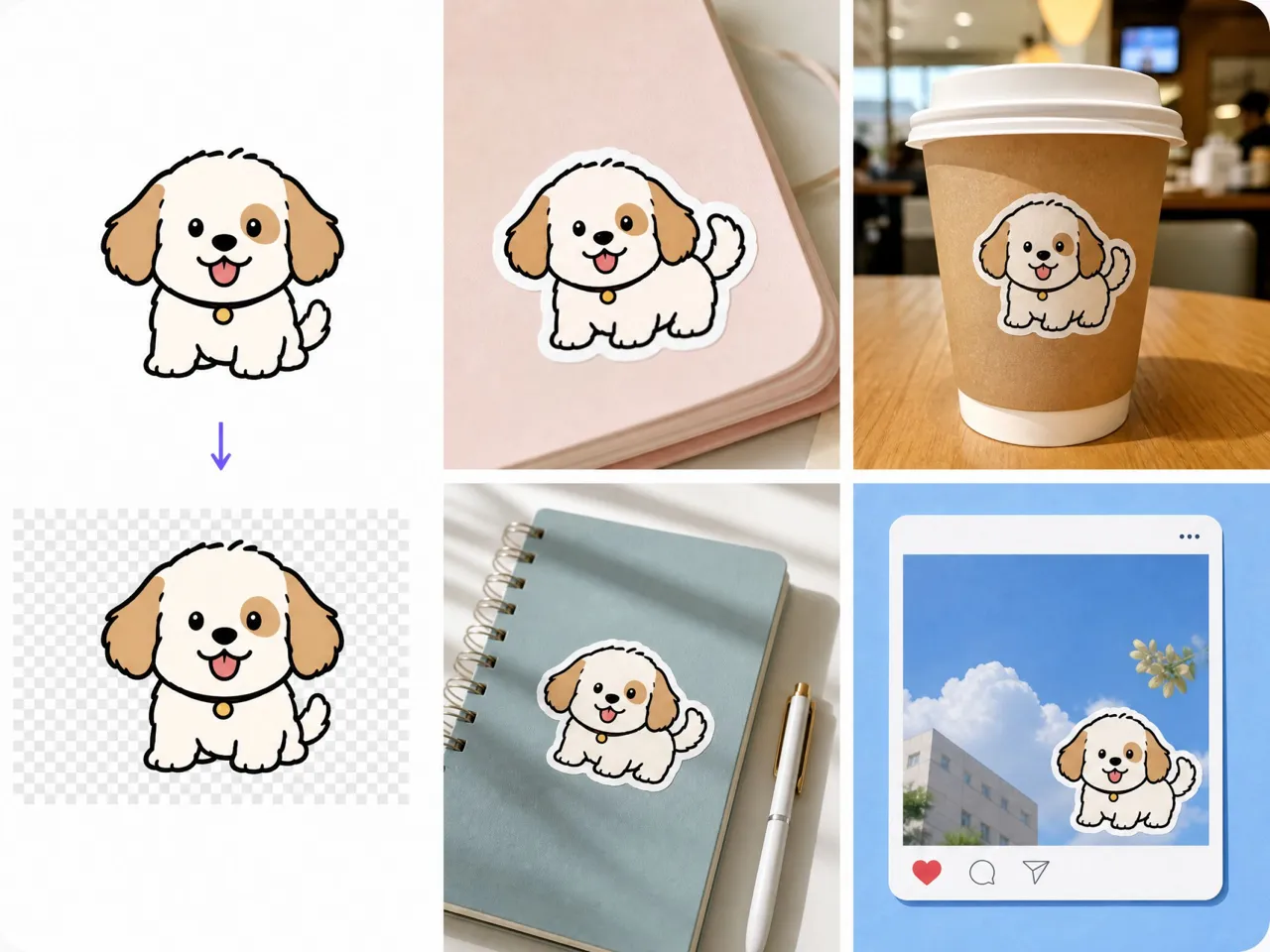
The transparent background maker separates the subject while preserving small details around hair, fur, curved products, and uneven outlines. Cleaner edges reduce manual touch-ups when you prepare headshots, catalog images, stickers, or layered graphics for reuse across websites, marketplaces, and social channels.
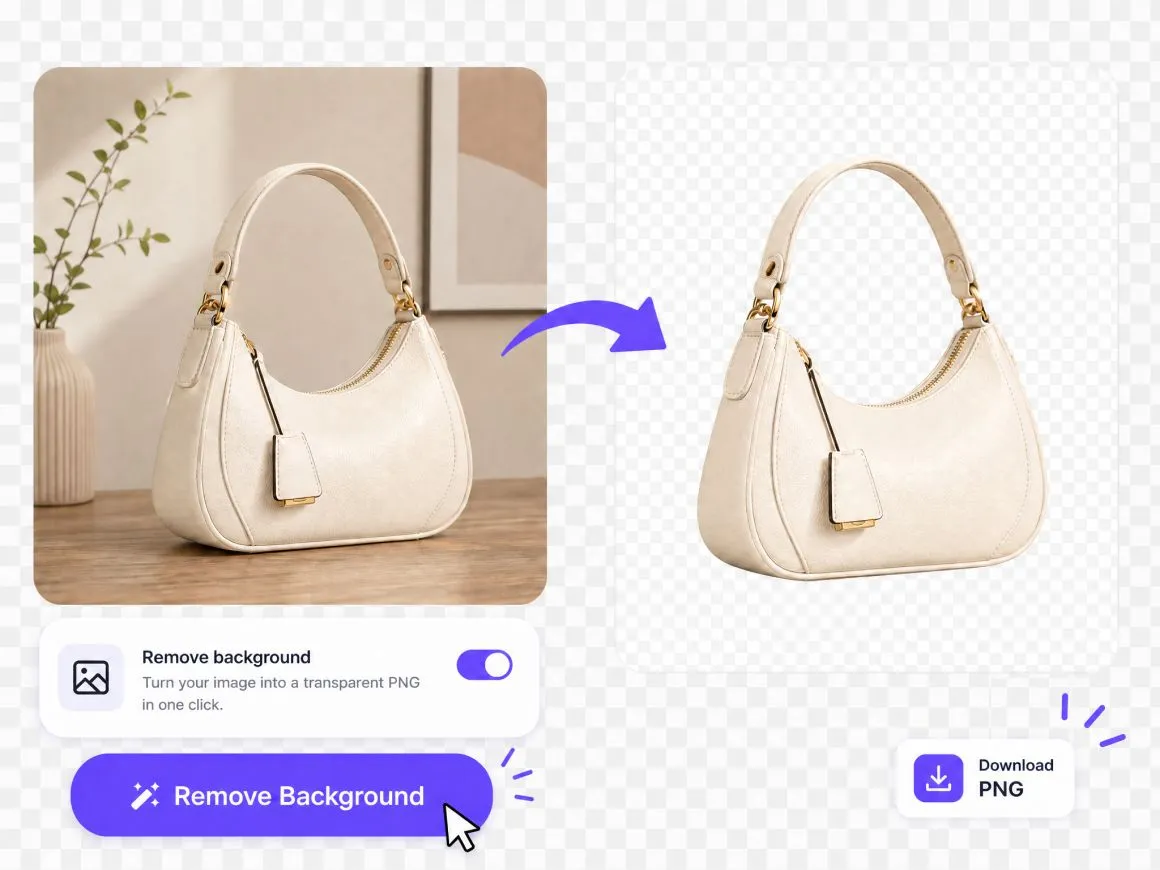
One-Click Background Removal to Transparent PNG
Upload an image and let RoboNeo clear the surrounding area automatically. You get a subject-ready cutout without tracing outlines by hand—so catalog shots and portraits move into the next layout faster.
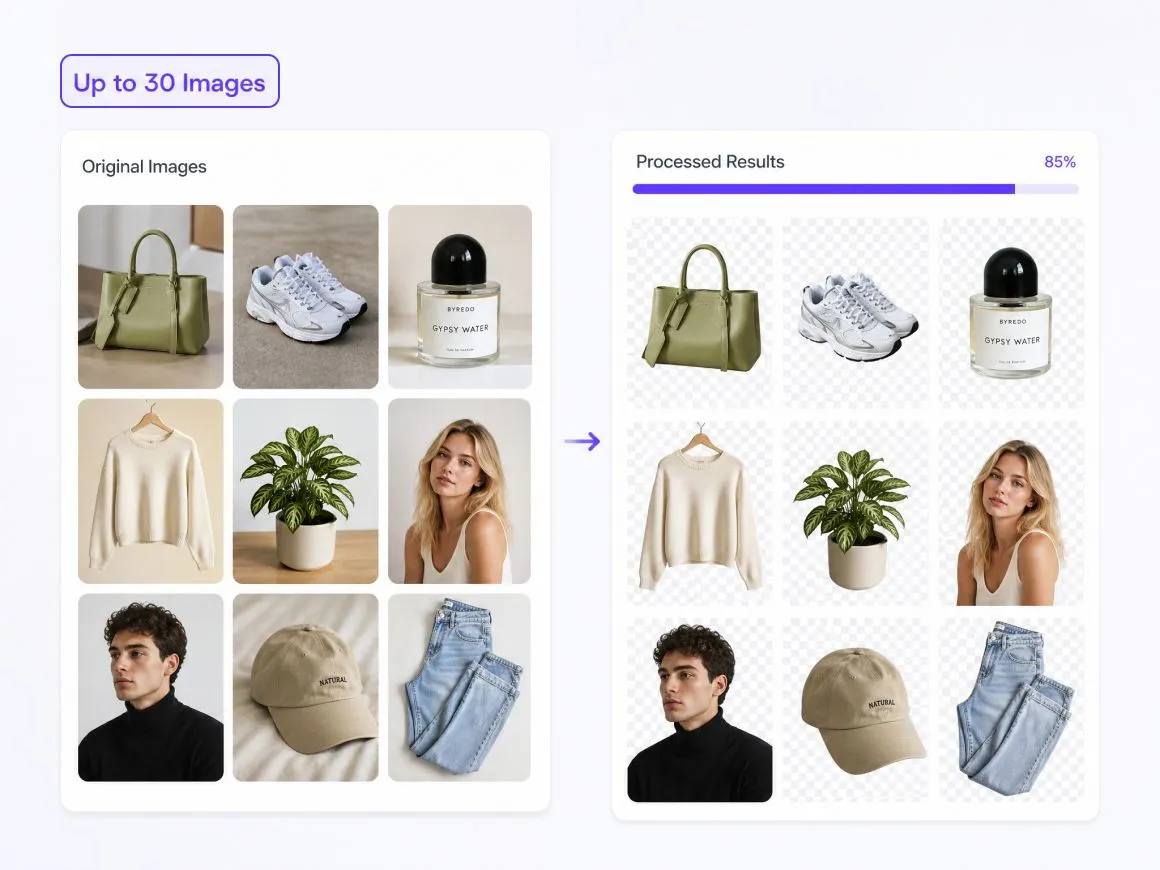
Bulk Process Up to 30 Images with One Upload
Upload up to 30 JPG, JPEG, or PNG images at once with Bulk Upload. The transparent background maker processes larger photo sets in one workflow, helping e-commerce teams and content creators prepare consistent cutouts without uploading and removing each background separately.
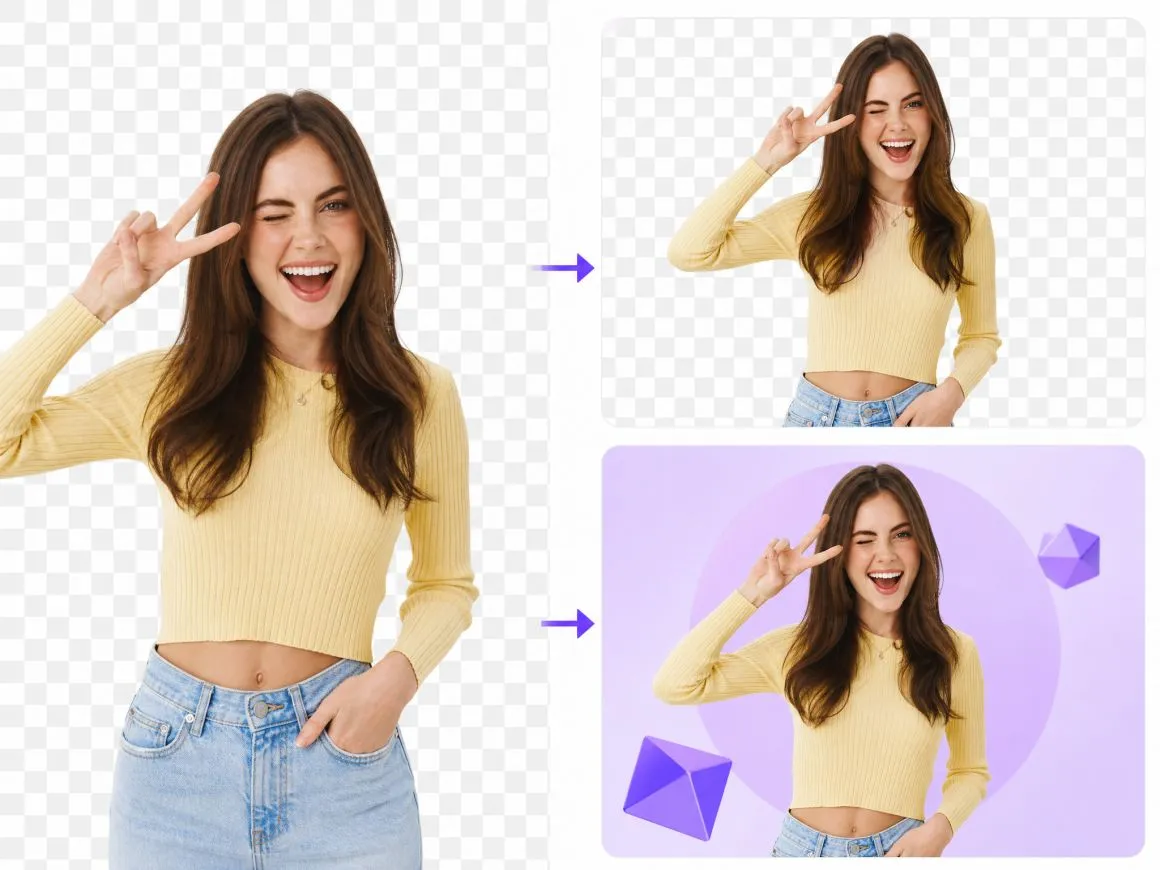
Keep Transparency—or Place a New Scene
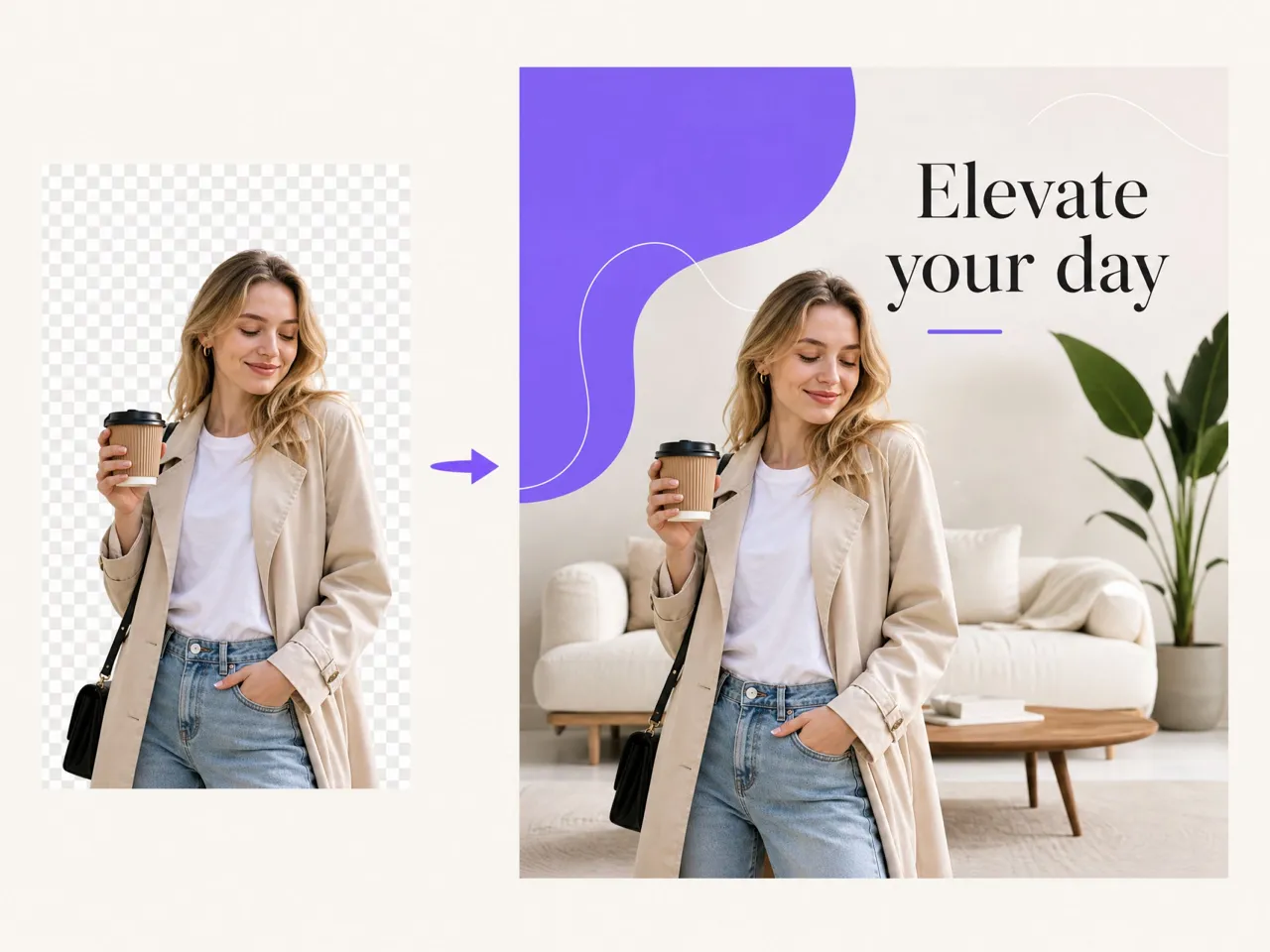
Export the cutout as a transparent PNG for flexible reuse, or continue in RoboNeo to place the same subject on a brand-coloured background or a new image. One cutout can support product listings, ads, and creative tests without the need for another photoshoot.
Transparent Backgrounds for Everyday Projects
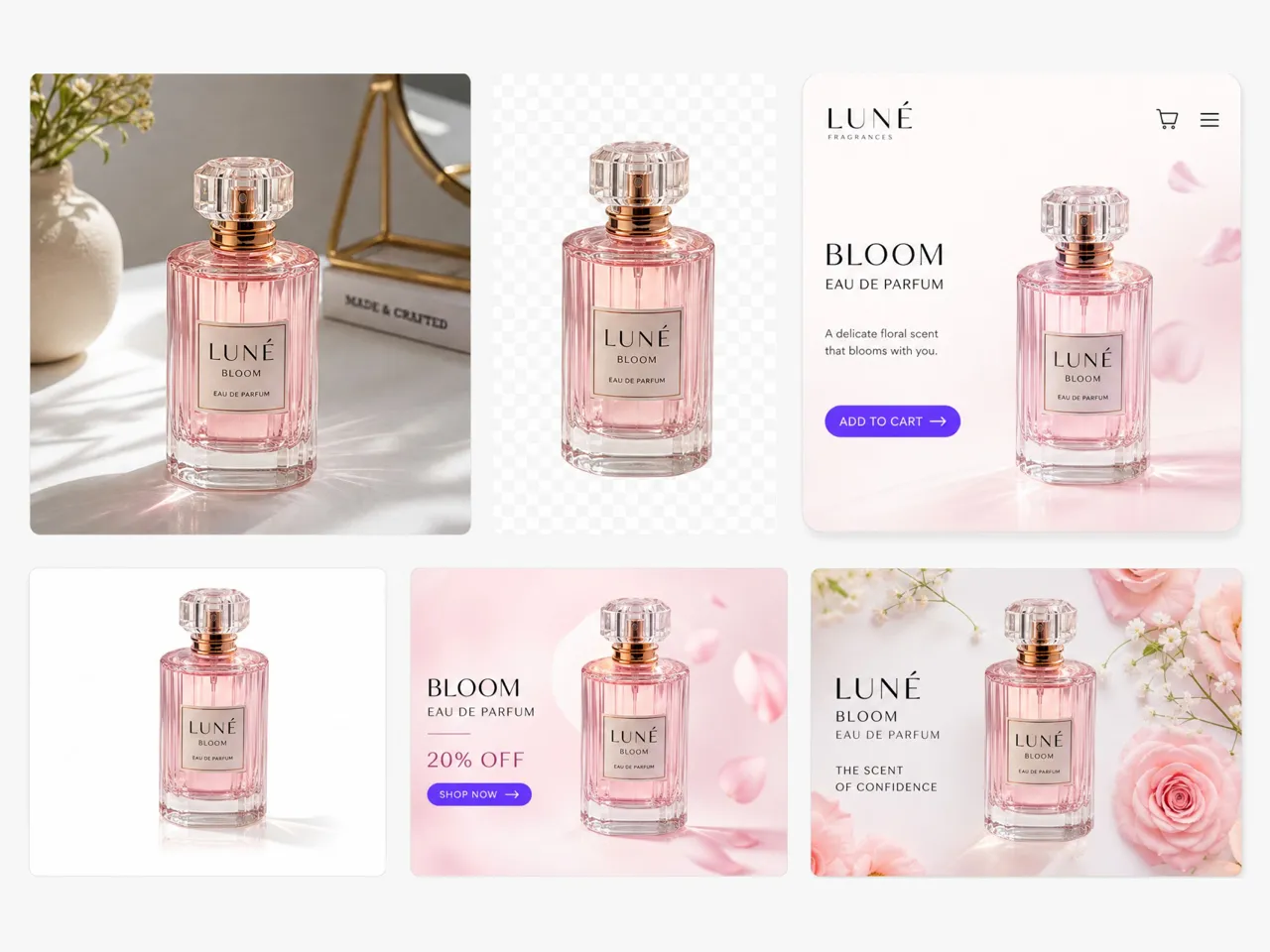
Product Photos for Online Stores
Remove distracting surfaces, walls, or room details from product photos before placing each item on a consistent background. Sellers can prepare cleaner images for product listings, digital catalogs, promotional banners, and seasonal campaigns without arranging another photo shoot.
Frequently Asked Questions
Will the downloaded image have a transparent background?
Can RoboNeo keep hair, fur, and fine edges intact?
RoboNeo is designed to recognize detailed outlines around hair, fur, clothing, and irregularly shaped objects. Results can vary when the original image is blurry, poorly lit, or has very little contrast between the subject and background, so detailed areas should be reviewed before use.
Can I remove backgrounds from people and product photos?
Yes. The transparent background maker can process portraits, product photos, animals, and other images with a recognizable foreground subject. Clear, well-lit images with visible separation between the subject and background generally give the tool more detail to work with.
How many images can I process at once?
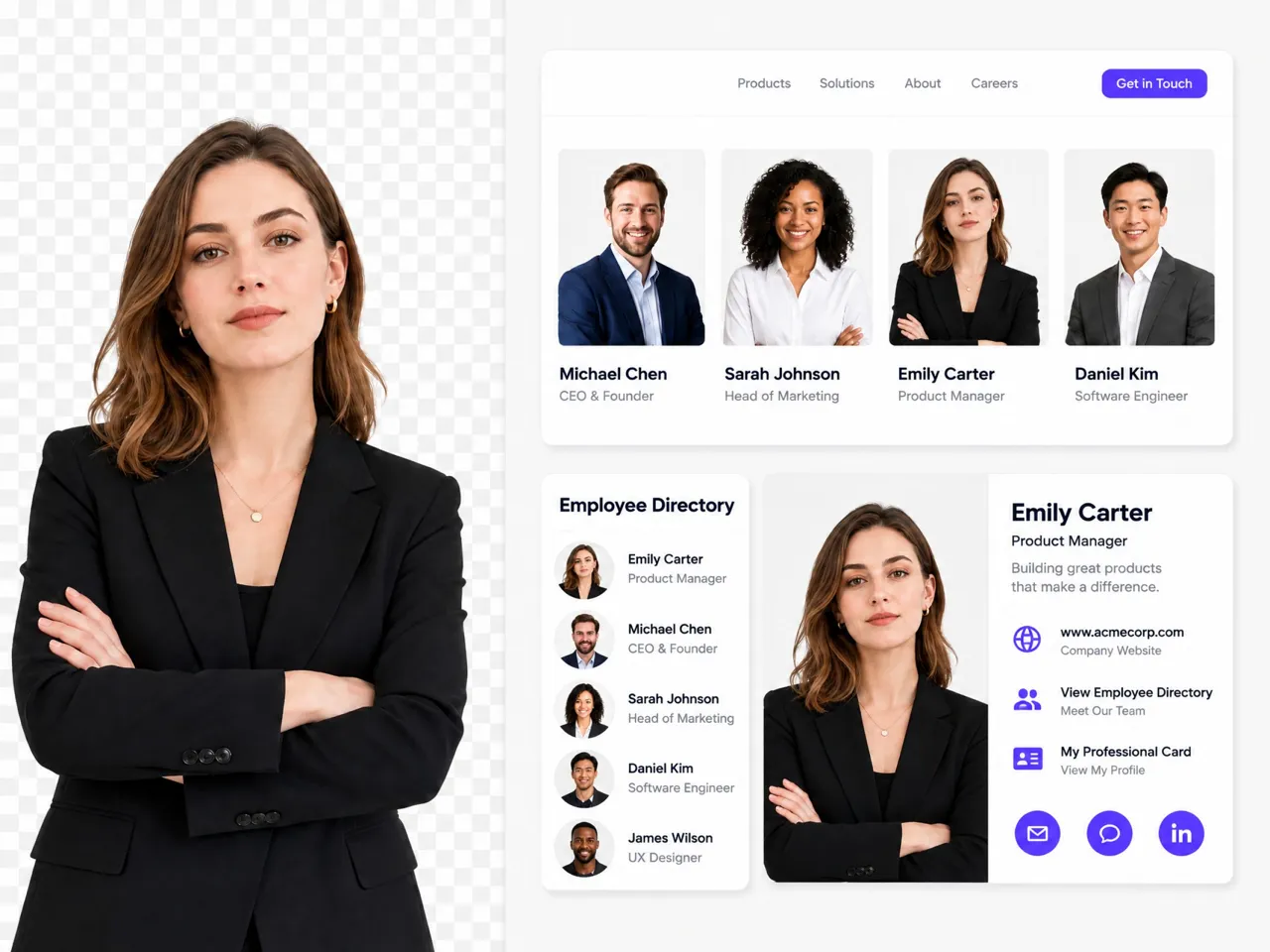
Bulk Upload supports up to 30 images at once. This can make it easier to create transparent backgrounds for product catalogs, employee profiles, campaign materials, or other projects that involve larger photo sets.
Which image formats does RoboNeo support?
RoboNeo supports JPG, JPEG, and PNG image uploads. After the background has been removed, you can download the finished image as a transparent PNG for use in compatible e-commerce, presentation, marketing, and design tools.
Do I need to trace the subject manually?
No. RoboNeo automatically identifies the main subject and separates it from the surrounding area, so you do not need to trace the outline by hand. Reviewing the finished image is still recommended when the photo contains fine details or a complex background.
Why should I download PNG instead of JPEG?
PNG supports transparent backgrounds, making it suitable for product cutouts, logos, stickers, and layered designs. JPEG does not support transparency, so transparent areas cannot be preserved when saving an image in this format. If you want to place your subject over different backgrounds without a solid rectangle around it, PNG is the better choice.
Is RoboNeo transparent background maker free ?
You can try RoboNeo using the free credits available to your account. Upload an image and use the background removal tool to create a transparent cutout. Each edit may use credits, so the number of images you can process for free depends on your remaining balance. If you need more credits, you can check RoboNeo's pricing plans for additional options.
Ready to Make the Background Transparent?
Upload a single image or a batch of images to RoboNeo. Preview the cutouts, then download your images as transparent PNGs or continue editing by adding a new background colour or AI-generated scene.
What Users Say About RoboNeo Cutouts
I needed cleaner product images, but reshooting everything would have taken too long. Removing the original backgrounds gave me flexible cutouts that I could place on the layouts already used across my store.
Fine edges usually take the most time when I prepare an image for a new design. RoboNeo gave me a useful starting point, so I could spend more time adjusting the layout instead of tracing the subject.
We often reuse the same product photo for ads, social posts, and presentations. Having a transparent version makes that much easier because the subject can move between different campaign designs.
I wanted to use a portrait in several thumbnail styles without keeping the room behind me. The cutout was easy to reuse, and I could test different colors without editing the original photo each time.
I do not use professional editing software, so I needed something straightforward. I uploaded the image, removed the background, and had a cleaner product photo ready for the next design.