
3D Animation Maker
Prompts, reference images, and existing clips can become 3D style animated videos with the RoboNeo 3D animation maker. Develop characters, plan shots, guide movement, add synchronized audio, and revise individual scenes on one visual canvas. No traditional modeling, rigging, or keyframe animation experience is required.
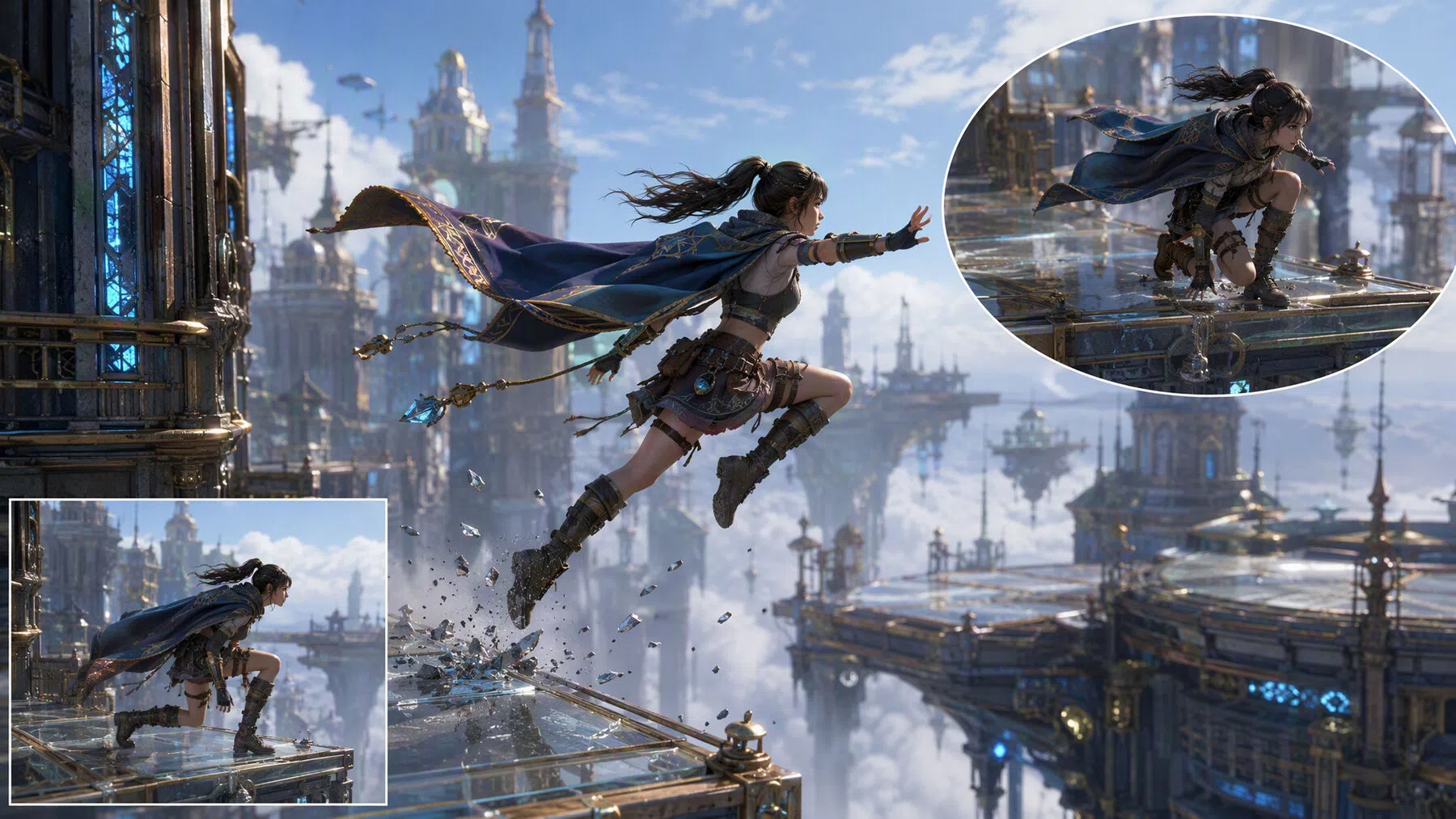
How to Make 3D Animation with RoboNeo
Describe the Animation
Enter a prompt covering the character, setting, action, and visual style you want. Images, videos, and audio files can also be uploaded to provide the 3D Animation Maker with clearer references for the scene or movement.
Build the Visual Assets
Generate characters, settings, and props from your prompt or uploaded files. Before generation, choose the image model, aspect ratio, resolution, and number of results. Add your preferred assets to the Visual Canvas for the next stage.
Set the Movement
Pair a character image with a reference video when the animation calls for a particular action or performance. Starting and ending frames can also be connected to create a continuous transition between two visual states.
Choose the Video Settings
Select the video model, clip duration, resolution, and aspect ratio. These settings can be adjusted for vertical social videos, horizontal presentations, square posts, and other publishing formats before the animation is generated.
Review and Download
Check each generated clip on the Visual Canvas. If something feels off, revise the prompt, replace a reference, or adjust the movement and settings without restarting the entire project. Download the approved clips when they are ready.
More Control over 3D Style Animation
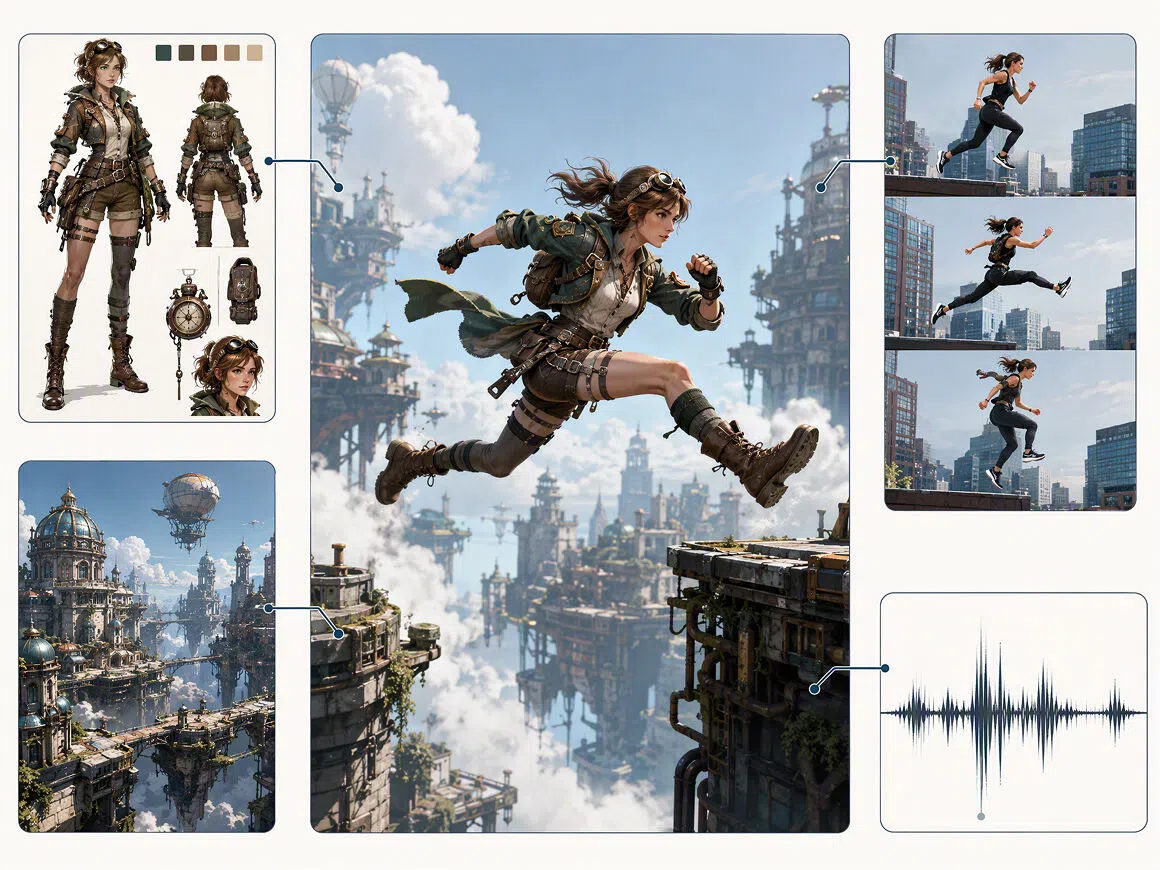
Multiple References for Clearer Visual Direction
Text prompts, images, video clips, and audio can contribute to the same animation. Keeping these references together on the Visual Canvas gives the 3D animation maker a clearer foundation for the character, setting, visual style, and intended movement.
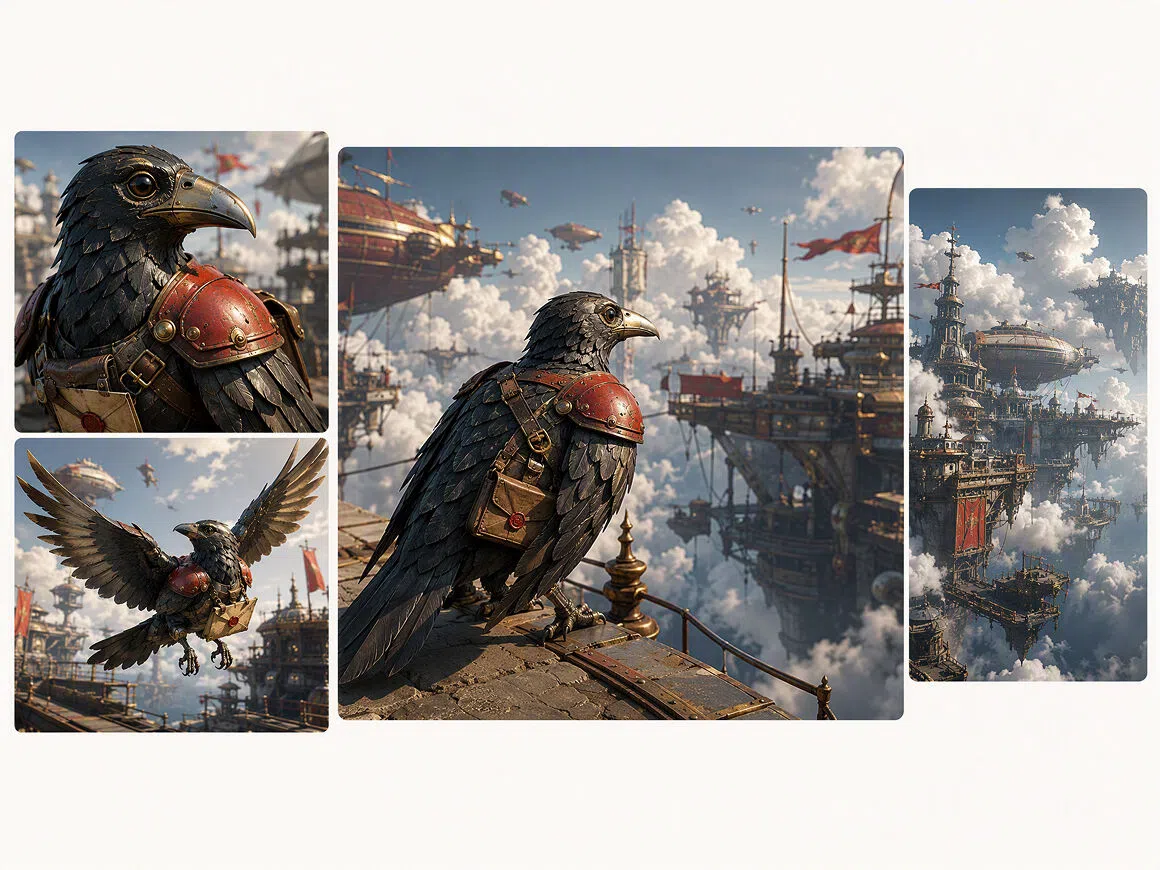
Flexible Settings Before Image Generation
The image model, aspect ratio, resolution, and output quantity can be selected before generation begins. These options make it easier to compare visual results and prepare assets that suit the composition, quality, and format required for a particular animation project.
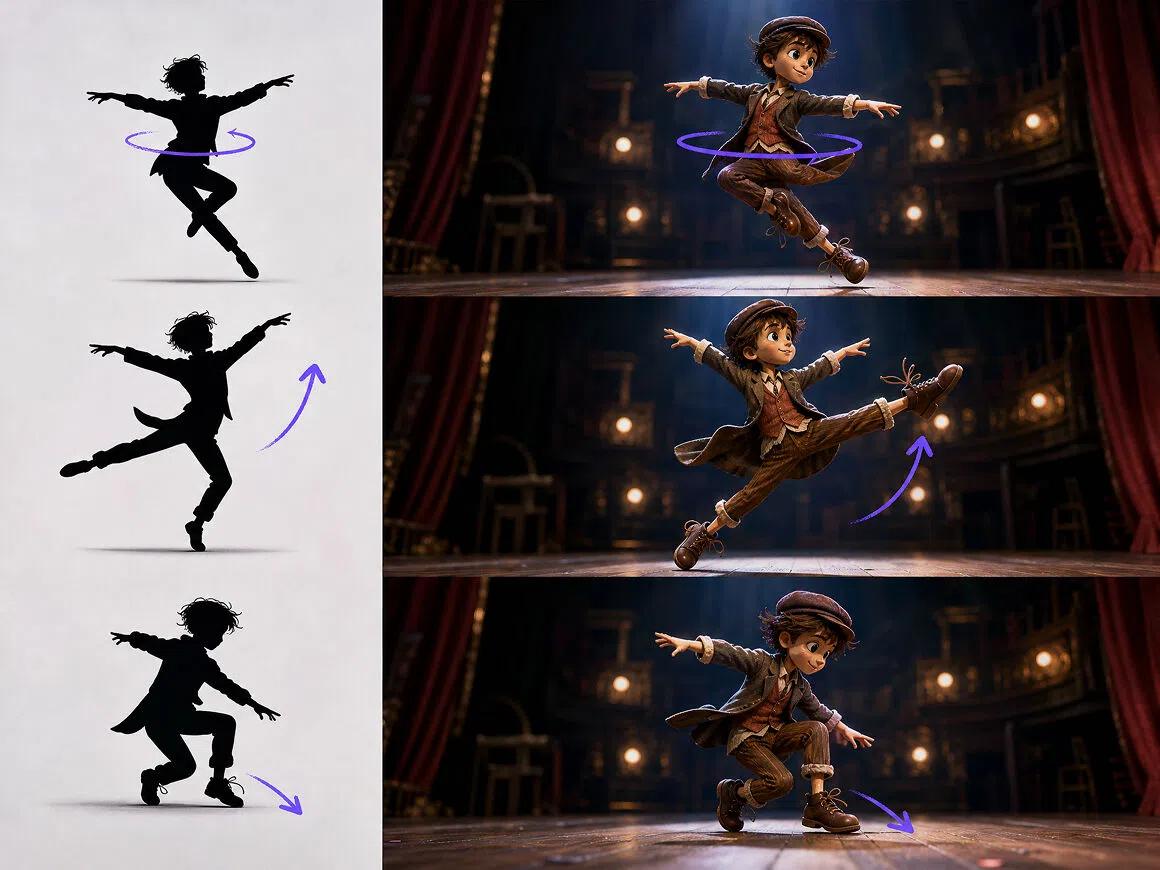
Movement Guided by Reference Footage
A character image can be paired with a reference video to guide a particular action or performance. Starting and ending frames offer another option by defining how the visual should change across a continuous transition, without requiring manual rigging or frame-by-frame keyframe animation.
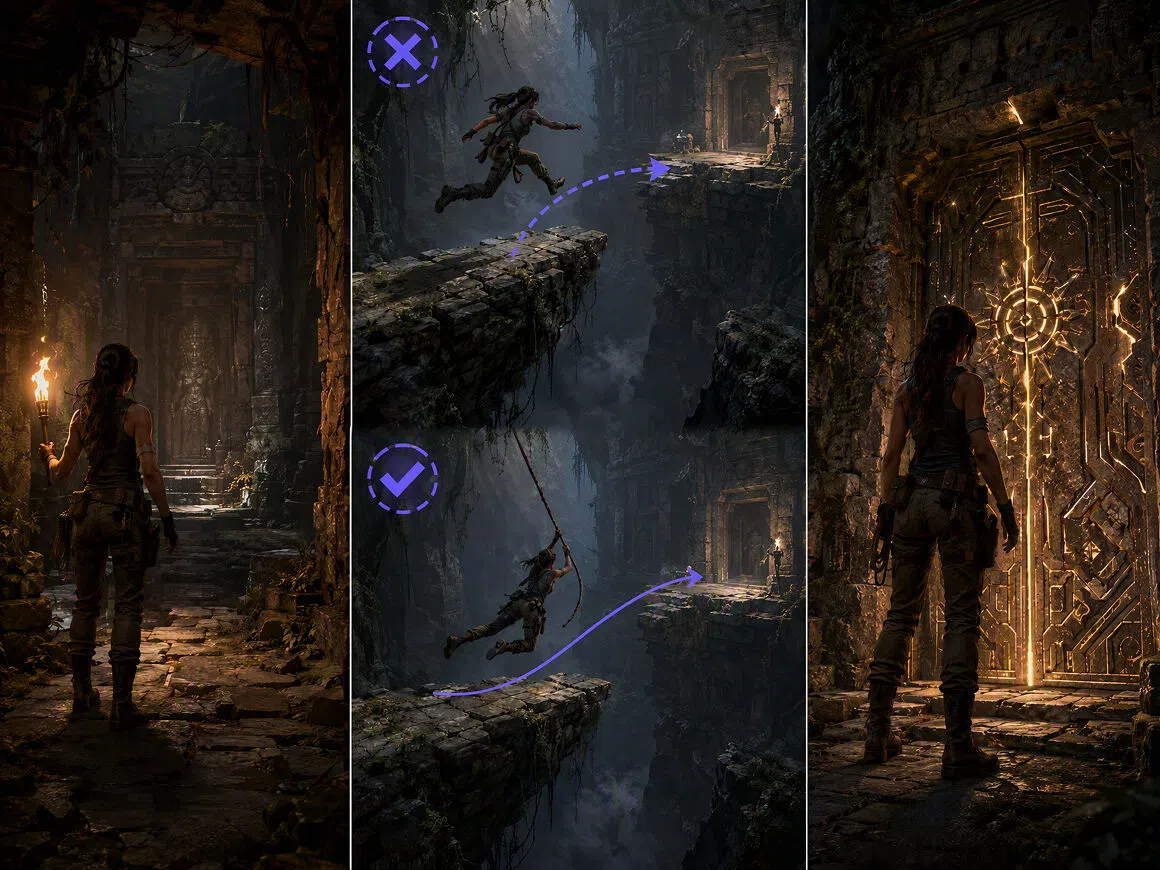
Focused Revisions on the Visual Canvas
Generated images, videos, audio, and reference files remain available on the Visual Canvas throughout the project. A single prompt, asset, movement reference, or clip can be changed independently, keeping revisions focused when only one part of the animation needs further work.
3D Animation for Stories, Products, and Social Media
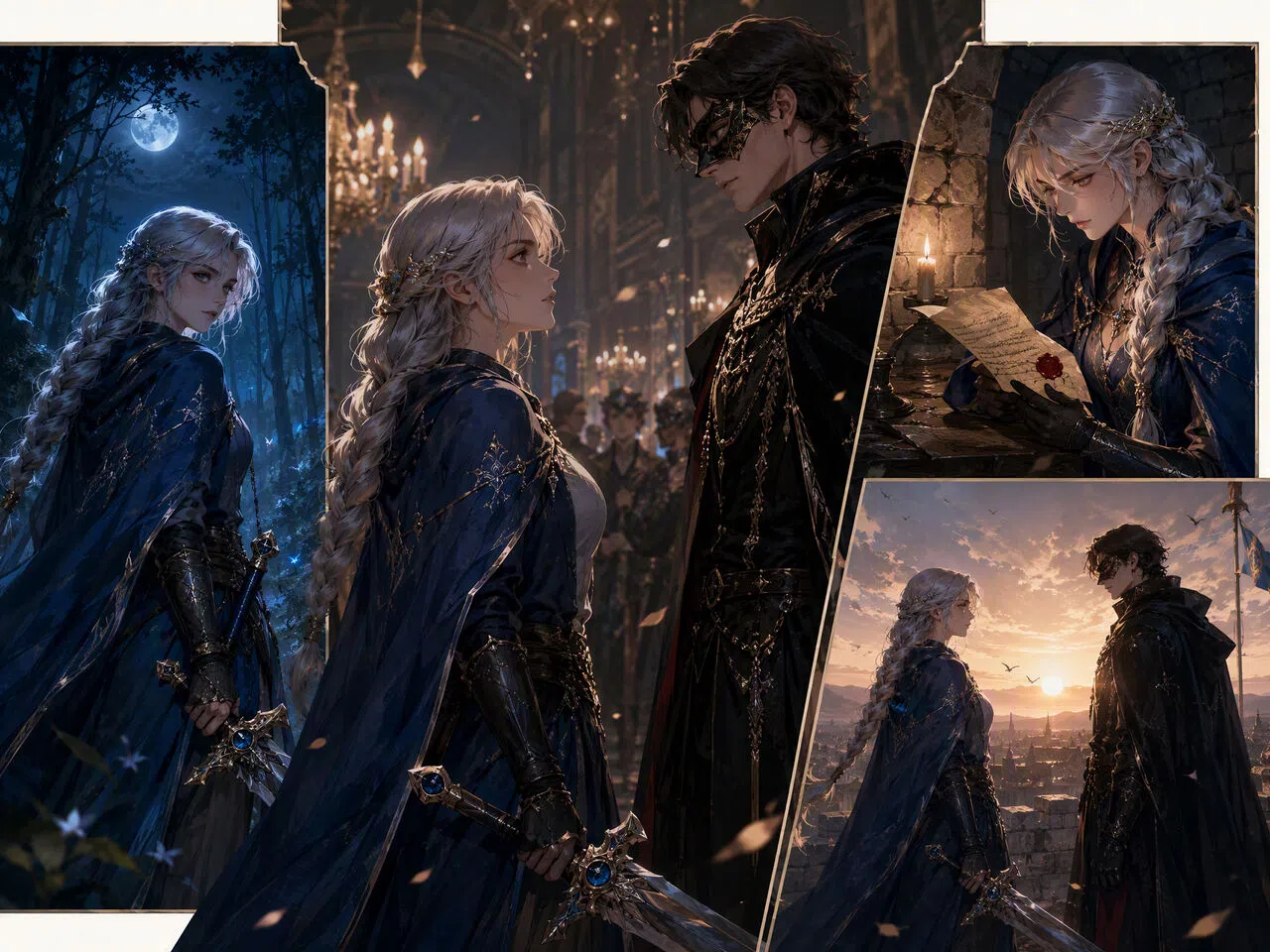
Short Dramas with Recurring Characters
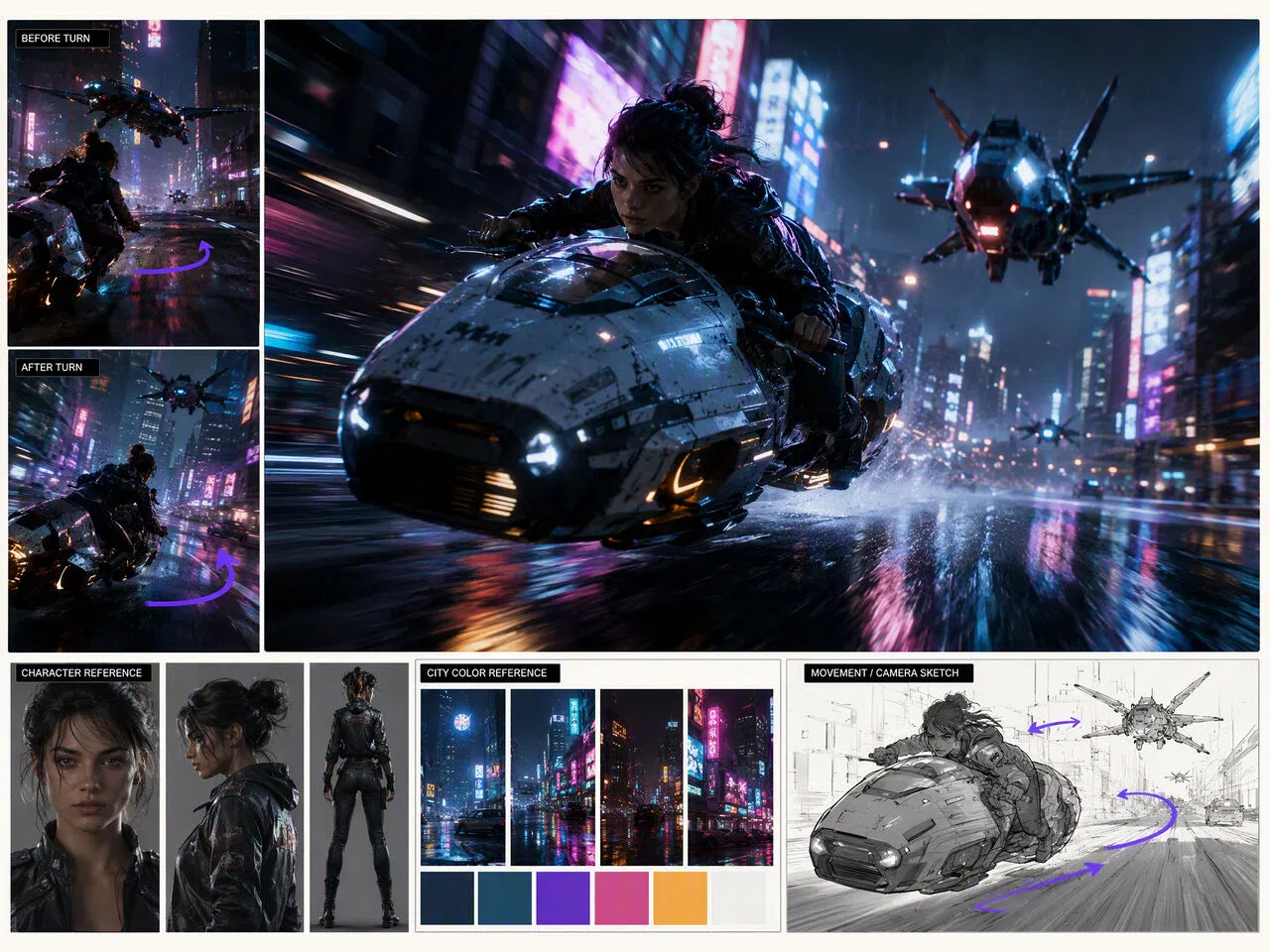
A fantasy romance could follow the same heroine from a candlelit ballroom to a moonlit forest, while a futuristic mystery might keep its detective recognizable across apartments, city streets, and underground labs. Reusing approved character images and visual references helps preserve faces, clothing, and other defining details from scene to scene.
Frequently Asked Questions
Can you animate a real picture?
Is making 3D animation easy?
AI makes 3D style animation easier because you do not have to model objects, rig characters, or animate every frame by hand. You will still need a clear prompt and may need a few revisions to get the movement, framing, and character details right. Starting with a high-quality reference image usually saves time.
Is 3D AI free?
Some 3D AI tools provide free credits, trial access, or a limited number of generations. RoboNeo offers free credits to help you get started, but the number of available generations may depend on the model, resolution, video length, and current plan. Check the latest usage limits before beginning a larger project.
What do I need for 3D animation?
To use the RoboNeo 3D animation maker, you need a clear idea, a written prompt, or a reference image. Include the character, setting, action, camera angle, and visual style you want. A reference video is also helpful when the character needs to follow a particular dance, gesture, or movement.
How do I create my own animations?
Start by entering a prompt or uploading an image you have permission to use. Generate the character and scene, define the movement, and select the video model, duration, resolution, and aspect ratio. Review the clip on the Visual Canvas, adjust any details that feel off, and download the finished version once it matches your idea.
Is it possible to create an animation from a single still image?
A single still image can become a short animated clip with character movement, camera motion, or both. Upload a clear, high-resolution image to the 3D animation maker online and describe what should happen. Simple actions usually work best because large pose changes or hidden body parts may produce less consistent results.
3D Animation, Built Around Your Creative Direction
Characters, scenes, movement, and reference assets stay connected throughout the creative process. With the RoboNeo 3D Animation Maker, you can shape a short drama, product video, campaign concept, or social clip and refine each element in one visual workspace.
What Users Say About the 3D Animation Maker
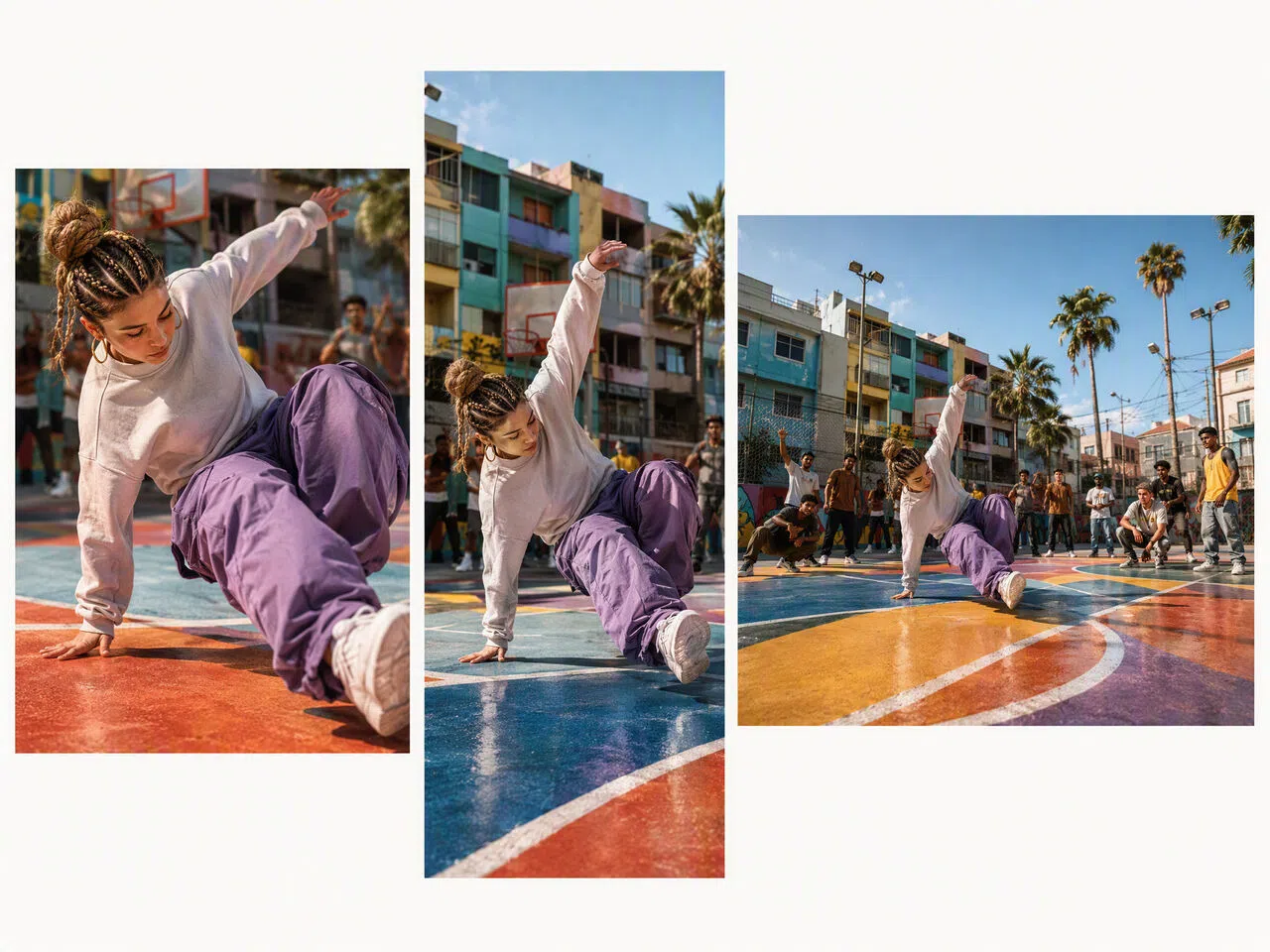
I started with one character image and a dance reference, then adjusted the movement until it matched the style I wanted. Having the images, clips, and revisions on the same canvas made the whole process much easier to follow.
The biggest help was changing one shot without starting the entire sequence again. I used it to test a 3D style chase scene, revise the camera direction, and put together a much stronger concept video for my pitch.
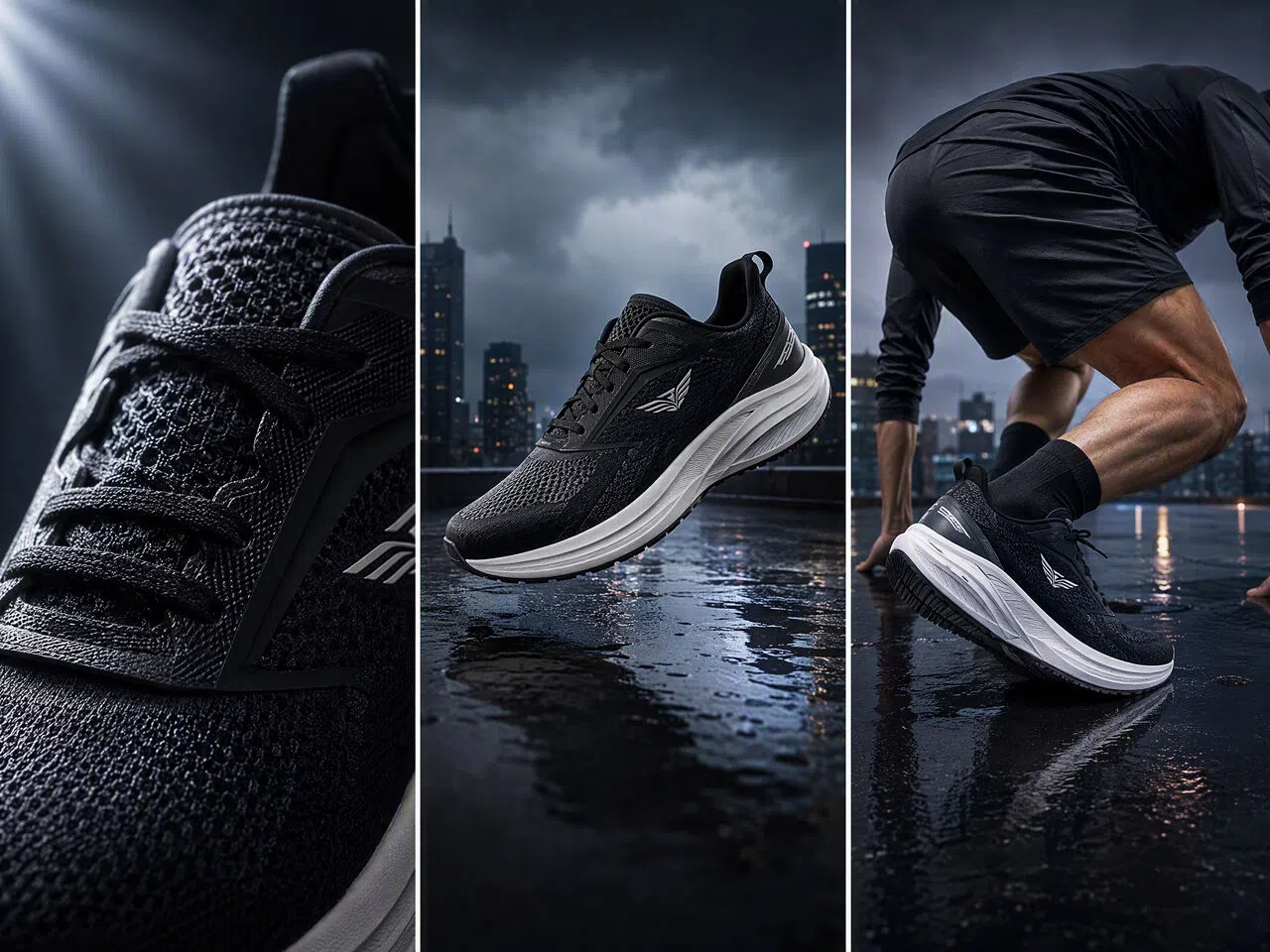
I needed several versions of an animated product post in different formats. The 3D animation maker carried the same visual direction into vertical and horizontal clips, so the campaign felt consistent across every platform.