
How to Use RoboNeo CLI
RoboNeo command-line tool can be used independently in the terminal, or it can call RoboNeo capabilities through Lobster to implement local capabilities such as conversing with AI Agents, creating chat rooms, and downloading results.
Requirements
- Node.js >= 18
- npm
Installation
Install globally to use roboneo from any directory:
npm install -g roboneo-cli
The package name is roboneo-cli, and the executable command is roboneo.
For local development, run npm run build:pre from the repository root, then use npm start or node bin/roboneo-cli.js.
Configuration
Required
After logging in, click your avatar and select "CLI Settings" to obtain your personal access token.
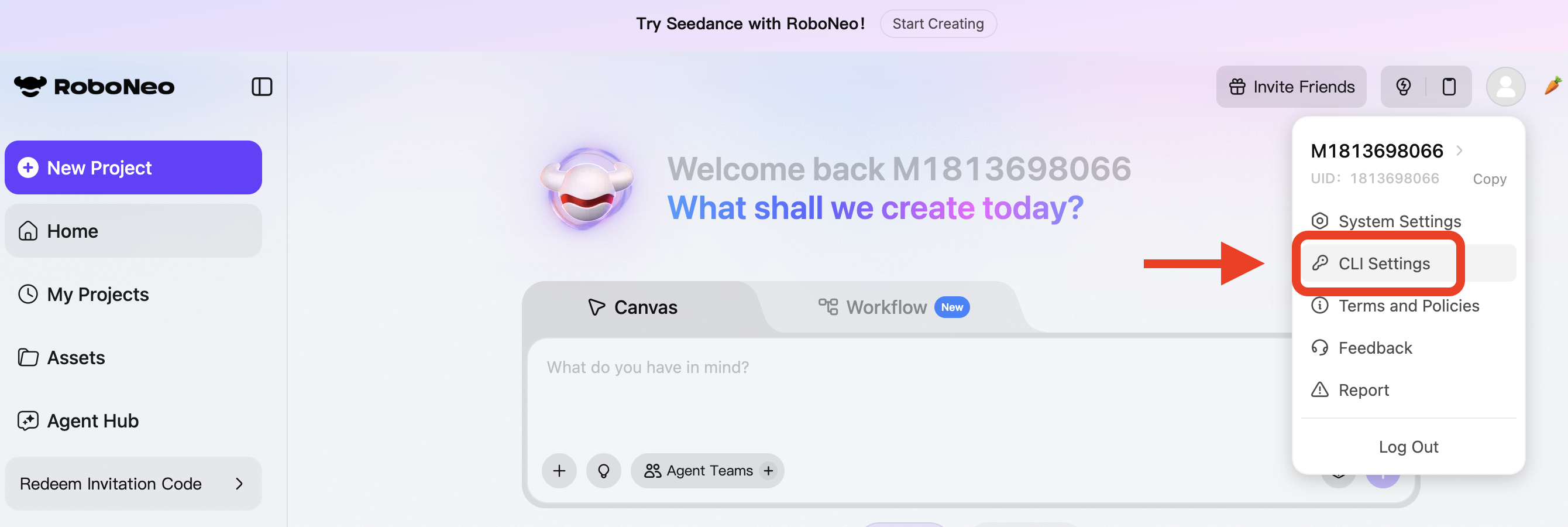 An access token is required and follows this priority: environment variable > credentials.json.
export ROBONEO_ACCESS_KEY="your-access-token"
You can also write it to the local credentials file at ~/.roboneo/credentials.json:
roboneo config access_token "<your-access-token>"
Commands that require authentication will fail if neither the environment variable nor the local credentials file is configured.
Global Options
roboneo --help
roboneo help
| Option | Description |
|---|---|
| -V, --version | Show version |
| -h, --help | Show help |
roboneo help prints a built-in compact English usage guide without depending on the README or skill files.
Command Overview
| Command | Description |
|---|---|
| config access_token <token> | Write access_token to local credentials.json |
| config list | Show current CLI-related config with masked token output |
| user-info | Fetch user info for the current token and print JSON to stdout |
| create-room | Create a new room, update local state, and print JSON |
| chat | Send a message to a room and return immediately; creates a room automatically when needed; supports single and team modes |
| reply | Reply to an AI follow-up (request) or select options (option_request), then return immediately |
| history | Fetch room history list as JSON |
| history-detail | Fetch room details by room ID, with support for incremental polling |
| download | Download generated outputs such as images and videos to local files |
Usage Notes
- Start by sending a message with chat
- Then use history-detail to retrieve updates and results
- If next_action.action is recharge, show next_action.extra.recharge.content and direct the user to next_action.extra.recharge.url; after the recharge is complete, continue with a new chat
- If next_action.action is reply, continue with reply
- Generated outputs are listed under artifacts and can be saved locally with download
Common Examples
Show current config with a masked token:
roboneo config list
Validate the token if needed:
roboneo user-info
Create a room and start chatting:
roboneo create-room
roboneo chat -p "Hello, introduce yourself."
Chat directly and auto-create a room if needed:
roboneo chat -p "Help me generate a milk tea poster"
Create a team room and chat in team mode:
roboneo create-room --mode team
roboneo chat -p "Help me generate an image and a video" --mode team
Chat in a specific room:
roboneo chat -p "Continue the previous topic" --room-id "<room_id>"
Check for updates and results:
# Full fetch (single/team mode is detected automatically)
roboneo history-detail -r "<room_id>"

# Incremental fetch (returns only messages with seq > N)
roboneo history-detail -r "<room_id>" --after-seq 3
Respond to AI follow-up requests while using history-detail to monitor updates:
# Reply to a follow-up prompt
roboneo reply -r "<room_id>" --last-request-id BLOCK_xxx -p "Provide the requested details"

# Reply with an attachment
roboneo reply -r "<room_id>" --last-request-id BLOCK_xxx -p "Use this image" --image-file ./photo.png

# Reply to an option_request by selecting options
roboneo reply -r "<room_id>" --last-request-id BLOCK_xxx -p "" --select-option-ids '[["opt_1"]]'

# Reply in team mode
roboneo reply -r "<room_id>" --mode team --task-id TASK_ID --sub-task-id SUB_TASK_ID --last-request-id BLOCK_xxx -p "Provide the requested details"
Download assets:
# Download all room assets to the current directory
roboneo download -r "<room_id>"

# Specify an output directory
roboneo download -r "<room_id>" -o ./output
Subcommand Details
create-room
| Option | Description |
|---|---|
| --mode <mode> | single or team, default is single |
chat
| Option | Required | Description |
|---|---|---|
| -p, --prompt <prompt> | Yes | Prompt to send |
| --mode <mode> | single or team, default is single | |
| --lang <lang> | Language code, default zh-Hans. Supported values: zh-Hans, zh-Hant, en, pt, ja, es, kor, vi, th, de | |
| --room-id <roomId> | Target room ID. By default, the CLI uses the most recently created room; if none exists, a room is created automatically | |
| --image-url <url...> | Image URLs (jpg, jpeg, png); up to 10 images, or up to 2 when a video is also attached | |
| --image-file <path...> | Local image paths (jpg, jpeg, png); each file must be <= 20 MB and is uploaded before the message is sent | |
| --video-url <url...> | Video URLs (mp4, mov); at most 1 file | |
| --video-file <path...> | Local video paths (mp4, mov); each file must be <= 500 MB and is uploaded before the message is sent | |
| --file-url <url...> | File URLs (xls, xlsx, doc, docx, txt, pdf, mp3, wav, csv, md); at most 1 file | |
| --file <path...> | Local file paths (xls, xlsx, doc, docx, txt, pdf, mp3, wav, csv, md); documents must be <= 10 MB, audio <=500 MB, and files are uploaded before the message is sent |
reply
| Option | Required | Description |
|---|---|---|
| -r, --room-id <roomId> | Yes | Room ID |
| --last-request-id <id> | Yes | Last request ID (BLOCK_xxx) returned by history-detail |
| -p, --prompt <prompt> | Yes | Reply text. This can be an empty string when you are only selecting options for an option_request |
| --mode <mode> | single or team, default is single | |
| --task-id <taskId> | Task ID, required in team mode | |
| --sub-task-id <subTaskId> | Sub-task ID in team mode | |
| --select-option-ids <json> | Selected option IDs as a JSON 2D array, for example '[["opt_1"]]' or '[["opt_1"],["opt_2"]]' | |
| --lang <lang> | Language code, default zh-Hans | |
| --image-url <url...> | Image URLs (jpg, jpeg, png) | |
| --image-file <path...> | Local image paths (jpg, jpeg, png) | |
| --video-url <url...> | Video URLs (mp4, mov) | |
| --video-file <path...> | Local video paths (mp4, mov) | |
| --file-url <url...> | File URLs (xls, xlsx, doc, docx, txt, pdf, mp3, wav, csv, md) | |
| --file <path...> | Local file paths |
history-detail
| Option | Required | Description |
|---|---|---|
| -r, --room-id <roomId> | Yes | Room ID |
| --after-seq <n> | Return only messages where seq > n for incremental polling |
Common fields in history-detail:
- next_action: the next step to take
- poll: processing is still in progress; keep polling
- recharge: the user must recharge first; extra.recharge.url is WEB_URL + /home?modal=purchase, and extra.recharge.content is the message to display. After recharging, continue with a new chat
- reply: user input or option selection is required
- done: the interaction is complete
- artifacts: generated outputs
- items: conversation and process messages
- max_seq: use this value in the next incremental request with --after-seq
Example recharge response:
{
  "next_action": {
    "action": "recharge",
    "items": [{ "type": "guide_purchase", "content": "Insufficient credits. Upgrade membership to continue." }],
    "extra": {
      "recharge": {
        "url": "https://pre.roboneo.com/home?modal=purchase",
        "content": "Insufficient credits. Upgrade membership to continue."
      }
    }
  }
}
The actual value of extra.recharge.url depends on the environment and is derived from WEB_URL.
download
| Option | Required | Description |
|---|---|---|
| -r, --room-id <roomId> | Yes | Room ID whose generated outputs should be downloaded |
| -o, --output-dir <dir> | Output directory, default is the current directory |
Attachment Rules
- Images and videos can be combined, up to 2 images plus 1 video
- If no video is attached, up to 10 images are supported
- At most 1 file is supported
- Files cannot be used together with images or videos
- URLs and local paths can be mixed within the same attachment type
- Attachment type is inferred from the file extension for both URLs and local paths
- File size limits: images <= 20 MB, videos <=500 MB, audio <=500 MB, other files <=10 MB
Attachment examples:
roboneo chat -p "Analyze these images" \
  --image-url https://example.com/a.jpg https://example.com/b.png
roboneo chat -p "Analyze these inputs" \
  --image-url https://example.com/a.jpg \
  --image-file ./local.png
roboneo chat -p "Analyze this video with two images" \
  --video-file ./demo.mp4 \
  --image-file ./a.png ./b.jpg
roboneo chat -p "Summarize this document" \
  --file ./spec.pdf
Recommended Flow
- Set ROBONEO_ACCESS_KEY
- Optionally confirm the token with user-info or config list
- Start a conversation with chat -p "your question"; the CLI creates a room automatically when needed, or you can run create-room first
- Use history-detail -r ROOM_ID to retrieve updates and results
- If next_action is recharge, ask the user to recharge first, then resume with a new chat
- If next_action is reply, use reply to answer the follow-up or select options
- If next_action is poll or reply, continue calling history-detail until next_action becomes done
- Use download -r ROOM_ID -o ./output to save generated outputs locally
- Use history or history-detail to review previous conversations when needed
Local State
create-room and chat when it creates a room automatically store room-related state in ~/.roboneo/storage.json. By default, chat uses the most recently created room and creates one automatically if none exists. You can override this behavior with --room-id.
License
MIT